# Angular
> Display documents in an Angular app with the tx-ds-document-viewer component: import DocumentViewerModule and HttpClientModule and call loadDocument.
- **Product:** DS Server
- **Section:** Documentation
- **Kind:** Topic
- **Path:** DS Server > Getting Started > Document Viewer > Angular
- **2138 words**
- **Web URL:** https://docs.textcontrol.com/ds-server/getting-started/document-viewer/angular/
- **LLMs URL:** https://docs.textcontrol.com/ds-server/getting-started/document-viewer/angular/llms.txt
- **LLMs-Full URL:** https://docs.textcontrol.com/ds-server/getting-started/document-viewer/angular/llms-full.txt
---
Angular applications display documents with the `tx-ds-document-viewer` component of the npm package `@txtextcontrol/tx-ng-ds-document-viewer`. The component requests an access token from DS Server, loads the viewer from there and shows the document you pass to it. You prepare a security profile, create the application, add the component and load another document from TypeScript when the viewer is ready.
### Prerequisites
- [Node.js](https://nodejs.org/en/download/) and npm.
- The Angular CLI 19. To install it globally, open a command prompt and run:
```bash
npm install -g @angular/cli@19
```
The steps were written with Angular CLI 19 and [Visual Studio Code](https://code.visualstudio.com/). The package supports Angular 19 to 21. A newer Angular CLI creates applications with different file names, so install version 19 to follow the steps.
- A DS Server that is installed, licensed and reachable from the browser, as the [Installation Guide](https://docs.textcontrol.com/ds-server/installation/llms-full.txt) and [Licensing](https://docs.textcontrol.com/ds-server/administration/licensing/llms-full.txt) describe. The samples use `http://localhost:5000`. With a trial token instead, skip the next section, use `https://trial.dsserver.io` as the service URL and the client ID and secret of the token; see [Trial Token](https://docs.textcontrol.com/ds-server/getting-started/trial-token/llms-full.txt).
### Prepare a Security Profile
With `oauthClientID` and `oauthClientSecret`, the component requests its token from the browser with the client credentials grant type, which the security profile must allow. If you created a profile for the [Document Editor in Angular](https://docs.textcontrol.com/ds-server/getting-started/document-editor/angular/llms-full.txt), use it. Otherwise:
1. In the admin portal of DS Server, choose **Security Profiles**, click **+ Create new profile**, enter a name and click **Create**.
2. Copy the **Client ID** and the **Client Secret** of the new profile.
3. Switch on **Allow "Client Credentials" grant type**, which is off by default, and click **Done**.
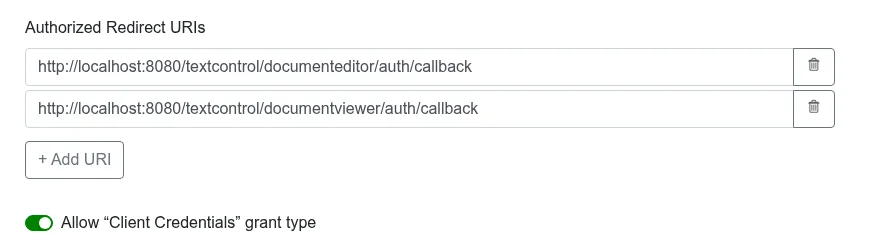
The client credentials are visible to anyone who opens the page. Use them for development, and in production pass a token your server requested to the `accessToken` attribute, as [Use an Access Token](https://docs.textcontrol.com/ds-server/getting-started/document-editor/angular/#use-an-access-token) shows for the editor.
### Create the Angular Application
1. Open a command prompt and create a new project with a root module:
```bash
ng new my-ds-viewer-app --no-standalone
```
Select **CSS** as the stylesheet format and answer **N** to disable server-side rendering and static site generation.
2. Change to the project folder:
```bash
cd my-ds-viewer-app
```
3. Add the Document Viewer package with the Angular CLI:
```bash
ng add @txtextcontrol/tx-ng-ds-document-viewer
```
Confirm the installation with **Y**. `ng add` installs the package and imports two modules into *src/app/app.module.ts*: `DocumentViewerModule`, which declares the component, and `HttpClientModule`, which the component uses to request its access token. Because the component is declared in a module, the project is created with `--no-standalone`.
4. Open the folder in Visual Studio Code:
```bash
code .
```
After `ng add`, *src/app/app.module.ts* looks like this:
```typescript
import { NgModule } from '@angular/core';
import { BrowserModule } from '@angular/platform-browser';
import { AppRoutingModule } from './app-routing.module';
import { AppComponent } from './app.component';
import { DocumentViewerModule } from '@txtextcontrol/tx-ng-ds-document-viewer';
import { HttpClientModule } from '@angular/common/http';
@NgModule({
declarations: [
AppComponent
],
imports: [
BrowserModule,
AppRoutingModule,
DocumentViewerModule,
HttpClientModule
],
providers: [],
bootstrap: [AppComponent]
})
export class AppModule { }
```
### Add the Viewer Component
Open *src/app/app.component.html*, replace its complete content with the following code and save the file. Replace the service URL, the client ID and the client secret with your values.
```html
```
`width`, `height` and `serviceURL` are required. `documentData` is the document as a Base64-encoded string, here the text "Hello there", and `documentPath` the name the viewer displays. [Angular](https://docs.textcontrol.com/ds-server/client-libraries/angular/#tx-ds-document-viewer) in Client-Side Libraries lists every attribute, including `dock`, `showThumbnailPane` and the `signatureSettings` for a signing process.
### Run the Application
In the command prompt, start the application:
```bash
ng serve --open
```
The browser opens the application, and the Document Viewer shows the text "Hello there" with its toolbar and thumbnail pane.
### Load a Document With TypeScript
The component loads the viewer script at run time. When it has initialized the viewer, it fires the `dsDocumentViewerLoaded` event on the `document` object, and the global [`TXDocumentViewer`](https://docs.textcontrol.com/ds-server/reference/javascript-document-viewer/txdocumentviewer/llms-full.txt) object exists from then on. Open *src/app/app.component.ts* and replace its complete content with the following code:
```typescript
import { Component, HostListener } from '@angular/core';
declare const TXDocumentViewer: any;
@Component({
selector: 'app-root',
templateUrl: './app.component.html',
standalone: false,
styleUrl: './app.component.css'
})
export class AppComponent {
@HostListener('document:dsDocumentViewerLoaded')
onDsDocumentViewerLoaded() {
// the TXDocumentViewer object exists from now on
TXDocumentViewer.loadDocument(btoa('Welcome to DS Server'), 'welcome.html');
}
}
```
After the application reloads, the viewer shows "Welcome to DS Server" instead of "Hello there".
- `declare const TXDocumentViewer: any;` makes the global object known to TypeScript.
- `@HostListener('document:dsDocumentViewerLoaded')` runs the method when the viewer is initialized.
- [`loadDocument`](https://docs.textcontrol.com/ds-server/reference/javascript-document-viewer/documentviewercontroller/loaddocument-method/llms-full.txt) displays a Base64-encoded document. The second parameter is the document name for the status bar.
### Troubleshooting
- **"DS Server is not registered."** On a DS Server without a license, this message appears in red instead of the viewer. Register the server in the admin portal, as [Licensing](https://docs.textcontrol.com/ds-server/administration/licensing/llms-full.txt) describes.
- **An error in the browser console that names `unsupported_grant_type`:** the security profile doesn't allow the client credentials grant type. Switch it on, or pass an access token.
- **A `NullInjectorError` in the browser console and no viewer:** `HttpClientModule` is missing from the module that imports `DocumentViewerModule`. Add it as shown above.
[Document Editor and Viewer](https://docs.textcontrol.com/ds-server/troubleshooting/editor-viewer/llms-full.txt) in Troubleshooting covers more problems.
### Next Steps
- [Angular](https://docs.textcontrol.com/ds-server/client-libraries/angular/#tx-ds-document-viewer): every attribute of the viewer component, the load settings and the signature settings.
- [Document Viewer JavaScript API](https://docs.textcontrol.com/ds-server/reference/javascript-document-viewer/txdocumentviewer/llms-full.txt): annotations, forms, signatures and events.
- [Document Editor in Angular](https://docs.textcontrol.com/ds-server/getting-started/document-editor/angular/llms-full.txt): edit documents in the same application.
- [Supported File Formats](https://docs.textcontrol.com/ds-server/overview/file-formats/llms-full.txt): the formats the viewer displays.
---
## Nearby
- **Previous:** [ASP.NET Core](https://docs.textcontrol.com/ds-server/getting-started/document-viewer/aspnet-core/llms-full.txt)
- **Next:** [React](https://docs.textcontrol.com/ds-server/getting-started/document-viewer/react/llms-full.txt)