# ASP.NET Core
> Display documents in an ASP.NET Core MVC Razor view with the DocumentViewer NuGet package of DS Server: redirect URI, BasePath, DocumentData and loadDocument.
- **Product:** DS Server
- **Section:** Documentation
- **Kind:** Topic
- **Path:** DS Server > Getting Started > Document Viewer > ASP.NET Core
- **2998 words**
- **Web URL:** https://docs.textcontrol.com/ds-server/getting-started/document-viewer/aspnet-core/
- **LLMs URL:** https://docs.textcontrol.com/ds-server/getting-started/document-viewer/aspnet-core/llms.txt
- **LLMs-Full URL:** https://docs.textcontrol.com/ds-server/getting-started/document-viewer/aspnet-core/llms-full.txt
---
In an ASP.NET Core MVC application, the NuGet package `TXTextControl.DocumentServices.DocumentViewer` adds the Document Viewer of DS Server to a Razor view. DS Server renders the document, and the browser displays it with a toolbar, page thumbnails, text search, annotations and signature fields. You create a security profile, build the application, register its redirect URI and pass a document to the viewer from C#.
### Prerequisites
- Visual Studio 2026 with the .NET 10 SDK. The package targets .NET 8 and .NET 10.
- A DS Server that is installed, licensed and reachable from your development machine, as the [Installation Guide](https://docs.textcontrol.com/ds-server/installation/llms-full.txt) and [Licensing](https://docs.textcontrol.com/ds-server/administration/licensing/llms-full.txt) describe. The samples use `http://localhost:5000`.
- Access to the admin portal of that DS Server.
With a trial token instead of your own server, skip the security profile and read [Use a Trial Token](#use-a-trial-token) below. [Trial Token](https://docs.textcontrol.com/ds-server/getting-started/trial-token/llms-full.txt) explains how to get one.
### Create a Security Profile
The viewer gets its access token for a *security profile*, the client ID and client secret the admin creates for an application. If you already created a profile for the [Document Editor tutorial](https://docs.textcontrol.com/ds-server/getting-started/document-editor/aspnet-core/llms-full.txt), use it and continue with the next section.
1. Open the admin portal of DS Server and sign in as the admin.
2. Choose **Security Profiles** from the main menu and click **+ Create new profile**.
3. Enter a name for the profile, such as *MyViewerProject*, and click **Create**.
4. Copy the **Client ID** and the **Client Secret** that the **Edit Security Profile** page shows, then click **Done**.
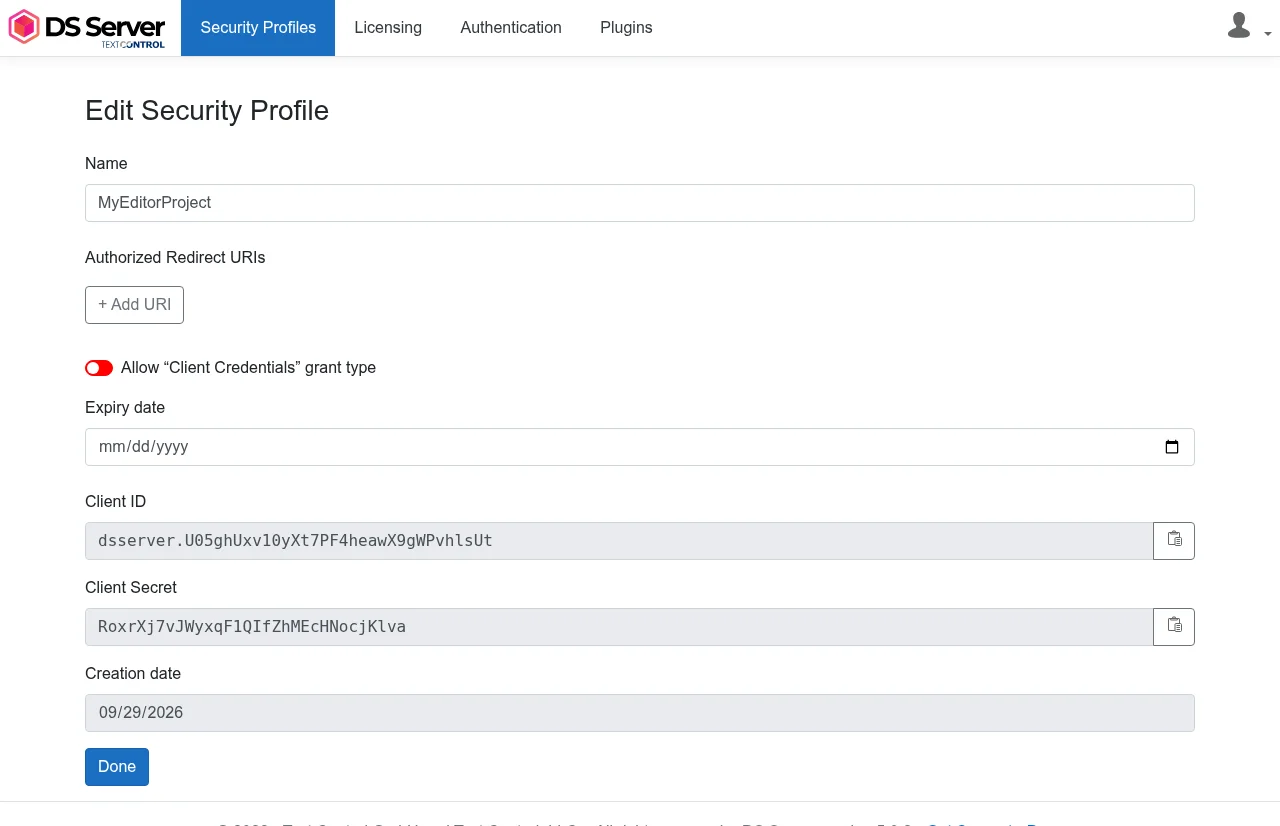
[Creating Security Profiles](https://docs.textcontrol.com/ds-server/administration/security-profiles/llms-full.txt) describes the profile settings.
### Create the Project
1. In Visual Studio 2026, choose **Create a new project**.
2. Select **ASP.NET Core Web App (Model-View-Controller)** as the project template and confirm with **Next**.
3. Enter a project name, choose a location and confirm with **Next**.
4. Choose **.NET 10.0 (Long Term Support)** as the **Framework** and create the project.
With the .NET CLI, create the project and change to its folder:
```bash
dotnet new mvc -n MyViewerApp -f net10.0
cd MyViewerApp
```
### Install the NuGet Package
1. In **Solution Explorer**, select your project and choose **Manage NuGet Packages...** from the **Project** menu.
2. Select **nuget.org** as the package source.
3. Search for `TXTextControl.DocumentServices.DocumentViewer` and install version 5.0.0, the version for DS Server 5.0.
With the .NET CLI, run this command in the project folder:
```bash
dotnet add package TXTextControl.DocumentServices.DocumentViewer
```
*Program.cs* stays as the template created it.
### Add the Viewer to the View
Open *Index.cshtml* in the *Views/Home* folder and replace its complete content with the following code. Replace the service URL, the client ID and the client secret with your values, and `https://localhost:7143` with the HTTPS address of your project from *Properties/launchSettings.json*.
```cshtml
@using TXTextControl.DocumentServices.DocumentViewer
@using System.Text
```
#### What the View Does
- `@using TXTextControl.DocumentServices.DocumentViewer` imports the namespace of the HTML helper and of `DocumentViewerSettings`.
- `Html.TXTextControl().DocumentViewer()` creates the viewer with the settings of the lambda expression, and `RenderAsync()` writes it into the page.
- `DocumentData` is the document to display as a Base64-encoded string. Here, it is a short HTML string.
- `Dock` set to `DockStyle.Fill` makes the viewer fill the surrounding `div` element of 1000 by 600 pixels. `DockStyle.Window` would fill the browser window.
- `BasePath` is the address of DS Server. The viewer's property has a different name than the editor's `ServiceUrl`, but the value is the same. The browser loads the viewer scripts from this address, so it must be reachable from the browser.
- `OAuthSettings` holds the credentials of the security profile. With `RedirectUri`, the package requests the access token with the authorization code flow on your server. The page receives the access token and a refresh token, but not the client secret.
### Register the Redirect URI
Start the application with **F5** or `dotnet run`. Until the security profile lists the redirect URI, the page shows this message in place of the viewer:
```text
Authorization Error
Exception: OAuth access token request failed. Missing, invalid or mismatching redirection URI.
```
1. In the admin portal, choose **Security Profiles** and click the edit icon (**Edit profile**) of your profile.
2. Click **+ Add URI** and enter the HTTPS address of your project followed by `/textcontrol/documentviewer/auth/callback`, the same value as `RedirectUri`:
```text
https://localhost:7143/textcontrol/documentviewer/auth/callback
```
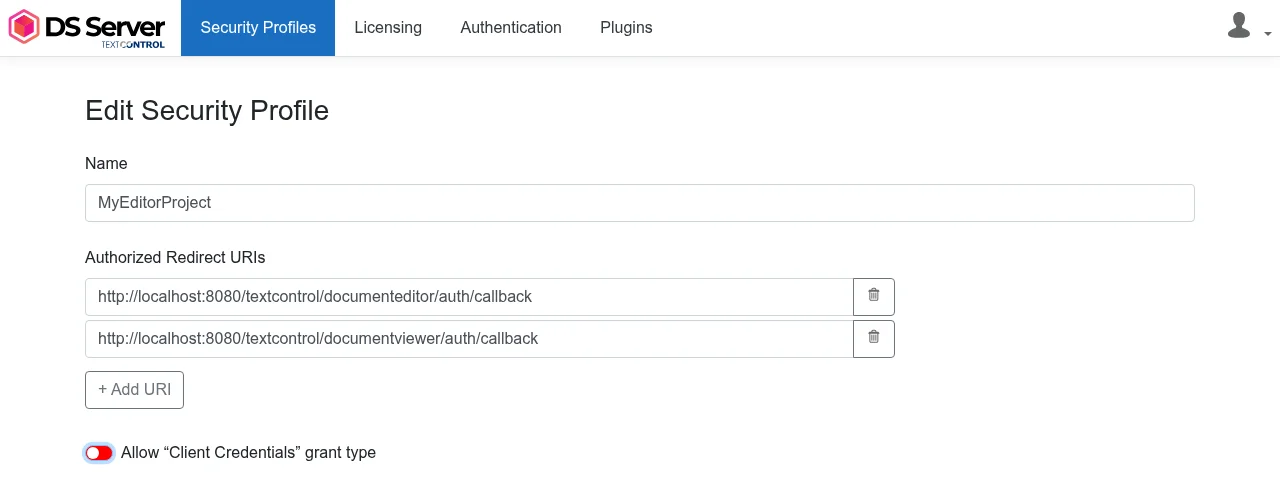
3. Click **Save**.
The Document Editor and the Document Viewer use different callback paths. A profile shared by both lists one URI for each.
### Run the Application
Refresh the page. The Home view shows the Document Viewer with its toolbar, the thumbnail pane and a page with the text "Welcome to DS Server".
### Load a Document From a File
To display a real document, create a folder named *App\_Data* in the project's root folder, copy a document such as *template.docx* into it and pass its bytes to `DocumentData`. `DocumentPath` sets the file name that the viewer displays. In *Index.cshtml*, replace the `div` element and its content with the following code:
```cshtml
@{
byte[] document = System.IO.File.ReadAllBytes("App_Data/template.docx");
}
```
In a real application, a controller usually loads the document, for example from a database, and passes it to the view in the view model. [Supported File Formats](https://docs.textcontrol.com/ds-server/overview/file-formats/llms-full.txt) lists the formats DS Server loads.
### Use the JavaScript API
In the browser, the viewer is controlled with the [`TXDocumentViewer`](https://docs.textcontrol.com/ds-server/reference/javascript-document-viewer/txdocumentviewer/llms-full.txt) object. For example, [`loadDocument`](https://docs.textcontrol.com/ds-server/reference/javascript-document-viewer/documentviewercontroller/loaddocument-method/llms-full.txt) replaces the displayed document with a Base64-encoded document and takes the displayed document name as its second parameter. Add a button and a script below the `div` element:
```html
```
### Use a Trial Token
With a trial token, leave out `RedirectUri` and set `BasePath` to the trial server `https://trial.dsserver.io`:
```cshtml
@using TXTextControl.DocumentServices.DocumentViewer
```
Without `RedirectUri`, the package requests the token with the client credentials grant type on your server. The trial profile allows it. With your own DS Server, the security profile needs **Allow "Client Credentials" grant type** switched on for this variant, as [OAuth Grant Types](https://docs.textcontrol.com/ds-server/administration/oauth-grant-types/llms-full.txt) describes. `SGVsbG8gdGhlcmU=` is the text "Hello there".
### Troubleshooting
- **"DS Server is not registered."** On a DS Server without a license, the page shows this message in red instead of the viewer. Register the server in the admin portal, as [Licensing](https://docs.textcontrol.com/ds-server/administration/licensing/llms-full.txt) describes.

- **"Authorization Error"** with `unsupported_grant_type`: the code has no `RedirectUri`, and the security profile doesn't allow the client credentials grant type. Add `RedirectUri` or switch the grant type on.
- **"Authorization Error"** with `The SSL connection could not be established`: during the authorization code flow, the package calls the HTTPS callback address of your own application, and your machine doesn't trust the ASP.NET Core development certificate. Trust it with `dotnet dev-certs https --trust`.
[Document Editor and Viewer](https://docs.textcontrol.com/ds-server/troubleshooting/editor-viewer/llms-full.txt) in Troubleshooting covers more problems.
### Next Steps
- [ASP.NET Core](https://docs.textcontrol.com/ds-server/client-libraries/aspnet-core/#document-viewer): every setting of the viewer package, including the signature settings.
- [Document Viewer JavaScript API](https://docs.textcontrol.com/ds-server/reference/javascript-document-viewer/txdocumentviewer/llms-full.txt): annotations, forms, signatures and events.
- [Document Editor in ASP.NET Core](https://docs.textcontrol.com/ds-server/getting-started/document-editor/aspnet-core/llms-full.txt): edit documents with the same security profile.
- [Supported File Formats](https://docs.textcontrol.com/ds-server/overview/file-formats/llms-full.txt): the formats the viewer displays.
---
## Nearby
- **Previous:** [Document Viewer](https://docs.textcontrol.com/ds-server/getting-started/document-viewer/llms-full.txt)
- **Next:** [Angular](https://docs.textcontrol.com/ds-server/getting-started/document-viewer/angular/llms-full.txt)