# JavaScript
> Display documents in a plain HTML page: request an access token, load the DS Server viewer script with it and call TXDocumentViewer.init and loadDocument.
- **Product:** DS Server
- **Section:** Documentation
- **Kind:** Topic
- **Path:** DS Server > Getting Started > Document Viewer > JavaScript
- **2839 words**
- **Web URL:** https://docs.textcontrol.com/ds-server/getting-started/document-viewer/javascript/
- **LLMs URL:** https://docs.textcontrol.com/ds-server/getting-started/document-viewer/javascript/llms.txt
- **LLMs-Full URL:** https://docs.textcontrol.com/ds-server/getting-started/document-viewer/javascript/llms-full.txt
---
A plain HTML page can display documents with the Document Viewer of DS Server, without a framework or an npm package. Unlike the editor script, the viewer script requires an access token already when the page loads it, so the page first requests a token and then loads the script and initializes the viewer with `TXDocumentViewer.init()`. The last section moves the token request to your server.
### Prerequisites
- A text editor, a web browser and a local web server to serve the page.
- A DS Server that is installed, licensed and reachable from the browser, as the [Installation Guide](https://docs.textcontrol.com/ds-server/installation/llms-full.txt) and [Licensing](https://docs.textcontrol.com/ds-server/administration/licensing/llms-full.txt) describe. The samples use `http://localhost:5000`.
- For [Keep the Client Secret on Your Server](#keep-the-client-secret-on-your-server): Visual Studio 2026 or the .NET 10 SDK.
With a trial token instead of your own server, skip the next section, use `https://trial.dsserver.io` as the service URL and the client ID and secret of the token; see [Trial Token](https://docs.textcontrol.com/ds-server/getting-started/trial-token/llms-full.txt).
### How the Page Works
The page runs three steps in order:
1. It requests an access token from `/oauth/token` with the client credentials grant type. DS Server expects the client ID and secret in an HTTP Basic authorization header.
2. It loads the viewer script from `/documentviewer/TextControl/GetResource?Resource=minimized.tx-viewer.min.js` and appends the token as the `access_token` query parameter. When OAuth is enabled, DS Server answers a request for the script without a valid token with the status code 401.
3. When the script is loaded, it calls `TXDocumentViewer.init()` with the ID of a container element and the viewer settings, including the token. From then on, the global [`TXDocumentViewer`](https://docs.textcontrol.com/ds-server/reference/javascript-document-viewer/txdocumentviewer/llms-full.txt) object controls the viewer.
The Angular and React packages of DS Server load the viewer the same way.
### Prepare a Security Profile
1. In the admin portal of DS Server, choose **Security Profiles**, click **+ Create new profile**, enter a name and click **Create**.
2. Copy the **Client ID** and the **Client Secret** of the new profile.
3. Switch on **Allow "Client Credentials" grant type** and click **Done**. It is off by default, and the token request of the page needs it.
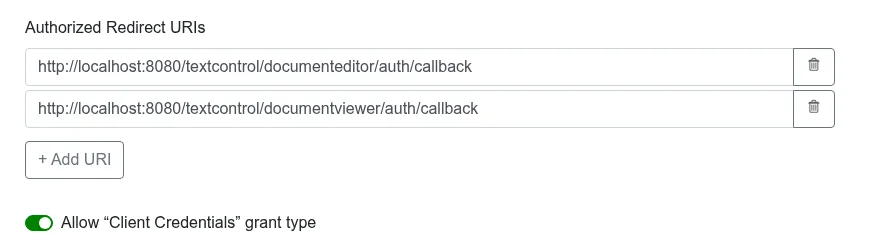
A page that contains the client secret shows it to every visitor. Use it for a first test only; the [last section](#keep-the-client-secret-on-your-server) removes it.
### Create the HTML Page
Create a file named *index.html* with the following content. Replace the service URL, the client ID and the client secret with your values.
```html
DS Server Document Viewer
```
#### What the Page Does
- The `div` with the ID `txViewer` is the container of the viewer. It needs an explicit width and height.
- `fetch()` posts `grant_type=client_credentials` to the token endpoint. The answer is a JSON object whose `access_token` the page passes on.
- `initViewer()` adds the viewer script to the page. Its `onload` handler runs when the script is loaded and the `TXDocumentViewer` object exists.
- `TXDocumentViewer.init()` creates the viewer in the element named by `containerID`. The `viewerSettings` are:
| Setting | Description |
|---|---|
| `basePath` | The service URL of DS Server followed by `/documentviewer` |
| `dock` | How the viewer is docked: `1` fills the container, `0` fills the browser window |
| `toolbarDocked` | Whether the toolbar is docked or floating |
| `isSelectionActivated` | Whether text can be selected and copied |
| `showThumbnailPane` | Whether the pane of page thumbnails is visible |
| `userNames` | The names of users who have access to editable regions |
| `documentData` | The document to display as a Base64-encoded string |
| `documentPath` | The document name the viewer displays |
| `oauthSettings` | The access token in `accessToken` |
The viewer also accepts `signatureSettings`, `documentLoadSettings` and `resources`, with the same meaning as the attributes of the [Angular component](https://docs.textcontrol.com/ds-server/client-libraries/angular/#tx-ds-document-viewer).
### Open the Page
Serve *index.html* from your local web server and open it in the browser. The page shows the Document Viewer with its toolbar, the thumbnail pane and a page with the text "Welcome to DS Server".
### Load a Document With JavaScript
After `init()`, [`TXDocumentViewer.loadDocument()`](https://docs.textcontrol.com/ds-server/reference/javascript-document-viewer/documentviewercontroller/loaddocument-method/llms-full.txt) replaces the displayed document. It takes the document as a Base64-encoded string and the document name for the status bar, and returns a promise. Add a button below the container and a function to the `script` element:
```html
```
```javascript
function loadOtherDocument() {
TXDocumentViewer.loadDocument(btoa("
Loaded with JavaScript
"), "loaded.html");
}
```
To display a file from your server, download it first, for example with `fetch`, and pass its Base64-encoded content. [`addEventListener`](https://docs.textcontrol.com/ds-server/reference/javascript-document-viewer/documentviewercontroller/addeventlistener-method/llms-full.txt) registers handlers for viewer events such as `documentLoaded` and `annotationsChanged`.
### Keep the Client Secret on Your Server
The page doesn't need the client secret if your server requests the token. The ASP.NET Core application in [Keep the Client Secret on Your Server](https://docs.textcontrol.com/ds-server/getting-started/document-editor/javascript/#keep-the-client-secret-on-your-server) of the Document Editor tutorial does this: its `/api/token` endpoint sends the client credentials to DS Server and returns the token, and it serves the HTML page from its *wwwroot* folder. Use the same application, save the viewer page as *wwwroot/index.html* and replace the `fetch()` call of step 1 and the three constants for the credentials with a request to the endpoint:
```javascript
const serviceURL = "http://localhost:5000";
// 1. Request an access token from your own server
fetch("/api/token")
.then(response => response.json())
.then(token => initViewer(token.access_token));
```
The `initViewer()` function stays as it is. Protect the endpoint the way you protect the rest of your application, because it gives a token to anyone who calls it.
### Troubleshooting
- **"DS Server is not registered."** On a DS Server without a license, the viewer script only writes this message in red at the top of the page, and the browser console shows `TXDocumentViewer is not defined`. Register the server in the admin portal, as [Licensing](https://docs.textcontrol.com/ds-server/administration/licensing/llms-full.txt) describes.

- **The script request answers 401:** the `access_token` query parameter is missing or the token isn't valid. A token is valid for the number of seconds that `expires_in` of the token response gives, 3600.
- **The token request answers 400 with `unsupported_grant_type`:** the security profile doesn't allow the client credentials grant type.
[Document Editor and Viewer](https://docs.textcontrol.com/ds-server/troubleshooting/editor-viewer/llms-full.txt) in Troubleshooting covers more problems.
### Next Steps
- [Document Viewer JavaScript API](https://docs.textcontrol.com/ds-server/reference/javascript-document-viewer/txdocumentviewer/llms-full.txt): annotations, forms, signatures and events.
- [JavaScript](https://docs.textcontrol.com/ds-server/getting-started/document-editor/javascript/llms-full.txt): add the Document Editor to a plain HTML page.
- [Overview](https://docs.textcontrol.com/ds-server/client-libraries/overview/llms-full.txt): the client libraries that do these steps for you.
- [Enable OAuth](https://docs.textcontrol.com/ds-server/administration/oauth/llms-full.txt): require access tokens for every request.
---
## Nearby
- **Previous:** [React](https://docs.textcontrol.com/ds-server/getting-started/document-viewer/react/llms-full.txt)
- **Next:** [Administration and Settings](https://docs.textcontrol.com/ds-server/administration/llms-full.txt)