# Check Spelling as You Type
> Color misspelled words red in a WPF RichTextBox as users type: Check the FlowDocument text, find each IncorrectWord with TextPointer and apply the color.
- **Product:** TX Spell .NET for WPF
- **Section:** Documentation
- **Kind:** Topic
- **Path:** TX Spell .NET for WPF > Getting Started > RichTextBox > Check Spelling as You Type
- **3158 words**
- **Web URL:** https://docs.textcontrol.com/tx-spell-dotnet-wpf/getting-started/richtextbox/as-you-type/
- **LLMs URL:** https://docs.textcontrol.com/tx-spell-dotnet-wpf/getting-started/richtextbox/as-you-type/llms.txt
- **LLMs-Full URL:** https://docs.textcontrol.com/tx-spell-dotnet-wpf/getting-started/richtextbox/as-you-type/llms-full.txt
---
TX Spell .NET doesn't need TX Text Control. Its spell checker checks any text you pass to it, so the standard `RichTextBox` of WPF can mark misspelled words while the user types. You build a small application that does this: a new project with the TX Spell .NET package, a spell checker declared in XAML, a `RichTextBox`, and an event handler that colors every misspelled word red.
### Prerequisites
- Visual Studio on Windows with .NET 8 or higher.
- The setup of TX Spell .NET for WPF 11.0, the full or the trial version, installed on your machine. It provides the package source **Text Control Offline Packages**. See [Installing the Product](https://docs.textcontrol.com/tx-spell-dotnet-wpf/installation/setup/llms-full.txt).
### Create the Project
1. Open Visual Studio and create a new project.
2. Select **C#** from the **Languages** list, **Windows** from the **Platform** list and **Desktop** as the **Project Type**.
3. Select the project template **WPF Application** and click **Next**.
4. Enter a project name, *RtbSample* in this tutorial, and click **Next**.
5. Select .NET 8 or higher as the **Framework** and click **Create**.
### Install the NuGet Package
1. Select the project in **Solution Explorer** and choose **Project** > **Manage NuGet Packages...**.
2. Select **Text Control Offline Packages** in the **Package source** list and click **Browse**.
3. Select `TXTextControl.TXSpell.WPF.SDK` and click **Install**.
This one package is all you need: it contains the spell checker with its dialogs and menus, and your license. The package of TX Text Control is not required. [Package Overview](https://docs.textcontrol.com/tx-spell-dotnet-wpf/installation/nuget/packages/llms-full.txt) lists what the packages contain.
### Declare the Spell Checker and the RichTextBox
Replace the contents of *MainWindow.xaml* with this markup. If your project has another name, change `RtbSample` in `x:Class` to it:
```xml
```
The markup works as follows:
- The `spell` prefix maps the `TXTextControl.WPF.Proofing` namespace of the *TXSpell.WPF* assembly.
- `` creates the [TXSpellChecker](https://docs.textcontrol.com/tx-spell-dotnet-wpf/reference/txtextcontrol-wpf-proofing/txspellchecker/llms-full.txt) as a resource of the window. It has no user interface of its own.
- `TextChanged` names the handler that checks the text on every change.
### Write the Code
Replace the class in *MainWindow.xaml.cs* with the following code, inside the namespace of the project:
```csharp
using System;
using System.Windows;
using System.Windows.Controls;
using System.Windows.Documents;
using System.Windows.Media;
using TXTextControl.Proofing;
using TXTextControl.WPF.Proofing;
public partial class MainWindow : Window
{
private readonly TXSpellChecker txSpellChecker1;
// Set while the handler colors words, which changes the RichTextBox itself
private bool isColoring;
public MainWindow()
{
InitializeComponent();
// The spell checker declared in Window.Resources
txSpellChecker1 = (TXSpellChecker)FindResource("txSpellChecker1");
// Without a connected TextControl, initialize the spell checker yourself
txSpellChecker1.Create();
}
private void richTextBox1_TextChanged(object sender, TextChangedEventArgs e)
{
if (isColoring) return;
isColoring = true;
FlowDocument document = richTextBox1.Document;
TextRange all = new TextRange(document.ContentStart, document.ContentEnd);
// Start with all text black, so that corrected words lose their color
all.ApplyPropertyValue(TextElement.ForegroundProperty, Brushes.Black);
// Check the whole text and color each incorrect word red
txSpellChecker1.Check(all.Text);
foreach (IncorrectWord incorrectWord in txSpellChecker1.IncorrectWords)
{
GetRange(document, incorrectWord).ApplyPropertyValue(TextElement.ForegroundProperty, Brushes.Red);
}
isColoring = false;
}
// The part of the document that holds an incorrect word found in its text
private static TextRange GetRange(FlowDocument document, IncorrectWord incorrectWord)
{
return new TextRange(
GetTextPointerAtOffset(document, incorrectWord.Start),
GetTextPointerAtOffset(document, incorrectWord.Start + incorrectWord.Length));
}
// Finds the position of a character index of the document's text, as TextRange.Text returns it
private static TextPointer GetTextPointerAtOffset(FlowDocument document, int offset)
{
TextPointer pointer = document.ContentStart;
while (pointer != null)
{
TextPointerContext context = pointer.GetPointerContext(LogicalDirection.Forward);
if (context == TextPointerContext.Text)
{
int length = pointer.GetTextRunLength(LogicalDirection.Forward);
if (offset <= length) return pointer.GetPositionAtOffset(offset);
offset -= length;
}
else if ((context == TextPointerContext.ElementEnd && pointer.Parent is Paragraph) ||
(context == TextPointerContext.ElementStart && pointer.GetAdjacentElement(LogicalDirection.Forward) is LineBreak))
{
// The text has a line break at the end of a paragraph and at a LineBreak
if (offset < Environment.NewLine.Length) return pointer;
offset -= Environment.NewLine.Length;
}
pointer = pointer.GetNextContextPosition(LogicalDirection.Forward);
}
return document.ContentEnd;
}
}
```
#### What the Code Does
- `FindResource` returns the spell checker that XAML created. A resource creates no field in the code-behind, so the constructor stores it in one.
- [Create](https://docs.textcontrol.com/tx-spell-dotnet-wpf/reference/txtextcontrol-wpf-proofing/txspellchecker/create-method/llms-full.txt) initializes the spell checker. A `TextControl` does this when you connect it; with any other control, call it once before the first check.
- [Check](https://docs.textcontrol.com/tx-spell-dotnet-wpf/reference/txtextcontrol-wpf-proofing/txspellchecker/check-method/llms-full.txt) checks the text of the document, which a `TextRange` from its start to its end returns. [IncorrectWords](https://docs.textcontrol.com/tx-spell-dotnet-wpf/reference/txtextcontrol-wpf-proofing/txspellchecker/incorrectwords-property/llms-full.txt) then holds the incorrect words.
- Each [IncorrectWord](https://docs.textcontrol.com/tx-spell-dotnet-wpf/reference/txtextcontrol-proofing/incorrectword/llms-full.txt) has a [Start](https://docs.textcontrol.com/tx-spell-dotnet-wpf/reference/txtextcontrol-proofing/spelledword/start-property/llms-full.txt), a character index of that text counting from 0, and a [Length](https://docs.textcontrol.com/tx-spell-dotnet-wpf/reference/txtextcontrol-proofing/spelledword/length-property/llms-full.txt). A WPF document is not a string, so `GetTextPointerAtOffset` walks through it and counts characters to find the matching position. Paragraph ends and line breaks count as a line break in the text, as `TextRange.Text` writes them.
- `ApplyPropertyValue` colors a range. Because coloring changes the document, the `isColoring` flag keeps the handler from starting again while it runs.
### Run the Application
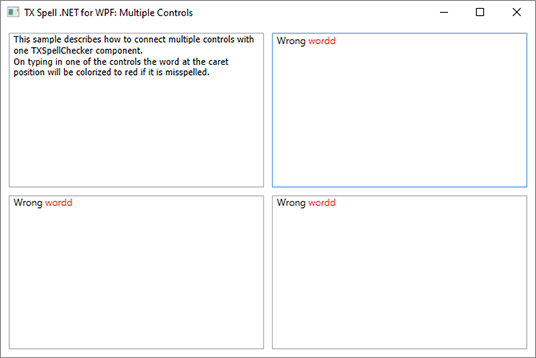
Press **F5** and type a sentence with a spelling mistake, such as *Wrong wordd.* The misspelled word turns red; correct it, and it turns black again. A sample of the setup checks the text the same way, with several `RichTextBox` controls that share one spell checker, and colors the misspelled word at the caret:
The handler checks the whole text on every change. A word is therefore red while it is still incomplete, and the check takes longer as the text grows. TX Text Control, which underlines words once they are complete, does this for you; see [Create Your First WPF Application](https://docs.textcontrol.com/tx-spell-dotnet-wpf/getting-started/tx-text-control/first-application/llms-full.txt). For a `TextBox`, a validation rule is often enough, as [As-You-Type Checking](https://docs.textcontrol.com/tx-spell-dotnet-wpf/spell-checking/as-you-type/#validate-a-textbox-as-the-user-types) shows.
### Next Steps
- [Open the Spell Check Dialog](https://docs.textcontrol.com/tx-spell-dotnet-wpf/getting-started/richtextbox/dialog/llms-full.txt): let the user correct the words of the `RichTextBox` in a dialog.
- [Incorrect Words and Suggestions](https://docs.textcontrol.com/tx-spell-dotnet-wpf/spell-checking/suggestions/llms-full.txt): create suggestions for the words `Check` found.
- [Checking Multiple Controls](https://docs.textcontrol.com/tx-spell-dotnet-wpf/spell-checking/multiple-controls/llms-full.txt): share one spell checker between several controls.
---
## Nearby
- **Previous:** [RichTextBox](https://docs.textcontrol.com/tx-spell-dotnet-wpf/getting-started/richtextbox/llms-full.txt)
- **Next:** [Open the Spell Check Dialog](https://docs.textcontrol.com/tx-spell-dotnet-wpf/getting-started/richtextbox/dialog/llms-full.txt)