# Create a .NET Framework Application
> Add TX Spell .NET to a WPF App (.NET Framework): reference TXSpell.dll and TXSpell.WPF.dll, declare the spell checker in XAML and add the licenses.licx entry.
- **Product:** TX Spell .NET for WPF
- **Section:** Documentation
- **Kind:** Topic
- **Path:** TX Spell .NET for WPF > Getting Started > TX Text Control > Create a .NET Framework Application
- **1763 words**
- **Web URL:** https://docs.textcontrol.com/tx-spell-dotnet-wpf/getting-started/tx-text-control/dotnet-framework/
- **LLMs URL:** https://docs.textcontrol.com/tx-spell-dotnet-wpf/getting-started/tx-text-control/dotnet-framework/llms.txt
- **LLMs-Full URL:** https://docs.textcontrol.com/tx-spell-dotnet-wpf/getting-started/tx-text-control/dotnet-framework/llms-full.txt
---
Existing WPF applications often still run on the .NET Framework, and TX Spell .NET works there as well. The result is the same editor with spell checking as in [Create Your First WPF Application](https://docs.textcontrol.com/tx-spell-dotnet-wpf/getting-started/tx-text-control/first-application/llms-full.txt), reduced to the `TextControl`. What differs is how the components get into the project: there are no NuGet packages. TX Text Control comes from the toolbox tab its setup created, you reference the assemblies of TX Spell .NET yourself, and the license of the spell checker needs an entry in *licenses.licx*.
### Prerequisites
- Visual Studio on Windows with the .NET Framework 4.8.
- The setups of TX Spell .NET for WPF 11.0 and TX Text Control .NET for WPF 34.0, the full or the trial versions. For .NET Framework projects, they provide the assemblies, the language data and the toolbox tab. See [Installing the Product](https://docs.textcontrol.com/tx-spell-dotnet-wpf/installation/setup/llms-full.txt).
### Create the Project
1. Open Visual Studio and create a new project.
2. Select **C#** from the **Languages** list, **Windows** from the **Platform** list and **Desktop** as the **Project Type**.
3. Select the project template **WPF App (.NET Framework)** and click **Next**.
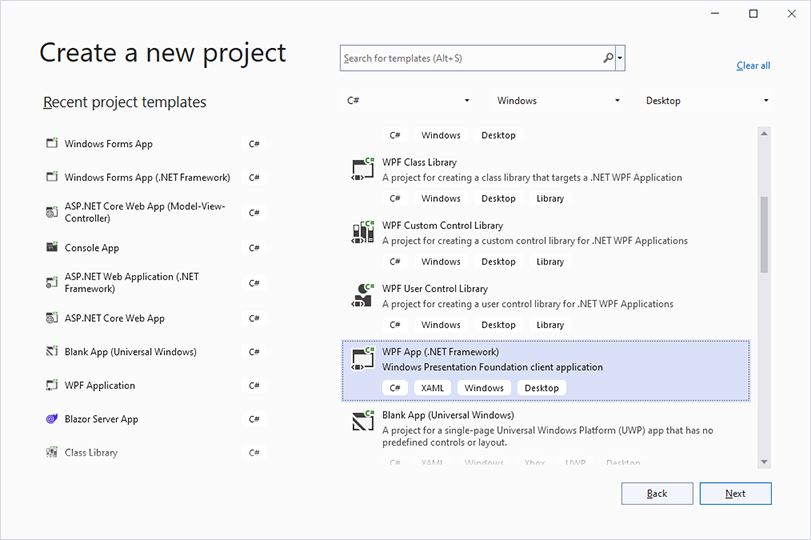
4. Enter the project name *Simple*, select **.NET Framework 4.8** in the **Framework** list and click **Create**.
### Add the Editor to the Window
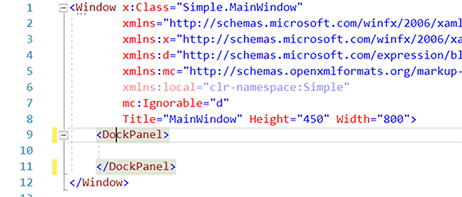
1. Open *MainWindow.xaml*. In the XAML view, replace the `Grid` with a `DockPanel`:
2. In the **Toolbox**, find the tab **TX Text Control 34.0**, which the setup of TX Text Control created, and double-click **TextControl**. Visual Studio adds the control inside the `DockPanel` and maps the prefix `WPF` to the namespace of TX Text Control:
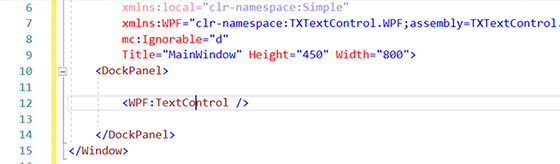
3. Remove the `Height` and `Width` attributes of the `TextControl`, so that it fills the window.
### Reference TX Spell .NET
1. Choose **Project** > **Add Reference...**. In the **Reference Manager**, click **Browse**.
2. Go to the *Assembly* folder of the installation, by default *C:\\Program Files\\Text Control GmbH\\TX Spell 11.0 .NET for WPF\\Assembly*.
3. Select *TXSpell.dll* and *TXSpell.WPF.dll*, click **Add**, and close the **Reference Manager** with **OK**.
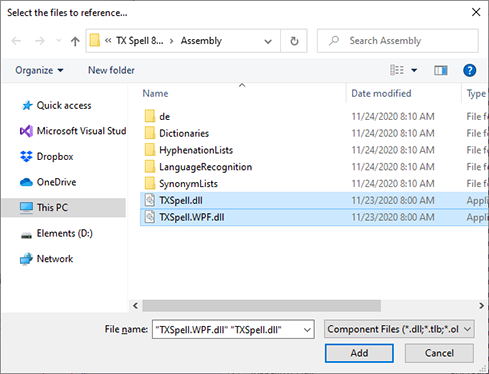
*TXSpell.dll* holds the spell checking engine, and *TXSpell.WPF.dll* the WPF spell checker with its dialogs. The same *Assembly* folder holds the language data in the folders *Dictionaries*, *HyphenationLists*, *SynonymLists* and *LanguageRecognition*, where the spell checker finds it on the development machine.
### Declare and Connect the Spell Checker
Map the namespace of TX Spell .NET to a prefix, declare the spell checker as a resource of the window, and name its key in the `SpellChecker` property of the `TextControl`. The complete *MainWindow.xaml*:
```xml
```
The markup works as follows:
- `` creates the spell checker as a resource of the window.
- [SpellChecker](https://docs.textcontrol.com/tx-text-control-dotnet-wpf/reference/txtextcontrol-wpf/textcontrol/spellchecker-property/llms-full.txt) holds the key of the resource as plain text.
- [IsSpellCheckingEnabled](https://docs.textcontrol.com/tx-text-control-dotnet-wpf/reference/txtextcontrol-wpf/textcontrol/isspellcheckingenabled-property/llms-full.txt) underlines misspelled words, and [IsHyphenationEnabled](https://docs.textcontrol.com/tx-text-control-dotnet-wpf/reference/txtextcontrol-wpf/textcontrol/ishyphenationenabled-property/llms-full.txt) hyphenates the last word of a full line.
### Add the License Entry
In a .NET Framework project, the license of the spell checker is embedded through *licenses.licx* when you build.
1. Open *licenses.licx* in the *Properties* folder of the project in **Solution Explorer**. In Visual Basic, it is in the *My Project* folder.
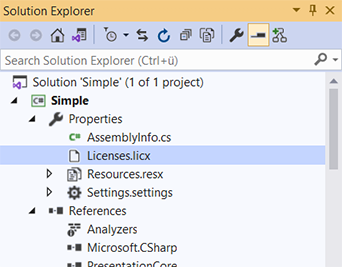
2. Add this line:
```text
TXTextControl.WPF.Proofing.TXSpellChecker, TXSpell.WPF
```
If the project has no *licenses.licx* yet, add a text file with this name and set its build action to **Embedded Resource**. [Licensing](https://docs.textcontrol.com/tx-spell-dotnet-wpf/troubleshooting/licensing/llms-full.txt) covers the license problems you may meet.
### Run the Application
Press **F5** and type a sentence with a spelling mistake. The application behaves like the .NET application of the first tutorial: misspelled words are underlined once they are complete, English is checked out of the box, the context menu offers suggestions and opens the spell check dialog, and the last word of a full line is hyphenated.
When you deploy the application, ship the language data folders with it. See [Deploying .NET Framework Applications](https://docs.textcontrol.com/tx-spell-dotnet-wpf/deployment/dotnet-framework/llms-full.txt).
### The Finished Sample
The setup installs this tutorial as a finished project below *TX Spell 11.0.NET for WPF\\Samples\\WPF* in your *Documents* folder: *CSharp\\TextControl\\Simple* in C#, and *VB.NET\\TextControl\\Simple* in Visual Basic.
### Next Steps
- [Correct Words from the Context Menu](https://docs.textcontrol.com/tx-spell-dotnet-wpf/getting-started/tx-text-control/context-menu/llms-full.txt): try the commands of the menu.
- [Open the Spell Check Dialog](https://docs.textcontrol.com/tx-spell-dotnet-wpf/getting-started/tx-text-control/dialog/llms-full.txt): correct the whole document in one pass.
- [Create Your First WPF Application](https://docs.textcontrol.com/tx-spell-dotnet-wpf/getting-started/tx-text-control/first-application/llms-full.txt): the same application for .NET 8 or higher, with a button bar, rulers and a status bar.
---
## Nearby
- **Previous:** [Create Your First WPF Application](https://docs.textcontrol.com/tx-spell-dotnet-wpf/getting-started/tx-text-control/first-application/llms-full.txt)
- **Next:** [Correct Words From the Context Menu](https://docs.textcontrol.com/tx-spell-dotnet-wpf/getting-started/tx-text-control/context-menu/llms-full.txt)