# Fonts
> Fonts for TX Text Control in containers: the Fonts folder of the Core engine, the fonts it ships, company fonts in the image, InstallFonts and PDF embedding.
- **Product:** TX Text Control .NET Server
- **Section:** Documentation
- **Kind:** Topic
- **Path:** TX Text Control .NET Server > Deployment Guide > Docker > Fonts
- **2013 words**
- **Web URL:** https://docs.textcontrol.com/tx-text-control-dotnet-server/deployment/docker/fonts/
- **LLMs URL:** https://docs.textcontrol.com/tx-text-control-dotnet-server/deployment/docker/fonts/llms.txt
- **LLMs-Full URL:** https://docs.textcontrol.com/tx-text-control-dotnet-server/deployment/docker/fonts/llms-full.txt
---
In a Linux container, the fonts of your documents don't come from the image. The Core engine of TX Text Control .NET Server reads them from a *Fonts* folder that is published with your application, so a document renders the same way on a developer machine, in a container and on any other server, as long as the fonts it uses are in that folder.
Developers who build container images find here where the engine looks for fonts, which fonts the package ships, how company fonts get into the image and how to check which fonts the engine and the Document Editor actually use.
### Where the Core Engine Finds Fonts
- **The *Fonts* folder in the application folder.** The `TXTextControl.TextControl.Core.SDK` package adds the folder to the build and publish output. The engine loads the fonts from the *Fonts* folder in the application's base directory, */app* in the image of [Dockerfile](https://docs.textcontrol.com/tx-text-control-dotnet-server/deployment/docker/dockerfile/llms-full.txt), whatever the working directory is. In Visual Studio, the folder appears in Solution Explorer as soon as the package is installed.
- **Not the fonts of the operating system.** Fonts installed in the image, for example with a font package, aren't used on Linux. Installing font packages in the Dockerfile has no effect on your documents.
- **The same folder for the Document Editor.** The backend and its worker processes run from the application folder, so the editor offers the fonts of the same *Fonts* folder.
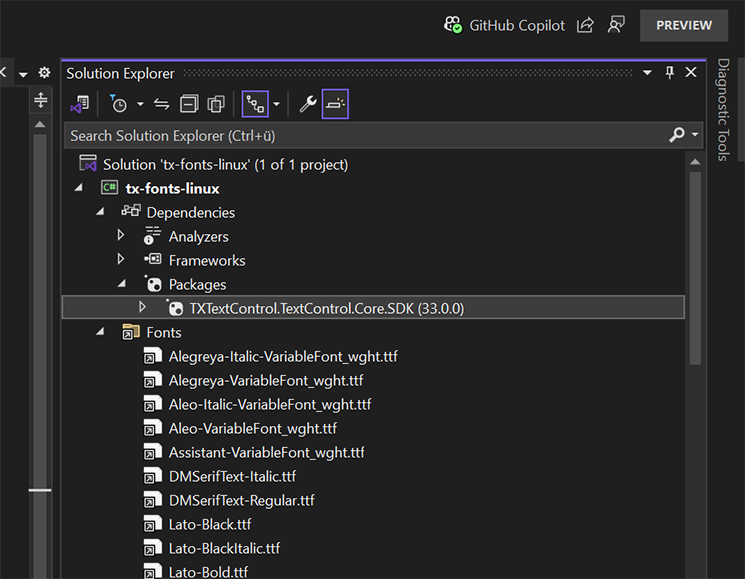
The folder must exist with exactly this name. Without it, or with a folder named *fonts* on Linux, the engine throws a [TextEditorException](https://docs.textcontrol.com/tx-text-control-dotnet-server/reference/txtextcontrol/texteditorexception/llms-full.txt) with the message "The default font installation failed." when the first `ServerTextControl` is created.
### The Fonts in the Package
The *Fonts* folder of version 34.0.5 contains 99 font files and a *licenses.txt*, which states that all fonts are licensed under the SIL Open Font License, Version 1.1, and may be embedded and redistributed with software. The families include:
| Kind | Families |
|---|---|
| Liberation | Liberation Sans, Liberation Sans Narrow, Liberation Serif, Liberation Mono |
| Sans-serif | Noto Sans, Open Sans, Roboto, Lato, Montserrat, Source Sans 3, PT Sans, Work Sans, Nunito, Raleway, Oswald, Assistant, Prompt, Merriweather Sans |
| Serif | Merriweather, Alegreya, Aleo, DM Serif Text, Slabo 27px |
| East Asian scripts and symbols | Noto Sans JP, Noto Sans KR, Noto Sans SC, Noto Sans TC, Noto Sans Symbols 2 |
| Script | Pacifico |
> Warning
>
> **Missing Fonts.** Arial, Times New Roman, Calibri and Courier New aren't included. When a document uses a font that isn't available, the engine replaces it, and the replacement can change line and page breaks. Text in Arial and text in Segoe UI, for example, get Liberation Sans.
### Add Company Fonts to the Fonts Folder
Put the font files of your company into a folder of the project, for example *CompanyFonts*, and add an item to the project file that copies them into the *Fonts* folder of the output:
```xml
```
The item works as follows:
- **`Link`** sets the path of each file in the output. The files end up next to the fonts of the package, in *Fonts*.
- **`CopyToOutputDirectory`** copies the files at build time. `dotnet publish` copies them into the publish output as well, so the `COPY --from=build /app/publish .` line of the Dockerfile takes them into the image.
The added fonts are available to `ServerTextControl` and to the Document Editor, and they are embedded in PDF documents. Check that the license of a font allows you to deploy it with your application.
### Register a Second Font Folder
The static method `ServerTextControl.InstallFonts` registers the fonts of another folder. `AppContext.BaseDirectory` is the folder of the application, so a path built from it doesn't depend on the working directory of the process.
```csharp
using TXTextControl;
var builder = WebApplication.CreateBuilder(args);
// Register the fonts of the CorpFonts folder next to the application
ServerTextControl.InstallFonts(Path.Combine(AppContext.BaseDirectory, "CorpFonts"));
```
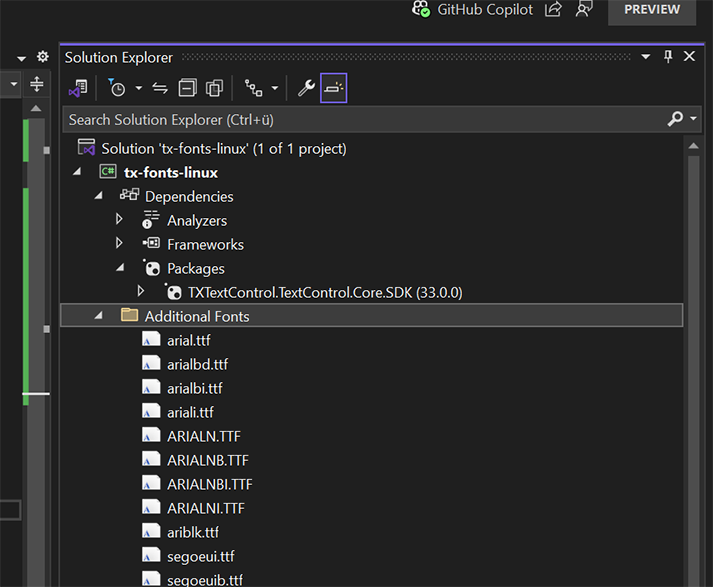
Copy the folder into the output with a `None` item without `Link`, for example ``.
The registration applies only to the process that calls the method. The worker processes of the Document Editor don't see these fonts, so fonts that editors should offer belong in the *Fonts* folder. [PDF Creation](https://docs.textcontrol.com/tx-text-control-dotnet-server/pdf/creation/#use-the-right-fonts) shows `InstallFonts` together with the font restrictions of `FontSettings`.
### Check the Fonts in a Container
[GetSupportedFonts](https://docs.textcontrol.com/tx-text-control-dotnet-server/reference/txtextcontrol/servertextcontrol/getsupportedfonts-method/llms-full.txt) returns the names of the fonts the engine can use. A diagnostic endpoint in *Program.cs* shows the list of a running container:
```csharp
app.MapGet("/fonts", () =>
{
using ServerTextControl tx = new ServerTextControl();
tx.Create();
// The names of all fonts the engine can use in this container
return Results.Text(string.Join("\n", tx.GetSupportedFonts()));
});
```
Use the names from this list in your documents and code. A font file whose regular style has a different name is listed with it: *DejaVuSans.ttf*, for example, appears as "DejaVu Sans Book", and a document that asks for "DejaVu Sans" gets a replacement.
In the browser, [getSupportedFonts](https://docs.textcontrol.com/tx-text-control-dotnet-server/reference/javascript/txtextcontrol/getsupportedfonts-method/llms-full.txt) of the Document Editor's JavaScript API returns the fonts the editor offers. To log which fonts a document uses that aren't available, handle the [AdaptFont](https://docs.textcontrol.com/tx-text-control-dotnet-server/reference/txtextcontrol/servertextcontrol/adaptfont-event/llms-full.txt) event, as [Make Fonts Available on the Server](https://docs.textcontrol.com/tx-text-control-dotnet-server/document-processing/creating/#make-fonts-available-on-the-server) shows.
### Fonts in PDF Documents
A font that the engine replaced when it loaded the document is the font that reaches the PDF, so the PDF shows the replacement wherever the original document used a font the container doesn't have. Saving PDF/A requires `FontSettings.EmbeddableFontsOnly` to be `true`, which replaces the fonts that can't be embedded; [PDF/A](https://docs.textcontrol.com/tx-text-control-dotnet-server/pdf/pdf-a/llms-full.txt) describes the settings.
### Classic Engine in Windows Containers
The Classic engine in `TXTextControl.TextControl.ASP.SDK` doesn't use a *Fonts* folder. It uses the fonts installed on Windows, and newer Windows systems often don't come with a full set of fonts. In a Windows container, the fonts your documents need must therefore be installed in the container. The blog article [Document Editor Deployment with Docker and Windows Server Core 2019 and 2022 including Fonts](https://www.textcontrol.com/blog/2023/06/02/document-editor-deployment-with-docker-and-windows-server-core-2019-and-2022/) registers fonts with the Windows function `AddFontResource` when the application starts. The article was published before version 33.0 and also installs the former synchronization service, so take the concept rather than the setup.
### Next Steps
- [Dockerfile](https://docs.textcontrol.com/tx-text-control-dotnet-server/deployment/docker/dockerfile/llms-full.txt): build the image that contains the *Fonts* folder.
- [PDF Creation](https://docs.textcontrol.com/tx-text-control-dotnet-server/pdf/creation/llms-full.txt): fonts and font settings when you create PDF documents.
- [Linux Requirements](https://docs.textcontrol.com/tx-text-control-dotnet-server/deployment/linux/requirements/llms-full.txt): what else a Linux container needs.
- [Troubleshooting Fonts](https://docs.textcontrol.com/tx-text-control-dotnet-server/troubleshooting/fonts/llms-full.txt): when text looks different than expected.
---
## Nearby
- **Previous:** [Dockerfile](https://docs.textcontrol.com/tx-text-control-dotnet-server/deployment/docker/dockerfile/llms-full.txt)
- **Next:** [Multiple Processes](https://docs.textcontrol.com/tx-text-control-dotnet-server/deployment/docker/multiple-processes/llms-full.txt)