# Fields
> Work with fields in the Document Editor from JavaScript: text fields, MS Word fields such as MERGEFIELD, hyperlinks, bookmarks and links, and field events.
- **Product:** TX Text Control .NET Server
- **Section:** Documentation
- **Kind:** Topic
- **Path:** TX Text Control .NET Server > Document Editor > Fields
- **5281 words**
- **Web URL:** https://docs.textcontrol.com/tx-text-control-dotnet-server/document-editor/fields/
- **LLMs URL:** https://docs.textcontrol.com/tx-text-control-dotnet-server/document-editor/fields/llms.txt
- **LLMs-Full URL:** https://docs.textcontrol.com/tx-text-control-dotnet-server/document-editor/fields/llms-full.txt
---
Fields mark parts of a document that your application fills or evaluates later, and they link text to other places. The JavaScript API of the Document Editor inserts, finds and removes text fields, MS Word fields, hypertext links, bookmarks and links to them, so that you can build templates and links from your application.
The examples extend the view of the [ASP.NET Core](https://docs.textcontrol.com/tx-text-control-dotnet-server/getting-started/document-editor/aspnet-core/llms-full.txt) tutorial.
### What a Field Is
A field is a marked piece of text with properties such as a name and an ID. The text of a field can be read and replaced as a unit, which makes fields the place for content that your application fills or evaluates: a customer name, a date, a link.
TX Text Control has several kinds of fields. Each kind has its own collection in the JavaScript API:
| Kind | Represents | Collection |
|---|---|---|
| [TextField](https://docs.textcontrol.com/tx-text-control-dotnet-server/reference/javascript/textfield/llms-full.txt) | A general field with a name, an ID and text | [TXTextControl.textFields](https://docs.textcontrol.com/tx-text-control-dotnet-server/reference/javascript/formattedtext/textfields-property/llms-full.txt) |
| [ApplicationField](https://docs.textcontrol.com/tx-text-control-dotnet-server/reference/javascript/applicationfield/llms-full.txt) | A field of MS Word, such as `MERGEFIELD` or `DATE` | [TXTextControl.applicationFields](https://docs.textcontrol.com/tx-text-control-dotnet-server/reference/javascript/formattedtext/applicationfields-property/llms-full.txt) |
| [HypertextLink](https://docs.textcontrol.com/tx-text-control-dotnet-server/reference/javascript/hypertextlink/llms-full.txt) | A link to a target outside the document | [TXTextControl.hypertextLinks](https://docs.textcontrol.com/tx-text-control-dotnet-server/reference/javascript/formattedtext/hypertextlinks-property/llms-full.txt) |
| [DocumentTarget](https://docs.textcontrol.com/tx-text-control-dotnet-server/reference/javascript/documenttarget/llms-full.txt) | A target in the document, also called a bookmark | [TXTextControl.documentTargets](https://docs.textcontrol.com/tx-text-control-dotnet-server/reference/javascript/formattedtext/documenttargets-property/llms-full.txt) |
| [DocumentLink](https://docs.textcontrol.com/tx-text-control-dotnet-server/reference/javascript/documentlink/llms-full.txt) | A link to a target in the same document | [TXTextControl.documentLinks](https://docs.textcontrol.com/tx-text-control-dotnet-server/reference/javascript/formattedtext/documentlinks-property/llms-full.txt) |
Two more kinds have pages of their own: form fields, which users fill out, on [Form Fields](https://docs.textcontrol.com/tx-text-control-dotnet-server/document-editor/form-fields/llms-full.txt), and page number fields, which exist only in headers and footers, on [Headers and Footers](https://docs.textcontrol.com/tx-text-control-dotnet-server/document-editor/headers-footers/llms-full.txt).
### Merge Fields in Templates
The fields of mail merge templates are MS Word fields of the type `MERGEFIELD`. Users insert them from the **Reporting** tab of the ribbon, whose lists of field names come from JSON data that your code loads with [loadJsonData](https://docs.textcontrol.com/tx-text-control-dotnet-server/reference/javascript/txtextcontrol/loadjsondata-method/llms-full.txt). "Insert Merge Fields in the Document Editor" in [Merge Fields](https://docs.textcontrol.com/tx-text-control-dotnet-server/getting-started/mail-merge/fields/#insert-merge-fields-in-the-document-editor) shows how, and [Merge Blocks](https://docs.textcontrol.com/tx-text-control-dotnet-server/getting-started/mail-merge/blocks/#create-a-merge-block-in-the-document-editor) does the same for merge blocks.
From code, [addMergeField](https://docs.textcontrol.com/tx-text-control-dotnet-server/reference/javascript/txtextcontrol/addmergefield-method/llms-full.txt) inserts a merge field, and [showMergeFieldDialog](https://docs.textcontrol.com/tx-text-control-dotnet-server/reference/javascript/txtextcontrol/showmergefielddialog-method/llms-full.txt) opens the dialog box for a field type such as `MergeField`, `IfField` or `DateField`.
### Insert Text Fields and MS Word Fields
Fields are inserted at the current input position. The following code inserts a text field and an MS Word merge field, and lists the fields of the document. Add it below the editor in *Views/Home/Index.cshtml*:
```html
```
The code works as follows:
- [TextFieldCollection.addWithText](https://docs.textcontrol.com/tx-text-control-dotnet-server/reference/javascript/textfieldcollection/addwithtext-method/llms-full.txt) inserts a text field with an initial text and passes it to the callback. [setName](https://docs.textcontrol.com/tx-text-control-dotnet-server/reference/javascript/textfield/setname-method/llms-full.txt) gives it a name that your code uses to find it.
- [setDoubledInputPosition](https://docs.textcontrol.com/tx-text-control-dotnet-server/reference/javascript/textfield/setdoubledinputposition-method/llms-full.txt) adds an input position at the beginning and the end of the field, so that users can type inside or outside the field.
- [ApplicationFieldCollection.add](https://docs.textcontrol.com/tx-text-control-dotnet-server/reference/javascript/applicationfieldcollection/add-method/llms-full.txt) takes the field format, `MSWord` from [ApplicationFieldFormat](https://docs.textcontrol.com/tx-text-control-dotnet-server/reference/javascript/txtextcontrol/applicationfieldformat-enumeration/llms-full.txt), the type name, the visible text and the parameters. For a `MERGEFIELD`, the first parameter is the name of the field.
- [getTypeName](https://docs.textcontrol.com/tx-text-control-dotnet-server/reference/javascript/applicationfield/gettypename-method/llms-full.txt) and [getParameters](https://docs.textcontrol.com/tx-text-control-dotnet-server/reference/javascript/applicationfield/getparameters-method/llms-full.txt) read the type and the parameters; `getParameters` passes `null` for a field without parameters.
An application field stores the type and the parameters of an MS Word field, but it doesn't implement the logic of the field. A `MERGEFIELD`, for example, is filled by [MailMerge](https://docs.textcontrol.com/tx-text-control-dotnet-server/reference/txtextcontrol-documentserver/mailmerge/llms-full.txt) on the server.
#### Edit and Remove Fields
A `TextField` and all kinds of fields based on it share these methods:
| Method | Sets |
|---|---|
| [setText](https://docs.textcontrol.com/tx-text-control-dotnet-server/reference/javascript/textfield/settext-method/llms-full.txt) | The text of the field |
| [setName](https://docs.textcontrol.com/tx-text-control-dotnet-server/reference/javascript/textfield/setname-method/llms-full.txt), [setID](https://docs.textcontrol.com/tx-text-control-dotnet-server/reference/javascript/textfield/setid-method/llms-full.txt) | A name and an ID of your choice |
| [setEditable](https://docs.textcontrol.com/tx-text-control-dotnet-server/reference/javascript/textfield/seteditable-method/llms-full.txt) | Whether users can change the text of the field |
| [setDeleteable](https://docs.textcontrol.com/tx-text-control-dotnet-server/reference/javascript/textfield/setdeleteable-method/llms-full.txt) | Whether users can delete the field |
| [setHighlightMode](https://docs.textcontrol.com/tx-text-control-dotnet-server/reference/javascript/textfield/sethighlightmode-method/llms-full.txt) | Whether the field is highlighted: `Never`, `Activated`, `Always` or `Auto` |
[TextFieldCollection.getItem](https://docs.textcontrol.com/tx-text-control-dotnet-server/reference/javascript/textfieldcollection/getitem-method/llms-full.txt) passes the field at the input position, or the field with an ID as the third parameter, or `null`. [remove](https://docs.textcontrol.com/tx-text-control-dotnet-server/reference/javascript/textfieldcollection/remove-method/llms-full.txt) removes a text field. [ApplicationFieldCollection.remove](https://docs.textcontrol.com/tx-text-control-dotnet-server/reference/javascript/applicationfieldcollection/remove-method/llms-full.txt) takes a second parameter that decides whether the text of the field stays in the document.
### Show Field Codes
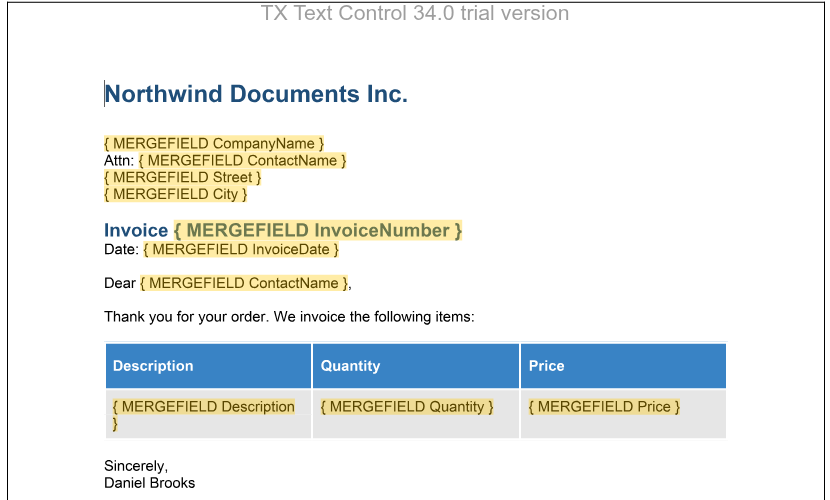
MS Word can show a field as its field code, such as `{ MERGEFIELD CompanyName }`, instead of its text. The ribbon of the Document Editor has no button for this, but the parameters of an application field contain everything a field code needs. Template designers can use such a view to check which field is where. The following code switches the field at the input position, or all MS Word fields of the document, between their text and their field code:
```html
```
The code works as follows:
- [getText](https://docs.textcontrol.com/tx-text-control-dotnet-server/reference/javascript/textfield/gettext-method/llms-full.txt) passes the visible text of the field. If it starts with `{` and the type name, the field shows its code.
- To show the code, the code stores the visible text with [setName](https://docs.textcontrol.com/tx-text-control-dotnet-server/reference/javascript/textfield/setname-method/llms-full.txt) and builds the field code from [getTypeName](https://docs.textcontrol.com/tx-text-control-dotnet-server/reference/javascript/applicationfield/gettypename-method/llms-full.txt) and [getParameters](https://docs.textcontrol.com/tx-text-control-dotnet-server/reference/javascript/applicationfield/getparameters-method/llms-full.txt). [setText](https://docs.textcontrol.com/tx-text-control-dotnet-server/reference/javascript/textfield/settext-method/llms-full.txt) replaces the visible text; the type and the parameters of the field don't change.
- To show the text again, [getName](https://docs.textcontrol.com/tx-text-control-dotnet-server/reference/javascript/textfield/getname-method/llms-full.txt) passes the stored text, and `setName("")` removes it. The merge fields that the **Reporting** tab inserts have no name, so the name is free for this purpose.
- [ApplicationFieldCollection.getItem](https://docs.textcontrol.com/tx-text-control-dotnet-server/reference/javascript/applicationfieldcollection/getitem-method/llms-full.txt) without an ID passes the field at the input position, or `null`.
Click **Toggle All Field Codes** in a template with merge fields: every field shows its code, and a second click restores the texts. Because the field code is the visible text of the field, switch the fields back before you save the template.
The blog article [Toggle Field Codes in TX Text Control](https://www.textcontrol.com/blog/2024/11/07/toggle-field-codes-in-tx-text-control/) shows the same approach in C# for the Windows Forms control.
### Insert Hyperlinks and Bookmarks
The following code inserts a hyperlink, a bookmark and a link to the bookmark. It also handles clicks on the links: the events tell your code which link was clicked, and your code decides what happens:
```html
```
- [HypertextLinkCollection.add](https://docs.textcontrol.com/tx-text-control-dotnet-server/reference/javascript/hypertextlinkcollection/add-method/llms-full.txt) takes the visible text and the target URL. [setDescriptiveText](https://docs.textcontrol.com/tx-text-control-dotnet-server/reference/javascript/hypertextlink/setdescriptivetext-method/llms-full.txt) sets the text that screen readers use for the link.
- [DocumentTargetCollection.add](https://docs.textcontrol.com/tx-text-control-dotnet-server/reference/javascript/documenttargetcollection/add-method/llms-full.txt) inserts a bookmark with a target name and passes it to the callback, or `null` if no bookmark can be added at the input position.
- [DocumentTargetCollection.getItem](https://docs.textcontrol.com/tx-text-control-dotnet-server/reference/javascript/documenttargetcollection/getitem-method/llms-full.txt) finds a bookmark by its ID or target name, the third parameter.
- [DocumentLinkCollection.add](https://docs.textcontrol.com/tx-text-control-dotnet-server/reference/javascript/documentlinkcollection/add-method/llms-full.txt) inserts a link with a text and the bookmark it points to.
- The `documentLinkClicked` handler receives the target name of the clicked link, and [DocumentTarget.scrollTo](https://docs.textcontrol.com/tx-text-control-dotnet-server/reference/javascript/documenttarget/scrollto-method/llms-full.txt) scrolls to the bookmark. The `hypertextLinkClicked` handler receives the URL in `hypertextLink.target`.
Users insert hyperlinks and bookmarks in dialog boxes, which [showHtmlDialog](https://docs.textcontrol.com/tx-text-control-dotnet-server/reference/javascript/txtextcontrol/showhtmldialog-method/llms-full.txt) opens with `HyperlinkDialog` or `InsertBookmarkDialog`. [setDocumentTargetMarkers](https://docs.textcontrol.com/tx-text-control-dotnet-server/reference/javascript/txtextcontrol/setdocumenttargetmarkers-method/llms-full.txt) shows markers at the positions of bookmarks.
### Find All Fields of a Document
[getTextFieldsByType](https://docs.textcontrol.com/tx-text-control-dotnet-server/reference/javascript/formattedtext/gettextfieldsbytype-method/llms-full.txt) passes an array with information about all fields of one or more kinds, selected with a value of [TextFieldType](https://docs.textcontrol.com/tx-text-control-dotnet-server/reference/javascript/txtextcontrol/textfieldtype-enumeration/llms-full.txt) such as `ApplicationField`, `HypertextLink`, `FormFields` or `All`. Each element is a [TextFieldInfo](https://docs.textcontrol.com/tx-text-control-dotnet-server/reference/javascript/textfieldinfo/llms-full.txt) with the name, ID, text and position of the field:
```javascript
function listAllFields() {
TXTextControl.getTextFieldsByType(TXTextControl.TextFieldType.All, function (fields) {
fields.forEach(function (field) {
console.log(field.type + " " + field.name + ": " + field.text);
});
}, function (error) {
console.log(error.msg);
});
}
```
The objects in the array are copies of the field data at the time of the call. To change a field, get it from its collection.
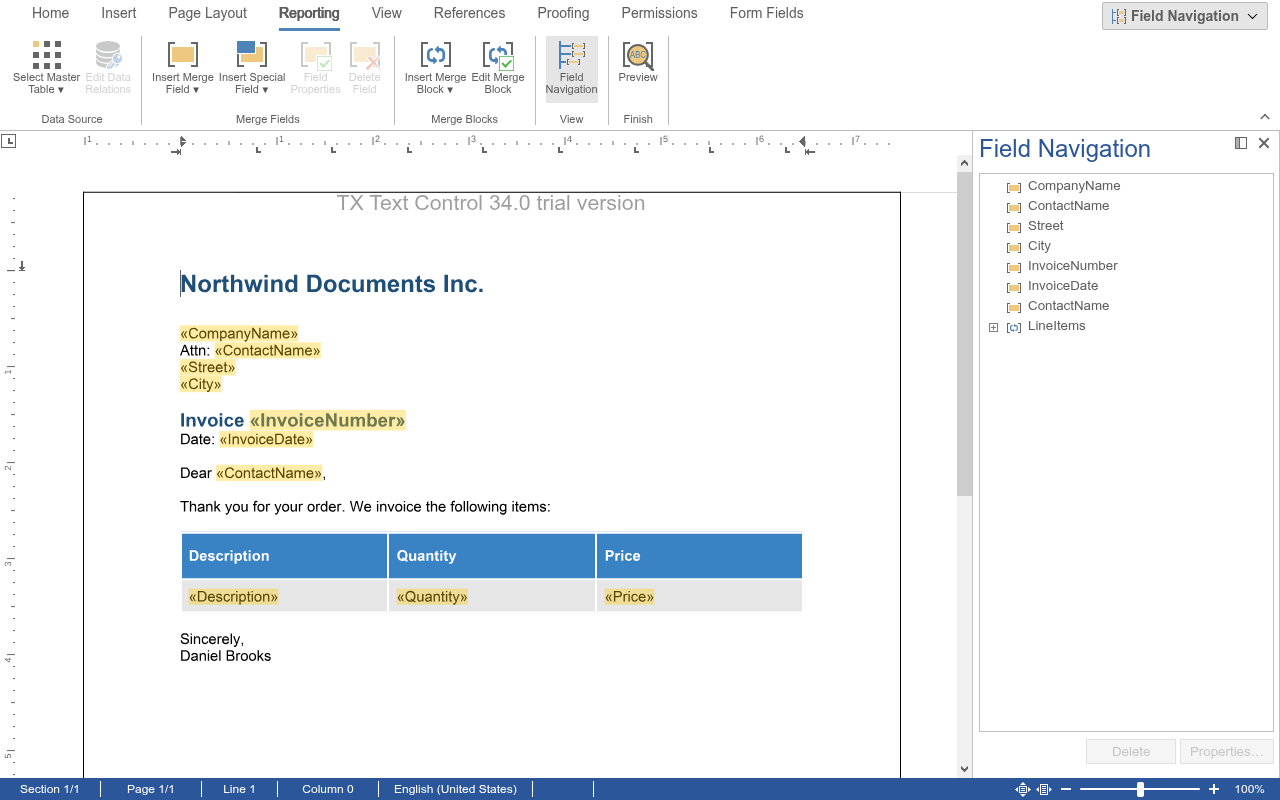
Users see the fields of a document in the **Field Navigation** sidebar, which [showSideBar](https://docs.textcontrol.com/tx-text-control-dotnet-server/reference/javascript/txtextcontrol/showsidebar-method/llms-full.txt) opens with `SideBarType.FieldNavigator`. The **Field Navigation** button of the **Reporting** tab opens it as well:
### React to Field Events
The editor raises `textFieldCreated` and `textFieldDeleted`, `textFieldClicked` when the user clicks into a field and `textFieldEntered` and `textFieldLeft` when the input position moves into or out of a field. The handlers receive [TextFieldEventArgs](https://docs.textcontrol.com/tx-text-control-dotnet-server/reference/javascript/textfieldeventargs/llms-full.txt) with the field information in `textField`. [Events](https://docs.textcontrol.com/tx-text-control-dotnet-server/document-editor/events/llms-full.txt) lists all events.
### Next Steps
- [Form Fields](https://docs.textcontrol.com/tx-text-control-dotnet-server/document-editor/form-fields/llms-full.txt): fields that users fill out.
- [Content Controls](https://docs.textcontrol.com/tx-text-control-dotnet-server/document-editor/content-controls/llms-full.txt): content controls from MS Word documents.
- [Subtext Parts](https://docs.textcontrol.com/tx-text-control-dotnet-server/document-editor/subtext-parts/llms-full.txt): mark longer parts of the text.
- [Merge Fields](https://docs.textcontrol.com/tx-text-control-dotnet-server/mail-merge/fields/llms-full.txt) in Mail Merge and Reporting: fill merge fields with data.
- [Fields](https://docs.textcontrol.com/tx-text-control-dotnet-server/document-processing/fields/llms-full.txt) in Document Processing: work with fields on the server.
---
## Nearby
- **Previous:** [Tables of Contents](https://docs.textcontrol.com/tx-text-control-dotnet-server/document-editor/tables-of-contents/llms-full.txt)
- **Next:** [Subtext Parts](https://docs.textcontrol.com/tx-text-control-dotnet-server/document-editor/subtext-parts/llms-full.txt)