# Images
> Insert images into the Document Editor from JavaScript: inline, anchored or at a fixed position from Base64 data, then scale, align, describe and remove them.
- **Product:** TX Text Control .NET Server
- **Section:** Documentation
- **Kind:** Topic
- **Path:** TX Text Control .NET Server > Document Editor > Images
- **3321 words**
- **Web URL:** https://docs.textcontrol.com/tx-text-control-dotnet-server/document-editor/images/
- **LLMs URL:** https://docs.textcontrol.com/tx-text-control-dotnet-server/document-editor/images/llms.txt
- **LLMs-Full URL:** https://docs.textcontrol.com/tx-text-control-dotnet-server/document-editor/images/llms-full.txt
---
A logo, or a file that the user uploads, gets into a document through the JavaScript API of the Document Editor: inline in the text, anchored to a paragraph or at a fixed position on a page. Your code also scales, aligns, describes and removes the image a user has selected, in addition to what the image tools of the ribbon offer.
The examples extend the view of the [ASP.NET Core](https://docs.textcontrol.com/tx-text-control-dotnet-server/getting-started/document-editor/aspnet-core/llms-full.txt) tutorial.
### How Images Are Placed
An image can be placed in the document in three ways:
| Placement | Behavior | Method of `ImageCollection` |
|---|---|---|
| Inline | The image is treated like a single character in the text line. | [addInline](https://docs.textcontrol.com/tx-text-control-dotnet-server/reference/javascript/imagecollection/addinline-method/llms-full.txt) |
| Anchored | The image belongs to a paragraph and moves with it. The text can flow around it. | [addAnchored](https://docs.textcontrol.com/tx-text-control-dotnet-server/reference/javascript/imagecollection/addanchored-method/llms-full.txt), [addAnchoredAtLocation](https://docs.textcontrol.com/tx-text-control-dotnet-server/reference/javascript/imagecollection/addanchoredatlocation-method/llms-full.txt) |
| Fixed position | The image stays at a position on a page or in the document and doesn't move with the text. | [addAtFixedPositionOnPage](https://docs.textcontrol.com/tx-text-control-dotnet-server/reference/javascript/imagecollection/addatfixedpositiononpage-method/llms-full.txt), [addAtFixedPositionInDocument](https://docs.textcontrol.com/tx-text-control-dotnet-server/reference/javascript/imagecollection/addatfixedpositionindocument-method/llms-full.txt) |
[TXTextControl.images](https://docs.textcontrol.com/tx-text-control-dotnet-server/reference/javascript/txtextcontrol/images-property/llms-full.txt) returns the [ImageCollection](https://docs.textcontrol.com/tx-text-control-dotnet-server/reference/javascript/imagecollection/llms-full.txt) of the text part that has the input focus: the main text, a header or footer, or a text frame.
For anchored and fixed images, a value of [ImageInsertionMode](https://docs.textcontrol.com/tx-text-control-dotnet-server/reference/javascript/txtextcontrol/imageinsertionmode-enumeration/llms-full.txt) decides how the image and the text share the space:
| Value | Effect |
|---|---|
| `DisplaceText` | The text flows around the image. |
| `DisplaceCompleteLines` | The text stops above the image and continues below it. |
| `AboveTheText` | The image covers the text. |
| `BelowTheText` | The text covers the image. |
| `AsCharacter` | The image is a character in the text. |
### Insert an Image From a File
All methods that insert an image take the image data as a Base64-encoded string, not a file name or URL. In the browser, the `FileReader` API reads a file that the user selects and returns it as a data URL, which contains the Base64 data after a comma.
The following code inserts the selected image file inline at the input position, or anchored and right-aligned with the text flowing around it. Add it below the editor in *Views/Home/Index.cshtml*:
```html
```
The code works as follows:
- `addInline` takes the Base64 data and the text position. The value `-1` stands for the current input position. The callback receives the new [Image](https://docs.textcontrol.com/tx-text-control-dotnet-server/reference/javascript/image/llms-full.txt), and the error callback receives an error message in `msg`.
- `addAnchored` also takes the horizontal alignment within the paragraph, a value of [HorizontalAlignment](https://docs.textcontrol.com/tx-text-control-dotnet-server/reference/javascript/txtextcontrol/horizontalalignment-enumeration/llms-full.txt), and the insertion mode.
- [setName](https://docs.textcontrol.com/tx-text-control-dotnet-server/reference/javascript/framebase/setname-method/llms-full.txt) gives the image a name, so that your code can find it later with [getItemByName](https://docs.textcontrol.com/tx-text-control-dotnet-server/reference/javascript/imagecollection/getitembyname-method/llms-full.txt).
- [setDescriptiveText](https://docs.textcontrol.com/tx-text-control-dotnet-server/reference/javascript/framebase/setdescriptivetext-method/llms-full.txt) sets the alternative text that screen readers use. An accessible PDF document is only fully compliant when its images have one.
Select an image file, click into the document and click one of the buttons. [Supported File Formats](https://docs.textcontrol.com/tx-text-control-dotnet-server/overview/file-formats/#images) lists the image formats of TX Text Control, including SVG.
To place an image at a fixed position, `addAtFixedPositionOnPage` takes a page number and a location on the page, and `addAtFixedPositionInDocument` a location relative to the top left corner of the document, where the gaps between the pages count as well. Both take the location as an object with `x` and `y`. `addAtFixedPosition` without a suffix is obsolete.
### Change the Selected Image
When a user clicks an image, the editor selects it and shows the contextual **Frame Formatting** tab, in which users wrap text around the image, position and size it and set its name, ID and descriptive text:
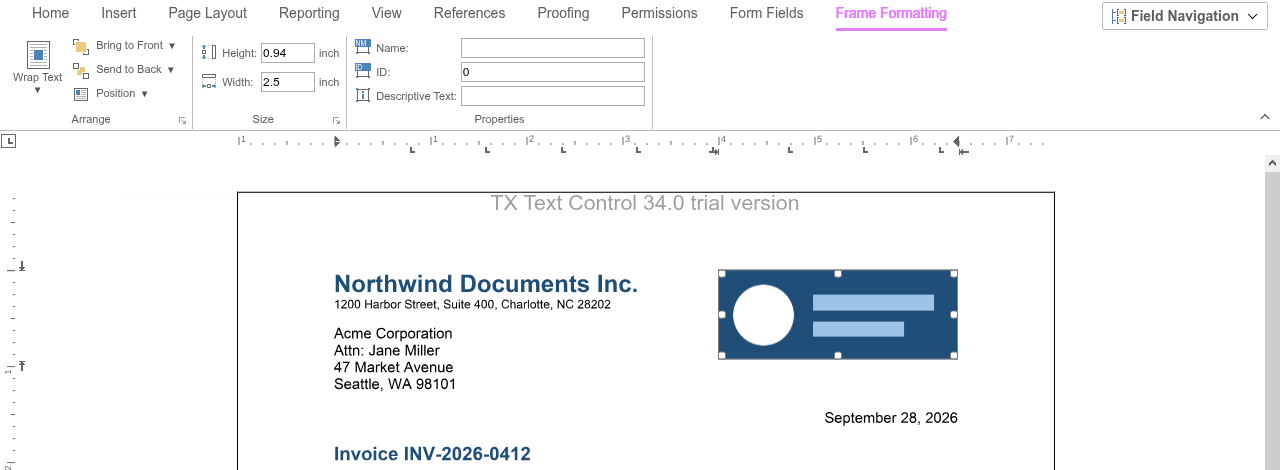
[ImageCollection.getItem](https://docs.textcontrol.com/tx-text-control-dotnet-server/reference/javascript/imagecollection/getitem-method/llms-full.txt) without an ID passes the image the user has selected, or `null`. The following code scales it to half its size and removes it:
```html
```
- [setHorizontalScaling](https://docs.textcontrol.com/tx-text-control-dotnet-server/reference/javascript/image/sethorizontalscaling-method/llms-full.txt) and [setVerticalScaling](https://docs.textcontrol.com/tx-text-control-dotnet-server/reference/javascript/image/setverticalscaling-method/llms-full.txt) set the scaling in percent. For images, the size can't be set directly: [setSize](https://docs.textcontrol.com/tx-text-control-dotnet-server/reference/javascript/framebase/setsize-method/llms-full.txt) is read-only for them.
- [getSize](https://docs.textcontrol.com/tx-text-control-dotnet-server/reference/javascript/framebase/getsize-method/llms-full.txt) passes the size in twips as an object with `width` and `height`.
- [ImageCollection.remove](https://docs.textcontrol.com/tx-text-control-dotnet-server/reference/javascript/imagecollection/remove-method/llms-full.txt) removes the image from the document.
### Other Image Properties
An `Image` inherits the members of [FrameBase](https://docs.textcontrol.com/tx-text-control-dotnet-server/reference/javascript/framebase/llms-full.txt), which images share with other objects in the document, such as text frames and barcodes:
| Method | Sets or passes |
|---|---|
| [setAlignment](https://docs.textcontrol.com/tx-text-control-dotnet-server/reference/javascript/framebase/setalignment-method/llms-full.txt) | The horizontal alignment of an anchored image |
| [setLocation](https://docs.textcontrol.com/tx-text-control-dotnet-server/reference/javascript/framebase/setlocation-method/llms-full.txt) | The position in twips, relative to the paragraph for an anchored image and to the document otherwise; not for inline images |
| [setInsertionMode](https://docs.textcontrol.com/tx-text-control-dotnet-server/reference/javascript/framebase/setinsertionmode-method/llms-full.txt) | How the image and the text share the space |
| [setTextDistances](https://docs.textcontrol.com/tx-text-control-dotnet-server/reference/javascript/framebase/settextdistances-method/llms-full.txt) | The distances between the image and the text in twips |
| [setID](https://docs.textcontrol.com/tx-text-control-dotnet-server/reference/javascript/framebase/setid-method/llms-full.txt) | An identifier from 1; 0 means no identifier. `getItem` finds the image by this ID. |
| [setMoveable](https://docs.textcontrol.com/tx-text-control-dotnet-server/reference/javascript/framebase/setmoveable-method/llms-full.txt), [setSizeable](https://docs.textcontrol.com/tx-text-control-dotnet-server/reference/javascript/framebase/setsizeable-method/llms-full.txt) | Whether users can move and resize the image with the mouse |
| [changeZOrder](https://docs.textcontrol.com/tx-text-control-dotnet-server/reference/javascript/framebase/changezorder-method/llms-full.txt) | Whether the image lies in front of or behind other objects |
| [getTextPosition](https://docs.textcontrol.com/tx-text-control-dotnet-server/reference/javascript/framebase/gettextposition-method/llms-full.txt) | The one-based text position the image belongs to |
To let users select an image that lies behind the text with a mouse click, call [setSelectObjects](https://docs.textcontrol.com/tx-text-control-dotnet-server/reference/javascript/txtextcontrol/setselectobjects-method/llms-full.txt) with `true`.
### React to Image Events
The editor raises `imageCreated`, `imageDeleted`, `imageSelected` and `imageDeselected`. Their handlers receive [ImageEventArgs](https://docs.textcontrol.com/tx-text-control-dotnet-server/reference/javascript/imageeventargs/llms-full.txt), whose `image` property contains the ID, name, location and text position of the image:
```javascript
TXTextControl.addEventListener("textControlLoaded", function () {
TXTextControl.addEventListener("imageSelected", function (e) {
console.log("Image selected: " + e.image.name);
});
});
```
[Events](https://docs.textcontrol.com/tx-text-control-dotnet-server/document-editor/events/llms-full.txt) lists the events for frames in general, such as `frameMoved` and `frameSized`.
### Next Steps
- [Shapes](https://docs.textcontrol.com/tx-text-control-dotnet-server/document-editor/shapes/llms-full.txt): text frames, drawings and other objects in the document.
- [Tables](https://docs.textcontrol.com/tx-text-control-dotnet-server/document-editor/tables/llms-full.txt): insert and format tables.
- [Images](https://docs.textcontrol.com/tx-text-control-dotnet-server/mail-merge/images/llms-full.txt) in Mail Merge and Reporting: fill image placeholders of a template with data.
- [Images](https://docs.textcontrol.com/tx-text-control-dotnet-server/document-processing/images/llms-full.txt) in Document Processing: add images on the server with `ServerTextControl`.
---
## Nearby
- **Previous:** [Tables](https://docs.textcontrol.com/tx-text-control-dotnet-server/document-editor/tables/llms-full.txt)
- **Next:** [Shapes](https://docs.textcontrol.com/tx-text-control-dotnet-server/document-editor/shapes/llms-full.txt)