# Document Protection
> Protect documents in the Document Editor: edit modes, document permissions, passwords and editable regions for single users, set from the ribbon or JavaScript.
- **Product:** TX Text Control .NET Server
- **Section:** Documentation
- **Kind:** Topic
- **Path:** TX Text Control .NET Server > Document Editor > Document Protection
- **4885 words**
- **Web URL:** https://docs.textcontrol.com/tx-text-control-dotnet-server/document-editor/protection/
- **LLMs URL:** https://docs.textcontrol.com/tx-text-control-dotnet-server/document-editor/protection/llms.txt
- **LLMs-Full URL:** https://docs.textcontrol.com/tx-text-control-dotnet-server/document-editor/protection/llms-full.txt
---
Some documents may only partly change, such as contracts with a few editable passages or documents reviewed by several people. The Document Editor restricts what users can change with edit modes, the permissions stored in a document, password protection and editable regions, which keep parts of a protected document editable for certain users.
The examples build on the [ASP.NET Core](https://docs.textcontrol.com/tx-text-control-dotnet-server/getting-started/document-editor/aspnet-core/llms-full.txt) tutorial and store documents with the `DocumentController` of [Loading and Saving Documents](https://docs.textcontrol.com/tx-text-control-dotnet-server/document-editor/load-save/#store-documents-on-the-server). Protected forms, in which users only fill out form fields, are described in [Form Fields](https://docs.textcontrol.com/tx-text-control-dotnet-server/document-editor/form-fields/#let-users-fill-out-the-form).
### How Document Protection Works
Protection combines three things:
- **The edit mode** decides whether the text can be changed at all.
- **The document permissions** decide what users may still do in a protected document, such as formatting, copying or printing. They are stored in the document.
- **Editable regions** are parts of the text that stay editable in a protected document, for everyone or for one user.
The edit mode is a value of [EditMode](https://docs.textcontrol.com/tx-text-control-dotnet-server/reference/javascript/txtextcontrol/editmode-enumeration/llms-full.txt):
| Value | Effect |
|---|---|
| `Edit` | The text can be edited. |
| `ReadAndSelect` | The text can be read and selected. The document permissions and the editable regions apply. |
| `ReadOnly` | The text can only be read. |
| `UsePassword` | Combined with `ReadAndSelect`, opens a dialog box in which the user sets a password that protects the document. |
The permissions and editable regions take effect when the edit mode changes from `Edit` to `ReadAndSelect`. With `UsePassword`, the permissions and the password are saved in the document in encrypted form, and a document protected with a password opens read-only.
### Protect a Document With the Ribbon
Users protect documents on the **Permissions** tab of the ribbon:
1. In the **Restrict Editing** group, select the restrictions: **Read Only** keeps the text from being changed, and **Restrict Printing**, **Restrict Copy** and **Restrict filling in Form Fields** take away these rights. For a form that users fill out, leave **Restrict filling in Form Fields** cleared. The **Restrict Formatting** group restricts formatting and formatting styles.
2. To keep a passage editable, select it and click a user in the **Mark Exceptions and set Users** group. The **Add Users** dialog box adds users to the list.
3. Click **Enforce Protection**, enter a password in the dialog box, or leave it empty for protection without a password, and confirm with **OK**.
4. Save the document, for example in the TX Text Control format.
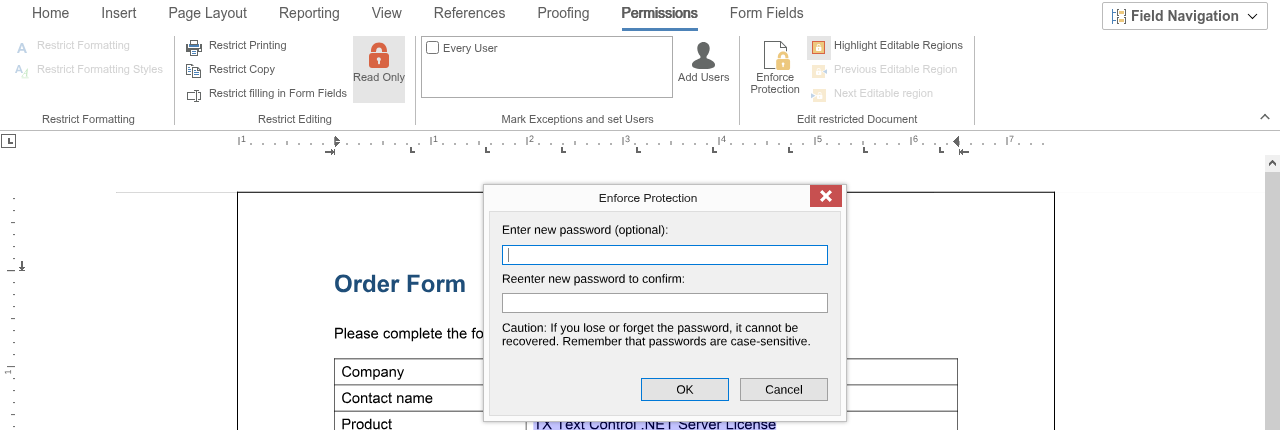
The blog article [Web Document Editor: Using Document Permissions](https://www.textcontrol.com/blog/2021/01/27/using-document-permissions-using-the-web-document-editor/) shows these steps.
### Mark Editable Regions and Protect From Code
The following view is used by the author of a document. It limits the users of the **Add Users** dialog box to a list, marks the selected text as editable for one user or for everyone, protects the document with a password and saves it. Replace the content of *Views/Home/Index.cshtml*:
```cshtml
@using TXTextControl.Web.MVC
@Html.TXTextControl().TextControl(settings => {
settings.UserNames = new string[] { "Tim Typer" };
}).Render()
```
The code works as follows:
- [TXTextControl.ribbonPermissionsTab](https://docs.textcontrol.com/tx-text-control-dotnet-server/reference/javascript/txtextcontrol/ribbonpermissionstab-property/llms-full.txt) returns the [RibbonPermissionsTab](https://docs.textcontrol.com/tx-text-control-dotnet-server/reference/javascript/ribbonpermissionstab/llms-full.txt). [registeredUserNames](https://docs.textcontrol.com/tx-text-control-dotnet-server/reference/javascript/ribbonpermissionstab/registeredusernames-property/llms-full.txt) are the names the **Add Users** dialog box offers, and [allowAdditionalUserNames](https://docs.textcontrol.com/tx-text-control-dotnet-server/reference/javascript/ribbonpermissionstab/allowadditionalusernames-property/llms-full.txt) with `false` prevents users from entering other names.
- [setEditableRegionHighlightMode](https://docs.textcontrol.com/tx-text-control-dotnet-server/reference/javascript/txtextcontrol/seteditableregionhighlightmode-method/llms-full.txt) sets how all editable regions are highlighted, with a value of [HighlightMode](https://docs.textcontrol.com/tx-text-control-dotnet-server/reference/javascript/txtextcontrol/highlightmode-enumeration/llms-full.txt).
- [TXTextControl.editableRegions](https://docs.textcontrol.com/tx-text-control-dotnet-server/reference/javascript/formattedtext/editableregions-property/llms-full.txt) returns the [EditableRegionCollection](https://docs.textcontrol.com/tx-text-control-dotnet-server/reference/javascript/editableregioncollection/llms-full.txt). [add](https://docs.textcontrol.com/tx-text-control-dotnet-server/reference/javascript/editableregioncollection/add-method/llms-full.txt) takes the user name, an ID, the one-based start position and the length; the selection start is zero-based, so the code adds 1. An empty user name makes the region editable for everyone.
- The callback receives an [EditableRegionCallbackData](https://docs.textcontrol.com/tx-text-control-dotnet-server/reference/javascript/editableregioncallbackdata/llms-full.txt) object with the new region in [editableRegion](https://docs.textcontrol.com/tx-text-control-dotnet-server/reference/javascript/editableregioncallbackdata/editableregion-property/llms-full.txt) and a value of [AddResult](https://docs.textcontrol.com/tx-text-control-dotnet-server/reference/javascript/txtextcontrol/addresult-enumeration/llms-full.txt) in `addResult`. In the Document Editor of `TXTextControl.Web` 34.5.0, `addResult` is a property of this object, not the second parameter of the callback that the reference describes.
- [setEditMode](https://docs.textcontrol.com/tx-text-control-dotnet-server/reference/javascript/txtextcontrol/seteditmode-method/llms-full.txt) with `ReadAndSelect | UsePassword` protects the document: the user enters the password in a dialog box.
- `saveToServer` saves the protected document in the TX Text Control format and posts it to the `Save` action of the `DocumentController`.
Select a passage, click **Editable for Paul Proof**, then **Protect**, enter a password and click **Save**. The project's *Documents* folder now contains *contract.tx*.
Before you click **Protect**, the region is highlighted, and with the input position in it, the **Permissions** tab shows the user it belongs to:
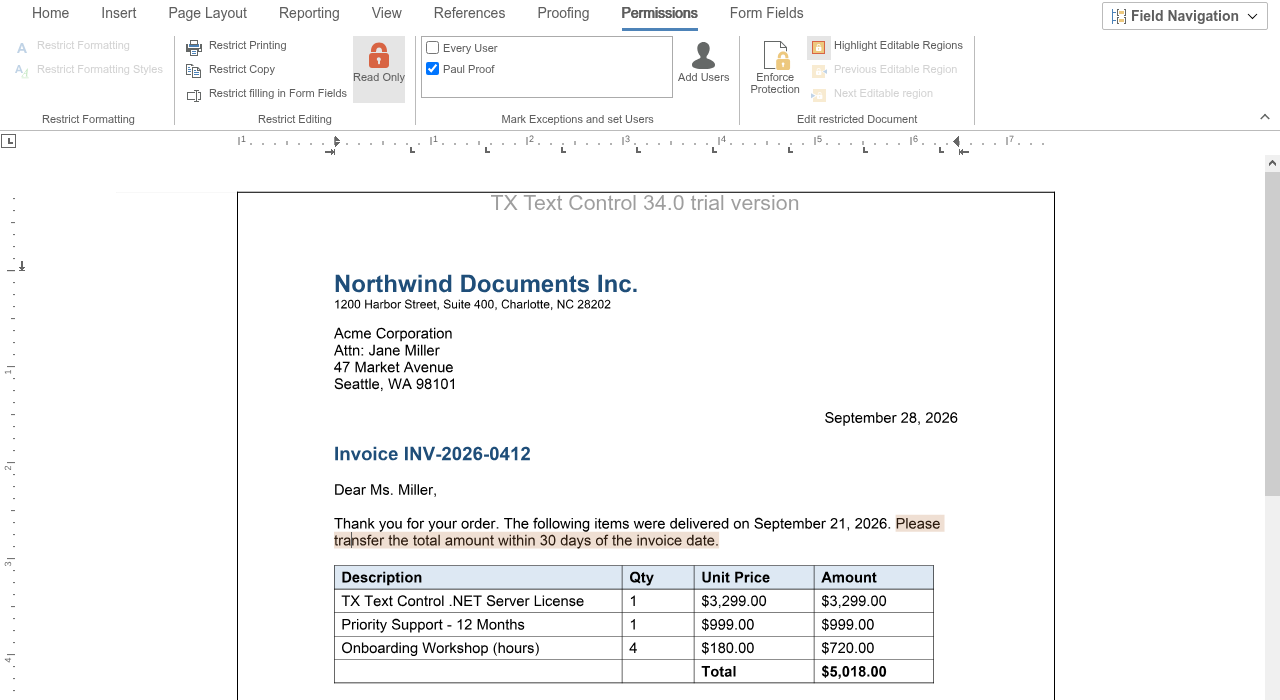
Regions can overlap, and a region that overlaps or directly follows another one with the same user name and ID is combined with it. The permissions and the password are saved with the TX Text Control format, DOCX, RTF and PDF.
### Open a Protected Document
The following view opens the protected document for Paul Proof in the `ReadAndSelect` edit mode. In the protected document, this user can change only the regions marked for Paul Proof or for everyone. Replace the content of *Views/Home/Index.cshtml*:
```cshtml
@using TXTextControl.Web.MVC
@Html.TXTextControl().TextControl(settings => {
settings.UserNames = new string[] { "Paul Proof" };
settings.EditMode = TXTextControl.Web.EditMode.ReadAndSelect;
}).LoadText("Documents/contract.tx", TXTextControl.Web.StreamType.InternalUnicodeFormat).Render()
```
- [TextControlSettings.UserNames](https://docs.textcontrol.com/tx-text-control-dotnet-server/reference/txtextcontrol-web-mvc/textcontrolsettings/usernames-property/llms-full.txt) lists the users who work with the editor. When the document is protected, the editable regions of these users can be edited. The first name is also the author of tracked changes and comments.
- [TextControlSettings.EditMode](https://docs.textcontrol.com/tx-text-control-dotnet-server/reference/txtextcontrol-web-mvc/textcontrolsettings/editmode-property/llms-full.txt) opens the document in `ReadAndSelect`, so that the permissions stored in the document apply.
- [getUserNames](https://docs.textcontrol.com/tx-text-control-dotnet-server/reference/javascript/txtextcontrol/getusernames-method/llms-full.txt) passes the names, and [EditableRegion.getUserName](https://docs.textcontrol.com/tx-text-control-dotnet-server/reference/javascript/editableregion/getusername-method/llms-full.txt) the user of a region, an empty string or `null` for everyone.
- [TXTextControl.documentPermissions](https://docs.textcontrol.com/tx-text-control-dotnet-server/reference/javascript/txtextcontrol/documentpermissions-property/llms-full.txt) returns the [DocumentPermissions](https://docs.textcontrol.com/tx-text-control-dotnet-server/reference/javascript/documentpermissions/llms-full.txt) of the document.
In a plain [JavaScript](https://docs.textcontrol.com/tx-text-control-dotnet-server/getting-started/document-editor/javascript/llms-full.txt) page, pass the edit mode and the user names to `TXTextControl.init` instead, as [editMode](https://docs.textcontrol.com/tx-text-control-dotnet-server/reference/javascript/documenteditorsettings/editmode-property/llms-full.txt) and [userNames](https://docs.textcontrol.com/tx-text-control-dotnet-server/reference/javascript/documenteditorsettings/usernames-property/llms-full.txt) of the [DocumentEditorSettings](https://docs.textcontrol.com/tx-text-control-dotnet-server/reference/javascript/documenteditorsettings/llms-full.txt).
To remove the protection, the edit mode is set back to `Edit`, and the user has to enter the same password.
### The Document Permissions
| Property | Allows |
|---|---|
| [readOnly](https://docs.textcontrol.com/tx-text-control-dotnet-server/reference/javascript/documentpermissions/readonly-property/llms-full.txt) | When `true`, neither the text nor its formatting can be changed |
| [allowFormatting](https://docs.textcontrol.com/tx-text-control-dotnet-server/reference/javascript/documentpermissions/allowformatting-property/llms-full.txt), [allowFormattingStyles](https://docs.textcontrol.com/tx-text-control-dotnet-server/reference/javascript/documentpermissions/allowformattingstyles-property/llms-full.txt) | Formatting text, and formatting it with styles |
| [allowCopy](https://docs.textcontrol.com/tx-text-control-dotnet-server/reference/javascript/documentpermissions/allowcopy-property/llms-full.txt) | Copying content |
| [allowPrinting](https://docs.textcontrol.com/tx-text-control-dotnet-server/reference/javascript/documentpermissions/allowprinting-property/llms-full.txt) | Printing the document |
| [allowEditingFormFields](https://docs.textcontrol.com/tx-text-control-dotnet-server/reference/javascript/documentpermissions/alloweditingformfields-property/llms-full.txt) | Filling out form fields |
Set the permissions with the **Restrict Editing** group of the ribbon. Your code reads the result in the protected document with the methods that consider both the permissions and the edit mode:
- [getCanPrint](https://docs.textcontrol.com/tx-text-control-dotnet-server/reference/javascript/txtextcontrol/getcanprint-method/llms-full.txt): whether the document can be printed.
- [getCanCopy](https://docs.textcontrol.com/tx-text-control-dotnet-server/reference/javascript/txtextcontrol/getcancopy-method/llms-full.txt) and [getCanPaste](https://docs.textcontrol.com/tx-text-control-dotnet-server/reference/javascript/txtextcontrol/getcanpaste-method/llms-full.txt): whether the selection can be copied, and whether the text or its formatting can be changed, for example by pasting.
- [getCanCharacterFormat](https://docs.textcontrol.com/tx-text-control-dotnet-server/reference/javascript/txtextcontrol/getcancharacterformat-method/llms-full.txt) and [getCanStyleFormat](https://docs.textcontrol.com/tx-text-control-dotnet-server/reference/javascript/txtextcontrol/getcanstyleformat-method/llms-full.txt): whether the selection can be formatted, directly or with styles.
Use these methods to enable or disable buttons of your own application.
### Work With Editable Regions
- [EditableRegionCollection.getItems](https://docs.textcontrol.com/tx-text-control-dotnet-server/reference/javascript/editableregioncollection/getitems-method/llms-full.txt) passes an array of the regions at the input position, or `null` if there is none.
- [remove](https://docs.textcontrol.com/tx-text-control-dotnet-server/reference/javascript/editableregioncollection/remove-method/llms-full.txt) removes a region but not its text. With `true` as the second parameter, it removes only the selected part of the region, which can split the region in two.
- An [EditableRegion](https://docs.textcontrol.com/tx-text-control-dotnet-server/reference/javascript/editableregion/llms-full.txt) has methods for its user name, ID, text, position and highlighting, [save](https://docs.textcontrol.com/tx-text-control-dotnet-server/reference/javascript/editableregion/save-method/llms-full.txt) to save its content and [scrollTo](https://docs.textcontrol.com/tx-text-control-dotnet-server/reference/javascript/editableregion/scrollto-method/llms-full.txt) to move the input position to it.
The editor raises `editableRegionCreated` and `editableRegionDeleted` when a region is added or deleted, and `editableRegionEntered` and `editableRegionLeft` when the input position moves into or out of a region. The handlers receive [EditableRegionEventArgs](https://docs.textcontrol.com/tx-text-control-dotnet-server/reference/javascript/editableregioneventargs/llms-full.txt). [Events](https://docs.textcontrol.com/tx-text-control-dotnet-server/document-editor/events/llms-full.txt) lists all events.
To save a document without its editable regions, pass `EditableRegions` from [OmittedContent](https://docs.textcontrol.com/tx-text-control-dotnet-server/reference/javascript/txtextcontrol-savesettings/omittedcontent-enumeration/llms-full.txt) in [SaveSettings.omittedContent](https://docs.textcontrol.com/tx-text-control-dotnet-server/reference/javascript/txtextcontrol-savesettings/omittedcontent-property/llms-full.txt). The text and its formatting are kept.
### Passwords of PDF Documents
The protection described on this page is part of the document and applies in the editor. PDF documents have their own passwords and access permissions, which are set when a document is saved as PDF: `userPassword`, `masterPassword` and `documentAccessPermissions` of the save settings. [Create a PDF](https://docs.textcontrol.com/tx-text-control-dotnet-server/getting-started/pdf/create/llms-full.txt) describes them.
The blog article [Document Protection in ASP.NET with TX Text Control: Healthcare Use Cases](https://www.textcontrol.com/blog/2025/06/25/document-protection-in-asp-dotnet-with-tx-text-control-healthcare-use-cases/) combines editable regions and users in an ASP.NET Core application.
### Next Steps
- [Form Fields](https://docs.textcontrol.com/tx-text-control-dotnet-server/document-editor/form-fields/llms-full.txt): protected forms in which users fill out fields.
- [Track Changes](https://docs.textcontrol.com/tx-text-control-dotnet-server/document-editor/track-changes/llms-full.txt): record the changes users make.
- [Document Security](https://docs.textcontrol.com/tx-text-control-dotnet-server/security/documents/llms-full.txt): protect and encrypt documents on the server.
---
## Nearby
- **Previous:** [Comments](https://docs.textcontrol.com/tx-text-control-dotnet-server/document-editor/comments/llms-full.txt)
- **Next:** [Spell Checking](https://docs.textcontrol.com/tx-text-control-dotnet-server/document-editor/spell-checking/llms-full.txt)