# Signature Fields
> Prepare documents for signing in the Document Editor: insert and name signature fields from JavaScript, set signer data and images, and hand them to signing.
- **Product:** TX Text Control .NET Server
- **Section:** Documentation
- **Kind:** Topic
- **Path:** TX Text Control .NET Server > Document Editor > Signature Fields
- **3674 words**
- **Web URL:** https://docs.textcontrol.com/tx-text-control-dotnet-server/document-editor/signature-fields/
- **LLMs URL:** https://docs.textcontrol.com/tx-text-control-dotnet-server/document-editor/signature-fields/llms.txt
- **LLMs-Full URL:** https://docs.textcontrol.com/tx-text-control-dotnet-server/document-editor/signature-fields/llms-full.txt
---
In contract, approval or onboarding workflows, a document is designed in the Document Editor and signed later. Preparing it for signing means understanding what a signature field is, inserting and naming signature fields, which users and your code can do, storing data about the expected signer and knowing what happens to the fields afterward.
The examples extend the view of the [ASP.NET Core](https://docs.textcontrol.com/tx-text-control-dotnet-server/getting-started/document-editor/aspnet-core/llms-full.txt) tutorial. Signature fields were introduced in version 31.0.
### What a Signature Field Is
A signature field is a frame in the document that holds the image of a signature. The image can be added while the document is designed or later, when the document is signed. When the document is saved as PDF on the server, each signature field can also be associated with a digital certificate, which requires that the field has a name.
A signature field is placed like an image or a text frame: inline in the text, anchored to a paragraph or at a fixed position. [What a Signature Field Holds](https://docs.textcontrol.com/tx-text-control-dotnet-server/digital-signatures/signature-fields/#what-a-signature-field-holds) in Digital Signatures lists its parts and the formats that keep it.
Signature fields are usually one step of a workflow:
1. **Design.** A user or your code places named signature fields in the document in the Document Editor, and the document is saved.
2. **Sign.** The Document Viewer shows the document, and users sign in the signature fields by drawing, typing or uploading a signature. See [Signature Fields](https://docs.textcontrol.com/tx-text-control-dotnet-server/document-viewer/signature-fields/llms-full.txt) in Document Viewer.
3. **Certify.** The backend loads the signed document and applies a certificate to each field when it saves the PDF. See "Sign Signature Fields" in [Digitally Sign a PDF](https://docs.textcontrol.com/tx-text-control-dotnet-server/getting-started/pdf/sign/#sign-signature-fields).
In a document with several signers, each signer gets a field with a different name.
### Insert Signature Fields in the Editor
Users insert a signature field with **Insert > Signature Field** and draw it at the position where the signature belongs. When they select the field, the editor shows the **Frame Formatting** tab: its **Signer Info** group holds the data about the expected signer (**Signer**, **Title**, **Address**, **Contact Info** and **Reason**), and its **Properties** group the **Name** of the field:
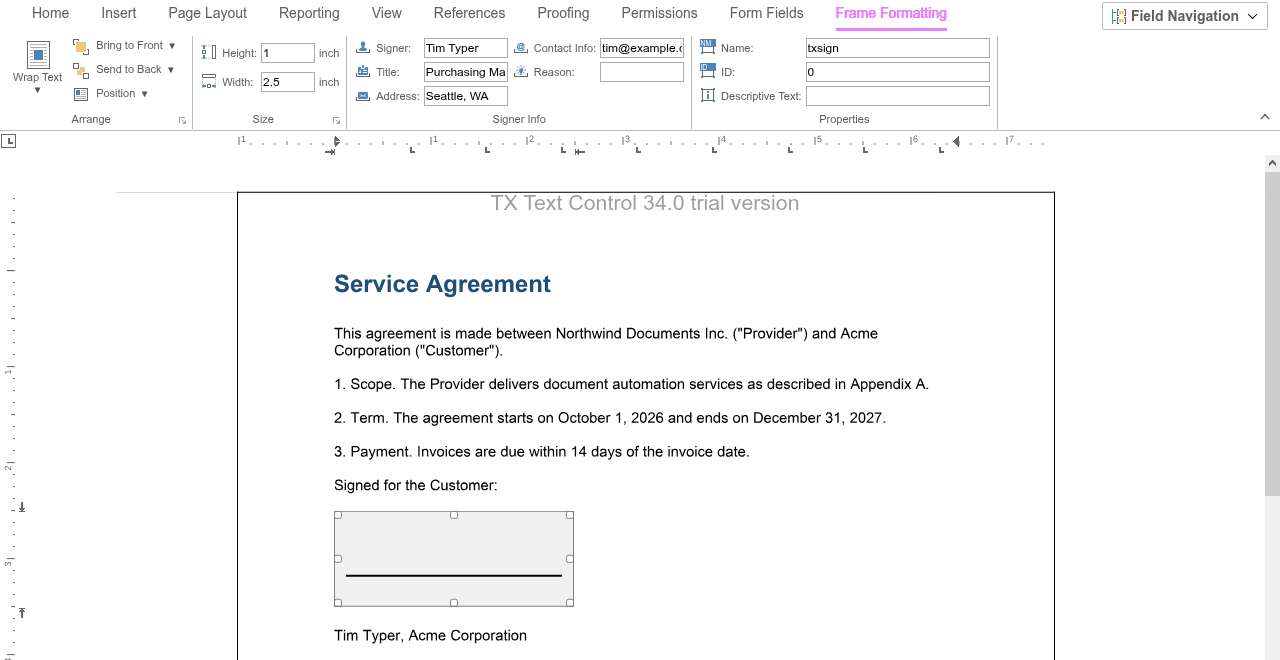
These boxes set the same values as the JavaScript code in the next section.
### Insert Signature Fields From Code
[TXTextControl.signatureFields](https://docs.textcontrol.com/tx-text-control-dotnet-server/reference/javascript/txtextcontrol/signaturefields-property/llms-full.txt) returns the [SignatureFieldCollection](https://docs.textcontrol.com/tx-text-control-dotnet-server/reference/javascript/signaturefieldcollection/llms-full.txt) of the document. The following code inserts a named signature field at the input position with data about the expected signer, and logs the field a user selects. Add it below the editor in *Views/Home/Index.cshtml*:
```html
```
The code works as follows:
- [addAnchored](https://docs.textcontrol.com/tx-text-control-dotnet-server/reference/javascript/signaturefieldcollection/addanchored-method/llms-full.txt) takes the size as an object with `width` and `height` in twips, the horizontal alignment, the text position (`-1` for the input position) and a value of [FrameInsertionMode](https://docs.textcontrol.com/tx-text-control-dotnet-server/reference/javascript/txtextcontrol/frameinsertionmode-enumeration/llms-full.txt). The callback receives the new [SignatureField](https://docs.textcontrol.com/tx-text-control-dotnet-server/reference/javascript/signaturefield/llms-full.txt).
- [setName](https://docs.textcontrol.com/tx-text-control-dotnet-server/reference/javascript/framebase/setname-method/llms-full.txt) names the field "txsign", the name that the Getting Started example for signing uses.
- [setSignerData](https://docs.textcontrol.com/tx-text-control-dotnet-server/reference/javascript/signaturefield/setsignerdata-method/llms-full.txt) takes a [SignerData](https://docs.textcontrol.com/tx-text-control-dotnet-server/reference/javascript/signerdata/llms-full.txt) object with the name, title, address, contact information and reason for signing. The data is stored with the document and used when the field is signed.
- The `signatureFieldSelected` handler receives [SignatureFieldEventArgs](https://docs.textcontrol.com/tx-text-control-dotnet-server/reference/javascript/signaturefieldeventargs/llms-full.txt), whose `signatureField` contains the name and the signer data of the field.
The collection also inserts fields at a fixed position ([addAtFixedPositionOnPage](https://docs.textcontrol.com/tx-text-control-dotnet-server/reference/javascript/signaturefieldcollection/addatfixedpositiononpage-method/llms-full.txt)) or lets the user draw them ([addWithMouse](https://docs.textcontrol.com/tx-text-control-dotnet-server/reference/javascript/signaturefieldcollection/addwithmouse-method/llms-full.txt)); [Images](https://docs.textcontrol.com/tx-text-control-dotnet-server/document-editor/images/llms-full.txt) explains the kinds of placement.
### Set an Image, Read the Signer Data and Remove a Field
The following code sets the image of the selected signature field from an SVG file, shows the signer data of the field named "txsign" and removes that field:
```html
```
- [setImage](https://docs.textcontrol.com/tx-text-control-dotnet-server/reference/javascript/signaturefield/setimage-method/llms-full.txt) takes the Base64-encoded image data. The file is read in the browser, as on [Images](https://docs.textcontrol.com/tx-text-control-dotnet-server/document-editor/images/llms-full.txt).
- [getItem](https://docs.textcontrol.com/tx-text-control-dotnet-server/reference/javascript/signaturefieldcollection/getitem-method/llms-full.txt) without an ID passes the selected field, and [getItemByName](https://docs.textcontrol.com/tx-text-control-dotnet-server/reference/javascript/signaturefieldcollection/getitembyname-method/llms-full.txt) the field with a name, or `null`.
- [getSignerData](https://docs.textcontrol.com/tx-text-control-dotnet-server/reference/javascript/signaturefield/getsignerdata-method/llms-full.txt) passes the stored `SignerData`.
- [remove](https://docs.textcontrol.com/tx-text-control-dotnet-server/reference/javascript/signaturefieldcollection/remove-method/llms-full.txt) removes the field from the document.
[SignatureField.image](https://docs.textcontrol.com/tx-text-control-dotnet-server/reference/javascript/signaturefield/image-property/llms-full.txt) returns a [SignatureImage](https://docs.textcontrol.com/tx-text-control-dotnet-server/reference/javascript/signatureimage/llms-full.txt) with the settings used when the signature image is saved with the document:
- [setExportCompressionQuality](https://docs.textcontrol.com/tx-text-control-dotnet-server/reference/javascript/signatureimage/setexportcompressionquality-method/llms-full.txt) and [getExportCompressionQuality](https://docs.textcontrol.com/tx-text-control-dotnet-server/reference/javascript/signatureimage/getexportcompressionquality-method/llms-full.txt) set and pass the quality of a lossy compression, a value from 1 to 100.
- [setExportMaxResolution](https://docs.textcontrol.com/tx-text-control-dotnet-server/reference/javascript/signatureimage/setexportmaxresolution-method/llms-full.txt) and [getExportMaxResolution](https://docs.textcontrol.com/tx-text-control-dotnet-server/reference/javascript/signatureimage/getexportmaxresolution-method/llms-full.txt) set and pass the maximum resolution of the saved image. The .NET property of the same name, [SignatureImage.ExportMaxResolution](https://docs.textcontrol.com/tx-text-control-dotnet-server/reference/txtextcontrol/signatureimage/exportmaxresolution-property/llms-full.txt), gives it in dots per inch and reduces images with a higher resolution.
In event arguments, the same two values are the `exportCompressionQuality` and `exportMaxResolution` properties of a [SignatureImageInfo](https://docs.textcontrol.com/tx-text-control-dotnet-server/reference/javascript/signatureimageinfo/llms-full.txt).
```javascript
TXTextControl.signatureFields.getItemByName(function (signatureField) {
if (signatureField !== null) {
// Compress the saved signature image with quality 80 and at most 300 dpi
signatureField.image.setExportCompressionQuality(80);
signatureField.image.setExportMaxResolution(300);
}
}, null, "txsign");
```
### React to Signature Field Events
The editor raises `signatureFieldCreated`, `signatureFieldDeleted`, `signatureFieldSelected` and `signatureFieldDeselected`. All handlers receive `SignatureFieldEventArgs` with the ID, name, position, signer data and image settings of the field. [Events](https://docs.textcontrol.com/tx-text-control-dotnet-server/document-editor/events/llms-full.txt) lists all events.
### After the Design
Save the document with its signature fields as described in [Loading and Saving Documents](https://docs.textcontrol.com/tx-text-control-dotnet-server/document-editor/load-save/llms-full.txt). The JavaScript API of the editor doesn't apply certificates: its save settings have no signature settings. Certificates are applied on the server with [SaveSettings.SignatureFields](https://docs.textcontrol.com/tx-text-control-dotnet-server/reference/txtextcontrol/savesettings/signaturefields-property/llms-full.txt), which associates a [DigitalSignature](https://docs.textcontrol.com/tx-text-control-dotnet-server/reference/txtextcontrol/digitalsignature/llms-full.txt) with each named field. A PDF document with unsigned signature fields can also be signed later in a PDF reader such as Acrobat Reader.
The blog article [Preparing Documents for E-Signing for Multiple Signers in .NET C#](https://www.textcontrol.com/blog/2024/11/13/preparing-documents-for-e-signing-for-multiple-signers-in-net-c-sharp/) shows a workflow with several signers, and [How to Sign Signature Fields with Custom Signer Information and Time Stamps in ASP.NET Core C#](https://www.textcontrol.com/blog/2024/06/21/how-to-sign-signature-fields-with-custom-signer-information-and-time-stamps-in-asp-net-core-c-sharp/) the signing on the server.
### Next Steps
- [Digitally Sign a PDF](https://docs.textcontrol.com/tx-text-control-dotnet-server/getting-started/pdf/sign/llms-full.txt): apply certificates to signature fields.
- [Signature Fields](https://docs.textcontrol.com/tx-text-control-dotnet-server/digital-signatures/signature-fields/llms-full.txt) in Digital Signatures: signature fields in signed PDF documents.
- [Form Fields](https://docs.textcontrol.com/tx-text-control-dotnet-server/document-editor/form-fields/llms-full.txt): other fields that users fill out.
---
## Nearby
- **Previous:** [Content Controls](https://docs.textcontrol.com/tx-text-control-dotnet-server/document-editor/content-controls/llms-full.txt)
- **Next:** [Track Changes](https://docs.textcontrol.com/tx-text-control-dotnet-server/document-editor/track-changes/llms-full.txt)