# Tables
> Insert, format and remove tables in the Document Editor from JavaScript: borders and colors, rows and columns, merged cells, formulas and number formats.
- **Product:** TX Text Control .NET Server
- **Section:** Documentation
- **Kind:** Topic
- **Path:** TX Text Control .NET Server > Document Editor > Tables
- **5997 words**
- **Web URL:** https://docs.textcontrol.com/tx-text-control-dotnet-server/document-editor/tables/
- **LLMs URL:** https://docs.textcontrol.com/tx-text-control-dotnet-server/document-editor/tables/llms.txt
- **LLMs-Full URL:** https://docs.textcontrol.com/tx-text-control-dotnet-server/document-editor/tables/llms-full.txt
---
The table tools of the ribbon aren't the only way to work with tables: your application can insert, change and remove tables in the Document Editor as well. With the JavaScript API, it gets a table by its ID or at the input position, sets the text and formatting of cells, adds rows and columns, merges cells, calculates cells with formulas and describes a table for screen readers.
The examples build on the [ASP.NET Core](https://docs.textcontrol.com/tx-text-control-dotnet-server/getting-started/document-editor/aspnet-core/llms-full.txt) tutorial, whose **Insert Table** button adds a table with 5 rows, 5 columns and the ID 10. Add the code of this page to the same view.
### How Tables Are Organized
Users insert tables from the ribbon and change them on the **Table Layout** tab, which the editor shows, together with the **Formulas** tab, while the input position or the selection is in a table:
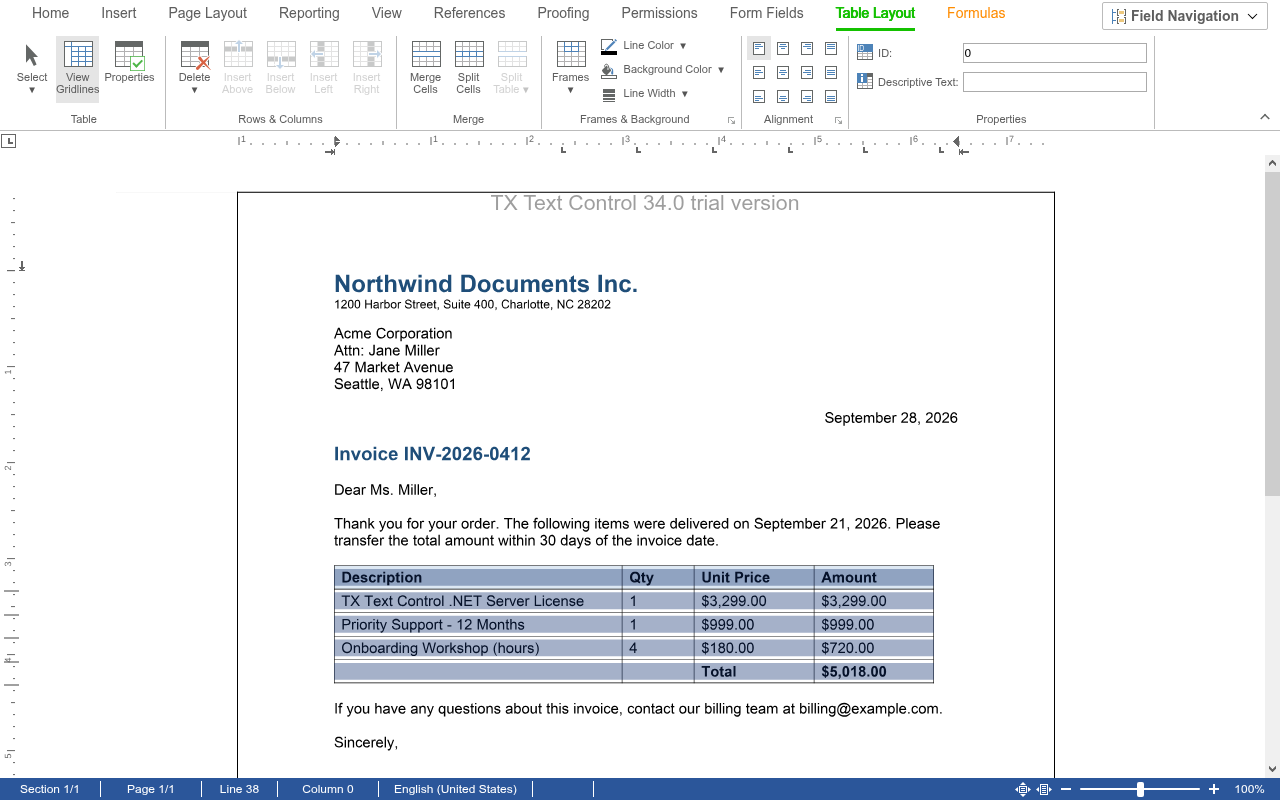
Your code works with these objects:
| Object | Represents | You get it from |
|---|---|---|
| [TableCollection](https://docs.textcontrol.com/tx-text-control-dotnet-server/reference/javascript/tablecollection/llms-full.txt) | All tables of a text part | [TXTextControl.tables](https://docs.textcontrol.com/tx-text-control-dotnet-server/reference/javascript/formattedtext/tables-property/llms-full.txt) |
| [Table](https://docs.textcontrol.com/tx-text-control-dotnet-server/reference/javascript/table/llms-full.txt) | One table | `TableCollection.getItem` |
| [TableCell](https://docs.textcontrol.com/tx-text-control-dotnet-server/reference/javascript/tablecell/llms-full.txt), [TableRow](https://docs.textcontrol.com/tx-text-control-dotnet-server/reference/javascript/tablerow/llms-full.txt), [TableColumn](https://docs.textcontrol.com/tx-text-control-dotnet-server/reference/javascript/tablecolumn/llms-full.txt) | A cell, row or column | [Table.cells](https://docs.textcontrol.com/tx-text-control-dotnet-server/reference/javascript/table/cells-property/llms-full.txt), [Table.rows](https://docs.textcontrol.com/tx-text-control-dotnet-server/reference/javascript/table/rows-property/llms-full.txt), [Table.columns](https://docs.textcontrol.com/tx-text-control-dotnet-server/reference/javascript/table/columns-property/llms-full.txt) |
| [TableCellFormat](https://docs.textcontrol.com/tx-text-control-dotnet-server/reference/javascript/tablecellformat/llms-full.txt) | Borders, background color, vertical alignment, text type and number format | `getCellFormat` of a cell, row or column |
Rows and columns are numbered from 1.
### Use the Keyboard in Tables
In a table, the keys of the editor move between cells and extend the table:
| Key | Action |
|---|---|
| Tab, Shift+Tab | Moves to the next or the previous cell |
| Tab in the last cell of a table | Adds a new row at the end of the table |
| Enter at the first position of a document that starts with a table | Inserts an empty line above the table |
The other keys and mouse actions of the editor are listed in [Editing Text](https://docs.textcontrol.com/tx-text-control-dotnet-server/document-editor/editing-text/#keyboard-and-mouse).
When a table runs over several pages, the paragraph settings keep with next and page break before apply to whole rows, and the first paragraph of a row decides for the row; see [Tables](https://docs.textcontrol.com/tx-text-control-dotnet-server/document-processing/tables/#format-cells-rows-and-columns) in Document Processing.
### Insert a Table and Find It Again
[TableCollection.add](https://docs.textcontrol.com/tx-text-control-dotnet-server/reference/javascript/tablecollection/add-method/llms-full.txt) inserts a table at the current input position. It takes the number of rows and columns, an optional ID and a callback that receives `true` if the table was added. [getCanAdd](https://docs.textcontrol.com/tx-text-control-dotnet-server/reference/javascript/tablecollection/getcanadd-method/llms-full.txt) tells you beforehand whether a table can be inserted at the input position.
The ID is how your code finds a table again. [Table.setID](https://docs.textcontrol.com/tx-text-control-dotnet-server/reference/javascript/table/setid-method/llms-full.txt) requires a value from 10 to 32767. [TableCollection.getItem](https://docs.textcontrol.com/tx-text-control-dotnet-server/reference/javascript/tablecollection/getitem-method/llms-full.txt) passes a table to its callback:
- With an ID as the third parameter, it passes the first table with that ID.
- Without an ID, it passes the table that contains the input position.
- If there is no such table, it passes `null`.
Because `add` works asynchronously, call `getItem` inside the callback of `add`, as the tutorial does.
### Format a Table
The following code turns the first row of table 10 into a header row, gives all cells gray borders and colors the header cells. It also sets a descriptive text, which screen readers use to describe the table:
```html
```
The code works as follows:
- [TableRowCollection.getItem](https://docs.textcontrol.com/tx-text-control-dotnet-server/reference/javascript/tablerowcollection/getitem-method/llms-full.txt) passes the row with the given number. [setIsHeader](https://docs.textcontrol.com/tx-text-control-dotnet-server/reference/javascript/tablerow/setisheader-method/llms-full.txt) makes it part of the table header, which is repeated at the top of each page when the table extends over several pages.
- [forEach](https://docs.textcontrol.com/tx-text-control-dotnet-server/reference/javascript/collection/foreach-method/llms-full.txt) calls the function for every cell. [TableCell.getCellFormat](https://docs.textcontrol.com/tx-text-control-dotnet-server/reference/javascript/tablecell/getcellformat-method/llms-full.txt) passes the format of the cell, and changes to it apply to the cell right away.
- [leftBorder](https://docs.textcontrol.com/tx-text-control-dotnet-server/reference/javascript/tablecellformat/leftborder-property/llms-full.txt) and the other border properties return a [TableCellBorder](https://docs.textcontrol.com/tx-text-control-dotnet-server/reference/javascript/tablecellborder/llms-full.txt). [setWidth](https://docs.textcontrol.com/tx-text-control-dotnet-server/reference/javascript/tablecellborder/setwidth-method/llms-full.txt) sets the width of the border line and [setTextDistance](https://docs.textcontrol.com/tx-text-control-dotnet-server/reference/javascript/tablecellborder/settextdistance-method/llms-full.txt) the distance between the border and the text, both in twips (20 twips are 1 point).
- [TableCellCollection.getItem](https://docs.textcontrol.com/tx-text-control-dotnet-server/reference/javascript/tablecellcollection/getitem-method/llms-full.txt) passes the cell with a row and column number. [setBackColor](https://docs.textcontrol.com/tx-text-control-dotnet-server/reference/javascript/tablecellformat/setbackcolor-method/llms-full.txt) and [setVerticalAlignment](https://docs.textcontrol.com/tx-text-control-dotnet-server/reference/javascript/tablecellformat/setverticalalignment-method/llms-full.txt) change its background and the vertical position of its text, with `Top`, `Center` or `Bottom` from [VerticalAlignment](https://docs.textcontrol.com/tx-text-control-dotnet-server/reference/javascript/txtextcontrol/verticalalignment-enumeration/llms-full.txt).
- [setDescriptiveText](https://docs.textcontrol.com/tx-text-control-dotnet-server/reference/javascript/table/setdescriptivetext-method/llms-full.txt) stores the description of the table, which accessible PDF documents contain.
Click **Insert Table** and then **Format Table**: the table gets gray borders and a blue header row.
To set the text of a cell, call [TableCell.setText](https://docs.textcontrol.com/tx-text-control-dotnet-server/reference/javascript/tablecell/settext-method/llms-full.txt); [getText](https://docs.textcontrol.com/tx-text-control-dotnet-server/reference/javascript/tablecell/gettext-method/llms-full.txt) passes the text to a callback. The widths of cells and columns are set in twips with [TableCell.setWidth](https://docs.textcontrol.com/tx-text-control-dotnet-server/reference/javascript/tablecell/setwidth-method/llms-full.txt) and [TableColumn.setWidth](https://docs.textcontrol.com/tx-text-control-dotnet-server/reference/javascript/tablecolumn/setwidth-method/llms-full.txt), and a minimum row height with [TableRow.setMinimumHeight](https://docs.textcontrol.com/tx-text-control-dotnet-server/reference/javascript/tablerow/setminimumheight-method/llms-full.txt).
### Work With the Table at the Input Position
Many table functions start from where the user has placed the cursor. The following code shows the position of the current cell and adds a row below and a column to the right of it:
```html
```
- [getItemAtInputPosition](https://docs.textcontrol.com/tx-text-control-dotnet-server/reference/javascript/tablecellcollection/getitematinputposition-method/llms-full.txt) passes the cell that contains the input position.
- [TableRowCollection.add](https://docs.textcontrol.com/tx-text-control-dotnet-server/reference/javascript/tablerowcollection/add-method/llms-full.txt) adds the given number of rows before or after the selected rows, with `Before` or `After` from [TableAddPosition](https://docs.textcontrol.com/tx-text-control-dotnet-server/reference/javascript/txtextcontrol/tableaddposition-enumeration/llms-full.txt). [TableColumnCollection.add](https://docs.textcontrol.com/tx-text-control-dotnet-server/reference/javascript/tablecolumncollection/add-method/llms-full.txt) adds a column at the input position.
- [TableRowCollection.remove](https://docs.textcontrol.com/tx-text-control-dotnet-server/reference/javascript/tablerowcollection/remove-method/llms-full.txt) removes the row at the input position, or the selected rows.
### Merge and Split Cells
Cells are merged in two steps: select them, then merge the selection. [Table.selectCells](https://docs.textcontrol.com/tx-text-control-dotnet-server/reference/javascript/table/selectcells-method/llms-full.txt) selects a range from a start row and column to an end row and column. [getCanMergeCells](https://docs.textcontrol.com/tx-text-control-dotnet-server/reference/javascript/table/getcanmergecells-method/llms-full.txt) tells whether the selection can be merged, which requires more than one selected cell, and [mergeCells](https://docs.textcontrol.com/tx-text-control-dotnet-server/reference/javascript/table/mergecells-method/llms-full.txt) merges it:
```javascript
function mergeLastRow() {
TXTextControl.tables.getItem(function (table) {
if (table === null) {
return;
}
// Select row 5 from column 1 to column 5, then merge the selected cells
table.selectCells(5, 1, 5, 5, function () {
table.getCanMergeCells(function (canMerge) {
if (canMerge === true) {
table.mergeCells(function (merged) {
console.log("Cells merged: " + merged);
});
}
});
});
}, null, 10);
}
```
[splitCells](https://docs.textcontrol.com/tx-text-control-dotnet-server/reference/javascript/table/splitcells-method/llms-full.txt) splits selected cells that were merged before; only merged cells can be split. [Table.split](https://docs.textcontrol.com/tx-text-control-dotnet-server/reference/javascript/table/split-method/llms-full.txt) is different: it splits the whole table into two tables above or below the row that contains the input position.
### Calculate With Formulas
A table cell can contain a formula that calculates its text from other cells of the same table, as in a spreadsheet. When the text of a referenced cell changes, the cell with the formula is updated automatically. References to other tables or to other documents aren't supported.
The following code fills rows 1 to 4 of column 5 of table 10 with numbers and adds their sum in row 5, with two decimal places:
```html
```
The code works as follows:
- [setFormulaReferenceStyle](https://docs.textcontrol.com/tx-text-control-dotnet-server/reference/javascript/txtextcontrol/setformulareferencestyle-method/llms-full.txt) sets how formulas address cells, with a value of [FormulaReferenceStyle](https://docs.textcontrol.com/tx-text-control-dotnet-server/reference/javascript/txtextcontrol/formulareferencestyle-enumeration/llms-full.txt). With `A1`, a column letter and a row number address a cell: `B3` is row 3 of column 2. With `R1C1`, the same cell is `R3C2`, and a relative reference such as `R[-3]C[-2]` addresses the cell three rows above and two columns to the left of the formula cell.
- [TableCellFormat.setTextType](https://docs.textcontrol.com/tx-text-control-dotnet-server/reference/javascript/tablecellformat/settexttype-method/llms-full.txt) with `Number` from [TextType](https://docs.textcontrol.com/tx-text-control-dotnet-server/reference/javascript/txtextcontrol/texttype-enumeration/llms-full.txt) makes the text of a cell a number. In the cell text and in number formats, the period is the decimal separator and the comma the thousands separator. With `Text`, the text is shown as it is.
- [setNumberFormat](https://docs.textcontrol.com/tx-text-control-dotnet-server/reference/javascript/tablecellformat/setnumberformat-method/llms-full.txt) sets how the calculated number is displayed. `#.00` shows two decimal places.
- [TableCell.setFormula](https://docs.textcontrol.com/tx-text-control-dotnet-server/reference/javascript/tablecell/setformula-method/llms-full.txt) sets the formula of the cell. [getFormula](https://docs.textcontrol.com/tx-text-control-dotnet-server/reference/javascript/tablecell/getformula-method/llms-full.txt) passes it to a callback.
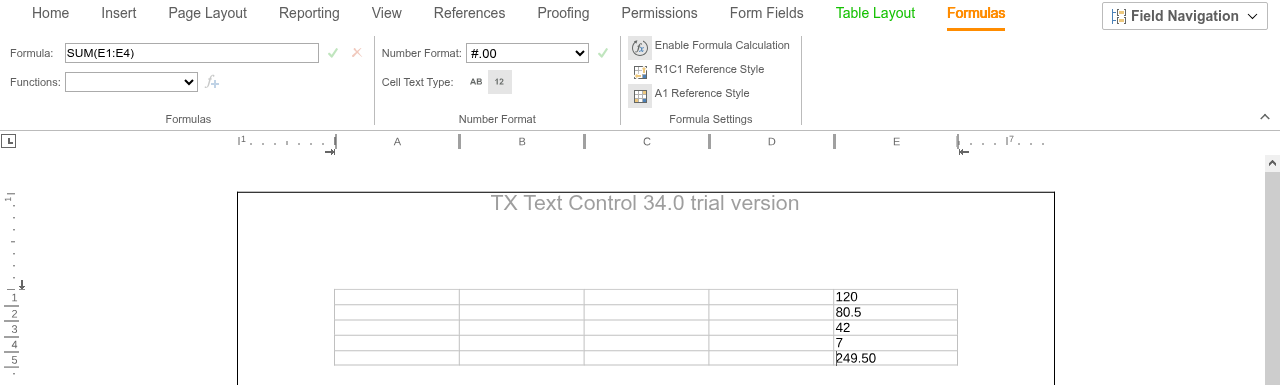
Click **Insert Table** and then **Add Total**: cell E5 shows 249.50. Change one of the numbers above it, and the sum is updated. The displayed number uses the decimal and thousands separators of the system language.
With the input position in E5, the **Formulas** tab shows the formula and the number format of the cell, and the ruler bar shows the column letters and row numbers when its formula mode is `Auto` (see "Calculation and Cell References" below):
#### Formula Syntax
The syntax follows the formulas of spreadsheets as specified in Office Open XML (ISO/IEC 29500-1). A formula consists of:
- **Functions** with their arguments separated by commas, such as `SUM(E1:E4)`, `AVERAGE(A1:A3)` or `IF(A1>100,1,0)`. Mathematical functions such as `ROUND`, statistical functions such as `MAX` and logical functions such as `IF` are supported.
- **Cell references and ranges.** A range is two references separated by a colon. `LEFT`, `ABOVE`, `RIGHT` and `BELOW` refer to the cells next to the formula cell, as in `SUM(ABOVE)`.
- **Constants:** numbers such as `4`, `3.937` or `5e4`, the logical values `TRUE` and `FALSE`, strings in double quotes such as `"text"` and arrays in braces such as `{1,2,3;4,5}`.
- **Operators:** the arithmetic operators `+`, `-`, `*`, `/`, `%` and `^`, the comparison operators `=`, `>`, `<`, `>=`, `<=` and `<>` and the operator `&`, which joins text.
In A1 style, a `$` makes a column or row absolute, as in `$B$3`. [Tables](https://docs.textcontrol.com/tx-text-control-dotnet-server/document-processing/tables/#calculate-with-formulas) in Document Processing describes constants, operators and cell references with examples, and [Formula Functions](https://docs.textcontrol.com/tx-text-control-dotnet-server/reference/formula-functions/llms-full.txt) lists every function with its arguments.
A number format consists of the placeholders `#` and `0`, the separators `.` and `,`, `%` and other text. `0` shows a digit even when it is zero, and text in quotes is shown as it is: `"EUR"#.00` shows 29.99 as EUR 29.99, and `#%` shows 0.52 as 52%. Only formats for positive numbers are supported. [Number Formats](https://docs.textcontrol.com/tx-text-control-dotnet-server/document-processing/tables/#number-formats) in Document Processing describes rounding, thousands separators, scaling and escaped characters. The blog article [Formatting Numbers in Table Cells](https://www.textcontrol.com/blog/2022/06/21/formatting-numbers-in-table-cells/) shows more examples.
#### Calculation and Cell References
- [setIsFormulaCalculationEnabled](https://docs.textcontrol.com/tx-text-control-dotnet-server/reference/javascript/txtextcontrol/setisformulacalculationenabled-method/llms-full.txt) turns the automatic calculation on or off, and [getIsFormulaCalculationEnabled](https://docs.textcontrol.com/tx-text-control-dotnet-server/reference/javascript/txtextcontrol/getisformulacalculationenabled-method/llms-full.txt) passes the current state.
- [RulerBarViewGenerator.setFormulaMode](https://docs.textcontrol.com/tx-text-control-dotnet-server/reference/javascript/rulerbarviewgenerator/setformulamode-method/llms-full.txt) shows the cell references in the ruler bar of [TXTextControl.rulerBar](https://docs.textcontrol.com/tx-text-control-dotnet-server/reference/javascript/txtextcontrol/rulerbar-property/llms-full.txt). With `Auto` from [RulerBarFormulaMode](https://docs.textcontrol.com/tx-text-control-dotnet-server/reference/javascript/txtextcontrol/rulerbarformulamode-enumeration/llms-full.txt), they appear when the input position is in a cell with a formula; with `Always`, they are shown relative to the current cell.
```javascript
function showCellReferences() {
TXTextControl.rulerBar.setFormulaMode(TXTextControl.RulerBarFormulaMode.Auto);
}
```
Formulas are kept when XLSX documents are loaded as tables, as described in [Supported File Formats](https://docs.textcontrol.com/tx-text-control-dotnet-server/overview/file-formats/#excel-spreadsheets-xlsx). The blog article [Online Sample: Combining Form Fields and Formulas](https://www.textcontrol.com/blog/2022/06/10/online-sample-combining-form-fields-and-formulas/) calculates a form with formulas.
### Nested Tables
A table can be inserted into a cell of another table. [Table.nestedTables](https://docs.textcontrol.com/tx-text-control-dotnet-server/reference/javascript/table/nestedtables-property/llms-full.txt) returns the tables inside a table, [getNestedLevel](https://docs.textcontrol.com/tx-text-control-dotnet-server/reference/javascript/table/getnestedlevel-method/llms-full.txt) passes the nesting level (1 for a table that isn't nested), and [getOuterTable](https://docs.textcontrol.com/tx-text-control-dotnet-server/reference/javascript/table/getoutertable-method/llms-full.txt) passes the table that contains it.
### Remove a Table
[removeById](https://docs.textcontrol.com/tx-text-control-dotnet-server/reference/javascript/tablebasecollection/removebyid-method/llms-full.txt) removes the first table with an ID, and [removeAtInputPosition](https://docs.textcontrol.com/tx-text-control-dotnet-server/reference/javascript/tablebasecollection/removeatinputposition-method/llms-full.txt) removes the table that contains the input position:
```javascript
function removeTable() {
TXTextControl.tables.removeById(10, function (removed) {
console.log("Table removed: " + removed);
});
}
```
The editor raises `tableDeleted` when a table has been deleted, and `tableCreated` when a table without an ID is created by pasting or by loading a document. `tableCreated` isn't raised for tables that your code adds with `add`; use the callback of `add` instead. See [Events](https://docs.textcontrol.com/tx-text-control-dotnet-server/document-editor/events/llms-full.txt).
The blog article [Document Editor: Useful JavaScript Functions for Tables](https://www.textcontrol.com/blog/2024/06/19/document-editor-useful-javascript-functions-for-tables/) shows more functions, such as exporting a table to JSON.
### Next Steps
- [Text and Paragraph Formatting](https://docs.textcontrol.com/tx-text-control-dotnet-server/document-editor/formatting/llms-full.txt): format the text inside cells.
- [Images](https://docs.textcontrol.com/tx-text-control-dotnet-server/document-editor/images/llms-full.txt): insert images into the document.
- [Merge Blocks](https://docs.textcontrol.com/tx-text-control-dotnet-server/mail-merge/blocks/llms-full.txt): repeat table rows for each record in a template.
- [Tables](https://docs.textcontrol.com/tx-text-control-dotnet-server/document-processing/tables/llms-full.txt) in Document Processing: create tables on the server with `ServerTextControl`.
---
## Nearby
- **Previous:** [Text and Paragraph Formatting](https://docs.textcontrol.com/tx-text-control-dotnet-server/document-editor/formatting/llms-full.txt)
- **Next:** [Images](https://docs.textcontrol.com/tx-text-control-dotnet-server/document-editor/images/llms-full.txt)