# Comments
> Comments on annotations in the Document Viewer: notes, several comments per annotation, the comments sidebar, reading comments from JSON and document comments.
- **Product:** TX Text Control .NET Server
- **Section:** Documentation
- **Kind:** Topic
- **Path:** TX Text Control .NET Server > Document Viewer > Annotations > Comments
- **2437 words**
- **Web URL:** https://docs.textcontrol.com/tx-text-control-dotnet-server/document-viewer/annotations/comments/
- **LLMs URL:** https://docs.textcontrol.com/tx-text-control-dotnet-server/document-viewer/annotations/comments/llms.txt
- **LLMs-Full URL:** https://docs.textcontrol.com/tx-text-control-dotnet-server/document-viewer/annotations/comments/llms-full.txt
---
Before a document is approved, reviewers discuss it with notes they place on a page and with comments on annotations. In the Document Viewer, the comments sidebar lists them, and your code reads the comments from the exported annotations.
The examples change the view of the [ASP.NET Core](https://docs.textcontrol.com/tx-text-control-dotnet-server/getting-started/document-viewer/aspnet-core/llms-full.txt) tutorial, which already loads a note with a comment. [Annotations](https://docs.textcontrol.com/tx-text-control-dotnet-server/document-viewer/annotations/llms-full.txt) introduces the annotation types.
### How Comments Work
- **Notes** are annotations that users insert at any place of a page to leave a textual note, like sticky notes.
- **Comments** can be added to every annotation, not only to notes: to a text highlight, a stamp or a drawing, for example.
- **Several comments** can belong to one annotation, so that reviewers answer each other. Each comment stores the user who wrote it and the time.
- **A status** can be set for an annotation with a drop-down list in the comments sidebar, which offers values such as **Accepted**, **Rejected** and **Closed**. The exported JSON stores the status in lowercase, for example `accepted`.
- **The comments sidebar** lists the annotations with their comments. A click on an entry leads to its annotation, also on other pages.
### Show and Read Comments
The following view opens the annotation toolbar and the comments sidebar, loads a note with two comments and lists all comments of the document when users click **List Comments**. Replace the content of *Views/Home/Index.cshtml*:
```cshtml
@using TXTextControl.Web.MVC.DocumentViewer
@using System.Text
@Html.TXTextControl().DocumentViewer(settings => {
settings.DocumentData = Convert.ToBase64String(
Encoding.ASCII.GetBytes("Sample Content"));
settings.Dock = DocumentViewerSettings.DockStyle.Fill;
}).Render()
```
The code works as follows:
- [showSidebar](https://docs.textcontrol.com/tx-text-control-dotnet-server/reference/javascript-document-viewer/annotations/showsidebar-method/llms-full.txt) opens the comments sidebar, and [showToolbar](https://docs.textcontrol.com/tx-text-control-dotnet-server/reference/javascript-document-viewer/annotations/showtoolbar-method/llms-full.txt) the annotation toolbar with which users add notes and comments.
- [load](https://docs.textcontrol.com/tx-text-control-dotnet-server/reference/javascript-document-viewer/annotations/load-method/llms-full.txt) loads the note from the JSON string. Its pen has the type `comment`, and its `comments` array contains two comments of two users.
- [export](https://docs.textcontrol.com/tx-text-control-dotnet-server/reference/javascript-document-viewer/annotations/export-method/llms-full.txt) returns all annotations as a JSON string. The outer array has an entry for each page, so the index plus 1 is the page number.
Run the application: the sidebar shows the note with the number of its comments. A click on the entry, or on the note in the page, opens the thread with both comments, a drop-down list for the status of the annotation and a box for a new comment:
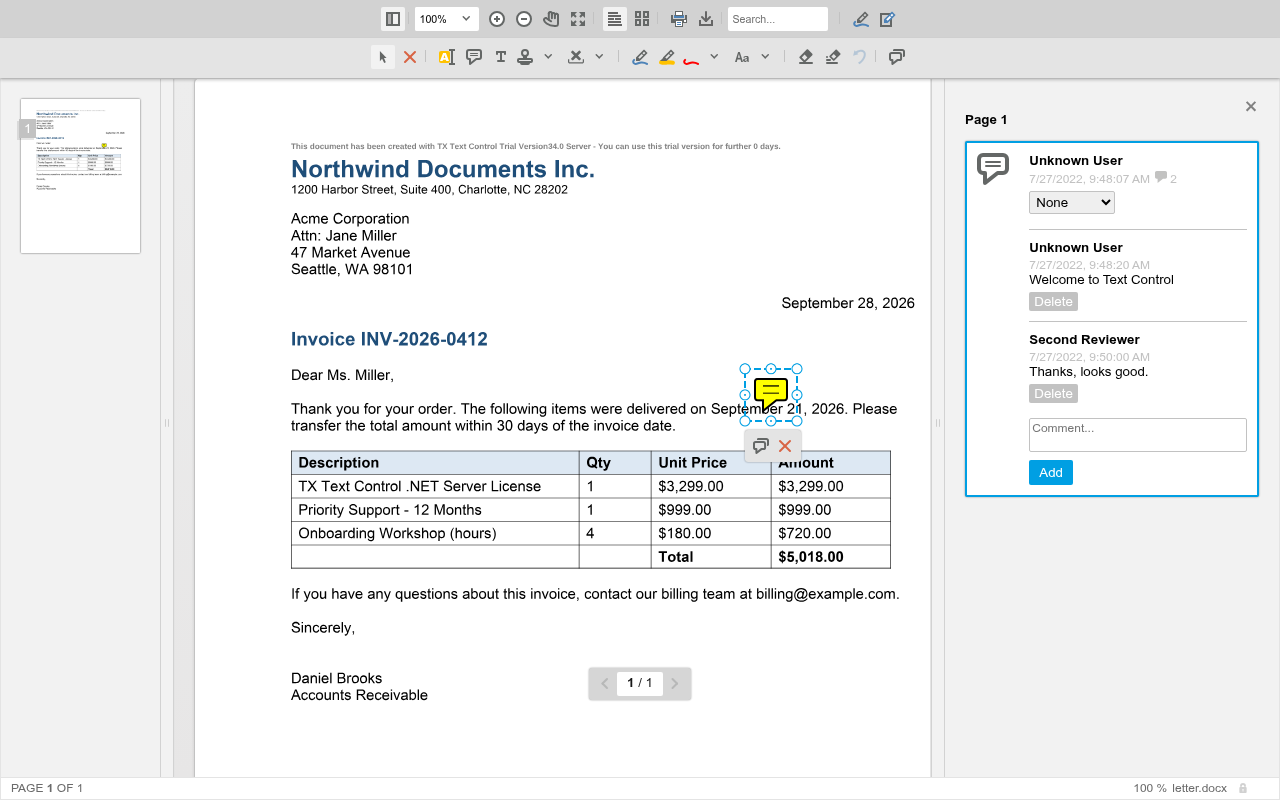
The picture shows the same note on a letter instead of "Sample Content". Add a comment to an annotation and click **List Comments** to see it in the list.
### The Structure of a Comment
In the exported JSON, each annotation has a `comments` array. Each comment is an object with these properties:
| Property | Contains |
|---|---|
| `comment` | The text of the comment |
| `user` | The name of the user who wrote it |
| `date` | The time it was written, in milliseconds since January 1, 1970, as JavaScript's `Date` uses it |
| `id` | A unique identifier |
| `status` | The status of the comment, `none` in the examples |
The annotation itself also has a `user`, a `time`, an `id` and, when it is set, a `status`. In the examples of this page, the first user is `Unknown User`. [Import and Export](https://docs.textcontrol.com/tx-text-control-dotnet-server/document-viewer/annotations/import-export/#the-json-format) describes the complete format.
### Load the Comments of a Document
Documents can contain comments of their own, which are part of the document rather than annotations. [DocumentLoadSettings.LoadEmbeddedComments](https://docs.textcontrol.com/tx-text-control-dotnet-server/reference/txtextcontrol-web-mvc-documentviewer/documentloadsettings/loadembeddedcomments-property/llms-full.txt) sets whether the viewer loads them as annotations, so that they appear in the comments sidebar:
```cshtml
@Html.TXTextControl().DocumentViewer(settings => {
settings.DocumentPath = "App_Data/template.docx";
settings.Dock = DocumentViewerSettings.DockStyle.Fill;
settings.DocumentLoadSettings.LoadEmbeddedComments = true;
}).Render()
```
When your code loads a document with `loadDocument`, pass the setting in the load settings, the fourth parameter:
```javascript
TXDocumentViewer.loadDocument(documentData, "review.docx", null, { loadEmbeddedComments: true });
```
loadEmbeddedComments is the JavaScript name of the setting. The comments of documents in the Document Editor are described in [Comments](https://docs.textcontrol.com/tx-text-control-dotnet-server/document-editor/comments/llms-full.txt) of the Document Editor.
### Review Processes
In a review process, several users add annotations and comments to the same document, and each user's name is stored with their comments. Keep the document in an editable format, such as DOCX or the TX Text Control format, if it needs to be changed after the review. The blog articles [DocumentViewer Collaboration Features: Annotations](https://www.textcontrol.com/blog/2020/09/28/document-viewer-collaboration-features-annotations/) and [Using Document Viewer Collaboration Features in Angular](https://www.textcontrol.com/blog/2022/07/28/using-document-viewer-collaboration-features-in-angular/) describe such processes.
### Next Steps
- [Import and Export](https://docs.textcontrol.com/tx-text-control-dotnet-server/document-viewer/annotations/import-export/llms-full.txt): store the annotations and comments on your server.
- [Highlights](https://docs.textcontrol.com/tx-text-control-dotnet-server/document-viewer/annotations/highlights/llms-full.txt): comment on ranges of text.
- [Events](https://docs.textcontrol.com/tx-text-control-dotnet-server/document-viewer/events/llms-full.txt): react when annotations change.
---
## Nearby
- **Previous:** [Annotations](https://docs.textcontrol.com/tx-text-control-dotnet-server/document-viewer/annotations/llms-full.txt)
- **Next:** [Highlights](https://docs.textcontrol.com/tx-text-control-dotnet-server/document-viewer/annotations/highlights/llms-full.txt)