# Loading Documents
> Load documents into the Document Viewer: DocumentPath and DocumentData in the view, loadDocument from JavaScript, load settings for comments and PDF.js.
- **Product:** TX Text Control .NET Server
- **Section:** Documentation
- **Kind:** Topic
- **Path:** TX Text Control .NET Server > Document Viewer > Loading Documents
- **3402 words**
- **Web URL:** https://docs.textcontrol.com/tx-text-control-dotnet-server/document-viewer/loading/
- **LLMs URL:** https://docs.textcontrol.com/tx-text-control-dotnet-server/document-viewer/loading/llms.txt
- **LLMs-Full URL:** https://docs.textcontrol.com/tx-text-control-dotnet-server/document-viewer/loading/llms-full.txt
---
Documents that come from a database, a storage service or your own Web API get into the Document Viewer in two ways: from a file or from memory when the view is rendered, and from JavaScript while the viewer runs. Load settings for comments and PDF documents complete the options.
The examples extend the application of the [ASP.NET Core](https://docs.textcontrol.com/tx-text-control-dotnet-server/getting-started/document-viewer/aspnet-core/llms-full.txt) tutorial and use the file *App\_Data/template.docx* from its section "Load a File With DocumentPath".
### Ways to Load a Document
| Way | Use it when | Set with |
|---|---|---|
| A file on the server | The document is a file your application can read | [DocumentPath](https://docs.textcontrol.com/tx-text-control-dotnet-server/reference/txtextcontrol-web-mvc-documentviewer/documentviewersettings/documentpath-property/llms-full.txt) in the view |
| Data from memory | Your controller reads the document, for example from a database | [DocumentData](https://docs.textcontrol.com/tx-text-control-dotnet-server/reference/txtextcontrol-web-mvc-documentviewer/documentviewersettings/documentdata-property/llms-full.txt) in the view, a base64-encoded string |
| Data at run time | Users choose another document while the page is open | [loadDocument](https://docs.textcontrol.com/tx-text-control-dotnet-server/reference/javascript-document-viewer/documentviewercontroller/loaddocument-method/llms-full.txt) in JavaScript |
The viewer detects the format of the document. With the Core engine, it displays DOCX, PDF, RTF, HTML and the TX Text Control format; DOC documents need the Classic engine. If both `DocumentData` and `DocumentPath` are set, `DocumentData` is loaded, and `DocumentPath` only sets the name that the status bar shows.
### Pass a Document From the Controller
In most applications, the controller reads the document and passes it to the view, for example as part of the view model. Create *Controllers/DocumentController.cs* with a class for the document and an action that the next section uses:
```csharp
using Microsoft.AspNetCore.Mvc;
public class DocumentController : Controller
{
// Return a document from the App_Data folder as base64-encoded data
[HttpGet]
public DocumentData Load(string name)
{
var file = Path.Combine("App_Data", Path.GetFileName(name));
return new DocumentData
{
Name = Path.GetFileName(name),
Data = Convert.ToBase64String(System.IO.File.ReadAllBytes(file))
};
}
}
public class DocumentData
{
public string Name { get; set; } = string.Empty;
public string Data { get; set; } = string.Empty;
}
```
Change the `Index` action of *Controllers/HomeController.cs* so that it passes the document to the view:
```csharp
public IActionResult Index()
{
// Read the document, for example from a database or a file
var document = new DocumentData
{
Name = "template.docx",
Data = Convert.ToBase64String(System.IO.File.ReadAllBytes("App_Data/template.docx"))
};
return View(document);
}
```
Replace the content of *Views/Home/Index.cshtml*:
```cshtml
@using TXTextControl.Web.MVC.DocumentViewer
@model DocumentData
```
The code works as follows:
- `DocumentController.Load` reads a file and returns its name and its content as a base64-encoded string. `Path.GetFileName` keeps only the file name, so that a request can't read files outside the *App\_Data* folder. Don't name the controller `TextControl`: the viewer package already contains a controller with that name.
- The `Index` action passes a `DocumentData` object to the view as its model.
- The view sets `DocumentData` to the content and `DocumentPath` to the name, which the status bar shows.
Run the application: the viewer shows *template.docx*, and the status bar shows its name.
### Load a Document at Run Time
`loadDocument` loads a base64-encoded document into the running viewer. The following code loads *template.docx* from the `Load` action when users click a button, and logs when the viewer has loaded it. Add it below the viewer's `div` in *Views/Home/Index.cshtml*:
```html
```
- `loadDocument` takes the base64-encoded document and the name that the status bar shows. It returns a promise that resolves to a Boolean value when the document has been loaded. Its optional third and fourth parameters take the signature settings of [Digital Signatures](https://docs.textcontrol.com/tx-text-control-dotnet-server/document-viewer/digital-signatures/llms-full.txt) and load settings.
- [addEventListener](https://docs.textcontrol.com/tx-text-control-dotnet-server/reference/javascript-document-viewer/documentviewercontroller/addeventlistener-method/llms-full.txt) attaches a handler to `documentLoaded`, which the viewer raises when a document has been loaded.
- `TXDocumentViewer` exists only after the viewer has raised `documentViewerLoaded`, so the handler is attached in its handler.
Always pass a document name to `loadDocument`. To load into one of several viewers on a page, call the method on its `tx-document-viewer` element, as shown in [JavaScript](https://docs.textcontrol.com/tx-text-control-dotnet-server/getting-started/document-viewer/javascript/#load-a-document-with-javascript).
### Load Comments of the Document
Comments that are part of the document, rather than annotations of the viewer, are loaded as annotations when the load setting `LoadEmbeddedComments` is `true`. [Load the Comments of a Document](https://docs.textcontrol.com/tx-text-control-dotnet-server/document-viewer/annotations/comments/#load-the-comments-of-a-document) shows the setting in the view and in `loadDocument`.
### Load PDF Documents With PDF.js
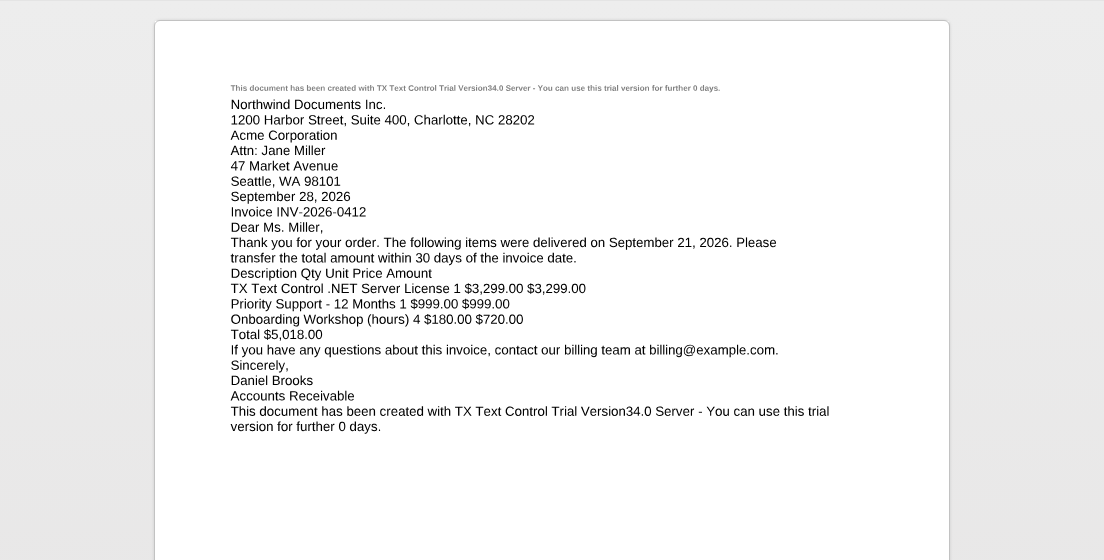
By default, PDF documents are imported by the engine. TX Text Control has no PDF renderer: the import turns the content of the PDF document into a document of its own, which makes the text searchable and gives access to positions and form field data, but it doesn't reproduce the PDF document as a PDF reader shows it. The following invoice letter, a PDF document created with TX Text Control, lost its table, its colors and its font sizes when the viewer imported it with the Core engine:
Displayed with PDF.js, the same PDF document looks like the original:
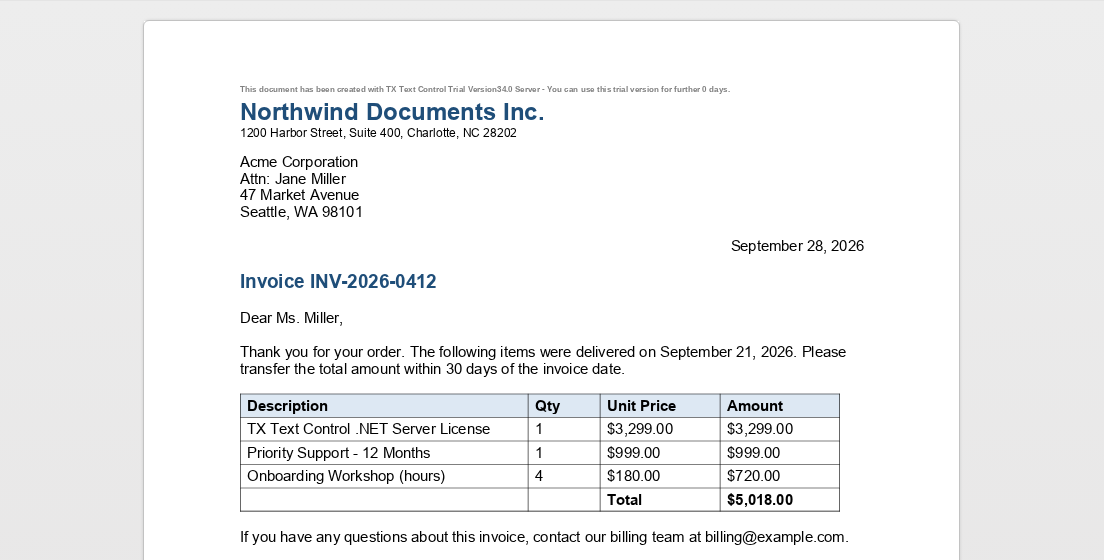
PDF.js, the PDF renderer of Mozilla, displays PDF documents in the browser exactly as they are, and they still get thumbnails, zooming, annotations and the two-page view like other formats. To use it, set the paths to the library and worker files of PDF.js 4 or later in the `PDFJS` settings. The files can be part of your application or come from a CDN:
```cshtml
@Html.TXTextControl().DocumentViewer(settings => {
settings.DocumentPath = "App_Data/sample.pdf";
settings.Dock = DocumentViewerSettings.DockStyle.Fill;
settings.DocumentLoadSettings.PDFJS.LibrarySourcePath =
"https://cdnjs.cloudflare.com/ajax/libs/pdf.js/4.0.379/pdf.min.mjs";
settings.DocumentLoadSettings.PDFJS.WorkerSourcePath =
"https://cdnjs.cloudflare.com/ajax/libs/pdf.js/4.0.379/pdf.worker.min.mjs";
}).Render()
```
In JavaScript, pass the same settings with the property `pdfjs` of the [load settings](https://docs.textcontrol.com/tx-text-control-dotnet-server/reference/javascript-document-viewer/documentloadsettings/llms-full.txt) and `null` for the signature settings:
```javascript
const loadSettings = {
pdfjs: {
librarySourcePath: "https://cdnjs.cloudflare.com/ajax/libs/pdf.js/4.0.379/pdf.min.mjs",
workerSourcePath: "https://cdnjs.cloudflare.com/ajax/libs/pdf.js/4.0.379/pdf.worker.min.mjs"
}
};
TXDocumentViewer.loadDocument(stored.data, stored.name, null, loadSettings);
```
[LibrarySourcePath](https://docs.textcontrol.com/tx-text-control-dotnet-server/reference/txtextcontrol-web-mvc-documentviewer/pdfjssettings/librarysourcepath-property/llms-full.txt) and [WorkerSourcePath](https://docs.textcontrol.com/tx-text-control-dotnet-server/reference/txtextcontrol-web-mvc-documentviewer/pdfjssettings/workersourcepath-property/llms-full.txt) were introduced in version 32.2.1 and replace the earlier `BasePath`, which older articles use.
### Large Documents
Since version 32.0 SP3, the backend streams the pages of a document as it renders them, and your code doesn't need to do anything for this; [How a Document Reaches the Browser](https://docs.textcontrol.com/tx-text-control-dotnet-server/document-viewer/architecture/#how-a-document-reaches-the-browser) describes it.
### Other Frontends
Angular, React and plain JavaScript pages use the same `loadDocument` method, and their components take the document in `documentData`:
- [Angular](https://docs.textcontrol.com/tx-text-control-dotnet-server/getting-started/document-viewer/angular/#load-a-document-with-typescript): load a document in a `documentViewerLoaded` handler.
- [React](https://docs.textcontrol.com/tx-text-control-dotnet-server/getting-started/document-viewer/react/#load-documents-with-javascript): load a document when the viewer is ready.
- [JavaScript](https://docs.textcontrol.com/tx-text-control-dotnet-server/getting-started/document-viewer/javascript/#load-a-document-with-javascript): load a document from a plain HTML page.
The Blazor component loads documents from C# code; the blog article [Getting Started: Document Viewer for Blazor in ASP.NET Core](https://www.textcontrol.com/blog/2025/03/25/getting-started-document-viewer-for-blazor-in-asp-net-core/) shows how.
### Next Steps
- [Saving Documents](https://docs.textcontrol.com/tx-text-control-dotnet-server/document-viewer/saving/llms-full.txt): get the document back from the viewer.
- [Annotations](https://docs.textcontrol.com/tx-text-control-dotnet-server/document-viewer/annotations/llms-full.txt): load annotations together with the document.
- [Events](https://docs.textcontrol.com/tx-text-control-dotnet-server/document-viewer/events/llms-full.txt): all events of the viewer.
---
## Nearby
- **Previous:** [Architecture](https://docs.textcontrol.com/tx-text-control-dotnet-server/document-viewer/architecture/llms-full.txt)
- **Next:** [Saving Documents](https://docs.textcontrol.com/tx-text-control-dotnet-server/document-viewer/saving/llms-full.txt)