# Search
> Search documents in the Document Viewer: the search box of the toolbar and find, nextSearchResult and cancelSearch to search from your page with JavaScript.
- **Product:** TX Text Control .NET Server
- **Section:** Documentation
- **Kind:** Topic
- **Path:** TX Text Control .NET Server > Document Viewer > Search
- **1595 words**
- **Web URL:** https://docs.textcontrol.com/tx-text-control-dotnet-server/document-viewer/search/
- **LLMs URL:** https://docs.textcontrol.com/tx-text-control-dotnet-server/document-viewer/search/llms.txt
- **LLMs-Full URL:** https://docs.textcontrol.com/tx-text-control-dotnet-server/document-viewer/search/llms-full.txt
---
A term that the user entered elsewhere in your application can be found in the Document Viewer as well. Alongside the search users run in the viewer, your code starts, continues and cancels a search from your own page.
The examples change the view of the [ASP.NET Core](https://docs.textcontrol.com/tx-text-control-dotnet-server/getting-started/document-viewer/aspnet-core/llms-full.txt) tutorial and load *App\_Data/template.docx*.
### How Search Works
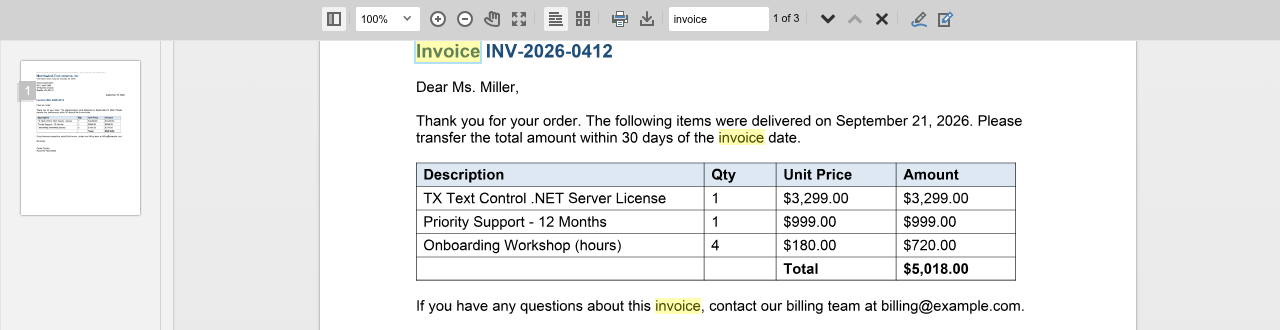
The toolbar of the viewer has a search box. When users enter a text and press Enter, the viewer searches the document and highlights the results, and buttons of the toolbar move through the results. The search runs asynchronously and highlights the results in the browser.
While a search is active, the toolbar shows the position of the current result and the number of results next to the search box, for example "1 of 3", followed by the buttons **Next search entry**, **Previous search entry** and **Cancel search**:
### Search From Code
[TXDocumentViewer](https://docs.textcontrol.com/tx-text-control-dotnet-server/reference/javascript-document-viewer/txdocumentviewer/llms-full.txt) has three methods for searching. The following view adds a text box and buttons that search the document, move to the next result and cancel the search. Replace the content of *Views/Home/Index.cshtml*:
```cshtml
@using TXTextControl.Web.MVC.DocumentViewer
```
The code works as follows:
- [find](https://docs.textcontrol.com/tx-text-control-dotnet-server/reference/javascript-document-viewer/documentviewercontroller/find-method/llms-full.txt) searches the loaded document for the string. The code doesn't pass an empty string, because searching for one gave unexpected results in earlier versions.
- [nextSearchResult](https://docs.textcontrol.com/tx-text-control-dotnet-server/reference/javascript-document-viewer/documentviewercontroller/nextsearchresult-method/llms-full.txt) moves to the next result and scrolls the viewer to it.
- [cancelSearch](https://docs.textcontrol.com/tx-text-control-dotnet-server/reference/javascript-document-viewer/documentviewercontroller/cancelsearch-method/llms-full.txt) cancels a search that is running.
Run the application, enter a word of the document and click **Find**: the results are highlighted. Click **Next Result** to move to the next one.
All three methods return nothing, and the viewer raises no event when a search has finished. **Next Result** is a separate button for this reason: because `find` works asynchronously, the code can't tell when the first results are available.
### Limitations
- The reference doesn't document whether the search is case-sensitive or matches whole words only, and there is no method that returns the number of results. Only the toolbar shows the number to users.
- There is no method that moves to the previous result. Users move backward with the buttons of the toolbar.
- The search box of the toolbar is part of the viewer's user interface. To hide the complete toolbar, see [User Interface](https://docs.textcontrol.com/tx-text-control-dotnet-server/document-viewer/user-interface/llms-full.txt).
### Next Steps
- [Navigation](https://docs.textcontrol.com/tx-text-control-dotnet-server/document-viewer/navigation/llms-full.txt): scroll to pages and handle links.
- [Zooming](https://docs.textcontrol.com/tx-text-control-dotnet-server/document-viewer/zooming/llms-full.txt): change the size of the pages.
- [JavaScript API](https://docs.textcontrol.com/tx-text-control-dotnet-server/document-viewer/javascript-api/llms-full.txt): the methods of `TXDocumentViewer`.
---
## Nearby
- **Previous:** [Navigation](https://docs.textcontrol.com/tx-text-control-dotnet-server/document-viewer/navigation/llms-full.txt)
- **Next:** [Zooming](https://docs.textcontrol.com/tx-text-control-dotnet-server/document-viewer/zooming/llms-full.txt)