# JavaScript
> Add the Document Viewer to a plain HTML page with an ASP.NET Core backend and use the TXDocumentViewer API to load documents, annotate, fill forms and sign.
- **Product:** TX Text Control .NET Server
- **Section:** Documentation
- **Kind:** Topic
- **Path:** TX Text Control .NET Server > Getting Started > Document Viewer > JavaScript
- **3029 words**
- **Web URL:** https://docs.textcontrol.com/tx-text-control-dotnet-server/getting-started/document-viewer/javascript/
- **LLMs URL:** https://docs.textcontrol.com/tx-text-control-dotnet-server/getting-started/document-viewer/javascript/llms.txt
- **LLMs-Full URL:** https://docs.textcontrol.com/tx-text-control-dotnet-server/getting-started/document-viewer/javascript/llms-full.txt
---
Angular, React or another framework isn't required for the Document Viewer: a plain HTML page works as well. You create the ASP.NET Core backend that serves the viewer's scripts and renders the documents, add the `tx-document-viewer` element to the page and use the `TXDocumentViewer` JavaScript API to load documents, work with annotations and forms and collect signatures.
### Prerequisites
- Visual Studio 2026 with the .NET 10 SDK for the backend. The engine package requires .NET 8 or higher.
- A TX Text Control .NET Server license and access to the [Text Control private NuGet feed](https://docs.textcontrol.com/tx-text-control-dotnet-server/installation/nuget/private-feed/llms-full.txt).
- A local web server or development server that serves the HTML page.
### How It Works
The Document Viewer is a web component: a custom HTML element named `tx-document-viewer`. You don't install an npm package. Instead, the page loads two scripts from the ASP.NET Core backend, which provides them through the `TextControl/GetResource` endpoint of the `TXTextControl.Web.DocumentViewer` package:
- `minimized.tx-viewer.min.js` contains the viewer and the global `TXDocumentViewer` object.
- `minimized.tx-viewer-component.min.js` defines the `tx-document-viewer` element.
The element reads its settings, including the URL of the backend, from a JSON object in its `settings` attribute. The backend then renders the document pages. Because the page and the backend usually run on different origins, the backend must allow cross-origin requests (CORS).
### Create the Backend
The backend is an ASP.NET Core Web API project with the packages `TXTextControl.Web.DocumentViewer` and `TXTextControl.TextControl.Core.SDK`, whose *Program.cs* adds the Document Viewer middleware and a CORS policy that lets the HTML page call it. Create it, configure it and start it as described in [Create the Backend](https://docs.textcontrol.com/tx-text-control-dotnet-server/getting-started/document-viewer/angular/#create-the-backend) in the Angular tutorial, and note the HTTPS URL of the backend in *Properties/launchSettings.json*, for example `https://localhost:7275`. Leave the backend running while you work on the page.
### Create the HTML Page
Create a file named *index.html* with the following content. Replace `https://localhost:7275` in all three places with the URL of your backend.
```html
TX Text Control Document Viewer from JS
```
The `settings` attribute contains a JSON object. Because the JSON uses double quotes, enclose the attribute value in single quotes. The example uses these settings:
| Setting | Description |
|---|---|
| `documentData` | The document as a Base64-encoded string. `VGV4dCBDb250cm9s` is the text "Text Control". |
| `dock` | How the viewer is docked. The value `1` (`Fill`) docks the viewer in its container, and `0` (`Window`) makes it fill the browser window. |
| `basePath` | The URL of the backend. |
The element also accepts the settings `documentPath` (the displayed document name), `toolbarDocked`, `isSelectionActivated`, `showThumbnailPane`, `signatureSettings` and `documentLoadSettings`. To display a different document later, use `loadDocument` as shown below.
### Run the Page
1. Make sure that the backend is running.
2. Serve *index.html* from your local web server and open it in the browser.
The Document Viewer shows the text "Text Control". If the viewer doesn't appear, check that the backend is running and that the script URLs and `basePath` match its URL.
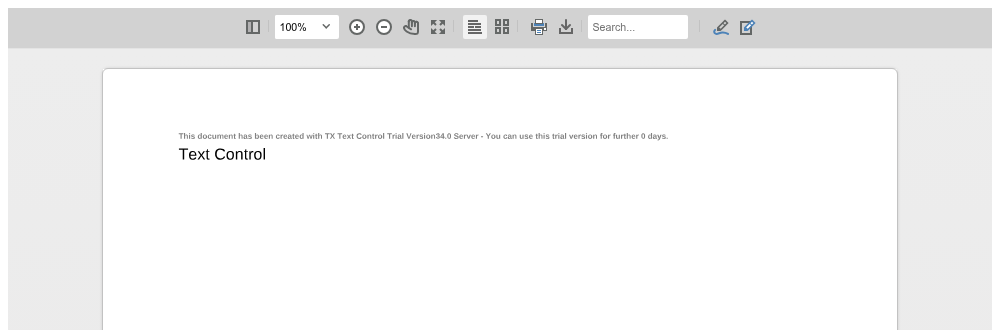
The page thumbnails aren't shown, because the `settings` attribute doesn't contain `showThumbnailPane`. Add `"showThumbnailPane":true` to the JSON to show them. The small gray line above the text is the trial text of the trial packages the screenshot was taken with; see [Trial and Licensed Packages](https://docs.textcontrol.com/tx-text-control-dotnet-server/installation/licensing/development/#trial-and-licensed-packages).
### Load a Document With JavaScript
The [TXDocumentViewer](https://docs.textcontrol.com/tx-text-control-dotnet-server/reference/javascript-document-viewer/txdocumentviewer/llms-full.txt) object exists only after the viewer has been initialized. The viewer then raises the `documentViewerLoaded` event, which you handle on the `window` object. Add the following script to *index.html*, directly before the closing `body` tag, and remove `documentData` from the `settings` attribute:
```html
```
[loadDocument](https://docs.textcontrol.com/tx-text-control-dotnet-server/reference/javascript-document-viewer/documentviewercontroller/loaddocument-method/llms-full.txt) takes the document as a Base64-encoded string and the document name that the viewer displays. Supported formats are DOCX, PDF, RTF, HTML and TX; DOC requires the Classic engine. The method returns a promise that resolves to `true` when the document has been loaded. To load a document from your server, download it first, for example with `fetch`, and pass its Base64-encoded content to `loadDocument`.
A page can also contain several viewers, each addressed by its `tx-document-viewer` element, as [Several Viewers on One Page](https://docs.textcontrol.com/tx-text-control-dotnet-server/document-viewer/javascript-api/#several-viewers-on-one-page) describes.
### Work With Annotations
Users can add drawings, stamps, sticky notes and comments with the annotation toolbar. The viewer keeps annotations separately from the document: you export them as a JSON string, store them, for example in your database, and load them again later:
- [annotations.showToolbar](https://docs.textcontrol.com/tx-text-control-dotnet-server/reference/javascript-document-viewer/annotations/showtoolbar-method/llms-full.txt) shows or hides the annotation toolbar.
- [annotations.export](https://docs.textcontrol.com/tx-text-control-dotnet-server/reference/javascript-document-viewer/annotations/export-method/llms-full.txt) returns all annotations as a JSON string.
- [annotations.load](https://docs.textcontrol.com/tx-text-control-dotnet-server/reference/javascript-document-viewer/annotations/load-method/llms-full.txt) loads annotations from a JSON string.
The following script shows the annotation toolbar and writes the annotations to the browser console whenever they change:
```javascript
window.addEventListener("documentViewerLoaded", function () {
TXDocumentViewer.annotations.showToolbar(true);
TXDocumentViewer.addEventListener("annotationsChanged", function () {
var json = TXDocumentViewer.annotations.export();
console.log(json);
});
});
```
To display stored annotations, call `TXDocumentViewer.annotations.load(json)` with the JSON string you exported.
### Work With Forms
When a document contains form fields, users can fill them out in the viewer. The [forms](https://docs.textcontrol.com/tx-text-control-dotnet-server/reference/javascript-document-viewer/forms/llms-full.txt) object gives you access to the entered values. [validate](https://docs.textcontrol.com/tx-text-control-dotnet-server/reference/javascript-document-viewer/forms/validate-method/llms-full.txt) returns `true` if all required fields are completed, and [getValues](https://docs.textcontrol.com/tx-text-control-dotnet-server/reference/javascript-document-viewer/forms/getvalues-method/llms-full.txt) returns an array of all form fields with their values:
```javascript
function submitForm() {
if (TXDocumentViewer.forms.validate()) {
var values = TXDocumentViewer.forms.getValues();
console.log(values);
}
}
```
To create a PDF with the entered values merged into the document, use [saveDocument](https://docs.textcontrol.com/tx-text-control-dotnet-server/reference/javascript-document-viewer/documentviewercontroller/savedocument-method/llms-full.txt). It returns a [DocumentSaveResult](https://docs.textcontrol.com/tx-text-control-dotnet-server/reference/javascript-document-viewer/documentsaveresult/llms-full.txt) whose `base64` method provides the document data:
```javascript
async function saveAsPdf() {
var result = await TXDocumentViewer.saveDocument(TXDocumentViewer.StreamType.AdobePDF, { mergeFormFields: true });
var base64 = await result.base64();
console.log(base64);
}
```
### Collect Signatures
The viewer can turn signature fields in a document into signature boxes that users sign by drawing, typing or uploading a signature. To start a signing process, pass a [SignatureSettings](https://docs.textcontrol.com/tx-text-control-dotnet-server/reference/javascript-document-viewer/signaturesettings/llms-full.txt) object as the third parameter of `loadDocument`. In the following example, `documentData` contains a Base64-encoded document with a signature field named `txsign`:
```javascript
window.addEventListener("documentViewerLoaded", function () {
var signatureSettings = {
showSignatureBar: true,
redirectUrlAfterSignature: "https://localhost:7275/document/sign",
ownerName: "Paul",
signerName: "Jacob",
signerInitials: "PK",
signatureBoxes: [ { name: "txsign", signingRequired: true, style: 0 } ]
};
TXDocumentViewer.loadDocument(documentData, "contract.tx", signatureSettings);
});
```
When the user submits the signed document, the viewer's controller in your backend posts it to the endpoint in `redirectUrlAfterSignature`, where your code can sign it digitally with a certificate. [Digital Signatures](https://docs.textcontrol.com/tx-text-control-dotnet-server/document-viewer/digital-signatures/llms-full.txt) explains the signature settings, the endpoint and the callbacks of the signing process.
### JavaScript API Overview
The `TXDocumentViewer` object also prints, searches, navigates, controls the toolbar and works with tracked changes. [The Object Model](https://docs.textcontrol.com/tx-text-control-dotnet-server/document-viewer/javascript-api/#the-object-model) lists its methods and objects with the pages that describe them. The same API is available in the [ASP.NET Core](https://docs.textcontrol.com/tx-text-control-dotnet-server/getting-started/document-viewer/aspnet-core/llms-full.txt), [Angular](https://docs.textcontrol.com/tx-text-control-dotnet-server/getting-started/document-viewer/angular/llms-full.txt) and [React](https://docs.textcontrol.com/tx-text-control-dotnet-server/getting-started/document-viewer/react/llms-full.txt) versions of the viewer.
### Next Steps
- [Document Viewer JavaScript API](https://docs.textcontrol.com/tx-text-control-dotnet-server/document-viewer/javascript-api/llms-full.txt): the object model of `TXDocumentViewer` in detail.
- [Events](https://docs.textcontrol.com/tx-text-control-dotnet-server/document-viewer/events/llms-full.txt): react to what happens in the viewer.
- [Annotations](https://docs.textcontrol.com/tx-text-control-dotnet-server/document-viewer/annotations/llms-full.txt): let users comment on and mark up documents.
- [Digital Signatures](https://docs.textcontrol.com/tx-text-control-dotnet-server/document-viewer/digital-signatures/llms-full.txt): collect signatures and sign documents on the server.
---
## Nearby
- **Previous:** [React](https://docs.textcontrol.com/tx-text-control-dotnet-server/getting-started/document-viewer/react/llms-full.txt)
- **Next:** [Mail Merge](https://docs.textcontrol.com/tx-text-control-dotnet-server/getting-started/mail-merge/llms-full.txt)