# React
> Create an ASP.NET Core backend and a React app that displays documents with the DocumentViewer component, and load documents with the JavaScript API.
- **Product:** TX Text Control .NET Server
- **Section:** Documentation
- **Kind:** Topic
- **Path:** TX Text Control .NET Server > Getting Started > Document Viewer > React
- **2412 words**
- **Web URL:** https://docs.textcontrol.com/tx-text-control-dotnet-server/getting-started/document-viewer/react/
- **LLMs URL:** https://docs.textcontrol.com/tx-text-control-dotnet-server/getting-started/document-viewer/react/llms.txt
- **LLMs-Full URL:** https://docs.textcontrol.com/tx-text-control-dotnet-server/getting-started/document-viewer/react/llms-full.txt
---
A React application displays documents with the Document Viewer component, while an ASP.NET Core backend renders them with TX Text Control .NET Server. Step by step, you build both applications, install the npm package, add the `DocumentViewer` component, connect it to your backend and load documents with the JavaScript API.
### Prerequisites
- Visual Studio 2026 with the .NET 10 SDK for the backend. The engine package requires .NET 8 or higher.
- A TX Text Control .NET Server license and access to the [Text Control private NuGet feed](https://docs.textcontrol.com/tx-text-control-dotnet-server/installation/nuget/private-feed/llms-full.txt).
- [Node.js](https://nodejs.org/en/download/) and npm.
- Visual Studio Code or another editor for the React application.
### How the Applications Work Together
The React component only contains the viewer's user interface. The documents are loaded and rendered by an ASP.NET Core backend that references the `TXTextControl.Web.DocumentViewer` package. The component's `basePath` property contains the URL of this backend. Because the React development server and the backend run on different origins, the backend must allow cross-origin requests (CORS).
### Create the Backend
The backend is an ASP.NET Core Web API project with the packages `TXTextControl.Web.DocumentViewer` and `TXTextControl.TextControl.Core.SDK`, whose *Program.cs* adds the Document Viewer middleware and a CORS policy that lets the React application call it. Create it, configure it and start it as described in [Create the Backend](https://docs.textcontrol.com/tx-text-control-dotnet-server/getting-started/document-viewer/angular/#create-the-backend) in the Angular tutorial, and note the HTTPS URL of the backend in *Properties/launchSettings.json*, for example `https://localhost:7275`. Leave the backend running while you work on the React application.
### Create the React Application
1. Open a command prompt and create a new React application with Vite. Select **React** as the framework and **JavaScript** as the language:
```bash
npm create vite@latest my-tx-document-viewer-app
```
2. Change to the new folder:
```bash
cd my-tx-document-viewer-app
```
3. The Document Viewer package declares `react` and `react-dom` version `^18.2.0` as peer dependencies, while a new Vite project uses React 19. Install React 18 first, so that the versions match and npm can install the package:
```bash
npm install react@18 react-dom@18
```
4. Install the Document Viewer package and open the folder in Visual Studio Code:
```bash
npm install @txtextcontrol/tx-react-document-viewer
code .
```
### Add the Document Viewer
Open *src/App.jsx* and replace its content with the following code. Replace `https://localhost:7275` with the URL of your backend.
```jsx
import DocumentViewerPackage from '@txtextcontrol/tx-react-document-viewer';
const DocumentViewer = DocumentViewerPackage.default ?? DocumentViewerPackage;
function App() {
return (
);
}
export default App;
```
`documentData` contains the text "Hello there" as a Base64-encoded string.
The package is a CommonJS module, and since Vite 8 its default import returns the module object instead of the component, so the code takes the component from the `default` property; with `??`, it also works with earlier Vite versions. [Import the Components in Vite 8](https://docs.textcontrol.com/tx-text-control-dotnet-server/integration/react/#import-the-components-in-vite-8) explains the change and the error a plain default import causes.
### Component Properties
The properties `width`, `height` and `basePath` are required. Others set the document, the docking, the toolbar, text selection, the thumbnail pane, the signature settings and the displayed strings. Pass booleans and objects in curly braces, for example `isSelectionActivated={true}` or `signatureSettings={{ defaultSignatureFont: { family: "Pacifico" } }}`. [DocumentViewer](https://docs.textcontrol.com/tx-text-control-dotnet-server/reference/react-api/#documentviewer) in the React API reference lists all properties with their types and defaults.
### Run the Applications
1. Make sure that the backend is running in Visual Studio.
2. In the command prompt, start the React application from the *my-tx-document-viewer-app* folder:
```bash
npm run dev
```
3. Open `http://localhost:5173` in your browser. The Document Viewer shows the text "Hello there". If the viewer doesn't load, check that the backend is running and that `basePath` matches its URL.
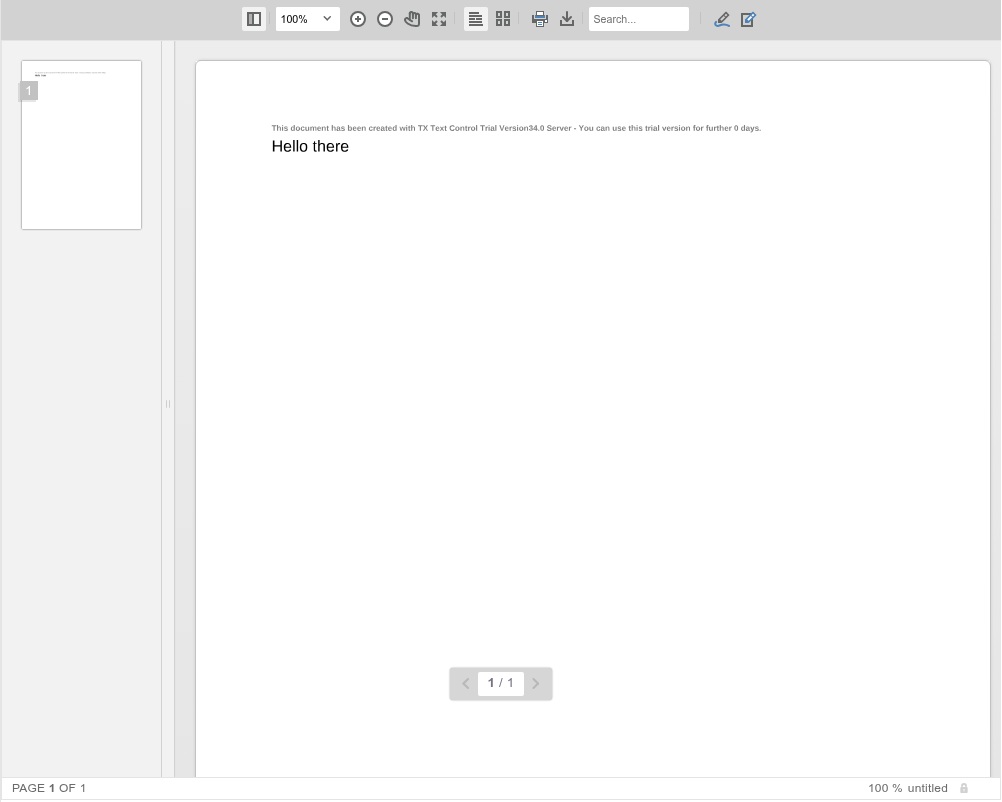
The small gray line above the text is the trial text of the trial packages the screenshot was taken with; see [Trial and Licensed Packages](https://docs.textcontrol.com/tx-text-control-dotnet-server/installation/licensing/development/#trial-and-licensed-packages).
### Load Documents With JavaScript
In many applications, the document is loaded at run time, for example after the user selects it or after it has been downloaded from a Web API. The React component supports the same JavaScript API as all other Document Viewer frontends: the [TXDocumentViewer](https://docs.textcontrol.com/tx-text-control-dotnet-server/reference/javascript-document-viewer/txdocumentviewer/llms-full.txt) object. Its [loadDocument](https://docs.textcontrol.com/tx-text-control-dotnet-server/reference/javascript-document-viewer/documentviewercontroller/loaddocument-method/llms-full.txt) method loads a Base64-encoded document in any supported format.
#### Load a Document When the Viewer Is Ready
The `TXDocumentViewer` object doesn't exist immediately when the page is loaded. The viewer raises the `documentViewerLoaded` event when it is ready to load documents. Use the Effect Hook to register a handler for this event. Replace the content of *src/App.jsx* with the following code:
```jsx
import React, { useEffect } from 'react';
import DocumentViewerPackage from '@txtextcontrol/tx-react-document-viewer';
const DocumentViewer = DocumentViewerPackage.default ?? DocumentViewerPackage;
function App() {
useEffect(() => {
window.addEventListener('documentViewerLoaded', handleLoaded);
}, []);
const handleLoaded = (event) => {
var html = "
This is a document
";
var base64 = btoa(html);
event.srcElement['TXDocumentViewer'].loadDocument(base64, "loaded.html");
};
return (
);
}
export default App;
```
The handler takes the `TXDocumentViewer` instance from the source element of the event arguments, the `window` object, instead of using an undeclared global variable. The second parameter of `loadDocument` is the document name that the viewer displays.
To load a document from a Web API or another URL, download it in the handler first and pass the Base64-encoded result to `loadDocument`.
#### Load a Selected Document in TypeScript
If the document is already available on the client, you can load it whenever the user selects it. In a TypeScript project, declare `TXDocumentViewer` because it is a global JavaScript object. In a Vite project created with the **TypeScript** language, the following code replaces the content of *src/main.tsx* and loads the value of the selected option into the viewer:
```tsx
import React from 'react';
import ReactDOM from 'react-dom/client';
import DocumentViewerPackage from '@txtextcontrol/tx-react-document-viewer';
const DocumentViewer = DocumentViewerPackage.default ?? DocumentViewerPackage;
declare var TXDocumentViewer: any;
const App: React.FC = () => {
const load = (contentValue: string) => {
if (TXDocumentViewer) {
// encode the content to base64
contentValue = btoa(contentValue);
// load the document into the viewer
TXDocumentViewer.loadDocument(contentValue, "loaded.html");
}
};
return <>
;
};
const root = ReactDOM.createRoot(document.getElementById('root')!);
root.render();
```
The option values in this example are HTML strings. They can also contain Base64-encoded documents in other supported formats; in that case, pass them to `loadDocument` without calling `btoa`.
### Next Steps
- [JavaScript](https://docs.textcontrol.com/tx-text-control-dotnet-server/getting-started/document-viewer/javascript/llms-full.txt): more about the JavaScript API, including annotations and signatures.
- [React npm Packages](https://docs.textcontrol.com/tx-text-control-dotnet-server/installation/npm/react/llms-full.txt): the required React versions and both components in one project.
- [Loading Documents](https://docs.textcontrol.com/tx-text-control-dotnet-server/document-viewer/loading/llms-full.txt): pass documents from a controller, load them at run time and show PDF files with PDF.js.
- [Annotations](https://docs.textcontrol.com/tx-text-control-dotnet-server/document-viewer/annotations/llms-full.txt): let users comment on and mark up documents.
---
## Nearby
- **Previous:** [Angular](https://docs.textcontrol.com/tx-text-control-dotnet-server/getting-started/document-viewer/angular/llms-full.txt)
- **Next:** [JavaScript](https://docs.textcontrol.com/tx-text-control-dotnet-server/getting-started/document-viewer/javascript/llms-full.txt)