# CI/CD Authentication
> Restore packages from the Text Control Private NuGet Feed with secrets in GitHub Actions, GitLab, Azure DevOps, Jenkins, Bitbucket, TeamCity and Docker.
- **Product:** TX Text Control .NET Server
- **Section:** Documentation
- **Kind:** Topic
- **Path:** TX Text Control .NET Server > Installation Guide > NuGet Packages > Text Control Private NuGet Feed > CI/CD Authentication
- **4831 words**
- **Web URL:** https://docs.textcontrol.com/tx-text-control-dotnet-server/installation/nuget/private-feed/ci-cd/
- **LLMs URL:** https://docs.textcontrol.com/tx-text-control-dotnet-server/installation/nuget/private-feed/ci-cd/llms.txt
- **LLMs-Full URL:** https://docs.textcontrol.com/tx-text-control-dotnet-server/installation/nuget/private-feed/ci-cd/llms-full.txt
---
Build servers restore TX Text Control packages from the Text Control Private NuGet Feed with the same credentials as a developer machine. In GitHub Actions, GitLab CI/CD, Azure DevOps, Jenkins, Bitbucket Pipelines, TeamCity and Docker builds, you store these credentials as secrets and create the `nuget.config` file during the build.
### How It Works
Do not commit your personalized `nuget.config` to the repository, because it contains your API token. Instead:
1. Store the email address, the API token and the feed URL as secrets or protected variables in your CI/CD platform.
2. Add a build step that writes `nuget.config` from these secrets before the packages are restored.
3. Restore, build and test as usual.
The credentials never appear in your repository or its history, and the builds run fully automated.
### Licensing on Build Servers
TX Text Control is licensed per developer, not per build server. If you use a build server, every developer who checks in code that uses TX Text Control classes needs their own license. See [Development Licenses](https://docs.textcontrol.com/tx-text-control-dotnet-server/installation/licensing/development/llms-full.txt).
### The Secrets
All examples on this page use the same three values:
| Secret | Value |
|---|---|
| `TEXTCONTROL_EMAIL` | The email address of the assigned developer. |
| `TEXTCONTROL_API_TOKEN` | The API token generated for that developer. It starts with `ngt_`. |
| `TEXTCONTROL_FEED_URL` | The feed URL, `https://www.textcontrol.com/nuget/v3/index.json`. |
You find these values in the email you received when a serial number was assigned to you and in your downloaded `nuget.config` file. API tokens expire: tokens created by assigning a serial number are valid for 365 days, and tokens created manually for up to 730 days. When you replace a token, update the secret. See [Creating an API Token](https://docs.textcontrol.com/tx-text-control-dotnet-server/installation/nuget/private-feed/api-token/llms-full.txt).
The examples install the .NET 8 SDK. If your projects target a newer .NET version, install that SDK instead.
### GitHub Actions
Add the credentials as repository secrets:
1. Navigate to your repository on GitHub.
2. Go to **Settings** > **Secrets and variables** > **Actions**.
3. Click **New repository secret** and add `TEXTCONTROL_EMAIL`, `TEXTCONTROL_API_TOKEN` and `TEXTCONTROL_FEED_URL`.
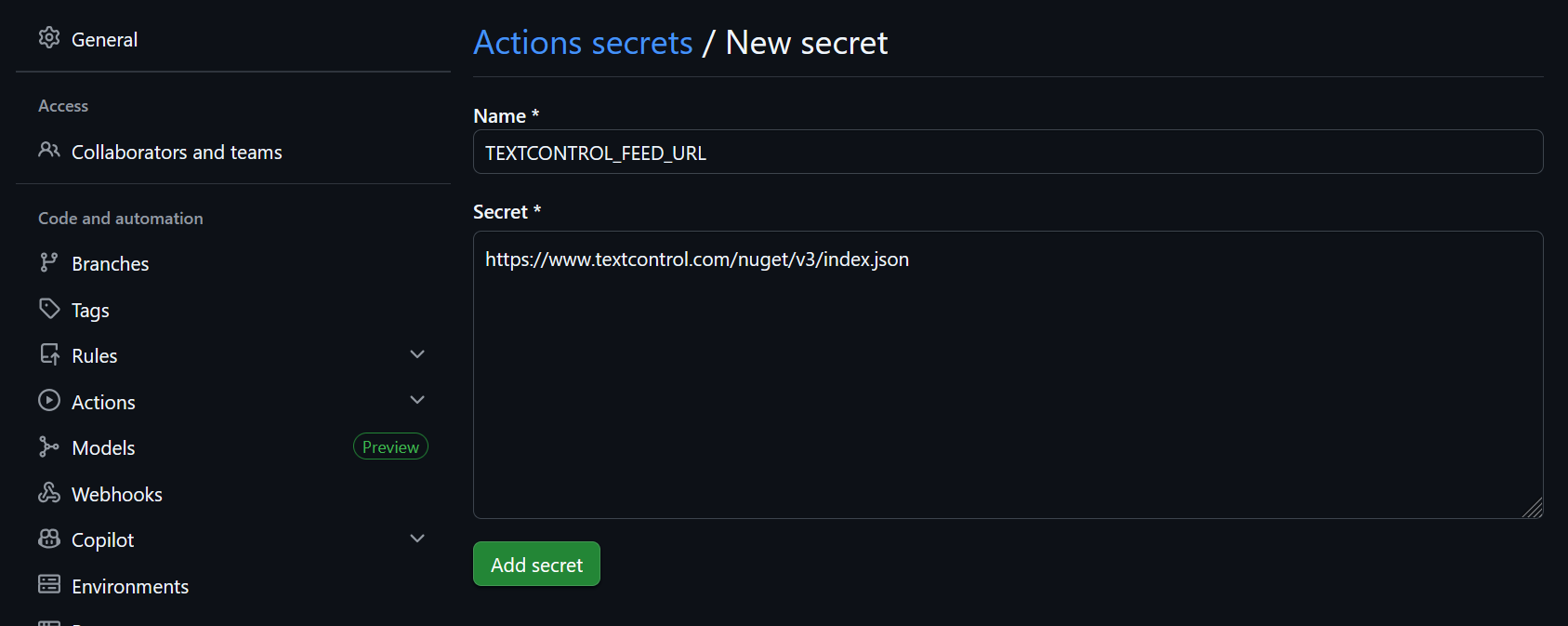
In your workflow file, generate `nuget.config` before restoring packages:
```yaml
name: Build
on: [push, pull_request]
jobs:
build:
runs-on: ubuntu-latest
steps:
- uses: actions/checkout@v4
- name: Setup .NET
uses: actions/setup-dotnet@v4
with:
dotnet-version: '8.0.x'
- name: Create nuget.config
run: |
cat > nuget.config << 'EOF'
EOF
- name: Restore dependencies
run: dotnet restore
- name: Build
run: dotnet build --no-restore --configuration Release
- name: Test
run: dotnet test --no-build --configuration Release
```
The file is generated at run time from the secrets, so the credentials never appear in the repository history. The workflow runs for pushes and pull requests. The tutorial [Building a TX Text Control Project with GitHub Actions and the Text Control NuGet Feed](https://www.textcontrol.com/blog/2026/02/09/building-a-tx-text-control-project-with-github-actions-and-the-text-control-nuget-feed/) walks through the complete setup, starting from the official .NET workflow template.
### GitLab CI/CD
Store the credentials as CI/CD variables in your project settings:
1. Navigate to **Settings** > **CI/CD** > **Variables**.
2. Add `TEXTCONTROL_EMAIL`, `TEXTCONTROL_API_TOKEN` and `TEXTCONTROL_FEED_URL`, and mark them as masked and protected.
Configure your `.gitlab-ci.yml`:
```yaml
stages:
- build
- test
variables:
DOTNET_VERSION: '8.0'
build:
stage: build
image: mcr.microsoft.com/dotnet/sdk:8.0
before_script:
- |
cat > nuget.config << EOF
EOF
script:
- dotnet restore
- dotnet build --configuration Release --no-restore
artifacts:
paths:
- '**/bin/Release/'
test:
stage: test
image: mcr.microsoft.com/dotnet/sdk:8.0
needs:
- build
script:
- dotnet test --configuration Release --no-build
```
### Azure DevOps
Create a variable group that your pipeline references:
1. In Azure DevOps, go to **Pipelines** > **Library**.
2. Click **+ Variable group**.
3. Name the group, for example `TextControl-NuGet`.
4. Add `TEXTCONTROL_EMAIL`, `TEXTCONTROL_API_TOKEN` and `TEXTCONTROL_FEED_URL`. Click the lock icon next to `TEXTCONTROL_API_TOKEN` to mark it as secret.
5. Click **Save**.
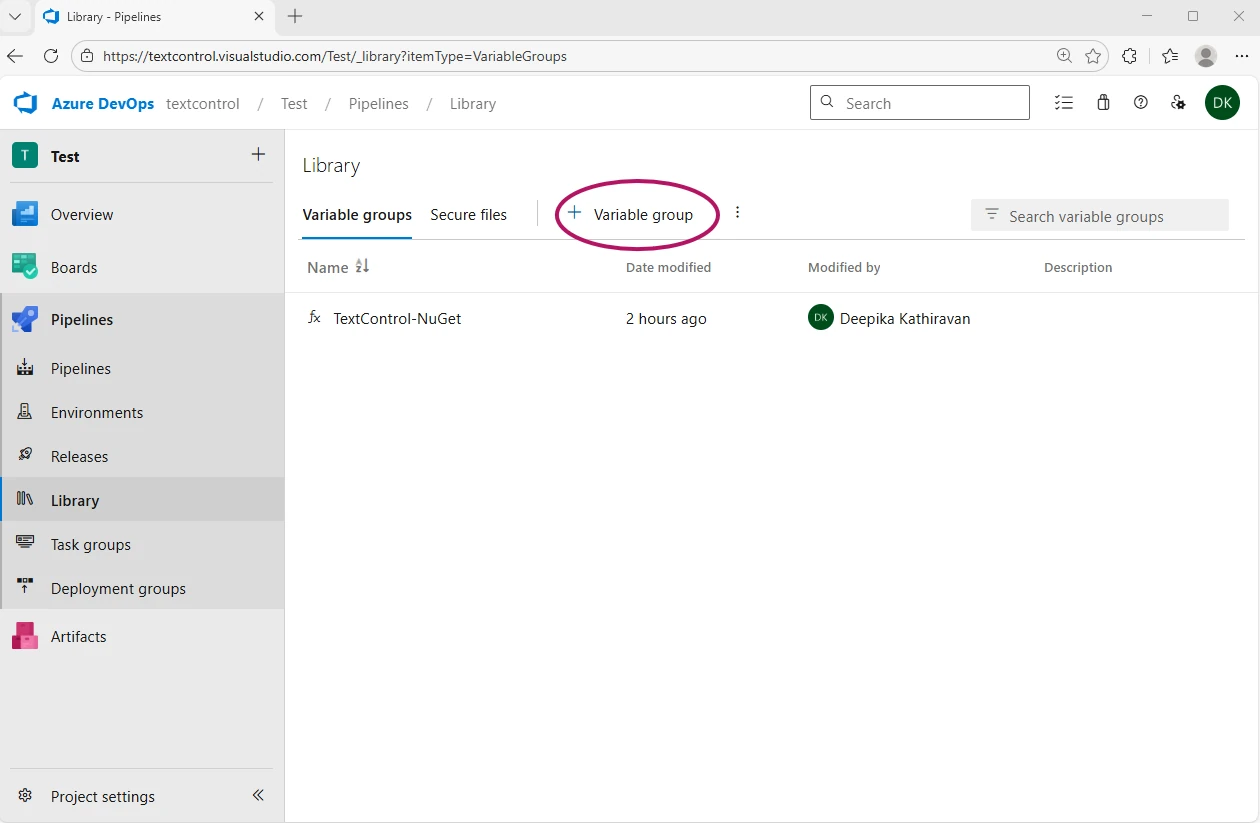
Reference the variable group in your `azure-pipelines.yml`. The pipeline writes `nuget.config` from the variables and then restores the packages with this file:
```yaml
trigger:
- main
pool:
vmImage: 'windows-latest'
variables:
- group: TextControl-NuGet
- name: buildConfiguration
value: 'Release'
steps:
- task: UseDotNet@2
displayName: 'Setup .NET SDK'
inputs:
version: '8.0.x'
includePreviewVersions: false
- pwsh: |
@"
"@ | Out-File -FilePath nuget.config -Encoding utf8
displayName: 'Create nuget.config'
- task: DotNetCoreCLI@2
displayName: 'Restore packages'
inputs:
command: 'restore'
projects: '**/*.csproj'
feedsToUse: 'config'
nugetConfigPath: 'nuget.config'
- task: DotNetCoreCLI@2
displayName: 'Build solution'
inputs:
command: 'build'
projects: '**/*.csproj'
arguments: '--configuration $(buildConfiguration) --no-restore'
- task: DotNetCoreCLI@2
displayName: 'Run tests'
inputs:
command: 'test'
projects: '**/*Tests.csproj'
arguments: '--configuration $(buildConfiguration) --no-build'
```
Make sure that the restore task uses the generated file (`feedsToUse: 'config'` and `nugetConfigPath: 'nuget.config'`). When you run the pipeline for the first time, click **Permit** to allow access to the variable group. In the log of the **Restore packages** step, both `https://api.nuget.org/v3/index.json` and `https://www.textcontrol.com/nuget/v3/index.json` are listed under the feeds used.
With the classic editor instead of YAML pipelines, add a **Command line** task that generates `nuget.config` before the **NuGet restore** task and references the variables from your variable group. The article [Azure DevOps with TX Text Control .NET Server 34.0: Private NuGet Feed and Azure Artifacts](https://www.textcontrol.com/blog/2026/02/25/azure-devops-with-tx-text-control-dotnet-server-34-0-private-nuget-feed-and-azure-artifacts/) describes the complete setup and an alternative with Azure Artifacts.
### Jenkins
Store the credentials in the Jenkins Credentials Store:
1. Navigate to **Manage Jenkins** > **Credentials**.
2. Select the appropriate domain, or **Global**.
3. Click **Add Credentials** and create three **Secret text** entries: `textcontrol-email`, `textcontrol-api-token` and `textcontrol-feed-url`.
Reference these credentials in your `Jenkinsfile`:
```groovy
pipeline {
agent any
environment {
DOTNET_VERSION = '8.0'
}
stages {
stage('Setup') {
steps {
withCredentials([
string(credentialsId: 'textcontrol-email', variable: 'TEXTCONTROL_EMAIL'),
string(credentialsId: 'textcontrol-api-token', variable: 'TEXTCONTROL_API_TOKEN'),
string(credentialsId: 'textcontrol-feed-url', variable: 'TEXTCONTROL_FEED_URL')
]) {
writeFile file: 'nuget.config', text: """
"""
}
}
}
stage('Restore') {
steps {
sh 'dotnet restore'
}
}
stage('Build') {
steps {
sh 'dotnet build --configuration Release --no-restore'
}
}
stage('Test') {
steps {
sh 'dotnet test --configuration Release --no-build'
}
}
}
}
```
The `withCredentials` block injects the secrets as environment variables for the duration of the step, and Jenkins masks them in the console output.
### Bitbucket Pipelines
Store the credentials as repository variables:
1. Navigate to **Repository settings** > **Pipelines** > **Repository variables**.
2. Add `TEXTCONTROL_EMAIL`, `TEXTCONTROL_API_TOKEN` and `TEXTCONTROL_FEED_URL`, and mark each one as **Secured**.
Configure your `bitbucket-pipelines.yml`:
```yaml
image: mcr.microsoft.com/dotnet/sdk:8.0
pipelines:
default:
- step:
name: Build and Test
script:
- |
cat > nuget.config << EOF
EOF
- dotnet restore
- dotnet build --configuration Release --no-restore
- dotnet test --configuration Release --no-build
```
Secured variables are encrypted and masked in build logs. To share the credentials across several repositories, define the variables at the workspace level instead.
### TeamCity
Store the credentials as build parameters:
1. Open your build configuration and go to **Parameters**.
2. Click **Add new parameter** and create three parameters of the type **Password**: `TEXTCONTROL_EMAIL`, `TEXTCONTROL_API_TOKEN` and `TEXTCONTROL_FEED_URL`.
Add a **Command Line** build step that generates `nuget.config` before the packages are restored. TeamCity references parameters with the `%parameter%` syntax:
```bash
#!/bin/bash
cat > nuget.config << EOF
EOF
dotnet restore
dotnet build --configuration Release --no-restore
dotnet test --configuration Release --no-build
```
Password parameters are stored encrypted and masked in build logs.
### Docker Builds
When you build a Docker image, `dotnet restore` runs inside the build container, so the container needs the `nuget.config` file that your pipeline generates from the secrets, as shown in the sections above. Pass the file to `docker buildx build` as a build secret instead of copying it into the image: a `COPY` of *nuget.config* would store the API token in a layer of the image. [Dockerfile](https://docs.textcontrol.com/tx-text-control-dotnet-server/deployment/docker/dockerfile/#write-the-dockerfile) shows a multi-stage Dockerfile that mounts the secret for `dotnet restore`, and [Keep nuget.config Out of the Image](https://docs.textcontrol.com/tx-text-control-dotnet-server/deployment/docker/dockerfile/#keep-nuget-config-out-of-the-image) the *.dockerignore* file that goes with it.
The article [Using a Private NuGet Feed to Build and Restore .NET Apps for Docker Deployment](https://www.textcontrol.com/blog/2025/04/11/using-a-private-nuget-feed-to-build-and-restore-dotnet-apps-for-docker-deployment/) describes a similar setup with packages hosted in GitHub Packages.
### Next Steps
- [nuget.config](https://docs.textcontrol.com/tx-text-control-dotnet-server/installation/nuget/private-feed/nuget-config/llms-full.txt) — the structure of the generated file.
- [CI/CD](https://docs.textcontrol.com/tx-text-control-dotnet-server/deployment/ci-cd/llms-full.txt) — build and deploy pipelines in the Deployment Guide.
- [Offline Packages](https://docs.textcontrol.com/tx-text-control-dotnet-server/installation/nuget/offline-packages/llms-full.txt) — host packages in your own feed, for example Azure Artifacts.
- [NuGet Authentication](https://docs.textcontrol.com/tx-text-control-dotnet-server/troubleshooting/nuget-authentication/llms-full.txt) — solve authentication problems.
---
## Nearby
- **Previous:** [.NET CLI](https://docs.textcontrol.com/tx-text-control-dotnet-server/installation/nuget/private-feed/dotnet-cli/llms-full.txt)
- **Next:** [Public NuGet Packages](https://docs.textcontrol.com/tx-text-control-dotnet-server/installation/nuget/public-packages/llms-full.txt)