# ASP.NET MVC Document Editor
> Add the Document Editor to an ASP.NET MVC app on the .NET Framework with TXTextControl.Web, Web API, the TX TextControl Service and ServiceAddress.
- **Product:** TX Text Control .NET Server
- **Section:** Documentation
- **Kind:** Topic
- **Path:** TX Text Control .NET Server > Integration Guide > ASP.NET on .NET Framework > ASP.NET MVC Document Editor
- **2446 words**
- **Web URL:** https://docs.textcontrol.com/tx-text-control-dotnet-server/integration/dotnet-framework/mvc-editor/
- **LLMs URL:** https://docs.textcontrol.com/tx-text-control-dotnet-server/integration/dotnet-framework/mvc-editor/llms.txt
- **LLMs-Full URL:** https://docs.textcontrol.com/tx-text-control-dotnet-server/integration/dotnet-framework/mvc-editor/llms-full.txt
---
An ASP.NET MVC 5 application on the .NET Framework shows the Document Editor with the same Razor HTML helper as an ASP.NET Core application, but it connects to a different backend: the TX TextControl Service, a Windows service installed with the setup. The tutorial below creates such an application in Visual Studio 2022 with .NET Framework 4.8, shows an HTML document in the editor and inserts a table from a button.
**Legacy technology.** This setup is for existing applications on the .NET Framework. It runs on Windows only and uses the Classic engine. For a new application, follow [ASP.NET Core](https://docs.textcontrol.com/tx-text-control-dotnet-server/getting-started/document-editor/aspnet-core/llms-full.txt), which uses the Core engine and runs on Windows and Linux.
### Prerequisites
- Visual Studio 2022 and .NET Framework 4.8.
- The Windows setup of TX Text Control .NET Server 34.0, trial or full version, on the development machine. It installs the assemblies, the TX TextControl Service and the **Text Control Offline Packages** package source.
- IIS Express 8.0 or higher with the WebSocket protocol installed. The requirements of the Document Editor on the .NET Framework list IIS 8.0 or higher, IIS Express 8.0 or higher and an installed WebSocket protocol.
The setup also installs the finished sample of this tutorial. Its folder is `%USERPROFILE%\Documents\TX Text Control 34.0.NET Server for ASP.NET\CSharp\MVC\editor\`.
### How the Editor Connects
The MVC editor consists of three parts:
```text
Browser: Document Editor (HTML and JavaScript)
|
|-- WebSocket ---> WebSocket handler in your MVC application (ASP.NET Web API route "api/")
|
|-- TCP ---> TX TextControl Service (Windows service, Classic engine)
```
- **The HTML helper** of the `TXTextControl.Web` package renders the editor into the view.
- **The handlers** for the WebSocket connection and for printing are served from the API directory of the MVC project. The [APIRoute](https://docs.textcontrol.com/tx-text-control-dotnet-server/reference/txtextcontrol-web-mvc/textcontrolsettings/apiroute-property/llms-full.txt) setting names that directory, and its default value is `api/`. The project therefore needs ASP.NET Web API, which is why the project template below adds it.
- **The TX TextControl Service** synchronizes the document and calculates its layout. By default, the handler connects to it on the local computer (127.0.0.1). The ASP.NET Core Document Editor replaces this service with a backend process that the application starts itself.
### Create the Project
1. In Visual Studio 2022, choose **Create a new project**.
2. Select **ASP.NET Web Application (.NET Framework)** as the project template and confirm with **Next**.
3. Enter a project name, select **.NET Framework 4.8** as the **Framework** and confirm with **Create**.
4. In the next dialog, choose **MVC** as the project template. Under **Add folders & core references**, check **Web API**. Confirm with **Create**.
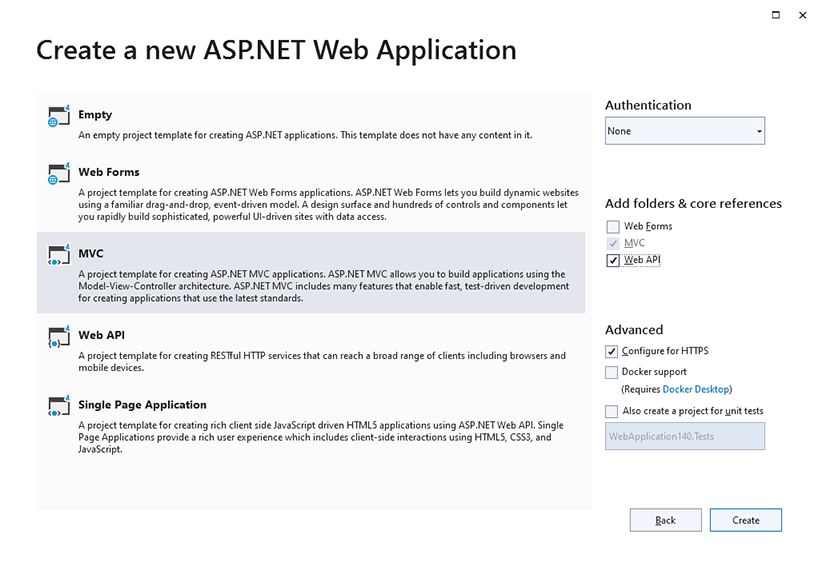
If you add the editor to an existing MVC project without Web API, install the `Microsoft.AspNet.WebApi` package and register a route for `api/{controller}/{id}` in *Global.asax.cs* before the MVC routes, as the blog article [Adding ASP.NET Web API Support to an Existing Visual Studio ASP.NET MVC Project](https://www.textcontrol.com/blog/2015/12/12/adding-aspnet-web-api-support-to-an-existing-visual-studio-aspnet-mvc-project/) shows.
### Install the NuGet Package
1. In **Solution Explorer**, select the project and choose **Manage NuGet Packages...** from the **Project** menu.
2. Select **Text Control Offline Packages** or **nuget.org** as the **Package source**.
3. Search for `txtextcontrol.web` and install the latest version of `TXTextControl.Web`.
The package contains a .NET Framework 4.5 build that depends on ASP.NET MVC 5 (`Microsoft.AspNet.Mvc` 5.3.0) and ASP.NET Web API (`Microsoft.AspNet.WebApi.Core` 5.3.0), and NuGet installs both. When you install the package from nuget.org instead of the offline source, the trial version of TX Text Control .NET Server must be installed on the development machine. See [Offline Packages](https://docs.textcontrol.com/tx-text-control-dotnet-server/installation/nuget/offline-packages/llms-full.txt).
The MVC editor needs no references to other TX Text Control assemblies and no *licenses.licx* file. The engine runs in the TX TextControl Service.
### Add the Editor to the View
Open *Index.cshtml* in the *Views/Home* folder and replace its complete content with the following code:
```cshtml
@using TXTextControl.Web.MVC
@{
var sDocument = "
Welcome to Text Control
";
}
@Html.TXTextControl().TextControl(settings => {
settings.UserNames = new string[] { "Tim Typer" };
}).LoadText(sDocument, TXTextControl.Web.StringStreamType.HTMLFormat).Render()
```
The view is the same as in the ASP.NET Core tutorial:
- [`Html.TXTextControl().TextControl()`](https://docs.textcontrol.com/tx-text-control-dotnet-server/reference/txtextcontrol-web-mvc/controlsfactory/textcontrol-method/llms-full.txt) creates the editor. The lambda expression receives a [`TextControlSettings`](https://docs.textcontrol.com/tx-text-control-dotnet-server/reference/txtextcontrol-web-mvc/textcontrolsettings/llms-full.txt) object, and [`UserNames`](https://docs.textcontrol.com/tx-text-control-dotnet-server/reference/txtextcontrol-web-mvc/textcontrolsettings/usernames-property/llms-full.txt) sets the users who may edit editable regions.
- [`LoadText`](https://docs.textcontrol.com/tx-text-control-dotnet-server/reference/txtextcontrol-web-mvc/textcontrol/loadtext-method/llms-full.txt) loads the HTML string as the initial document, with the format [`StringStreamType.HTMLFormat`](https://docs.textcontrol.com/tx-text-control-dotnet-server/reference/txtextcontrol-web/stringstreamtype/enumeration/llms-full.txt).
- [`Render()`](https://docs.textcontrol.com/tx-text-control-dotnet-server/reference/txtextcontrol-web-mvc/controlbase/render-method/llms-full.txt) writes the editor into the page.
- `insertTable()` calls the JavaScript API of the editor, the global [`TXTextControl`](https://docs.textcontrol.com/tx-text-control-dotnet-server/reference/javascript/txtextcontrol/llms-full.txt) object. [`tables.add`](https://docs.textcontrol.com/tx-text-control-dotnet-server/reference/javascript/tablecollection/add-method/llms-full.txt) inserts a table with 5 rows, 5 columns and the ID 10, and the callback fills every cell with text.
### Run the Application
Press **F5** to build and start the application. The home page shows the Document Editor with its ribbon bar and the welcome text. Click **Insert Table** to insert a table with "Cell text" in every cell.
The editor works only while the TX TextControl Service runs and the WebSocket protocol is installed. When it doesn't load a document, check both first.
### Connect to a Service on Another Server
Since version 23.0, the TX TextControl Service doesn't have to run on the web server. It can run on one or more application servers, for example behind a load balancer, so that its workload doesn't affect the web server. Set [ServiceAddress](https://docs.textcontrol.com/tx-text-control-dotnet-server/reference/txtextcontrol-web-mvc/textcontrolsettings/serviceaddress-property/llms-full.txt) to the IP address of that server:
```cshtml
@using TXTextControl.Web.MVC
@using System.Net
@Html.TXTextControl().TextControl(settings => {
// The server that runs the TX TextControl Service
settings.ServiceAddress = IPAddress.Parse("10.0.0.20");
}).Render()
```
- `ServiceAddress` is the IP address the WebSocket handler connects to. Its default value is 127.0.0.1, the local computer.
- [ServicePort](https://docs.textcontrol.com/tx-text-control-dotnet-server/reference/txtextcontrol-web-mvc/textcontrolsettings/serviceport-property/llms-full.txt) is the port the handler connects to on that server.
- Both settings affect all editor instances of the application, not only the one you configure.
Deploying the service to its own server is described in the Deployment Guide under [.NET Framework Applications](https://docs.textcontrol.com/tx-text-control-dotnet-server/deployment/windows/dotnet-framework/llms-full.txt).
### Next Steps
- [ASP.NET MVC Mail Merge](https://docs.textcontrol.com/tx-text-control-dotnet-server/integration/dotnet-framework/mvc-mail-merge/llms-full.txt): create documents on the server in the same kind of project.
- [ASP.NET Web Forms Document Editor](https://docs.textcontrol.com/tx-text-control-dotnet-server/integration/dotnet-framework/web-forms-editor/llms-full.txt): the editor as a Web Forms server control.
- [.NET Framework Applications](https://docs.textcontrol.com/tx-text-control-dotnet-server/deployment/windows/dotnet-framework/llms-full.txt): deploy the application and the TX TextControl Service.
- [From ASP.NET MVC on the .NET Framework to ASP.NET Core](https://docs.textcontrol.com/tx-text-control-dotnet-server/installation/upgrading/previous-versions/#from-asp-net-mvc-on-the-net-framework-to-asp-net-core): move the application to ASP.NET Core.
---
## Nearby
- **Previous:** [ASP.NET on .NET Framework](https://docs.textcontrol.com/tx-text-control-dotnet-server/integration/dotnet-framework/llms-full.txt)
- **Next:** [ASP.NET MVC Document Viewer](https://docs.textcontrol.com/tx-text-control-dotnet-server/integration/dotnet-framework/mvc-viewer/llms-full.txt)