# PDF Conversion
> Convert DOCX, HTML, XLSX and Markdown to PDF with ServerTextControl, change page formats and styles on the way and turn PDF documents into editable text.
- **Product:** TX Text Control .NET Server
- **Section:** Documentation
- **Kind:** Topic
- **Path:** TX Text Control .NET Server > PDF Processing > PDF Conversion
- **4926 words**
- **Web URL:** https://docs.textcontrol.com/tx-text-control-dotnet-server/pdf/conversion/
- **LLMs URL:** https://docs.textcontrol.com/tx-text-control-dotnet-server/pdf/conversion/llms.txt
- **LLMs-Full URL:** https://docs.textcontrol.com/tx-text-control-dotnet-server/pdf/conversion/llms-full.txt
---
Word files from a document management system, HTML from a web application, Excel workbooks and Markdown files: in many applications, all of them end up as PDF. TX Text Control converts each of these formats with a `Load` and a `Save` call. In between, the content is a complete document, so you can give it a new page format, page numbers or other heading styles before the PDF is written. In the other direction, the text of PDF documents becomes DOCX, RTF or plain text that you can edit.
A single DOCX file is converted in [Convert an Existing Document to PDF](https://docs.textcontrol.com/tx-text-control-dotnet-server/getting-started/pdf/create/#convert-an-existing-document-to-pdf) in Getting Started, and a folder of DOCX, RTF, HTML and TX files in [Convert Many Documents](https://docs.textcontrol.com/tx-text-control-dotnet-server/document-processing/saving-converting/#convert-many-documents).
### How a Conversion Works
You load the source document with the format value of the [StreamType](https://docs.textcontrol.com/tx-text-control-dotnet-server/reference/txtextcontrol/streamtype/enumeration/llms-full.txt) enumeration and save it with `StreamType.AdobePDF`. The document engine of TX Text Control lays out the loaded document again, so text reflows when you change page sizes or margins, and page numbers adapt to the new pages. Microsoft Office isn't needed on the server.
| Source | Load it with | Described in |
|---|---|---|
| DOCX | `StreamType.WordprocessingML` | [Change the Page Format While Converting](#change-the-page-format-while-converting) |
| DOC | `StreamType.MSWord`, Classic engine only | [Core and Classic Differences](https://docs.textcontrol.com/tx-text-control-dotnet-server/overview/file-formats/#core-and-classic-differences) |
| RTF | `StreamType.RichTextFormat`, Core engine since version 34.0 | [Core and Classic Differences](https://docs.textcontrol.com/tx-text-control-dotnet-server/overview/file-formats/#core-and-classic-differences) |
| HTML | `StreamType.HTMLFormat` | [Give HTML Pages and Page Numbers](#give-html-pages-and-page-numbers) |
| XLSX | `StreamType.SpreadsheetML` | [Convert All Worksheets of a Workbook](#convert-all-worksheets-of-a-workbook) |
| Markdown | `LoadMarkdown` of the `TXTextControl.Markdown.Core` package | [Convert Markdown to PDF](#convert-markdown-to-pdf) |
| TX Text Control format | `StreamType.InternalUnicodeFormat` | [Convert Many Documents](https://docs.textcontrol.com/tx-text-control-dotnet-server/document-processing/saving-converting/#convert-many-documents) |
| Plain text | `StreamType.PlainText` | [Supported File Formats](https://docs.textcontrol.com/tx-text-control-dotnet-server/overview/file-formats/llms-full.txt) |
What a conversion can change, such as replaced fonts or Word fields that aren't imported as fields, is listed in [What Changes When Converting](https://docs.textcontrol.com/tx-text-control-dotnet-server/document-processing/saving-converting/#what-changes-when-converting). To archive the converted documents, save them with `StreamType.AdobePDFA` instead, as [PDF/A](https://docs.textcontrol.com/tx-text-control-dotnet-server/pdf/pdf-a/llms-full.txt) describes.
### Change the Page Format While Converting
A document keeps its page format when it's converted. To give all PDF documents the same format, set the page size and margins of every section after loading. The following *Program.cs* converts *Documents/sample.docx* into a PDF with US letter pages and margins of 0.75 inch:
```csharp
using TXTextControl;
using (ServerTextControl tx = new ServerTextControl())
{
tx.Create();
tx.Load("Documents/sample.docx", StreamType.WordprocessingML);
// Every section has its own page format
foreach (Section section in tx.Sections)
{
section.Format.PageSize = new PageSize();
section.Format.PageMargins = new PageMargins(75, 75, 75, 75);
}
tx.Save("sample-letter.pdf", StreamType.AdobePDF);
}
```
The code works as follows:
- [Sections](https://docs.textcontrol.com/tx-text-control-dotnet-server/reference/txtextcontrol/servertextcontrol/sections-property/llms-full.txt) contains the [Section](https://docs.textcontrol.com/tx-text-control-dotnet-server/reference/txtextcontrol/section/llms-full.txt) objects of the document. A document created in Word can have several sections with different page formats, so the loop changes all of them.
- The [PageSize constructor](https://docs.textcontrol.com/tx-text-control-dotnet-server/reference/txtextcontrol/pagesize/constructor/llms-full.txt) without parameters creates a US letter page, 8.5 x 11 inches. With a width and a height, it takes values in 1/100 inch by default, the same unit as the [PageMargins constructor](https://docs.textcontrol.com/tx-text-control-dotnet-server/reference/txtextcontrol/pagemargins/constructor/llms-full.txt): `75` is 0.75 inch.
- [SectionFormat.PageSize](https://docs.textcontrol.com/tx-text-control-dotnet-server/reference/txtextcontrol/sectionformat/pagesize-property/llms-full.txt) always takes the portrait values. For landscape pages, set [Landscape](https://docs.textcontrol.com/tx-text-control-dotnet-server/reference/txtextcontrol/sectionformat/landscape-property/llms-full.txt) as well.
Text and images flow onto the new pages, and the number of pages can change. Tables keep their column widths, because TX Text Control doesn't resize tables to a new page width. The blog article [Convert MS Word DOCX to PDF including Text Reflow using .NET C# on Linux](https://www.textcontrol.com/blog/2025/06/10/convert-ms-word-docx-to-pdf-including-text-reflow-using-dotnet-csharp-on-linux/) adds a helper that fits the tables to the page. The other page settings of a section are described in [Sections](https://docs.textcontrol.com/tx-text-control-dotnet-server/document-processing/sections/#format-a-section).
### Give HTML Pages and Page Numbers
HTML has no pages, so a web page brings no headers, footers or page numbers with it. Once loaded with `StreamType.HTMLFormat`, the HTML is a document with pages: CSS in a `style` element is applied, and the images the page references become part of the PDF. Add what a printed document needs before you save it with `StreamType.AdobePDF`, such as the footer "Page x of y" that [Add a Footer With Page Numbers](https://docs.textcontrol.com/tx-text-control-dotnet-server/document-processing/headers-footers/#add-a-footer-with-page-numbers) creates. HTML from a string is loaded with `StringStreamType.HTMLFormat`, and the styles created from the HTML can be changed after loading, as [Load HTML](https://docs.textcontrol.com/tx-text-control-dotnet-server/document-processing/loading/#load-html) shows.
For invoices, contracts and financial reports, a template designed for pages is often the better source than HTML: table header rows repeat on the next page, rows don't break apart and totals stay in place. The blog article [Why HTML to PDF Conversion is Often the Wrong Choice for Business Documents in C# .NET](https://www.textcontrol.com/blog/2026/03/13/why-html-to-pdf-conversion-is-often-the-wrong-choice-for-business-documents-in-csharp-dot-net/) compares the two approaches, and [Mail Merge and Reporting](https://docs.textcontrol.com/tx-text-control-dotnet-server/mail-merge/llms-full.txt) describes templates. HTML remains a good source for content that exists as a web page anyway, such as an exported dashboard.
### Convert All Worksheets of a Workbook
`StreamType.SpreadsheetML` loads one worksheet of an XLSX file as a table, with its cell formatting, formulas and number formats. To convert a complete workbook, load the first worksheet and append the others, each in a section of its own:
```csharp
using TXTextControl;
string workbook = "Documents/report.xlsx";
using (ServerTextControl tx = new ServerTextControl())
{
tx.Create();
string[] sheets = LoadSettings.GetDocumentPartNames(workbook, StreamType.SpreadsheetML);
for (int i = 0; i < sheets.Length; i++)
{
LoadSettings loadSettings = new LoadSettings() { DocumentPartName = sheets[i] };
if (i == 0)
{
tx.Load(workbook, StreamType.SpreadsheetML, loadSettings);
}
else
{
tx.Append(workbook, StreamType.SpreadsheetML, loadSettings, AppendSettings.StartWithNewSection);
}
}
// Landscape pages leave more room for wide tables
foreach (Section section in tx.Sections)
{
section.Format.Landscape = true;
}
tx.Save("report.pdf", StreamType.AdobePDF);
}
```
The code works as follows:
- [GetDocumentPartNames](https://docs.textcontrol.com/tx-text-control-dotnet-server/reference/txtextcontrol/loadsettings/getdocumentpartnames-method/llms-full.txt) returns the names of the worksheets, and [DocumentPartName](https://docs.textcontrol.com/tx-text-control-dotnet-server/reference/txtextcontrol/loadsettings/documentpartname-property/llms-full.txt) selects the worksheet that is loaded.
- `Load` replaces the empty document with the first worksheet. [Append](https://docs.textcontrol.com/tx-text-control-dotnet-server/reference/txtextcontrol/servertextcontrol/append-method/llms-full.txt) adds the others at the end, and [AppendSettings](https://docs.textcontrol.com/tx-text-control-dotnet-server/reference/txtextcontrol/appendsettings/enumeration/llms-full.txt) `StartWithNewSection` creates a new section for each of them.
- A worksheet with many columns can be wider than the page and reach into the right margin. Landscape orientation gives the tables more width. The blog article [Loading and Processing Excel XLSX Spreadsheet Tables into TX Text Control using .NET C#](https://www.textcontrol.com/blog/2024/10/16/loading-and-processing-excel-spreadsheet-tables-into-tx-text-control-using-net-csharp/) also reduces the column widths of tables that are still too wide.
CSV files aren't a format TX Text Control loads. The blog article [Convert CSV to PDF in .NET C#](https://www.textcontrol.com/blog/2026/01/19/convert-csv-to-pdf-in-dotnet-csharp/) builds a table from the values of a CSV file instead, with a header row that repeats on every page.
### Convert Markdown to PDF
Markdown is loaded with the extension method `LoadMarkdown` of the `TXTextControl.Markdown.Core` package, which you install from [nuget.org](https://www.nuget.org/packages/TXTextControl.Markdown.Core/) in addition to the TX Text Control package. The import creates paragraph styles for the elements of the Markdown, such as `BODY` for the text and `H1` to `H6` for the headings. Changing these styles changes the look of the PDF. The following program converts *Documents/report.md* and gives the top-level headings a larger dark blue font:
```csharp
using TXTextControl;
using TXTextControl.Markdown;
using (ServerTextControl tx = new ServerTextControl())
{
tx.Create();
tx.LoadMarkdown(File.ReadAllText("Documents/report.md"));
// The style of all "#" headings
ParagraphStyle heading = tx.ParagraphStyles.GetItem("H1");
if (heading != null)
{
heading.FontSize = 400; // 20 pt
heading.ForeColor = System.Drawing.Color.DarkBlue;
heading.Apply();
}
tx.Save("report.pdf", StreamType.AdobePDF);
}
```
The code works as follows:
- `LoadMarkdown` takes the Markdown as a string. It's available through the `using TXTextControl.Markdown;` directive.
- [ParagraphStyles](https://docs.textcontrol.com/tx-text-control-dotnet-server/reference/txtextcontrol/servertextcontrol/paragraphstyles-property/llms-full.txt) contains the styles of the document, and [GetItem](https://docs.textcontrol.com/tx-text-control-dotnet-server/reference/txtextcontrol/paragraphstylecollection/getitem-method/llms-full.txt) returns the style with the given name. The check covers Markdown without such a heading.
- [FontSize](https://docs.textcontrol.com/tx-text-control-dotnet-server/reference/txtextcontrol/formattingstyle/fontsize-property/llms-full.txt) is measured in twips, like the other font sizes of TX Text Control: `400` is 20 pt. [Apply](https://docs.textcontrol.com/tx-text-control-dotnet-server/reference/txtextcontrol/formattingstyle/apply-method/llms-full.txt) applies the changed attributes to the document.
In the blog article linked below, the `H1` style is changed to a larger size and a blue color in the same way, and the heading of the exported PDF shows the new style:
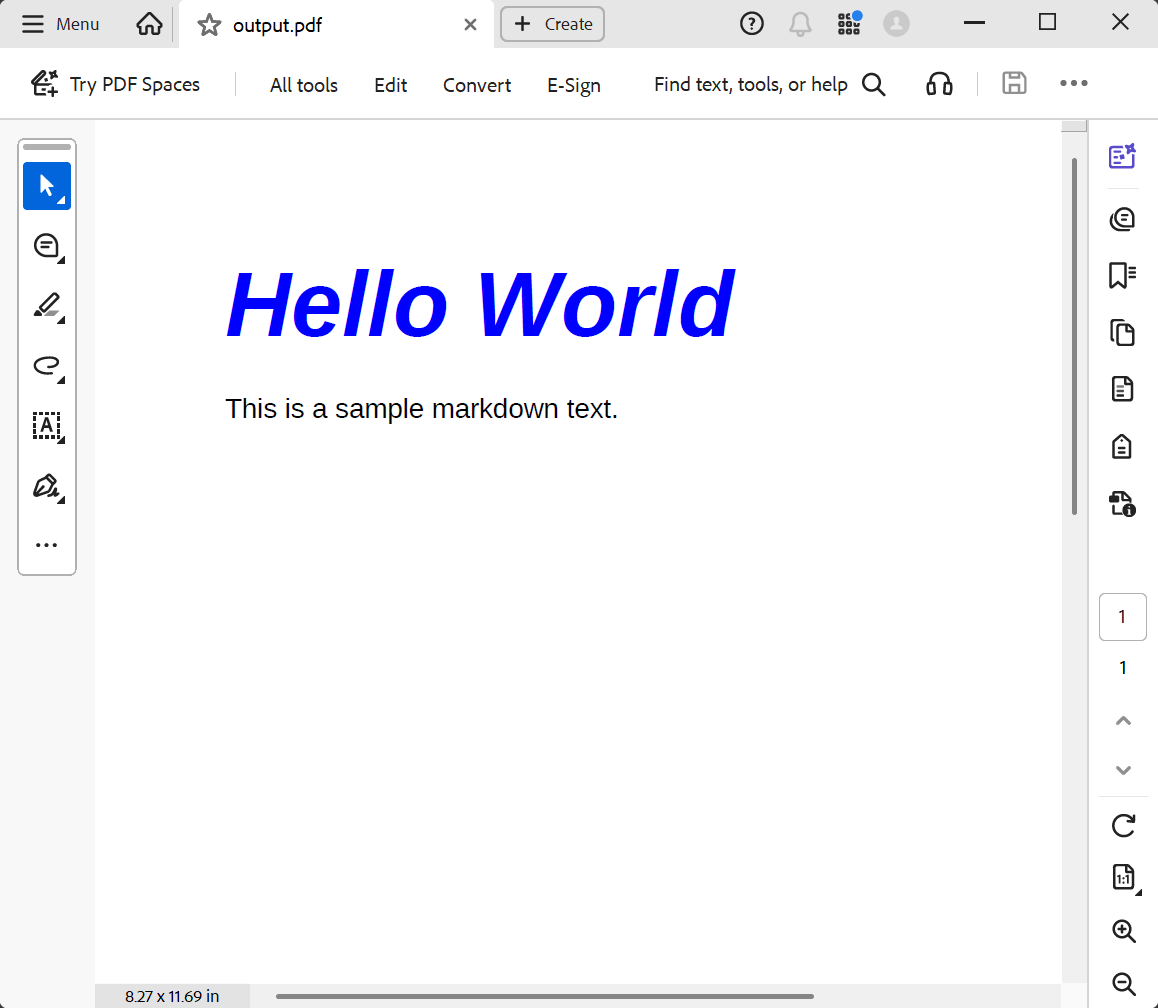
The blog article [A Complete Guide to Converting Markdown to PDF in .NET C#](https://www.textcontrol.com/blog/2026/01/07/a-complete-guide-to-converting-markdown-to-pdf-in-dotnet-csharp/) lists all styles the import creates, and [Markdown](https://docs.textcontrol.com/tx-text-control-dotnet-server/overview/file-formats/#markdown) in Supported File Formats names the supported Markdown elements.
### Convert PDF Documents to Editable Formats
A PDF describes how its pages look, not how the document is structured. When TX Text Control loads a PDF, it reconstructs a document from the characters it can identify, which works for PDF documents created digitally whose text has character mappings. [What Happens When You Load a PDF](https://docs.textcontrol.com/tx-text-control-dotnet-server/getting-started/pdf/load-modify/#what-happens-when-you-load-a-pdf) explains the limits of this reconstruction.
The following program converts every PDF in the *Documents* folder to DOCX and reports files it can't convert:
```csharp
using TXTextControl;
Directory.CreateDirectory("Output");
foreach (string file in Directory.GetFiles("Documents", "*.pdf"))
{
string target = Path.Combine("Output", Path.GetFileNameWithoutExtension(file) + ".docx");
using (ServerTextControl tx = new ServerTextControl())
{
tx.Create();
LoadSettings loadSettings = new LoadSettings()
{
PDFImportSettings = PDFImportSettings.GenerateLines
};
try
{
tx.Load(file, StreamType.AdobePDF, loadSettings);
}
catch (FilterException exception)
{
// For example InvalidPassword or Encrypted
Console.WriteLine($"{file} skipped: {exception.Reason}");
continue;
}
if (tx.Text.Trim().Length == 0)
{
Console.WriteLine($"{file} skipped: no text found");
continue;
}
tx.Save(target, StreamType.WordprocessingML);
Console.WriteLine($"{file} -> {target}");
}
}
```
The code works as follows:
- [LoadSettings.PDFImportSettings](https://docs.textcontrol.com/tx-text-control-dotnet-server/reference/txtextcontrol/loadsettings/pdfimportsettings-property/llms-full.txt) decides what the loaded document contains. [PDFImportSettings](https://docs.textcontrol.com/tx-text-control-dotnet-server/reference/txtextcontrol/pdfimportsettings/enumeration/llms-full.txt) `GenerateLines` loads the text without images and paragraph formatting. The other values are compared under PDF Import in [Supported File Formats](https://docs.textcontrol.com/tx-text-control-dotnet-server/overview/file-formats/#pdf).
- A [FilterException](https://docs.textcontrol.com/tx-text-control-dotnet-server/reference/txtextcontrol/filterexception/llms-full.txt) reports a file that can't be loaded. For PDF documents, its [Reason](https://docs.textcontrol.com/tx-text-control-dotnet-server/reference/txtextcontrol/filterexception/reason-property/llms-full.txt) is often `InvalidPassword`, because the PDF needs a user password, or `Encrypted`, because its encryption scheme isn't supported. Loading with a password is shown in [Load Password-Protected PDF Documents](https://docs.textcontrol.com/tx-text-control-dotnet-server/document-processing/loading/#load-password-protected-pdf-documents).
- An empty [Text](https://docs.textcontrol.com/tx-text-control-dotnet-server/reference/txtextcontrol/servertextcontrol/text-property/llms-full.txt) means that no text could be extracted from the PDF.
- `StreamType.WordprocessingML` saves the result as DOCX. For RTF or plain text, use `RichTextFormat` or `PlainText`.
Some tasks don't need a converted document:
- **Text with its position**, such as a total at a fixed place on the page, is read as described in [Text Extraction](https://docs.textcontrol.com/tx-text-control-dotnet-server/pdf/text-extraction/llms-full.txt).
- **Form field values** are read with `GetAcroFormFields`, as [Import Form Data](https://docs.textcontrol.com/tx-text-control-dotnet-server/pdf/forms/import-data/llms-full.txt) describes.
- **Embedded files**, such as the XML of an electronic invoice, are described in [Attachments](https://docs.textcontrol.com/tx-text-control-dotnet-server/pdf/attachments/llms-full.txt).
- **Viewing, filling in and signing** a PDF in the browser needs no conversion at all, as [View PDFs Without Changing Them](https://docs.textcontrol.com/tx-text-control-dotnet-server/getting-started/pdf/load-modify/#view-pdfs-without-changing-them) explains.
### Run Conversions in a Service
Wherever a conversion runs, its code stays the same. What differs is how documents arrive and leave:
- **In an ASP.NET Core application,** an upload is copied into a byte array, loaded and returned as a file, as [Load Uploaded Documents in ASP.NET Core](https://docs.textcontrol.com/tx-text-control-dotnet-server/document-processing/loading/#load-uploaded-documents-in-asp-net-core) and [Return Converted Documents From ASP.NET Core](https://docs.textcontrol.com/tx-text-control-dotnet-server/document-processing/saving-converting/#return-converted-documents-from-asp-net-core) show.
- **Through text channels** such as JSON, message queues or the standard output of a process, a PDF is passed as a Base64 string of the bytes that `Save` writes to a byte array. The blog article [Convert Markdown to PDF in a Console Application on Linux and Windows](https://www.textcontrol.com/blog/2025/09/23/convert-markdown-to-pdf-in-a-console-application-on-linux-and-windows/) builds a command-line converter that writes Base64 or a PDF file.
- **From other programming languages,** a .NET console application can convert documents that it reads from standard input. The blog article [Converting Office Open XML (DOCX) to PDF in Java](https://www.textcontrol.com/blog/2025/10/14/converting-office-open-xml-docx-to-pdf-in-java/) runs a Java application and such a converter in one Docker container.
- **Long-running conversions** are better started asynchronously than handled within one HTTP request. The blog article [Generating Documents using a RESTful, Asynchronous Web API using WebHooks](https://www.textcontrol.com/blog/2022/08/22/generating-documents-using-a-restful-asynchronous-web-api-using-webhooks/) notifies the client through a webhook when the document is ready.
Batch processes with hundreds or thousands of documents are described in [Performance and Scalability](https://docs.textcontrol.com/tx-text-control-dotnet-server/performance/llms-full.txt). Problems with the result of a conversion are covered in [Document Conversion](https://docs.textcontrol.com/tx-text-control-dotnet-server/troubleshooting/conversion/llms-full.txt) in Troubleshooting.
### Next Steps
- [PDF Creation](https://docs.textcontrol.com/tx-text-control-dotnet-server/pdf/creation/llms-full.txt): protect converted PDF documents with passwords and control their fonts.
- [PDF/A](https://docs.textcontrol.com/tx-text-control-dotnet-server/pdf/pdf-a/llms-full.txt): convert documents into PDF/A for long-term archiving.
- [Text Extraction](https://docs.textcontrol.com/tx-text-control-dotnet-server/pdf/text-extraction/llms-full.txt): read the text lines of PDF documents with their positions.
- [Headers and Footers](https://docs.textcontrol.com/tx-text-control-dotnet-server/document-processing/headers-footers/llms-full.txt): add headers, footers and page numbers to converted documents.
---
## Nearby
- **Previous:** [PDF Creation](https://docs.textcontrol.com/tx-text-control-dotnet-server/pdf/creation/llms-full.txt)
- **Next:** [PDF/A](https://docs.textcontrol.com/tx-text-control-dotnet-server/pdf/pdf-a/llms-full.txt)