# Configuring Package Sources
> Set up the package sources for TXTextControl.TextControl.WinForms.SDK: Text Control Offline Packages, the private feed with nuget.config, and your own feed.
- **Product:** TX Text Control .NET for Windows Forms
- **Section:** Documentation
- **Kind:** Topic
- **Path:** TX Text Control .NET for Windows Forms > Installation Guide > NuGet Packages > Configuring Package Sources
- **1788 words**
- **Web URL:** https://docs.textcontrol.com/tx-text-control-dotnet-winforms/installation/nuget/sources/
- **LLMs URL:** https://docs.textcontrol.com/tx-text-control-dotnet-winforms/installation/nuget/sources/llms.txt
- **LLMs-Full URL:** https://docs.textcontrol.com/tx-text-control-dotnet-winforms/installation/nuget/sources/llms-full.txt
---
NuGet can only install `TXTextControl.TextControl.WinForms.SDK` from a source that has it, and the package is not published on nuget.org. There are three such sources: the local source that the setup installs, the Text Control Private NuGet Feed, and a feed of your own that mirrors the package. How to set up each of them, and which one fits a development machine or a build server, is shown below.
### Which Source to Use
| Source | Where it is | Use it for |
|---|---|---|
| **Text Control Offline Packages** | A folder on your development machine, installed by the setup | Development in Visual Studio |
| **Text Control Private NuGet Feed** | `https://www.textcontrol.com/nuget/v3/index.json`, with your email address and an API token | Build servers and CI/CD pipelines |
| Your own feed | For example Azure Artifacts, with the package pushed from the offline folder | Build systems in your organization |
The package from the private feed is meant for compiling only. A development machine needs the setup, which also provides the offline source. See [Installing the Product](https://docs.textcontrol.com/tx-text-control-dotnet-winforms/installation/setup/llms-full.txt).
### Text Control Offline Packages
The setup of the full version installs the package into the folder *C:\\Program Files (x86)\\Text Control GmbH\\NuGetPackages* and makes it available in Visual Studio as the package source **Text Control Offline Packages**. In Visual Studio, you select it in the **Package source** list of the NuGet Package Manager. See [Installing and Updating Packages](https://docs.textcontrol.com/tx-text-control-dotnet-winforms/installation/nuget/install-update/llms-full.txt).
For builds outside Visual Studio, for example with the .NET CLI, add the folder to the *nuget.config* file in the folder of your project or solution:
```xml
```
The value can also be another folder or the URL of your own package repository to which you copied the package.
### Text Control Private NuGet Feed
The private feed is available to customers with an active subscription. It authenticates you with the email address of the developer a serial number is assigned to and an API token, and it offers only the packages and versions that developer is licensed for. The license is added to each package on the server before it is downloaded.
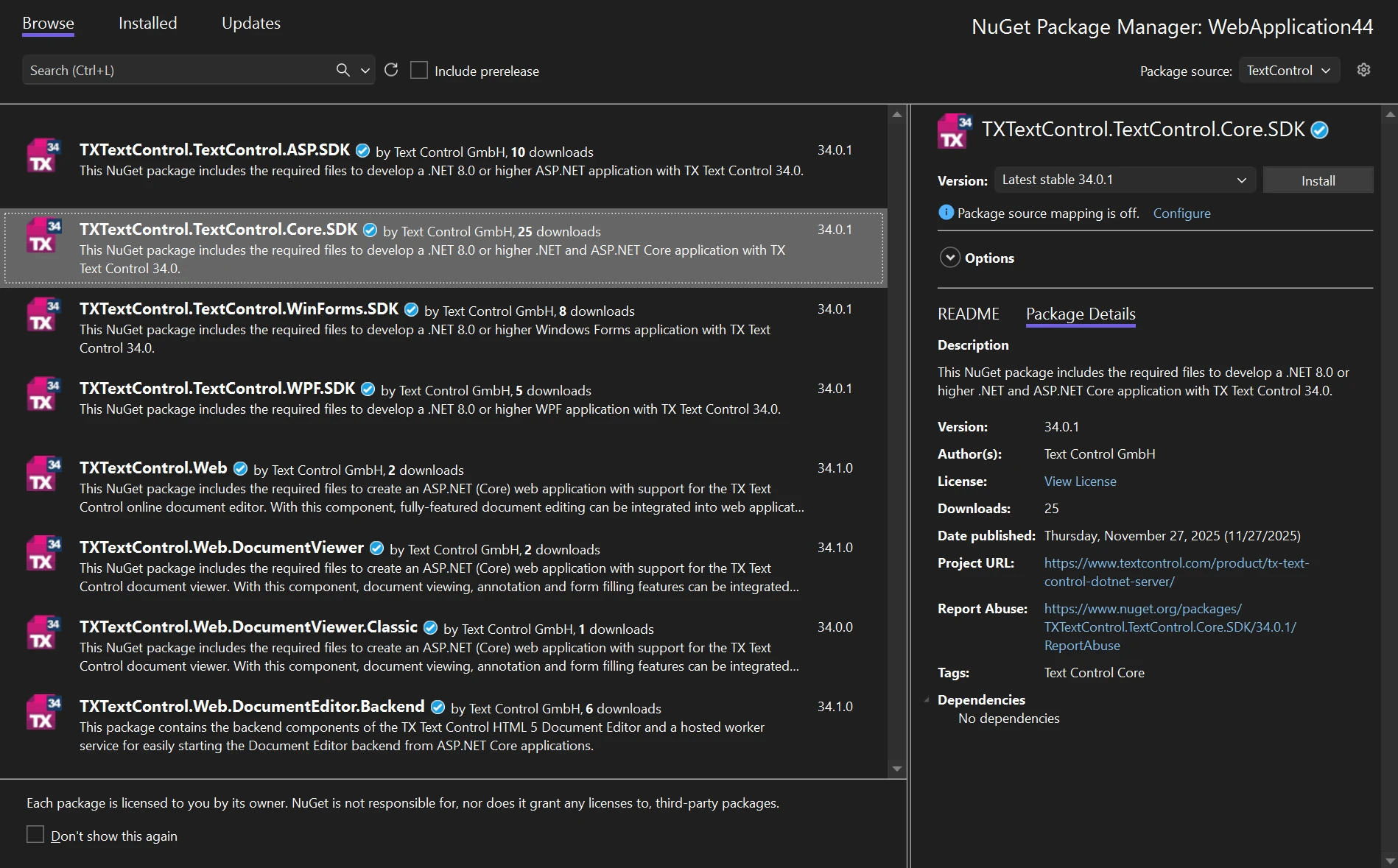
In the NuGet Package Manager of Visual Studio, the feed is the package source **TextControl**. The following screenshot shows it with the packages of a developer who is licensed for several products, `TXTextControl.TextControl.WinForms.SDK` among them:
#### Get Your Credentials
1. The owner of the Text Control account assigns a serial number to you, as described in [Assign a License to a Developer](https://docs.textcontrol.com/tx-text-control-dotnet-winforms/installation/licensing/development/#assign-a-license-to-a-developer).
2. For a serial number that includes NuGet access, an API token is created automatically, and you receive an email with the serial number and a download link for your personal *nuget.config* file.
3. An automatically created token is valid for 365 days and is extended when the serial number is assigned again. Under **Manage API tokens**, a token can also be created manually, valid for 1 to 730 days.
#### Add nuget.config to the Project
Copy the downloaded *nuget.config* into the root folder of your project. It has this structure:
```xml
```
- `` removes the sources of other configuration files, so that only nuget.org and the Text Control feed are used.
- The package source is named **TextControl**. Select it in Visual Studio, or pass it to the .NET CLI.
- **Keep the file out of source control.** It contains your credentials. On a build server, store the email address, the API token and the feed URL as secrets and create *nuget.config* during the build. See [Build Servers](https://docs.textcontrol.com/tx-text-control-dotnet-winforms/installation/licensing/build-servers/llms-full.txt).
If Visual Studio does not pick up the file, see [Visual Studio Doesn't Use the Private Feed](https://docs.textcontrol.com/tx-text-control-dotnet-winforms/troubleshooting/installation/#visual-studio-doesn-t-use-the-private-feed) in Troubleshooting.
The blog article [Text Control Private NuGet Feed](https://www.textcontrol.com/blog/2026/02/09/text-control-private-nuget-feed/) describes the feed and pipeline configurations for GitHub Actions, GitLab, Azure DevOps, Jenkins, Bitbucket and TeamCity.
### Your Own Feed
The license agreement allows an internal mirror of the NuGet packages for your licensed developers and your build systems, but not republishing them for others. With Azure DevOps, for example:
1. In **Artifacts**, click **Create Feed**, then **Connect to Feed** and **NuGet.exe**, and copy the feed path.
2. Push the package from the offline folder, *C:\\Program Files (x86)\\Text Control GmbH\\NuGetPackages* on a development machine, to the feed with `nuget.exe push`, as the blog article [Azure Pipelines with TX Text Control .NET for WPF and Windows Forms 32.0 with Azure DevOps and Artifacts](https://www.textcontrol.com/blog/2024/01/05/azure-pipelines-with-tx-text-control-net-for-wpf-and-windows-forms-320-with-azure-devops-and-artifacts/) shows.
3. Add the feed to the *nuget.config* of your project, with a personal access token as the credential.
Build Windows Forms projects on a Windows build agent, as the article does.
### Related Pages
- [Package Overview](https://docs.textcontrol.com/tx-text-control-dotnet-winforms/installation/nuget/packages/llms-full.txt): what the package contains.
- [Installing and Updating Packages](https://docs.textcontrol.com/tx-text-control-dotnet-winforms/installation/nuget/install-update/llms-full.txt): install the package from the source you configured.
- [Build Servers](https://docs.textcontrol.com/tx-text-control-dotnet-winforms/installation/licensing/build-servers/llms-full.txt): licensing and credentials on build servers.
- [Installation and Package Restore](https://docs.textcontrol.com/tx-text-control-dotnet-winforms/troubleshooting/installation/llms-full.txt) in Troubleshooting: what to check when a restore fails.
---
## Nearby
- **Previous:** [Package Overview](https://docs.textcontrol.com/tx-text-control-dotnet-winforms/installation/nuget/packages/llms-full.txt)
- **Next:** [Installing and Updating Packages](https://docs.textcontrol.com/tx-text-control-dotnet-winforms/installation/nuget/install-update/llms-full.txt)