# Fields, Hyperlinks, and Bookmarks
> Insert text fields, change MS Word fields and form fields, format and edit hyperlinks, manage bookmarks and open linked files in a WPF TextControl.
- **Product:** TX Text Control .NET for WPF
- **Section:** Documentation
- **Kind:** Topic
- **Path:** TX Text Control .NET for WPF > Document Editor > Fields, Hyperlinks, and Bookmarks
- **9539 words**
- **Web URL:** https://docs.textcontrol.com/tx-text-control-dotnet-wpf/document-editor/fields/
- **LLMs URL:** https://docs.textcontrol.com/tx-text-control-dotnet-wpf/document-editor/fields/llms.txt
- **LLMs-Full URL:** https://docs.textcontrol.com/tx-text-control-dotnet-wpf/document-editor/fields/llms-full.txt
---
If your application needs to find a value in a document again, replace it later or link it to a website or another page, it marks that text as a field. The WPF `TextControl` supports general text fields, MS Word fields such as merge fields, hyperlinks, bookmarks and links to bookmarks, and it tells your code through events when the user clicks or changes one.
The examples use a window with a `TextControl` named `textControl1`, as in [Create Your First WPF Application](https://docs.textcontrol.com/tx-text-control-dotnet-wpf/getting-started/document-editor/first-application/llms-full.txt). The handlers belong in *MainWindow.xaml.cs*, which needs `using TXTextControl;` and `using System.Windows;`.
### Kinds of Fields
All fields are based on [TextField](https://docs.textcontrol.com/tx-text-control-dotnet-wpf/reference/txtextcontrol/textfield/llms-full.txt): a marked piece of text with a name, an ID and events. The WPF `TextControl` has one collection per kind of field:
| Class | Represents | Collection |
|---|---|---|
| [TextField](https://docs.textcontrol.com/tx-text-control-dotnet-wpf/reference/txtextcontrol/textfield/llms-full.txt) | A general field, for example for a value from a database | [WPF.TextControl.TextFields](https://docs.textcontrol.com/tx-text-control-dotnet-wpf/reference/txtextcontrol-wpf/textcontrol/textfields-property/llms-full.txt) |
| [ApplicationField](https://docs.textcontrol.com/tx-text-control-dotnet-wpf/reference/txtextcontrol/applicationfield/llms-full.txt) | A field of MS Word, such as `MERGEFIELD` or `DATE` | [WPF.TextControl.ApplicationFields](https://docs.textcontrol.com/tx-text-control-dotnet-wpf/reference/txtextcontrol-wpf/textcontrol/applicationfields-property/llms-full.txt) |
| [HypertextLink](https://docs.textcontrol.com/tx-text-control-dotnet-wpf/reference/txtextcontrol/hypertextlink/llms-full.txt) | A link to a URL or a file outside the document | [WPF.TextControl.HypertextLinks](https://docs.textcontrol.com/tx-text-control-dotnet-wpf/reference/txtextcontrol-wpf/textcontrol/hypertextlinks-property/llms-full.txt) |
| [DocumentTarget](https://docs.textcontrol.com/tx-text-control-dotnet-wpf/reference/txtextcontrol/documenttarget/llms-full.txt) | A bookmark, a named position in the document | [WPF.TextControl.DocumentTargets](https://docs.textcontrol.com/tx-text-control-dotnet-wpf/reference/txtextcontrol-wpf/textcontrol/documenttargets-property/llms-full.txt) |
| [DocumentLink](https://docs.textcontrol.com/tx-text-control-dotnet-wpf/reference/txtextcontrol/documentlink/llms-full.txt) | A link to a bookmark of the same document | [WPF.TextControl.DocumentLinks](https://docs.textcontrol.com/tx-text-control-dotnet-wpf/reference/txtextcontrol-wpf/textcontrol/documentlinks-property/llms-full.txt) |
Each collection contains the fields of the text part with the input focus, which is the main text, a header or footer, or a text frame. Form fields are covered on [Form Fields and Conditional Instructions](https://docs.textcontrol.com/tx-text-control-dotnet-wpf/document-editor/form-fields/llms-full.txt), and page numbers, which are [PageNumberField](https://docs.textcontrol.com/tx-text-control-dotnet-wpf/reference/txtextcontrol/pagenumberfield/llms-full.txt) objects in headers and footers, on [Headers and Footers](https://docs.textcontrol.com/tx-text-control-dotnet-wpf/document-editor/headers-footers/llms-full.txt).
### Insert and Fill Text Fields
```csharp
private void InsertField_Click(object sender, RoutedEventArgs e)
{
TextField customerField = new TextField("Customer name")
{
Name = "CustomerName",
ID = 100,
HighlightMode = HighlightMode.Activated,
// Let users type in front of and behind the field
DoubledInputPosition = true
};
if (textControl1.TextFields.CanAdd)
{
textControl1.TextFields.Add(customerField);
}
}
private void FillFields_Click(object sender, RoutedEventArgs e)
{
foreach (TextField field in textControl1.TextFields)
{
if (field.Name == "CustomerName")
{
field.Text = "Paul Paulsen";
}
}
}
```
Connect the handlers to two buttons, for example `` next to the `TextControl` in *MainWindow.xaml*.
- The [TextField constructor](https://docs.textcontrol.com/tx-text-control-dotnet-wpf/reference/txtextcontrol/textfield/constructor/llms-full.txt) takes the visible text, which [Text](https://docs.textcontrol.com/tx-text-control-dotnet-wpf/reference/txtextcontrol/textfield/text-property/llms-full.txt) reads and replaces later.
- [Name](https://docs.textcontrol.com/tx-text-control-dotnet-wpf/reference/txtextcontrol/textfield/name-property/llms-full.txt) and [ID](https://docs.textcontrol.com/tx-text-control-dotnet-wpf/reference/txtextcontrol/textfield/id-property/llms-full.txt) are values of your own that identify the field. They are saved with the document and also copied when the user copies the field through the clipboard. `Name` takes any string, and its length isn't limited, so a field can carry a large amount of data of your own.
- [HighlightMode](https://docs.textcontrol.com/tx-text-control-dotnet-wpf/reference/txtextcontrol/textfield/highlightmode-property/llms-full.txt) gives the field a gray background: `Activated` while the input position is in it, `Always`, or `Never`, the default.
- [DoubledInputPosition](https://docs.textcontrol.com/tx-text-control-dotnet-wpf/reference/txtextcontrol/textfield/doubledinputposition-property/llms-full.txt) creates two input positions at each end of the field, one inside and one outside, which users reach with the arrow keys.
- [CanAdd](https://docs.textcontrol.com/tx-text-control-dotnet-wpf/reference/txtextcontrol/textfieldcollectionbase/canadd-property/llms-full.txt) is `false` at positions where no field can be inserted, such as inside another field. [TextFieldCollection.Add](https://docs.textcontrol.com/tx-text-control-dotnet-wpf/reference/txtextcontrol/textfieldcollection/add-method/llms-full.txt) inserts the field at the input position.
Set [Editable](https://docs.textcontrol.com/tx-text-control-dotnet-wpf/reference/txtextcontrol/textfield/editable-property/llms-full.txt) to `false` to keep users from changing the text of a field, and [Deleteable](https://docs.textcontrol.com/tx-text-control-dotnet-wpf/reference/txtextcontrol/textfield/deleteable-property/llms-full.txt) to `false` to keep them from deleting it. [FieldCursor](https://docs.textcontrol.com/tx-text-control-dotnet-wpf/reference/txtextcontrol-wpf/textcontrol/fieldcursor-property/llms-full.txt) sets the mouse cursor over fields.
### Find and Remove Fields
```csharp
private void RemoveField_Click(object sender, RoutedEventArgs e)
{
TextField field = textControl1.TextFields.GetItem(100);
if (field != null)
{
// true: keep the text of the field in the document
textControl1.TextFields.Remove(field, true);
}
}
private void ListAllFields_Click(object sender, RoutedEventArgs e)
{
StringBuilder list = new StringBuilder();
foreach (TextField field in textControl1.GetTextFields(TextFieldType.All))
{
list.AppendLine(field.GetType().Name + " " + field.Name + ": " + field.Text);
}
MessageBox.Show(this, list.ToString());
}
```
`StringBuilder` needs `using System.Text;`.
- [GetItem](https://docs.textcontrol.com/tx-text-control-dotnet-wpf/reference/txtextcontrol/textfieldcollection/getitem-method/llms-full.txt) returns the field at the input position, or the one with an ID. [Remove](https://docs.textcontrol.com/tx-text-control-dotnet-wpf/reference/txtextcontrol/textfieldcollection/remove-method/llms-full.txt) removes it; with `true`, its text stays in the document.
- [WPF.TextControl.GetTextFields](https://docs.textcontrol.com/tx-text-control-dotnet-wpf/reference/txtextcontrol-wpf/textcontrol/gettextfields-method/llms-full.txt) collects fields of several kinds at once, selected with [TextFieldType](https://docs.textcontrol.com/tx-text-control-dotnet-wpf/reference/txtextcontrol/textfieldtype/enumeration/llms-full.txt): `TextField`, `ApplicationField`, `HypertextLink`, `DocumentLink`, `FormFields`, `All` and others.
### Text Field Events
The WPF `TextControl` raises the following events. Their handlers receive a [TextFieldEventArgs](https://docs.textcontrol.com/tx-text-control-dotnet-wpf/reference/txtextcontrol/textfieldeventargs/llms-full.txt), and its `TextField` property is the field:
| Event | Occurs when |
|---|---|
| [TextFieldCreated](https://docs.textcontrol.com/tx-text-control-dotnet-wpf/reference/txtextcontrol-wpf/textcontrol/textfieldcreated-event/llms-full.txt), [TextFieldDeleted](https://docs.textcontrol.com/tx-text-control-dotnet-wpf/reference/txtextcontrol-wpf/textcontrol/textfielddeleted-event/llms-full.txt) | A field is inserted or deleted, also through the clipboard, undo or redo |
| [TextFieldChanged](https://docs.textcontrol.com/tx-text-control-dotnet-wpf/reference/txtextcontrol-wpf/textcontrol/textfieldchanged-event/llms-full.txt) | The text of a field has changed, but not its formatting |
| [TextFieldClicked](https://docs.textcontrol.com/tx-text-control-dotnet-wpf/reference/txtextcontrol-wpf/textcontrol/textfieldclicked-event/llms-full.txt), [TextFieldDoubleClicked](https://docs.textcontrol.com/tx-text-control-dotnet-wpf/reference/txtextcontrol-wpf/textcontrol/textfielddoubleclicked-event/llms-full.txt) | A field is clicked or double-clicked |
| [TextFieldEntered](https://docs.textcontrol.com/tx-text-control-dotnet-wpf/reference/txtextcontrol-wpf/textcontrol/textfieldentered-event/llms-full.txt), [TextFieldLeft](https://docs.textcontrol.com/tx-text-control-dotnet-wpf/reference/txtextcontrol-wpf/textcontrol/textfieldleft-event/llms-full.txt) | The input position moves into or out of a field |
Connect a handler as an attribute of the control, `TextFieldClicked="textControl1_TextFieldClicked"`. This one shows the name of the clicked field in the title bar of the window:
```csharp
private void textControl1_TextFieldClicked(object sender, TextFieldEventArgs e)
{
Title = "Clicked: " + e.TextField.Name;
}
```
A field pasted from the clipboard keeps the name and ID of the original. Rename it in a `TextFieldCreated` handler if your code expects unique names.
In a `TextFieldDeleted` handler, the field is no longer part of the document: of the `TextField` in the event arguments, only [ID](https://docs.textcontrol.com/tx-text-control-dotnet-wpf/reference/txtextcontrol/textfield/id-property/llms-full.txt) and [Name](https://docs.textcontrol.com/tx-text-control-dotnet-wpf/reference/txtextcontrol/textfield/name-property/llms-full.txt) hold valid values. To find out which field was deleted, compare these two.
`TextFieldDoubleClicked` is raised for every field whose [DoubleClickEvent](https://docs.textcontrol.com/tx-text-control-dotnet-wpf/reference/txtextcontrol/textfield/doubleclickevent-property/llms-full.txt) property is `true`, the default. While the event is raised, a double-click on the field doesn't select a word as it does in other text. Set `DoubleClickEvent` to `false` for a field to get the normal word selection back and no event.
### Load MS Word Fields
[ApplicationField](https://docs.textcontrol.com/tx-text-control-dotnet-wpf/reference/txtextcontrol/applicationfield/llms-full.txt) objects represent the fields of MS Word documents. They are created when a document is loaded with [LoadSettings.ApplicationFieldFormat](https://docs.textcontrol.com/tx-text-control-dotnet-wpf/reference/txtextcontrol/loadsettings/applicationfieldformat-property/llms-full.txt) set to `MSWord`:
```csharp
private void LoadWordFields_Click(object sender, RoutedEventArgs e)
{
LoadSettings loadSettings = new LoadSettings()
{
// Load MS Word fields as ApplicationField objects
ApplicationFieldFormat = ApplicationFieldFormat.MSWord,
ApplicationFieldTypeNames = new string[] { "MERGEFIELD", "DATE" }
};
textControl1.Load("template.docx", StreamType.WordprocessingML, loadSettings);
StringBuilder list = new StringBuilder();
foreach (ApplicationField field in textControl1.ApplicationFields)
{
// For a MERGEFIELD, the first parameter is the field name
string[] parameters = field.Parameters ?? new string[0];
list.AppendLine(field.TypeName + " " + string.Join(" ", parameters));
}
MessageBox.Show(this, list.ToString());
}
```
- [ApplicationFieldTypeNames](https://docs.textcontrol.com/tx-text-control-dotnet-wpf/reference/txtextcontrol/loadsettings/applicationfieldtypenames-property/llms-full.txt) restricts the import to the listed field types. When it isn't set, all MS Word fields are loaded.
- [TypeName](https://docs.textcontrol.com/tx-text-control-dotnet-wpf/reference/txtextcontrol/applicationfield/typename-property/llms-full.txt) is the type of the field, and [Parameters](https://docs.textcontrol.com/tx-text-control-dotnet-wpf/reference/txtextcontrol/applicationfield/parameters-property/llms-full.txt) are the field name and the switches: for `MERGEFIELD Address \* Upper`, the first element is `Address`.
#### Change the Text and the Parameters
The visible text of an application field is its [Text](https://docs.textcontrol.com/tx-text-control-dotnet-wpf/reference/txtextcontrol/textfield/text-property/llms-full.txt), as for every field. `Parameters` is a .NET array, and .NET arrays have a fixed size: to add or remove a switch, build a new array and assign it to `Parameters`. The following handler shows a value in the `MERGEFIELD` named `Address` and removes the `\v` switch from all fields that have it:
```csharp
private void ChangeWordFields_Click(object sender, RoutedEventArgs e)
{
foreach (ApplicationField field in textControl1.ApplicationFields)
{
string[] parameters = field.Parameters;
if (parameters == null)
{
continue;
}
if (field.TypeName == "MERGEFIELD" && parameters[0] == "Address")
{
field.Text = "Bakerstreet, London";
}
// Copy all parameters except the \v switch into a new array
int index = Array.IndexOf(parameters, "\\v");
if (index >= 0)
{
string[] newParameters = new string[parameters.Length - 1];
Array.Copy(parameters, newParameters, index);
Array.Copy(parameters, index + 1, newParameters, index, parameters.Length - index - 1);
field.Parameters = newParameters;
}
}
}
```
`Array` needs `using System;`. A field without parameters has `null` as `Parameters`, which the handler skips. Filling merge fields with data is the job of the `MailMerge` class and of the **Reporting** tab: see [Merge Fields](https://docs.textcontrol.com/tx-text-control-dotnet-wpf/mail-merge/fields/llms-full.txt).
#### Word Form Fields and Content Controls
With `ApplicationFieldFormat.MSWord`, the legacy form fields and the content controls of a Word document are imported as application fields too, with their settings as Office Open XML markup in `Parameters`. [Content Controls](https://docs.textcontrol.com/tx-text-control-dotnet-wpf/document-processing/content-controls/llms-full.txt) lists their type names, shows which `ApplicationFieldFormat` turns them into which fields and reads and changes them with field adapters.
To edit Word form fields with the form fields of TX Text Control instead, load the document with `ApplicationFieldFormat.MSWordTXFormFields`, or with the default `None`: see [Form Fields and Conditional Instructions](https://docs.textcontrol.com/tx-text-control-dotnet-wpf/document-editor/form-fields/llms-full.txt). [Loading Documents](https://docs.textcontrol.com/tx-text-control-dotnet-wpf/document-processing/loading/#control-the-import-with-loadsettings) lists all values of [ApplicationFieldFormat](https://docs.textcontrol.com/tx-text-control-dotnet-wpf/reference/txtextcontrol/applicationfieldformat/enumeration/llms-full.txt), including `HighEdit` for the fields of the Heiler HighEdit component.
### Hyperlinks and Bookmarks in the Ribbon
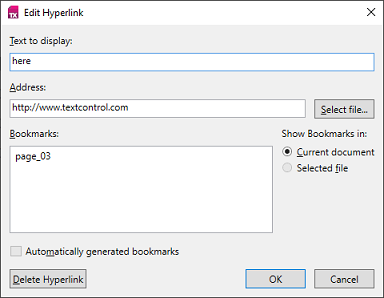
The Insert tab of the WPF ribbon, [WPF.RibbonInsertTab](https://docs.textcontrol.com/tx-text-control-dotnet-wpf/reference/txtextcontrol-wpf/ribboninserttab/llms-full.txt), has a group with a **Hyperlink** and a **Bookmark** button, whose drop-down menus insert, edit and delete hyperlinks and bookmarks. Connect the tab with the [RibbonInsertTab](https://docs.textcontrol.com/tx-text-control-dotnet-wpf/reference/txtextcontrol-wpf/textcontrol/ribboninserttab-property/llms-full.txt) property of the `TextControl`, as described in [Connecting Ribbon Tabs in XAML](https://docs.textcontrol.com/tx-text-control-dotnet-wpf/document-editor/ribbon-ui/ribbon-xaml/llms-full.txt). The hyperlink dialog box sets the text and either an address or a bookmark:
### Insert Hyperlinks and Bookmarks in Code
```csharp
private void InsertHyperlink_Click(object sender, RoutedEventArgs e)
{
HypertextLink link = new HypertextLink("Text Control website", "https://www.textcontrol.com/")
{
// The text screen readers use for the link
DescriptiveText = "Visit the Text Control website"
};
textControl1.HypertextLinks.Add(link);
}
private void InsertBookmark_Click(object sender, RoutedEventArgs e)
{
// A bookmark named "summary" at the input position
textControl1.DocumentTargets.Add(new DocumentTarget("summary"));
}
private void InsertLinkToBookmark_Click(object sender, RoutedEventArgs e)
{
DocumentTarget target = textControl1.DocumentTargets.GetItem("summary");
if (target != null)
{
textControl1.DocumentLinks.Add(new DocumentLink("See the summary", target));
}
}
```
- A [HypertextLink](https://docs.textcontrol.com/tx-text-control-dotnet-wpf/reference/txtextcontrol/hypertextlink/constructor/llms-full.txt) has a visible text and a [Target](https://docs.textcontrol.com/tx-text-control-dotnet-wpf/reference/txtextcontrol/hypertextlink/target-property/llms-full.txt), for example a URL. [DescriptiveText](https://docs.textcontrol.com/tx-text-control-dotnet-wpf/reference/txtextcontrol/hypertextlink/descriptivetext-property/llms-full.txt), available since version 34.0, describes the link for screen readers.
- A [DocumentTarget](https://docs.textcontrol.com/tx-text-control-dotnet-wpf/reference/txtextcontrol/documenttarget/constructor/llms-full.txt) is invisible and has a target name. [DocumentTargetCollection.Add](https://docs.textcontrol.com/tx-text-control-dotnet-wpf/reference/txtextcontrol/documenttargetcollection/add-method/llms-full.txt) inserts it at the input position, and [GetItem](https://docs.textcontrol.com/tx-text-control-dotnet-wpf/reference/txtextcontrol/documenttargetcollection/getitem-method/llms-full.txt) finds it by name or ID.
- A [DocumentLink](https://docs.textcontrol.com/tx-text-control-dotnet-wpf/reference/txtextcontrol/documentlink/constructor/llms-full.txt) has a visible text and points to a `DocumentTarget`. [DocumentLinkCollection.Add](https://docs.textcontrol.com/tx-text-control-dotnet-wpf/reference/txtextcontrol/documentlinkcollection/add-method/llms-full.txt) inserts it.
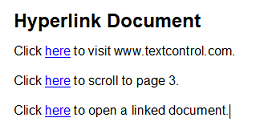
Hypertext links aren't limited to HTML: they are saved and loaded with RTF, DOC and DOCX documents and with the TX Text Control format as well.
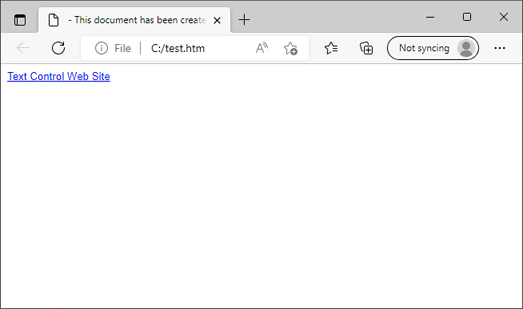
Saved as HTML with `StreamType.HTMLFormat`, a link opens its target in a browser:
#### Format a Link Like a Link
A link inserted in code gets no formatting of its own: it isn't blue and underlined, so users can't tell it from the text around it:
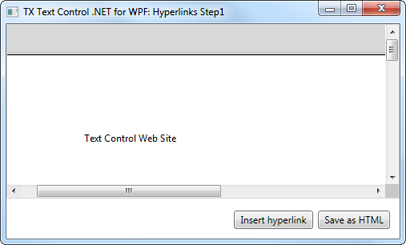
To show it as a link, format its text through a [Selection](https://docs.textcontrol.com/tx-text-control-dotnet-wpf/reference/txtextcontrol/selection/constructor/llms-full.txt) object:
```csharp
private void FormatHyperlink(HypertextLink link)
{
// TextField.Start is one-based, Selection.Start zero-based
Selection linkText = new Selection(link.Start - 1, link.Length)
{
ForeColor = System.Drawing.Color.Blue,
Underline = FontUnderlineStyle.Single
};
textControl1.Selection = linkText;
// Keep the input position inside the link, so that text typed
// behind it doesn't take the link formatting
textControl1.InputPosition = new InputPosition(linkText.Start + linkText.Length,
TextFieldPosition.InsideTextField);
}
```
Call it right after `HypertextLinks.Add`, or for each link of `textControl1.HypertextLinks` after loading a document.
- [Start](https://docs.textcontrol.com/tx-text-control-dotnet-wpf/reference/txtextcontrol/textfield/start-property/llms-full.txt) is the first character of a field, counted from 1, and [Length](https://docs.textcontrol.com/tx-text-control-dotnet-wpf/reference/txtextcontrol/textfield/length-property/llms-full.txt) its number of characters. A `Selection` counts from 0, so the code subtracts 1.
- [ForeColor](https://docs.textcontrol.com/tx-text-control-dotnet-wpf/reference/txtextcontrol/selection/forecolor-property/llms-full.txt) and [Underline](https://docs.textcontrol.com/tx-text-control-dotnet-wpf/reference/txtextcontrol/selection/underline-property/llms-full.txt) are applied when the object is assigned to [Selection](https://docs.textcontrol.com/tx-text-control-dotnet-wpf/reference/txtextcontrol-wpf/textcontrol/selection-property/llms-full.txt) of the `TextControl`. `ForeColor` is a `System.Drawing.Color`, not a WPF color.
- The [InputPosition constructor](https://docs.textcontrol.com/tx-text-control-dotnet-wpf/reference/txtextcontrol/inputposition/constructor/llms-full.txt) with a value of [TextFieldPosition](https://docs.textcontrol.com/tx-text-control-dotnet-wpf/reference/txtextcontrol/textfieldposition/enumeration/llms-full.txt) sets the input position at the end of the link. `InsideTextField` puts it inside the field, `OutsideTextField` behind it; the difference only exists for fields with `DoubledInputPosition`.
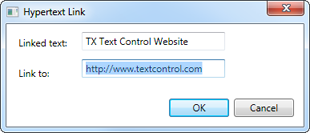
#### Edit an Existing Link
A dialog box of your own that inserts and edits links works with the link at the input position. [HypertextLinkCollection.GetItem](https://docs.textcontrol.com/tx-text-control-dotnet-wpf/reference/txtextcontrol/hypertextlinkcollection/getitem-method/llms-full.txt) without a parameter returns it, or `null` when there is none:
```csharp
private void EditHyperlink(string text, string target)
{
HypertextLink link = textControl1.HypertextLinks.GetItem();
if (link != null)
{
// The input position is in a link: change it
link.Text = text;
link.Target = target;
}
else
{
// Otherwise insert a new link at the input position
textControl1.HypertextLinks.Add(new HypertextLink(text, target) { DoubledInputPosition = true });
}
}
```
Before the dialog box opens, fill its text boxes from the link: `link.Text` and `link.Target` when `GetItem` returns one, and otherwise `textControl1.Selection.Text`, the text the user has selected, as the suggested link text. [Text](https://docs.textcontrol.com/tx-text-control-dotnet-wpf/reference/txtextcontrol/textfield/text-property/llms-full.txt) replaces the visible text and [Target](https://docs.textcontrol.com/tx-text-control-dotnet-wpf/reference/txtextcontrol/hypertextlink/target-property/llms-full.txt) the address. [HypertextLinkCollection.Remove](https://docs.textcontrol.com/tx-text-control-dotnet-wpf/reference/txtextcontrol/hypertextlinkcollection/remove-method/llms-full.txt) deletes a link.
#### List, Show and Remove Bookmarks
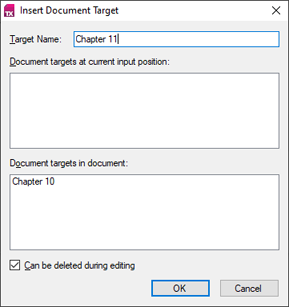
Bookmarks have no visible text, so users need a list to find them again. A dialog box of your own inserts a bookmark with a name the user enters, and sets [Deleteable](https://docs.textcontrol.com/tx-text-control-dotnet-wpf/reference/txtextcontrol/documenttarget/deleteable-property/llms-full.txt) to decide whether users can delete it while editing:
A second dialog box lists the bookmarks of the document and moves to or deletes the selected one:
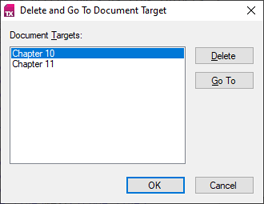
The following handlers fill a WPF `ListBox` named `bookmarkList` with the bookmarks, and scroll to or remove the selected one:
```csharp
private void FillBookmarkList()
{
bookmarkList.Items.Clear();
foreach (DocumentTarget target in textControl1.DocumentTargets)
{
bookmarkList.Items.Add(target.TargetName);
}
}
private void GoToBookmark_Click(object sender, RoutedEventArgs e)
{
if (bookmarkList.SelectedItem is string name)
{
textControl1.DocumentTargets.GetItem(name)?.ScrollTo();
}
}
private void RemoveBookmark_Click(object sender, RoutedEventArgs e)
{
if (bookmarkList.SelectedItem is string name)
{
DocumentTarget target = textControl1.DocumentTargets.GetItem(name);
if (target != null)
{
textControl1.DocumentTargets.Remove(target);
FillBookmarkList();
}
}
}
```
- [TargetName](https://docs.textcontrol.com/tx-text-control-dotnet-wpf/reference/txtextcontrol/documenttarget/targetname-property/llms-full.txt) is the name the bookmark was created with, and `GetItem` finds a bookmark by it.
- [ScrollTo](https://docs.textcontrol.com/tx-text-control-dotnet-wpf/reference/txtextcontrol/documenttarget/scrollto-method/llms-full.txt) moves the input position to the bookmark and scrolls it into view.
- [DocumentTargetCollection.Remove](https://docs.textcontrol.com/tx-text-control-dotnet-wpf/reference/txtextcontrol/documenttargetcollection/remove-method/llms-full.txt) removes the bookmark and returns `false` when it can't.
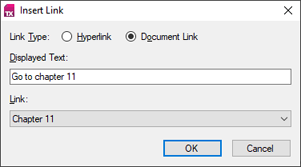
The same list fills the combo box of a dialog box that inserts links to bookmarks:
Bookmarks can be made visible with [DocumentTargetMarkers](https://docs.textcontrol.com/tx-text-control-dotnet-wpf/reference/txtextcontrol-wpf/textcontrol/documenttargetmarkers-property/llms-full.txt). As a WPF property, it can be bound to a check box in XAML:
```xml
```
### Handle Clicks on Links
Clicking a link doesn't open anything by itself, because applications differ in when a link is followed, for example only while the Ctrl key is held down. The `TextControl` raises [HypertextLinkClicked](https://docs.textcontrol.com/tx-text-control-dotnet-wpf/reference/txtextcontrol-wpf/textcontrol/hypertextlinkclicked-event/llms-full.txt) or [DocumentLinkClicked](https://docs.textcontrol.com/tx-text-control-dotnet-wpf/reference/txtextcontrol-wpf/textcontrol/documentlinkclicked-event/llms-full.txt), and your handlers decide what to do. Connect them in XAML:
```xml
```
```csharp
private void textControl1_HypertextLinkClicked(object sender, HypertextLinkEventArgs e)
{
// Open the target of the link in the default browser
Process.Start(new ProcessStartInfo(e.HypertextLink.Target) { UseShellExecute = true });
}
private void textControl1_DocumentLinkClicked(object sender, DocumentLinkEventArgs e)
{
e.DocumentLink.DocumentTarget?.ScrollTo();
}
```
`Process` needs `using System.Diagnostics;`.
- [HypertextLinkEventArgs](https://docs.textcontrol.com/tx-text-control-dotnet-wpf/reference/txtextcontrol/hypertextlinkeventargs/llms-full.txt) contains the clicked link. When users open documents from other sources, check the target, for example for `https://`, before you start it.
- [DocumentLinkEventArgs](https://docs.textcontrol.com/tx-text-control-dotnet-wpf/reference/txtextcontrol/documentlinkeventargs/llms-full.txt) contains the document link. Its [DocumentTarget](https://docs.textcontrol.com/tx-text-control-dotnet-wpf/reference/txtextcontrol/documentlink/documenttarget-property/llms-full.txt) is `null` when the bookmark has been deleted; otherwise [ScrollTo](https://docs.textcontrol.com/tx-text-control-dotnet-wpf/reference/txtextcontrol/documenttarget/scrollto-method/llms-full.txt) moves the input position to it.
Tables of contents consist of document links too; see [Tables of Contents](https://docs.textcontrol.com/tx-text-control-dotnet-wpf/document-editor/tables-of-contents/#handle-clicks-on-the-entries). The TX Text Control Words sample *Open Hyperlink*, installed in *%USERPROFILE%\\Documents\\TX Text Control 34.0.NET for WPF\\CSharp\\TX Words\\Open Hyperlink*, handles URLs, bookmarks and links to other documents.
#### Open Links to Local Files
The target of a hypertext link can also be the path of a file, absolute or relative, such as *C:\\Documents\\contract.docx* or *appendix.docx*. The following `HypertextLinkClicked` handler, based on the *Open Hyperlink* sample, opens a document that TX Text Control can load in a new instance of your own application, and passes every other file and every URL to Windows, which opens it with the associated application:
```csharp
private static readonly Dictionary documentFormats =
new Dictionary(StringComparer.OrdinalIgnoreCase)
{
[".docx"] = StreamType.WordprocessingML,
[".doc"] = StreamType.MSWord,
[".rtf"] = StreamType.RichTextFormat,
[".tx"] = StreamType.InternalUnicodeFormat
};
private void textControl1_HypertextLinkClicked(object sender, HypertextLinkEventArgs e)
{
string target = e.HypertextLink.Target;
if (string.IsNullOrEmpty(target))
{
return;
}
// An absolute URI, or else a path relative to the working folder
if (!(Uri.TryCreate(target, UriKind.Absolute, out Uri uri)
|| Uri.TryCreate(Path.GetFullPath(target), UriKind.Absolute, out uri)))
{
return;
}
if (!uri.IsFile)
{
// A URL: let Windows open it in the default browser
Process.Start(new ProcessStartInfo(uri.AbsoluteUri) { UseShellExecute = true });
return;
}
// Remove a jump mark such as #chapter2 from the path
string path = uri.LocalPath;
int hash = path.IndexOf('#');
if (hash >= 0)
{
path = path.Substring(0, hash);
}
if (!File.Exists(path))
{
MessageBox.Show(this, "The file " + path + " doesn't exist.");
return;
}
if (documentFormats.ContainsKey(Path.GetExtension(path)))
{
// A document: open it in a new instance of this application
Process.Start(new ProcessStartInfo(Environment.ProcessPath) { Arguments = "\"" + path + "\"" });
}
else
{
// Any other file: open it with its associated application
Process.Start(new ProcessStartInfo(path) { UseShellExecute = true });
}
}
```
The handler needs `using System;`, `using System.Collections.Generic;`, `using System.Diagnostics;` and `using System.IO;`, and it replaces the `HypertextLinkClicked` handler above.
- `Uri.IsFile` tells a file from a URL. A relative path isn't an absolute URI, so `Path.GetFullPath` turns it into one first.
- `Environment.ProcessPath` is the path of the running application, and the quoted file path is its command-line argument. The new instance loads the file when its window opens, as [Control Initialization and Document Access](https://docs.textcontrol.com/tx-text-control-dotnet-wpf/integration/initialization/#open-a-document-when-the-window-opens) shows.
- `UseShellExecute = true` lets Windows choose the application for a URL or a file.
A document from an unknown source can link to any file or program. Decide which targets your application may open before it starts one; [Handling Untrusted Documents](https://docs.textcontrol.com/tx-text-control-dotnet-wpf/security/untrusted-documents/#decide-what-a-link-opens) shows a handler that opens only web addresses.
### Next Steps
- [Form Fields and Conditional Instructions](https://docs.textcontrol.com/tx-text-control-dotnet-wpf/document-editor/form-fields/llms-full.txt): fields that users fill out.
- [Subtext Parts](https://docs.textcontrol.com/tx-text-control-dotnet-wpf/document-editor/subtext-parts/llms-full.txt): mark longer text ranges.
- [Merge Fields](https://docs.textcontrol.com/tx-text-control-dotnet-wpf/mail-merge/fields/llms-full.txt): merge data into `MERGEFIELD` fields.
- [Fields and Subtext Parts](https://docs.textcontrol.com/tx-text-control-dotnet-wpf/document-processing/fields/llms-full.txt) in Document Processing: fields without a user interface.
---
## Nearby
- **Previous:** [Tables of Contents](https://docs.textcontrol.com/tx-text-control-dotnet-wpf/document-editor/tables-of-contents/llms-full.txt)
- **Next:** [Subtext Parts](https://docs.textcontrol.com/tx-text-control-dotnet-wpf/document-editor/subtext-parts/llms-full.txt)