# Text and Paragraph Formatting
> Set fonts, colors, alignment, indents and tab stops in the WPF TextControl with Selection and ParagraphFormat, and open the built-in formatting dialog boxes.
- **Product:** TX Text Control .NET for WPF
- **Section:** Documentation
- **Kind:** Topic
- **Path:** TX Text Control .NET for WPF > Document Editor > Text and Paragraph Formatting
- **4609 words**
- **Web URL:** https://docs.textcontrol.com/tx-text-control-dotnet-wpf/document-editor/formatting/
- **LLMs URL:** https://docs.textcontrol.com/tx-text-control-dotnet-wpf/document-editor/formatting/llms.txt
- **LLMs-Full URL:** https://docs.textcontrol.com/tx-text-control-dotnet-wpf/document-editor/formatting/llms-full.txt
---
Fonts, sizes, colors, alignment, indents and tab stops are what users change most often in a document, and the WPF `TextControl` lets them do it with the ribbon, the mini toolbar and built-in dialog boxes. For your code, the same attributes are properties of `Selection` and `ParagraphFormat`. The sections below show both sides, point out where WPF types get in the way, and keep your own buttons in step with the text. Named styles are covered in [Stylesheets](https://docs.textcontrol.com/tx-text-control-dotnet-wpf/document-editor/stylesheets/llms-full.txt), and lists in [Bullets and Numbered Lists](https://docs.textcontrol.com/tx-text-control-dotnet-wpf/document-editor/lists/llms-full.txt).
### How Formatting Works
TX Text Control distinguishes *character formatting*, such as font, size, bold and color, from *paragraph formatting*, such as alignment, indents, spacing and tab stops. Your code sets both through [Selection](https://docs.textcontrol.com/tx-text-control-dotnet-wpf/reference/txtextcontrol-wpf/textcontrol/selection-property/llms-full.txt), the selection in the text part that has the input focus:
- **With text selected**, character attributes change the selected characters, and paragraph attributes change all paragraphs the selection touches.
- **Without a selection**, character attributes apply at the input position, to the text typed next, and paragraph attributes to the current paragraph.
Sizes and distances are given in *twips*: 20 twips are 1 point, 1,440 twips 1 inch, and about 567 twips 1 centimeter. The [FontFamily](https://docs.textcontrol.com/tx-text-control-dotnet-wpf/reference/txtextcontrol-wpf/textcontrol/fontfamily-property/llms-full.txt), [FontSize](https://docs.textcontrol.com/tx-text-control-dotnet-wpf/reference/txtextcontrol-wpf/textcontrol/fontsize-property/llms-full.txt), `FontStyle` and `FontWeight` dependency properties of the WPF `TextControl` itself follow WPF conventions instead: its `FontSize`, for example, is measured in device-independent units of 1/96 inch. Formatting the text of the document goes through `Selection`.
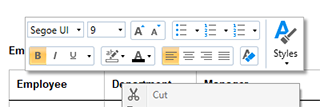
For users, the WPF [RibbonFormattingTab](https://docs.textcontrol.com/tx-text-control-dotnet-wpf/reference/txtextcontrol-wpf/ribbonformattingtab/llms-full.txt), connected by name through [RibbonFormattingTab](https://docs.textcontrol.com/tx-text-control-dotnet-wpf/reference/txtextcontrol-wpf/textcontrol/ribbonformattingtab-property/llms-full.txt) of the `TextControl`, offers the character and paragraph attributes. The text mini toolbar, turned on with [ShowMiniToolbar](https://docs.textcontrol.com/tx-text-control-dotnet-wpf/reference/txtextcontrol-wpf/textcontrol/showminitoolbar-property/llms-full.txt), offers the common ones right next to the selected text:
[Toolbars and Mini Toolbars](https://docs.textcontrol.com/tx-text-control-dotnet-wpf/document-editor/ribbon-ui/toolbars/llms-full.txt) and [Connecting Ribbon Tabs in XAML](https://docs.textcontrol.com/tx-text-control-dotnet-wpf/document-editor/ribbon-ui/ribbon-xaml/llms-full.txt) describe both.
### Format Characters
Two buttons in *MainWindow.xaml*, `` and ``, call these handlers in *MainWindow.xaml.cs*:
```csharp
private void boldButton_Click(object sender, RoutedEventArgs e)
{
// Toggle bold for the selected text or the input position
textControl1.Selection.Bold = !textControl1.Selection.Bold;
}
private void headingButton_Click(object sender, RoutedEventArgs e)
{
textControl1.Selection.FontName = "Arial";
textControl1.Selection.FontSize = 320; // 16 points, in twips
textControl1.Selection.ForeColor = System.Drawing.Color.DarkBlue;
textControl1.Selection.Underline = FontUnderlineStyle.Single;
}
```
The colors are `System.Drawing.Color` values, not the `System.Windows.Media.Color` of WPF, so the sample writes them in full; the file needs `using TXTextControl;`.
A [Selection](https://docs.textcontrol.com/tx-text-control-dotnet-wpf/reference/txtextcontrol/selection/llms-full.txt) has these character attributes:
| Property | Sets |
|---|---|
| [Bold](https://docs.textcontrol.com/tx-text-control-dotnet-wpf/reference/txtextcontrol/selection/bold-property/llms-full.txt), [Italic](https://docs.textcontrol.com/tx-text-control-dotnet-wpf/reference/txtextcontrol/selection/italic-property/llms-full.txt), [Strikeout](https://docs.textcontrol.com/tx-text-control-dotnet-wpf/reference/txtextcontrol/selection/strikeout-property/llms-full.txt) | Font styles, `true` or `false` |
| [Underline](https://docs.textcontrol.com/tx-text-control-dotnet-wpf/reference/txtextcontrol/selection/underline-property/llms-full.txt) | `None`, `Single`, `Doubled`, `SingleWordsOnly` or `DoubledWordsOnly` |
| [FontName](https://docs.textcontrol.com/tx-text-control-dotnet-wpf/reference/txtextcontrol/selection/fontname-property/llms-full.txt) | The font |
| [FontSize](https://docs.textcontrol.com/tx-text-control-dotnet-wpf/reference/txtextcontrol/selection/fontsize-property/llms-full.txt) | The size in twips, by default 200 twips (10 points) |
| [ForeColor](https://docs.textcontrol.com/tx-text-control-dotnet-wpf/reference/txtextcontrol/selection/forecolor-property/llms-full.txt), [TextBackColor](https://docs.textcontrol.com/tx-text-control-dotnet-wpf/reference/txtextcontrol/selection/textbackcolor-property/llms-full.txt) | Text color and text background color |
| [Baseline](https://docs.textcontrol.com/tx-text-control-dotnet-wpf/reference/txtextcontrol/selection/baseline-property/llms-full.txt) | Raises (positive) or lowers (negative) the text, in twips |
| [AutoBaseline](https://docs.textcontrol.com/tx-text-control-dotnet-wpf/reference/txtextcontrol/selection/autobaseline-property/llms-full.txt) | Automatic superscript or subscript with a scaled font |
| [Capitals](https://docs.textcontrol.com/tx-text-control-dotnet-wpf/reference/txtextcontrol/selection/capitals-property/llms-full.txt) | Capitals, small capitals or petite capitals for lowercase letters |
| [CharacterSpacing](https://docs.textcontrol.com/tx-text-control-dotnet-wpf/reference/txtextcontrol/selection/characterspacing-property/llms-full.txt), [CharacterScaling](https://docs.textcontrol.com/tx-text-control-dotnet-wpf/reference/txtextcontrol/selection/characterscaling-property/llms-full.txt) | Additional space per character in twips, and character width in percent |
`AutoBaseline`, `Capitals`, `CharacterSpacing` and `CharacterScaling` were added in version 30.0.
### Format a Range Your Code Inserted
A new `Selection` with a start position and a length selects and formats a range in one step when you assign it. In the `Loaded` handler of the control:
```csharp
private void textControl1_Loaded(object sender, RoutedEventArgs e)
{
textControl1.Text = "Quarterly Report";
// Select characters 0 to 9 ("Quarterly") and format them
Selection selection = new Selection(0, 9);
selection.Bold = true;
selection.Italic = true;
textControl1.Selection = selection;
}
```
[Text](https://docs.textcontrol.com/tx-text-control-dotnet-wpf/reference/txtextcontrol-wpf/textcontrol/text-property/llms-full.txt) replaces the document with plain text. [Selections and Caret Position](https://docs.textcontrol.com/tx-text-control-dotnet-wpf/document-editor/editing-text/selections/llms-full.txt) explains selections in detail.
### Format Paragraphs
[Selection.ParagraphFormat](https://docs.textcontrol.com/tx-text-control-dotnet-wpf/reference/txtextcontrol/selection/paragraphformat-property/llms-full.txt) takes a [ParagraphFormat](https://docs.textcontrol.com/tx-text-control-dotnet-wpf/reference/txtextcontrol/paragraphformat/llms-full.txt) object with the paragraph attributes to set:
```csharp
private void paragraphButton_Click(object sender, RoutedEventArgs e)
{
ParagraphFormat format = new ParagraphFormat();
format.Alignment = TXTextControl.HorizontalAlignment.Justify;
format.LeftIndent = 567; // 1 cm, in twips
format.TopDistance = 120; // 6 points before the paragraph
format.BottomDistance = 120; // 6 points after the paragraph
format.LineSpacing = 150; // 150 percent
format.Frame = TXTextControl.Frame.BottomLine;
format.FrameLineWidth = 20;
format.FrameStyle = FrameStyle.Single;
textControl1.Selection.ParagraphFormat = format;
}
```
Write `TXTextControl.HorizontalAlignment` in full. In a file with `using System.Windows;`, a plain `HorizontalAlignment` is ambiguous with the WPF enumeration of the same name, and the code doesn't compile. Write `TXTextControl.Frame` in full, too: with `using System.Windows.Controls;`, a plain `Frame` is ambiguous with the WPF `Frame` control.
| Property | Sets |
|---|---|
| [Alignment](https://docs.textcontrol.com/tx-text-control-dotnet-wpf/reference/txtextcontrol/paragraphformat/alignment-property/llms-full.txt) | `Left`, `Right`, `Center` or `Justify` |
| [LeftIndent](https://docs.textcontrol.com/tx-text-control-dotnet-wpf/reference/txtextcontrol/paragraphformat/leftindent-property/llms-full.txt), [RightIndent](https://docs.textcontrol.com/tx-text-control-dotnet-wpf/reference/txtextcontrol/paragraphformat/rightindent-property/llms-full.txt) | Indents in twips |
| [HangingIndent](https://docs.textcontrol.com/tx-text-control-dotnet-wpf/reference/txtextcontrol/paragraphformat/hangingindent-property/llms-full.txt) | A hanging indent in twips; negative values indent the first line |
| [TopDistance](https://docs.textcontrol.com/tx-text-control-dotnet-wpf/reference/txtextcontrol/paragraphformat/topdistance-property/llms-full.txt), [BottomDistance](https://docs.textcontrol.com/tx-text-control-dotnet-wpf/reference/txtextcontrol/paragraphformat/bottomdistance-property/llms-full.txt) | Space before and after the paragraph in twips |
| [LineSpacing](https://docs.textcontrol.com/tx-text-control-dotnet-wpf/reference/txtextcontrol/paragraphformat/linespacing-property/llms-full.txt), [AbsoluteLineSpacing](https://docs.textcontrol.com/tx-text-control-dotnet-wpf/reference/txtextcontrol/paragraphformat/absolutelinespacing-property/llms-full.txt) | Line spacing as a percentage of the font size, or in twips |
| [Frame](https://docs.textcontrol.com/tx-text-control-dotnet-wpf/reference/txtextcontrol/paragraphformat/frame-property/llms-full.txt), [FrameStyle](https://docs.textcontrol.com/tx-text-control-dotnet-wpf/reference/txtextcontrol/paragraphformat/framestyle-property/llms-full.txt), [FrameLineWidth](https://docs.textcontrol.com/tx-text-control-dotnet-wpf/reference/txtextcontrol/paragraphformat/framelinewidth-property/llms-full.txt) | Frame lines: `LeftLine`, `RightLine`, `TopLine`, `BottomLine`, `Box` or `MergedBox`, single or double |
| [BackColor](https://docs.textcontrol.com/tx-text-control-dotnet-wpf/reference/txtextcontrol/paragraphformat/backcolor-property/llms-full.txt) | The paragraph background |
| [KeepLinesTogether](https://docs.textcontrol.com/tx-text-control-dotnet-wpf/reference/txtextcontrol/paragraphformat/keeplinestogether-property/llms-full.txt), [KeepWithNext](https://docs.textcontrol.com/tx-text-control-dotnet-wpf/reference/txtextcontrol/paragraphformat/keepwithnext-property/llms-full.txt), [PageBreakBefore](https://docs.textcontrol.com/tx-text-control-dotnet-wpf/reference/txtextcontrol/paragraphformat/pagebreakbefore-property/llms-full.txt), [WidowOrphanLines](https://docs.textcontrol.com/tx-text-control-dotnet-wpf/reference/txtextcontrol/paragraphformat/widoworphanlines-property/llms-full.txt) | Page break rules |
| [Direction](https://docs.textcontrol.com/tx-text-control-dotnet-wpf/reference/txtextcontrol/paragraphformat/direction-property/llms-full.txt) | Left-to-right or right-to-left |
| [StructureLevel](https://docs.textcontrol.com/tx-text-control-dotnet-wpf/reference/txtextcontrol/paragraphformat/structurelevel-property/llms-full.txt) | Level 0 to 10 for tables of contents; 0 is body text |
[Tables of Contents](https://docs.textcontrol.com/tx-text-control-dotnet-wpf/document-editor/tables-of-contents/llms-full.txt) uses the structure levels, and [Right-to-Left UI](https://docs.textcontrol.com/tx-text-control-dotnet-wpf/document-editor/ribbon-ui/right-to-left/llms-full.txt) covers the writing direction.
### Set Tab Stops
[TabPositions](https://docs.textcontrol.com/tx-text-control-dotnet-wpf/reference/txtextcontrol/paragraphformat/tabpositions-property/llms-full.txt), [TabTypes](https://docs.textcontrol.com/tx-text-control-dotnet-wpf/reference/txtextcontrol/paragraphformat/tabtypes-property/llms-full.txt) and [TabLeaders](https://docs.textcontrol.com/tx-text-control-dotnet-wpf/reference/txtextcontrol/paragraphformat/tableaders-property/llms-full.txt) are parallel arrays, one entry per tab stop, with positions in twips. [MaxTabs](https://docs.textcontrol.com/tx-text-control-dotnet-wpf/reference/txtextcontrol/paragraphformat/maxtabs-field/llms-full.txt) limits a paragraph to 14 tabs.
```csharp
private void tabsButton_Click(object sender, RoutedEventArgs e)
{
ParagraphFormat format = new ParagraphFormat();
format.TabPositions = new int[] { 2835, 5670 }; // 5 cm and 10 cm
format.TabTypes = new TabType[] { TabType.LeftTab, TabType.DecimalTab };
format.TabLeaders = new TabLeader[] { TabLeader.None, TabLeader.Dot };
textControl1.Selection.ParagraphFormat = format;
textControl1.Selection.Text = "Item\t\t12.50";
}
```
[TabType](https://docs.textcontrol.com/tx-text-control-dotnet-wpf/reference/txtextcontrol/tabtype/enumeration/llms-full.txt) values are `LeftTab`, `RightTab`, `CenterTab`, `DecimalTab`, which aligns the decimal sign, and `RightBorderTab`. [TabLeader](https://docs.textcontrol.com/tx-text-control-dotnet-wpf/reference/txtextcontrol/tableader/enumeration/llms-full.txt) fills the gap with `Period`, `Dot`, `Dash` or `Underline`, or not at all with `None`.
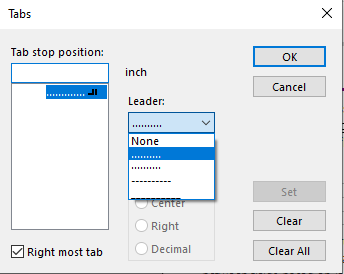
Users set the same values in the **Tabs** dialog box, which [TabDialog](https://docs.textcontrol.com/tx-text-control-dotnet-wpf/reference/txtextcontrol-wpf/textcontrol/tabdialog-method/llms-full.txt) opens: a list of the tab stop positions of the paragraph, the alignment and the leader of the selected tab stop, and **Set**, **Clear** and **Clear All** buttons:
### Use the One-Click Commands
These `Selection` methods do what the corresponding ribbon buttons do, for the selection or at the input position:
- [GrowFont](https://docs.textcontrol.com/tx-text-control-dotnet-wpf/reference/txtextcontrol/selection/growfont-method/llms-full.txt) and [ShrinkFont](https://docs.textcontrol.com/tx-text-control-dotnet-wpf/reference/txtextcontrol/selection/shrinkfont-method/llms-full.txt) change the font size in the steps that the button bar and the font dialog box offer.
- [IncreaseIndent](https://docs.textcontrol.com/tx-text-control-dotnet-wpf/reference/txtextcontrol/selection/increaseindent-method/llms-full.txt) and [DecreaseIndent](https://docs.textcontrol.com/tx-text-control-dotnet-wpf/reference/txtextcontrol/selection/decreaseindent-method/llms-full.txt) change the left indent, to positions taken from the tab positions and the indents of the surrounding paragraphs.
- [RemoveFormatting](https://docs.textcontrol.com/tx-text-control-dotnet-wpf/reference/txtextcontrol/selection/removeformatting-method/llms-full.txt) resets the character attributes to their defaults, and also the paragraph attributes when nothing or more than one paragraph is selected.
### Open the Built-In Dialog Boxes
Each formatting dialog box is one method call: [FontDialog](https://docs.textcontrol.com/tx-text-control-dotnet-wpf/reference/txtextcontrol-wpf/textcontrol/fontdialog-method/llms-full.txt), [ParagraphFormatDialog](https://docs.textcontrol.com/tx-text-control-dotnet-wpf/reference/txtextcontrol-wpf/textcontrol/paragraphformatdialog-method/llms-full.txt), [TabDialog](https://docs.textcontrol.com/tx-text-control-dotnet-wpf/reference/txtextcontrol-wpf/textcontrol/tabdialog-method/llms-full.txt), `ForeColorDialog`, `TextBackColorDialog` and `LanguageDialog`. A **Paragraph...** menu item, ``, calls `textControl1.ParagraphFormatDialog();` in its handler. [Built-in Dialog Boxes](https://docs.textcontrol.com/tx-text-control-dotnet-wpf/document-editor/ribbon-ui/dialog-boxes/llms-full.txt) lists every dialog box of the editor with its return values and the indexes of its tabs.
### Keep Your Own Controls in Step
Your own formatting buttons have to reflect the text at the input position. [CharFormatChanged](https://docs.textcontrol.com/tx-text-control-dotnet-wpf/reference/txtextcontrol-wpf/textcontrol/charformatchanged-event/llms-full.txt) occurs when the character attributes of the selection or the input position change, and [ParagraphFormatChanged](https://docs.textcontrol.com/tx-text-control-dotnet-wpf/reference/txtextcontrol-wpf/textcontrol/paragraphformatchanged-event/llms-full.txt) when the paragraph attributes do. Connect the handler in XAML with `CharFormatChanged="textControl1_CharFormatChanged"` or in the constructor of the window:
```csharp
private void textControl1_CharFormatChanged(object sender, EventArgs e)
{
// Show the font of the selection in the title bar
if (textControl1.Selection.IsCommonValueSelected(Selection.Attribute.FontName))
{
Title = textControl1.Selection.FontName + ", " + (textControl1.Selection.FontSize / 20) + " pt";
}
else
{
Title = "Several fonts";
}
}
```
If the selection mixes values, a `Selection` property returns its default value. [IsCommonValueSelected](https://docs.textcontrol.com/tx-text-control-dotnet-wpf/reference/txtextcontrol/selection/iscommonvalueselected-method/llms-full.txt) with a [Selection.Attribute](https://docs.textcontrol.com/tx-text-control-dotnet-wpf/reference/txtextcontrol/selection/attribute-enumeration/llms-full.txt) value says whether the whole selection shares one. [InputFormat](https://docs.textcontrol.com/tx-text-control-dotnet-wpf/reference/txtextcontrol-wpf/textcontrol/inputformat-property/llms-full.txt) returns an [InputFormat](https://docs.textcontrol.com/tx-text-control-dotnet-wpf/reference/txtextcontrol/inputformat/llms-full.txt) object with all attributes at the input position as nullable values, such as `bool?` for `Bold`.
### Next Steps
- [Stylesheets](https://docs.textcontrol.com/tx-text-control-dotnet-wpf/document-editor/stylesheets/llms-full.txt): define formatting once as a named style.
- [Bullets and Numbered Lists](https://docs.textcontrol.com/tx-text-control-dotnet-wpf/document-editor/lists/llms-full.txt): lists and their numbering.
- [Toolbars and Mini Toolbars](https://docs.textcontrol.com/tx-text-control-dotnet-wpf/document-editor/ribbon-ui/toolbars/llms-full.txt): the formatting controls of the editor.
- [Text, Paragraphs, and Stylesheets](https://docs.textcontrol.com/tx-text-control-dotnet-wpf/document-processing/text-paragraphs/llms-full.txt): formatting without an editor.
---
## Nearby
- **Previous:** [Keyboard Shortcuts](https://docs.textcontrol.com/tx-text-control-dotnet-wpf/document-editor/editing-text/keyboard-shortcuts/llms-full.txt)
- **Next:** [Stylesheets](https://docs.textcontrol.com/tx-text-control-dotnet-wpf/document-editor/stylesheets/llms-full.txt)