# Context Menus
> Add items to WPF TextControl context menus in TextContextMenuOpening, hide or replace a menu, and choose the spelling menu with SpellCheckContextMenu in XAML.
- **Product:** TX Text Control .NET for WPF
- **Section:** Documentation
- **Kind:** Topic
- **Path:** TX Text Control .NET for WPF > Document Editor > Ribbon and UI > Context Menus
- **2405 words**
- **Web URL:** https://docs.textcontrol.com/tx-text-control-dotnet-wpf/document-editor/ribbon-ui/context-menus/
- **LLMs URL:** https://docs.textcontrol.com/tx-text-control-dotnet-wpf/document-editor/ribbon-ui/context-menus/llms.txt
- **LLMs-Full URL:** https://docs.textcontrol.com/tx-text-control-dotnet-wpf/document-editor/ribbon-ui/context-menus/llms-full.txt
---
Right-clicking in a WPF `TextControl` opens a built-in context menu that fits the clicked spot: a selection, a table, a header, a field, a comment or a selected image each get their own commands. Your code can hook into every menu before it opens, to add items, take items away, swap in a `ContextMenu` of your own or show nothing at all. The menus of misspelled words and of drawings have settings of their own, covered at the end.
### The Opening Event
Immediately before a built-in menu appears, the `TextControl` raises [TextContextMenuOpening](https://docs.textcontrol.com/tx-text-control-dotnet-wpf/reference/txtextcontrol-wpf/textcontrol/textcontextmenuopening-event/llms-full.txt). The handler receives [TextContextMenuEventArgs](https://docs.textcontrol.com/tx-text-control-dotnet-wpf/reference/txtextcontrol-wpf/textcontextmenueventargs/llms-full.txt) of the `TXTextControl.WPF` namespace:
| Member | Purpose |
|---|---|
| [ContextMenuLocation](https://docs.textcontrol.com/tx-text-control-dotnet-wpf/reference/txtextcontrol-wpf/textcontextmenueventargs/contextmenulocation-property/llms-full.txt) | The part of the document the menu belongs to, a combination of [ContextMenuLocation](https://docs.textcontrol.com/tx-text-control-dotnet-wpf/reference/txtextcontrol/contextmenulocation/enumeration/llms-full.txt) values |
| [TextContextMenu](https://docs.textcontrol.com/tx-text-control-dotnet-wpf/reference/txtextcontrol-wpf/textcontextmenueventargs/textcontextmenu-property/llms-full.txt) | The menu about to be shown, a `System.Windows.Controls.ContextMenu` that you can change or replace |
| [HorizontalOffset](https://docs.textcontrol.com/tx-text-control-dotnet-wpf/reference/txtextcontrol-wpf/textcontextmenueventargs/horizontaloffset-property/llms-full.txt), [VerticalOffset](https://docs.textcontrol.com/tx-text-control-dotnet-wpf/reference/txtextcontrol-wpf/textcontextmenueventargs/verticaloffset-property/llms-full.txt) | The distance of the menu from the top-left corner of the screen |
| `Cancel` | `true` shows no menu |
The menu is an ordinary WPF `ContextMenu`: its `Items` take `MenuItem` and `Separator` objects, and each `MenuItem` has a `Header` and a `Click` event.
### Menu Locations
A menu can belong to several parts of the document at once, for example to a selection in a table, so `ContextMenuLocation` is tested bit by bit with `&`:
| Value | Meaning |
|---|---|
| `TextSelection`, `TextInputPosition` | Selected text, or the text input position |
| `Header`, `NoHeader`, `Footer`, `NoFooter`, `PageMargin` | The top or bottom page margin, with or without a header or footer |
| `PageNumberField`, `TextField`, `FormField` | A page number field, a text field or a form field; the reference lists `TextField` as `Field`, which does not compile |
| `SelectedFrame` | A selected frame: a text frame, an image, a drawing or a barcode |
| `Table`, `TableOfContents` | A table or a table of contents |
| `MisspelledWord` | A misspelled word |
| `TrackedChange`, `Comment` | A tracked change or commented text |
| `Footnote` | A footnote reference mark |
### Add Items in the Event Handler
Connect the handler in XAML, next to the other attributes of the control in *MainWindow.xaml*:
```xml
```
The `WPF` prefix is the namespace declaration `xmlns:WPF="clr-namespace:TXTextControl.WPF;assembly=TXTextControl.WPF"` of the window. In *MainWindow.xaml.cs*, the handler adds a **Table Properties...** item below a separator whenever the menu opens in a table:
```csharp
using System.Windows;
using System.Windows.Controls;
using TXTextControl;
using TXTextControl.WPF;
public partial class MainWindow : Window
{
public MainWindow()
{
InitializeComponent();
}
private void TextControl1_TextContextMenuOpening(object sender, TextContextMenuEventArgs e)
{
// Extend only the menus that open in a table
if ((e.ContextMenuLocation & ContextMenuLocation.Table) != 0)
{
MenuItem propertiesItem = new MenuItem { Header = "Table Properties..." };
propertiesItem.Click += (s, args) => textControl1.TableFormatDialog();
e.TextContextMenu.Items.Add(new Separator());
e.TextContextMenu.Items.Add(propertiesItem);
}
}
}
```
Keep the `namespace` of your project around the class.
The code works as follows:
- `using TXTextControl` brings in `ContextMenuLocation`, and `using TXTextControl.WPF` the WPF `TextControl` and its event arguments.
- The `&` test is true for every menu whose location includes `Table`.
- `MenuItem` and `Separator` come from `System.Windows.Controls` and are appended to `e.TextContextMenu.Items`.
- [TableFormatDialog](https://docs.textcontrol.com/tx-text-control-dotnet-wpf/reference/txtextcontrol-wpf/textcontrol/tableformatdialog-method/llms-full.txt) opens the built-in table dialog box. [Built-in Dialog Boxes](https://docs.textcontrol.com/tx-text-control-dotnet-wpf/document-editor/ribbon-ui/dialog-boxes/llms-full.txt) lists all of them.
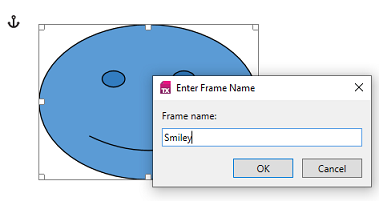
The TX Words sample *Context Menu*, installed in *%USERPROFILE%\\Documents\\TX Text Control 34.0.NET for WPF\\CSharp\\TX Words\\Context Menu*, extends the menu of a selected frame in this way. Its **Frame Name...** item opens a small window of the sample in which the user names the frame:
### Suppress or Replace a Menu
- **Show nothing.** Set `e.Cancel = true` for the locations that should have no menu, for example `ContextMenuLocation.PageMargin` for the page margins.
- **Show your own menu.** Assign a `ContextMenu` of your own, such as one defined in the resources of the window, to `e.TextContextMenu`. The reference allows the menu to be changed, extended or replaced entirely.
- **Take items away.** Remove them from `e.TextContextMenu.Items`.
Assigning `null` to `e.TextContextMenu` is not the way to hide a menu: the reference states that the `TextControl` then uses system menu items. `e.Cancel` hides it.
### Choose the Spelling Menu in XAML
With a spell checker connected through [SpellChecker](https://docs.textcontrol.com/tx-text-control-dotnet-wpf/reference/txtextcontrol-wpf/textcontrol/spellchecker-property/llms-full.txt), a right-click on a misspelled word opens a spelling menu. The string property [SpellCheckContextMenu](https://docs.textcontrol.com/tx-text-control-dotnet-wpf/reference/txtextcontrol-wpf/textcontrol/spellcheckcontextmenu-property/llms-full.txt) selects it: `(Default)` for the built-in menu, `(none)` for no menu, or the resource key of a `ContextMenu` of your own. That menu lives in the `Resources` of the `TextControl` or of one of its parents in the logical tree:
```xml
```
`Ignore_Click` is a handler of your own in *MainWindow.xaml.cs*. [Spell Checking](https://docs.textcontrol.com/tx-text-control-dotnet-wpf/document-editor/spell-checking/llms-full.txt) connects the spell checker, and [Context Menus](https://docs.textcontrol.com/tx-spell-dotnet-wpf/user-interface/context-menus/llms-full.txt) of TX Spell .NET for WPF fills such a menu with suggestions.
### The Menu of Drawings
Shapes are edited in a [TXDrawingControl](https://docs.textcontrol.com/tx-text-control-dotnet-wpf/reference/txtextcontrol-wpf-drawing/txdrawingcontrol/llms-full.txt). Its default menu, the [ShapesContextMenu](https://docs.textcontrol.com/tx-text-control-dotnet-wpf/reference/txtextcontrol-wpf-drawing/shapescontextmenu/llms-full.txt), is a `ContextMenu` with Cut, Copy, Paste, Bring to Front, Send to Back, Flip and further items for the selected shapes. See [Text Frames and Shapes](https://docs.textcontrol.com/tx-text-control-dotnet-wpf/document-editor/text-frames-shapes/llms-full.txt).
### Context Menus and the Mini Toolbar
When [ShowMiniToolbar](https://docs.textcontrol.com/tx-text-control-dotnet-wpf/reference/txtextcontrol-wpf/textcontrol/showminitoolbar-property/llms-full.txt) enables it, the mini toolbar, a compact bar of formatting commands, can appear together with the menu when the user right-clicks a selection or an object. [Toolbars and Mini Toolbars](https://docs.textcontrol.com/tx-text-control-dotnet-wpf/document-editor/ribbon-ui/toolbars/llms-full.txt) covers it.
### Next Steps
- [Built-in Dialog Boxes](https://docs.textcontrol.com/tx-text-control-dotnet-wpf/document-editor/ribbon-ui/dialog-boxes/llms-full.txt): open dialog boxes from menu items.
- [Custom Tabs and Commands](https://docs.textcontrol.com/tx-text-control-dotnet-wpf/document-editor/ribbon-ui/custom-tabs/llms-full.txt): put commands into the ribbon.
- [Styles, Resources, and Themes](https://docs.textcontrol.com/tx-text-control-dotnet-wpf/document-editor/ribbon-ui/themes/llms-full.txt): resources and colors of the control.
- [Events](https://docs.textcontrol.com/tx-text-control-dotnet-wpf/document-editor/events/llms-full.txt): the other events of the `TextControl`.
---
## Nearby
- **Previous:** [Sidebar and Panels](https://docs.textcontrol.com/tx-text-control-dotnet-wpf/document-editor/ribbon-ui/sidebar/llms-full.txt)
- **Next:** [Built-In Dialog Boxes](https://docs.textcontrol.com/tx-text-control-dotnet-wpf/document-editor/ribbon-ui/dialog-boxes/llms-full.txt)