# Built-In Dialog Boxes
> Open FontDialog, ParagraphFormatDialog, TableFormatDialog and other built-in WPF dialog boxes, read WPF.DialogResult and use BookmarkDialog or HyperlinkDialog.
- **Product:** TX Text Control .NET for WPF
- **Section:** Documentation
- **Kind:** Topic
- **Path:** TX Text Control .NET for WPF > Document Editor > Ribbon and UI > Built-In Dialog Boxes
- **4731 words**
- **Web URL:** https://docs.textcontrol.com/tx-text-control-dotnet-wpf/document-editor/ribbon-ui/dialog-boxes/
- **LLMs URL:** https://docs.textcontrol.com/tx-text-control-dotnet-wpf/document-editor/ribbon-ui/dialog-boxes/llms.txt
- **LLMs-Full URL:** https://docs.textcontrol.com/tx-text-control-dotnet-wpf/document-editor/ribbon-ui/dialog-boxes/llms-full.txt
---
Formatting a paragraph, setting up the page or editing a table doesn't require dialog boxes of your own: the WPF `TextControl` includes them. The ribbon tabs open them, and so can a button, a menu item or a command in your window with one method call. Below you find each built-in dialog box, the tab parameter of the tabbed ones, the WPF-specific return values and the separate dialog windows for bookmarks, hyperlinks, comments and tracked changes.
### Dialog Methods and Their Results
A built-in dialog box is opened by a method of the `TextControl` ending in `Dialog`, for example [ParagraphFormatDialog](https://docs.textcontrol.com/tx-text-control-dotnet-wpf/reference/txtextcontrol-wpf/textcontrol/paragraphformatdialog-method/llms-full.txt). The dialog box edits the current selection or input position. Most of these methods return a value of the [WPF.DialogResult](https://docs.textcontrol.com/tx-text-control-dotnet-wpf/reference/txtextcontrol-wpf/dialogresult/enumeration/llms-full.txt) enumeration of TX Text Control, not the `bool?` that `Window.ShowDialog` returns:
| Value | Meaning |
|---|---|
| `OK` | The user left the dialog box with **OK** |
| `Cancel` | The user canceled the dialog box |
| `None` | The user left the dialog box with the Escape key |
The ribbon groups use the same dialog boxes, and [Built-in Ribbon Tabs](https://docs.textcontrol.com/tx-text-control-dotnet-wpf/document-editor/ribbon-ui/ribbon/llms-full.txt) shows where they are.
### The Built-In Dialog Boxes
| Method | Dialog box | Available when |
|---|---|---|
| [FontDialog](https://docs.textcontrol.com/tx-text-control-dotnet-wpf/reference/txtextcontrol-wpf/textcontrol/fontdialog-method/llms-full.txt) | Fonts and character attributes | |
| [ParagraphFormatDialog](https://docs.textcontrol.com/tx-text-control-dotnet-wpf/reference/txtextcontrol-wpf/textcontrol/paragraphformatdialog-method/llms-full.txt) | Alignment, spacing, indents, frames and pagination | |
| [TabDialog](https://docs.textcontrol.com/tx-text-control-dotnet-wpf/reference/txtextcontrol-wpf/textcontrol/tabdialog-method/llms-full.txt) | Tab stops | |
| [ListFormatDialog](https://docs.textcontrol.com/tx-text-control-dotnet-wpf/reference/txtextcontrol-wpf/textcontrol/listformatdialog-method/llms-full.txt) | Bulleted and numbered lists | |
| [FormattingStylesDialog](https://docs.textcontrol.com/tx-text-control-dotnet-wpf/reference/txtextcontrol-wpf/textcontrol/formattingstylesdialog-method/llms-full.txt) | Create, delete and modify formatting styles | |
| [LanguageDialog](https://docs.textcontrol.com/tx-text-control-dotnet-wpf/reference/txtextcontrol-wpf/textcontrol/languagedialog-method/llms-full.txt) | The language of the selected text | |
| [AddSymbolDialog](https://docs.textcontrol.com/tx-text-control-dotnet-wpf/reference/txtextcontrol-wpf/textcontrol/addsymboldialog-method/llms-full.txt) | Insert symbol characters | |
| [ForeColorDialog](https://docs.textcontrol.com/tx-text-control-dotnet-wpf/reference/txtextcontrol-wpf/textcontrol/forecolordialog-method/llms-full.txt), [TextBackColorDialog](https://docs.textcontrol.com/tx-text-control-dotnet-wpf/reference/txtextcontrol-wpf/textcontrol/textbackcolordialog-method/llms-full.txt) | Text color and text background color | |
| [FrameFillColorDialog](https://docs.textcontrol.com/tx-text-control-dotnet-wpf/reference/txtextcontrol-wpf/textcontrol/framefillcolordialog-method/llms-full.txt), [FrameLineColorDialog](https://docs.textcontrol.com/tx-text-control-dotnet-wpf/reference/txtextcontrol-wpf/textcontrol/framelinecolordialog-method/llms-full.txt) | Background color of a paragraph or table cell, frame color of a paragraph or table | |
| [PageColorDialog](https://docs.textcontrol.com/tx-text-control-dotnet-wpf/reference/txtextcontrol-wpf/textcontrol/pagecolordialog-method/llms-full.txt) | The page color | |
| [SectionFormatDialog](https://docs.textcontrol.com/tx-text-control-dotnet-wpf/reference/txtextcontrol-wpf/textcontrol/sectionformatdialog-method/llms-full.txt) | Page setup of a section: margins, size, headers and footers, columns, borders | |
| [TableFormatDialog](https://docs.textcontrol.com/tx-text-control-dotnet-wpf/reference/txtextcontrol-wpf/textcontrol/tableformatdialog-method/llms-full.txt) | Lines, colors, distances, cell size, formulas and number formats of a table | The input position is in a table |
| [ImageAttributesDialog](https://docs.textcontrol.com/tx-text-control-dotnet-wpf/reference/txtextcontrol-wpf/textcontrol/imageattributesdialog-method/llms-full.txt) | Layout, size and saving options of an image | An image is selected |
| [TextFrameAttributesDialog](https://docs.textcontrol.com/tx-text-control-dotnet-wpf/reference/txtextcontrol-wpf/textcontrol/textframeattributesdialog-method/llms-full.txt) | Layout, size and appearance of a text frame | A text frame is selected |
| [BarcodeLayoutDialog](https://docs.textcontrol.com/tx-text-control-dotnet-wpf/reference/txtextcontrol-wpf/textcontrol/barcodelayoutdialog-method/llms-full.txt) | Layout, size, colors, type and text of a barcode | A barcode is selected |
| [DrawingLayoutDialog](https://docs.textcontrol.com/tx-text-control-dotnet-wpf/reference/txtextcontrol-wpf/textcontrol/drawinglayoutdialog-method/llms-full.txt) | Layout, size, colors, rotation and transparency of a drawing | A drawing is selected |
| [SignatureFieldLayoutDialog](https://docs.textcontrol.com/tx-text-control-dotnet-wpf/reference/txtextcontrol-wpf/textcontrol/signaturefieldlayoutdialog-method/llms-full.txt) | Layout, size and image saving options of a signature field | A signature field is selected |
| [TableOfContentsDialog](https://docs.textcontrol.com/tx-text-control-dotnet-wpf/reference/txtextcontrol-wpf/textcontrol/tableofcontentsdialog-method/llms-full.txt) | Insert a table of contents or change the one at the input position | |
| [ConditionalInstructionDialog](https://docs.textcontrol.com/tx-text-control-dotnet-wpf/reference/txtextcontrol-wpf/textcontrol/conditionalinstructiondialog-method/llms-full.txt), [ManageConditionalInstructionsDialog](https://docs.textcontrol.com/tx-text-control-dotnet-wpf/reference/txtextcontrol-wpf/textcontrol/manageconditionalinstructionsdialog-method/llms-full.txt) | Create, edit and manage conditional instructions of form fields | [IsFormFieldValidationEnabled](https://docs.textcontrol.com/tx-text-control-dotnet-wpf/reference/txtextcontrol-wpf/textcontrol/isformfieldvalidationenabled-property/llms-full.txt) is `true` |
| [SpellCheckDialog](https://docs.textcontrol.com/tx-text-control-dotnet-wpf/reference/txtextcontrol-wpf/textcontrol/spellcheckdialog-method/llms-full.txt) | Correct misspelled words | A spell checker is connected through [SpellChecker](https://docs.textcontrol.com/tx-text-control-dotnet-wpf/reference/txtextcontrol-wpf/textcontrol/spellchecker-property/llms-full.txt) |
Differences in the return values:
- `AddSymbolDialog` and `SpellCheckDialog` return nothing.
- `LanguageDialog` returns `None` when the selected language could not be set.
- `ConditionalInstructionDialog` and `ManageConditionalInstructionsDialog` return `bool?`: `true` for **OK**, `false` for **Cancel** and `null` when the dialog box could not be opened.
- `ListFormatDialog` returns `Cancel` also when nothing was changed.
#### Find, Replace, Open, Save and Print
| Call | Opens |
|---|---|
| [Find](https://docs.textcontrol.com/tx-text-control-dotnet-wpf/reference/txtextcontrol-wpf/textcontrol/find-method/llms-full.txt)`()` | The built-in **Find** dialog box |
| [Replace](https://docs.textcontrol.com/tx-text-control-dotnet-wpf/reference/txtextcontrol-wpf/textcontrol/replace-method/llms-full.txt)`()` | The built-in **Replace** dialog box |
| [Load](https://docs.textcontrol.com/tx-text-control-dotnet-wpf/reference/txtextcontrol-wpf/textcontrol/load-method/llms-full.txt)`()`, `Load(StreamType)` | A file **Open** dialog box with the given format filters |
| [Save](https://docs.textcontrol.com/tx-text-control-dotnet-wpf/reference/txtextcontrol-wpf/textcontrol/save-method/llms-full.txt)`()`, `Save(StreamType)` | A file **Save As** dialog box |
| [Print](https://docs.textcontrol.com/tx-text-control-dotnet-wpf/reference/txtextcontrol-wpf/textcontrol/print-method/llms-full.txt)`(string docName, bool useLastPrinterSettings)` | The standard print dialog box; `true` fills it with the settings of the previous call |
The overload `Save(StreamType, SaveSettings, SaveSettings.DialogSettings)` adds options to the **Save As** dialog box with [SaveSettings.DialogSettings](https://docs.textcontrol.com/tx-text-control-dotnet-wpf/reference/txtextcontrol/savesettings/dialogsettings-enumeration/llms-full.txt): `StylesheetOptions` for HTML, `EnterPassword` for Adobe PDF and `SaveSelection` when text is selected. [Search and Replace](https://docs.textcontrol.com/tx-text-control-dotnet-wpf/document-editor/editing-text/search-replace/llms-full.txt), [Loading and Saving](https://docs.textcontrol.com/tx-text-control-dotnet-wpf/document-editor/load-save/llms-full.txt) and [Printing](https://docs.textcontrol.com/tx-text-control-dotnet-wpf/document-editor/printing/llms-full.txt) go into these tasks.
### Open a Dialog Box From a Button
Two buttons below the editor open the **Paragraph** dialog box on its second tab and the table dialog box. Add them to the `Grid` of *MainWindow.xaml*, next to the `TextControl`:
```xml
```
The handlers go into *MainWindow.xaml.cs*:
```csharp
using System.Windows;
using TXTextControl.WPF;
public partial class MainWindow : Window
{
public MainWindow()
{
InitializeComponent();
}
private void ParagraphButton_Click(object sender, RoutedEventArgs e)
{
// Open the tab for frames and pagination
TXTextControl.WPF.DialogResult result = textControl1.ParagraphFormatDialog(1);
if (result == TXTextControl.WPF.DialogResult.OK)
{
// Return the keyboard focus to the editor
textControl1.Focus();
}
}
private void TableButton_Click(object sender, RoutedEventArgs e)
{
// The table dialog box needs a table at the input position
if (textControl1.Tables.GetItem() != null)
{
textControl1.TableFormatDialog(0);
}
}
}
```
The code works as follows:
- `ParagraphFormatDialog(1)` opens the second tab. Called without a parameter, a tabbed dialog box shows the tab that was open last.
- The result type is written with its full name, `TXTextControl.WPF.DialogResult`. Inside a window class, the short name `DialogResult` refers to the `DialogResult` property of the `Window`, a `bool?`, and the code would not compile.
- [TableCollection.GetItem](https://docs.textcontrol.com/tx-text-control-dotnet-wpf/reference/txtextcontrol/tablecollection/getitem-method/llms-full.txt) returns the table at the input position or `null`. [ImageCollection.GetItem](https://docs.textcontrol.com/tx-text-control-dotnet-wpf/reference/txtextcontrol/imagecollection/getitem-method/llms-full.txt) and [TextFrameCollection.GetItem](https://docs.textcontrol.com/tx-text-control-dotnet-wpf/reference/txtextcontrol/textframecollection/getitem-method/llms-full.txt) check for a selected image or text frame.
#### Tab Indexes
| Method | 0 | 1 | 2 | 3 |
|---|---|---|---|---|
| `FontDialog` | Font and attributes | Baseline and text effects | | |
| `ParagraphFormatDialog` | Alignment, line spacing, indents, distances | Frame and pagination | | |
| `SectionFormatDialog` | Margins, page size, orientation | Headers and footers | Page columns | Page borders |
| `TableFormatDialog` | Frame lines, color, distances | Vertical size and alignment | Formulas and number formats | |
| `ImageAttributesDialog` | Wrapping and layout | Size and distances | Saving attributes | |
| `TextFrameAttributesDialog` | Wrapping and layout | Size and distances | Frame line and background | |
| `BarcodeLayoutDialog`, `DrawingLayoutDialog` | Wrapping and layout | Size and distances | Colors and further attributes | |
| `SignatureFieldLayoutDialog` | Wrapping and layout | Size and distances | Saving attributes of a set signature image | |
### Units in Dialog Boxes
[DialogUnit](https://docs.textcontrol.com/tx-text-control-dotnet-wpf/reference/txtextcontrol-wpf/textcontrol/dialogunit-property/llms-full.txt) chooses the unit of sizes and distances in the dialog boxes: `Auto`, `Centimeter`, `Inch` or `Millimeter`. `Auto` takes the unit from the culture of the current thread. It can be set in XAML like any other property:
```xml
```
### Dialog Windows
The dialog boxes for bookmarks, links, navigation, comments, tracked changes and synonyms are classes of their own. Each inherits from `System.Windows.Window` and is created for a `TextControl`:
| Class | Purpose | Shown with |
|---|---|---|
| [BookmarkDialog](https://docs.textcontrol.com/tx-text-control-dotnet-wpf/reference/txtextcontrol-wpf/bookmarkdialog/llms-full.txt) | Insert a bookmark (a document target) or rename the one at the input position | `ShowDialog` |
| [DeleteBookmarksDialog](https://docs.textcontrol.com/tx-text-control-dotnet-wpf/reference/txtextcontrol-wpf/deletebookmarksdialog/llms-full.txt) | Go to or delete targets | `ShowDialog` |
| [HyperlinkDialog](https://docs.textcontrol.com/tx-text-control-dotnet-wpf/reference/txtextcontrol-wpf/hyperlinkdialog/llms-full.txt) | Insert, edit or delete a hyperlink or a link to a target | `ShowDialog` |
| [GotoDialog](https://docs.textcontrol.com/tx-text-control-dotnet-wpf/reference/txtextcontrol-wpf/gotodialog/llms-full.txt) | Go to a page, section, line, table or bookmark | `Show` |
| [CommentsDialog](https://docs.textcontrol.com/tx-text-control-dotnet-wpf/reference/txtextcontrol-wpf/commentsdialog/llms-full.txt) | List, reply to, edit and delete comments | `Show` |
| [TrackedChangesDialog](https://docs.textcontrol.com/tx-text-control-dotnet-wpf/reference/txtextcontrol-wpf/trackedchangesdialog/llms-full.txt) | List, accept and reject tracked changes | `Show` |
| [ThesaurusDialog](https://docs.textcontrol.com/tx-text-control-dotnet-wpf/reference/txtextcontrol-wpf/thesaurusdialog/llms-full.txt) | Synonyms of the selected word | `ShowDialog` |
The TX Words sample opens the hyperlink dialog box from the drop-down menu of its **Hyperlink** button, here for an existing link:
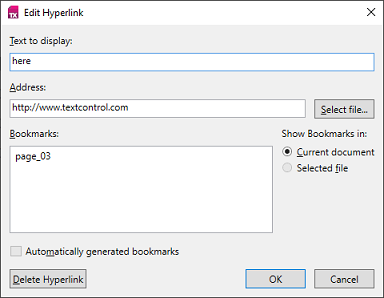
`BookmarkDialog` and `HyperlinkDialog` throw an exception when nothing can be inserted or edited at the input position; their reference pages name the `CanAdd` and `GetItem` checks to make first.
Every item of these windows has a name, listed in the class's `DialogItem` enumeration, such as [BookmarkDialog.DialogItem](https://docs.textcontrol.com/tx-text-control-dotnet-wpf/reference/txtextcontrol-wpf/bookmarkdialog/dialogitem-enumeration/llms-full.txt). `FrameworkElement.FindName` finds an item by that name. The following code hides the check box for deletable bookmarks and opens the window modally over the main window:
```csharp
BookmarkDialog dialog = new BookmarkDialog(textControl1) { Owner = this };
// Hide the check box before the window is shown
UIElement deletable = dialog.FindName(BookmarkDialog.DialogItem.TXITEM_Deletable.ToString()) as UIElement;
if (deletable != null)
{
deletable.Visibility = Visibility.Collapsed;
}
bool? confirmed = dialog.ShowDialog();
```
#### Adapt the Comments and Tracked Changes Dialog Boxes
The two modeless windows work the same way. Their items are named after the values of [CommentsDialog.DialogItem](https://docs.textcontrol.com/tx-text-control-dotnet-wpf/reference/txtextcontrol-wpf/commentsdialog/dialogitem-enumeration/llms-full.txt) and [TrackedChangesDialog.DialogItem](https://docs.textcontrol.com/tx-text-control-dotnet-wpf/reference/txtextcontrol-wpf/trackedchangesdialog/dialogitem-enumeration/llms-full.txt). The WPF classes have no `FindItem` method of their own: pass the name of the value to `FindName`, which returns `null` when the item isn't found:
| Dialog box | Its items |
|---|---|
| `CommentsDialog` | `TXITEM_CommentsCount` (the label with the number of comments), `TXITEM_CommentsRefresh`, `TXITEM_CommentsViewer` (the list of comments), `TXITEM_DeleteComment`, `TXITEM_DeleteAllComments`, `TXITEM_EditComment`, `TXITEM_ReplyComment` and `TXITEM_Close` |
| `TrackedChangesDialog` | `TXITEM_TrackedChangesCount` (the label with the number of changes), `TXITEM_TrackedChangesRefresh`, `TXITEM_TrackedChangesViewer` (the list of changes), `TXITEM_AcceptTrackedChange`, `TXITEM_AcceptAllTrackedChanges`, `TXITEM_RejectTrackedChange`, `TXITEM_RejectAllTrackedChanges` and `TXITEM_Close` |
The following handler opens the tracked changes window for a reviewer who may accept single changes but not accept or reject all of them at once:
```csharp
private void ReviewButton_Click(object sender, RoutedEventArgs e)
{
TrackedChangesDialog dialog = new TrackedChangesDialog(textControl1) { Owner = this };
// Hide the buttons that act on all tracked changes
foreach (TrackedChangesDialog.DialogItem item in new[] {
TrackedChangesDialog.DialogItem.TXITEM_AcceptAllTrackedChanges,
TrackedChangesDialog.DialogItem.TXITEM_RejectAllTrackedChanges })
{
if (dialog.FindName(item.ToString()) is UIElement element)
{
element.Visibility = Visibility.Collapsed;
}
}
// Modeless: the user goes on working in the document
dialog.Show();
}
```
For comments, `CommentsDialog.DialogItem.TXITEM_DeleteAllComments` names the button that deletes every comment, which you hide the same way.
### Dialog Boxes of Fields
[FormField.FormFieldDialog](https://docs.textcontrol.com/tx-text-control-dotnet-wpf/reference/txtextcontrol/formfield/formfielddialog-method/llms-full.txt) edits the formatting of a form field, and [PageNumberField.PageNumberDialog](https://docs.textcontrol.com/tx-text-control-dotnet-wpf/reference/txtextcontrol/pagenumberfield/pagenumberdialog-method/llms-full.txt) the format and numbering of a page number field. Both return a [Selection.DialogResult](https://docs.textcontrol.com/tx-text-control-dotnet-wpf/reference/txtextcontrol/selection/dialogresult-enumeration/llms-full.txt).
### Next Steps
- [Context Menus](https://docs.textcontrol.com/tx-text-control-dotnet-wpf/document-editor/ribbon-ui/context-menus/llms-full.txt): add menu items that open dialog boxes.
- [Localization and Resource Kit](https://docs.textcontrol.com/tx-text-control-dotnet-wpf/document-editor/ribbon-ui/localization/llms-full.txt): the language of the dialog texts.
- [Right-to-Left UI](https://docs.textcontrol.com/tx-text-control-dotnet-wpf/document-editor/ribbon-ui/right-to-left/llms-full.txt): dialog boxes in a right-to-left window.
- [Custom Tabs and Commands](https://docs.textcontrol.com/tx-text-control-dotnet-wpf/document-editor/ribbon-ui/custom-tabs/llms-full.txt): ribbon buttons for dialog boxes.
---
## Nearby
- **Previous:** [Context Menus](https://docs.textcontrol.com/tx-text-control-dotnet-wpf/document-editor/ribbon-ui/context-menus/llms-full.txt)
- **Next:** [Styles, Resources, and Themes](https://docs.textcontrol.com/tx-text-control-dotnet-wpf/document-editor/ribbon-ui/themes/llms-full.txt)