# Built-In Ribbon Tabs
> The 12 WPF ribbon tabs such as RibbonFormattingTab in a System.Windows.Controls.Ribbon: groups, RibbonItem names, FindName, removing items and contextual tabs.
- **Product:** TX Text Control .NET for WPF
- **Section:** Documentation
- **Kind:** Topic
- **Path:** TX Text Control .NET for WPF > Document Editor > Ribbon and UI > Built-In Ribbon Tabs
- **4066 words**
- **Web URL:** https://docs.textcontrol.com/tx-text-control-dotnet-wpf/document-editor/ribbon-ui/ribbon/
- **LLMs URL:** https://docs.textcontrol.com/tx-text-control-dotnet-wpf/document-editor/ribbon-ui/ribbon/llms.txt
- **LLMs-Full URL:** https://docs.textcontrol.com/tx-text-control-dotnet-wpf/document-editor/ribbon-ui/ribbon/llms-full.txt
---
A WPF ribbon for a word processor needs no command code of its own: TX Text Control .NET for WPF ships twelve ribbon tabs that format text, insert tables and images, set up pages, check spelling, protect documents and design mail merge templates in the connected `TextControl`. They are regular tabs of the WPF `Ribbon` control of Microsoft, so you combine them with tabs of your own in one ribbon. Read on for what each tab contains, how its items are named, and how you rename, hide or remove items, groups and tabs.
A first ribbon application is built in [Create a WPF Ribbon Application](https://docs.textcontrol.com/tx-text-control-dotnet-wpf/getting-started/document-editor/ribbon/llms-full.txt), and [Connecting Ribbon Tabs in XAML](https://docs.textcontrol.com/tx-text-control-dotnet-wpf/document-editor/ribbon-ui/ribbon-xaml/llms-full.txt) explains how the tabs are declared and connected.
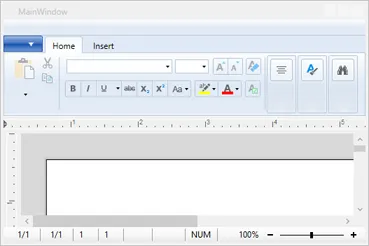
### How the Tabs Fit Into a WPF Ribbon
The ribbon itself is not a TX Text Control class. It is `System.Windows.Controls.Ribbon.Ribbon` from the assembly *System.Windows.Controls.Ribbon*, which WPF provides, usually hosted in a `RibbonWindow`. TX Text Control adds the tabs:
- **Each tab derives from `System.Windows.Controls.Ribbon.RibbonTab`** and must be placed in a `Ribbon`. Its groups are `RibbonGroup` objects in its `Items` collection, and their buttons are `RibbonButton`, `RibbonToggleButton`, `RibbonSplitButton` and other controls of the same WPF namespace.
- **Each tab is connected on its own.** The `TextControl` has one string property per tab, such as [RibbonFormattingTab](https://docs.textcontrol.com/tx-text-control-dotnet-wpf/reference/txtextcontrol-wpf/textcontrol/ribbonformattingtab-property/llms-full.txt), which holds the name of the tab element. A tab that is not named in such a property does nothing.
- **In the toolbox**, the tabs are in the **TX Text Control 34.0** tab, and you drag them into the `Ribbon` element of the XAML.
### The Predefined Tabs
The tab titles in the first column are those of the TX Words sample; you set the title of a tab with its `Header` property. The groups are the values of the tab's `RibbonItem` enumeration that end in `Group`:
| Tab | Class | Groups |
|---|---|---|
| Home | [RibbonFormattingTab](https://docs.textcontrol.com/tx-text-control-dotnet-wpf/reference/txtextcontrol-wpf/ribbonformattingtab/llms-full.txt) | `TXITEM_ClipboardGroup`, `TXITEM_FontGroup`, `TXITEM_ParagraphGroup`, `TXITEM_StylesGroup`, `TXITEM_EditingGroup` |
| Insert | [RibbonInsertTab](https://docs.textcontrol.com/tx-text-control-dotnet-wpf/reference/txtextcontrol-wpf/ribboninserttab/llms-full.txt) | `TXITEM_PageGroup`, `TXITEM_TableGroup`, `TXITEM_IllustrationsGroup`, `TXITEM_LinksGroup`, `TXITEM_HeaderFooterGroup`, `TXITEM_TextGroup`, `TXITEM_SymbolsGroup` |
| Page Layout | [RibbonPageLayoutTab](https://docs.textcontrol.com/tx-text-control-dotnet-wpf/reference/txtextcontrol-wpf/ribbonpagelayouttab/llms-full.txt) | `TXITEM_PageSetupGroup`, `TXITEM_ColumnsAndBreaksGroup`, `TXITEM_PageBackgroundAndBordersGroup` |
| View | [RibbonViewTab](https://docs.textcontrol.com/tx-text-control-dotnet-wpf/reference/txtextcontrol-wpf/ribbonviewtab/llms-full.txt) | `TXITEM_DocumentViewsGroup`, `TXITEM_ZoomGroup`, `TXITEM_ToolbarsGroup`, `TXITEM_ShowGroup` |
| References | [RibbonReferencesTab](https://docs.textcontrol.com/tx-text-control-dotnet-wpf/reference/txtextcontrol-wpf/ribbonreferencestab/llms-full.txt) | `TXITEM_FootnotesGroup`, `TXITEM_TableOfContentsGroup`, `TXITEM_TableOfContentsPropertiesGroup`, `TXITEM_ParagraphStructureLevelsGroup` |
| Proofing | [RibbonProofingTab](https://docs.textcontrol.com/tx-text-control-dotnet-wpf/reference/txtextcontrol-wpf/ribbonproofingtab/llms-full.txt) | `TXITEM_SpellingAndHyphenationGroup`, `TXITEM_ProofingSettingsGroup`, `TXITEM_CommentsGroup`, `TXITEM_TrackChangesGroup`, `TXITEM_LanguageGroup` |
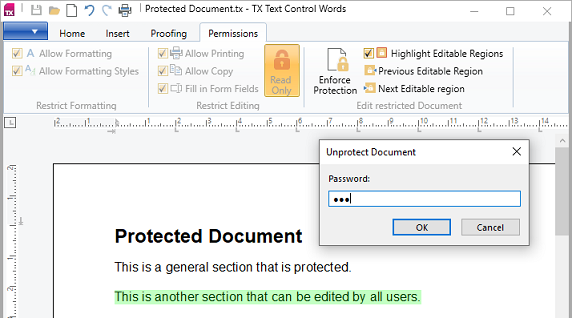
| Permissions | [RibbonPermissionsTab](https://docs.textcontrol.com/tx-text-control-dotnet-wpf/reference/txtextcontrol-wpf/ribbonpermissionstab/llms-full.txt) | `TXITEM_RestrictFormattingGroup`, `TXITEM_RestrictEditingGroup`, `TXITEM_ReadOnlyExceptionsGroup`, `TXITEM_EditRestrictedDocumentGroup` |
| Form Fields | [RibbonFormFieldsTab](https://docs.textcontrol.com/tx-text-control-dotnet-wpf/reference/txtextcontrol-wpf/ribbonformfieldstab/llms-full.txt) | `TXITEM_InsertFormFieldsGroup`, `TXITEM_EditFormFieldsGroup`, `TXITEM_FormValidationGroup`, `TXITEM_FormFieldPropertiesGroup` and a properties group per field type |
| Reporting | [RibbonReportingTab](https://docs.textcontrol.com/tx-text-control-dotnet-wpf/reference/txtextcontrol-wpf/ribbonreportingtab/llms-full.txt) | `TXITEM_DataSourceGroup`, `TXITEM_MergeFieldsGroup`, `TXITEM_MergeBlocksGroup`, `TXITEM_ViewGroup` |
| Table Layout | [RibbonTableLayoutTab](https://docs.textcontrol.com/tx-text-control-dotnet-wpf/reference/txtextcontrol-wpf/ribbontablelayouttab/llms-full.txt) | `TXITEM_TableLayoutGroup`, `TXITEM_RowsAndColumnsGroup`, `TXITEM_MergeGroup`, `TXITEM_BordersAndBackgroundGroup`, `TXITEM_TableAlignmentGroup`, `TXITEM_TablePropertiesGroup` |
| Formulas | [RibbonFormulaTab](https://docs.textcontrol.com/tx-text-control-dotnet-wpf/reference/txtextcontrol-wpf/ribbonformulatab/llms-full.txt) | `TXITEM_FormulaGroup`, `TXITEM_NumberFormatGroup`, `TXITEM_FormulaSettingsGroup` |
| Frame Formatting | [RibbonFrameLayoutTab](https://docs.textcontrol.com/tx-text-control-dotnet-wpf/reference/txtextcontrol-wpf/ribbonframelayouttab/llms-full.txt) | `TXITEM_ObjectArrangeGroup`, `TXITEM_ObjectSizeGroup`, a borders or colors group for text frames, drawings and barcodes, `TXITEM_ObjectPropertiesGroup`, `TXITEM_Signature_SignerInfoGroup` |
Differences from the Windows Forms ribbon are worth knowing if you port an application: there is no chart layout tab and no **Chart** button on the Insert tab, and the groups have no dialog box launcher items. Instead, the Home tab has the items `TXITEM_CharacterFormatting` in the Font group and `TXITEM_ParagraphFormatting` in the Paragraph group.
Some tabs have properties beyond the connection:
- **Reporting.** [RibbonReportingTab.DataSourceManager](https://docs.textcontrol.com/tx-text-control-dotnet-wpf/reference/txtextcontrol-wpf/ribbonreportingtab/datasourcemanager-property/llms-full.txt) is the object behind the data source commands; see [Reporting Ribbon and Dialog Boxes](https://docs.textcontrol.com/tx-text-control-dotnet-wpf/mail-merge/ribbon-dialogs/llms-full.txt).
- **Permissions.** [RegisteredUserNames](https://docs.textcontrol.com/tx-text-control-dotnet-wpf/reference/txtextcontrol-wpf/ribbonpermissionstab/registeredusernames-property/llms-full.txt) fills the list of users for read-only exceptions, and [AllowAddingUserNames](https://docs.textcontrol.com/tx-text-control-dotnet-wpf/reference/txtextcontrol-wpf/ribbonpermissionstab/allowaddingusernames-property/llms-full.txt) decides whether users add names to it. See [Document Protection and Editable Regions](https://docs.textcontrol.com/tx-text-control-dotnet-wpf/document-editor/protection/llms-full.txt).
- **Home, Proofing, Form Fields and Reporting.** Properties such as `FindSidebar` connect buttons to sidebars; see [Sidebar and Panels](https://docs.textcontrol.com/tx-text-control-dotnet-wpf/document-editor/ribbon-ui/sidebar/llms-full.txt).
- **Form Fields.** The **Form Validation** group, `TXITEM_FormValidationGroup`, turns form validation on and manages the conditional instructions of a form, rules that validate, enable or fill form fields depending on other fields. [Form Fields and Conditional Instructions](https://docs.textcontrol.com/tx-text-control-dotnet-wpf/document-editor/form-fields/#validate-entries-with-conditional-instructions) shows the group at work, and [Conditional Instructions](https://docs.textcontrol.com/tx-text-control-dotnet-wpf/document-processing/conditional-instructions/llms-full.txt) describes every condition and instruction.
### Find an Item by Its Name
Every item of a predefined tab has a `Name`, and the name is the string of a value of the tab's `RibbonItem` enumeration, for example [RibbonFormattingTab.RibbonItem](https://docs.textcontrol.com/tx-text-control-dotnet-wpf/reference/txtextcontrol-wpf/ribbonformattingtab/ribbonitem-enumeration/llms-full.txt). WPF's `FrameworkElement.FindName` on the tab returns the item, or `null` if the tab does not contain it:
- **Groups and items.** Values that end in `Group` identify a `RibbonGroup`; the others a button, combo box, gallery or text box.
- **Drop-down items.** The entries of drop-down menus are values of the second enumeration, `RibbonDropDownItem`, for example [RibbonFormattingTab.RibbonDropDownItem](https://docs.textcontrol.com/tx-text-control-dotnet-wpf/reference/txtextcontrol-wpf/ribbonformattingtab/ribbondropdownitem-enumeration/llms-full.txt). They identify resources for the [ResourceProvider](https://docs.textcontrol.com/tx-text-control-dotnet-wpf/reference/txtextcontrol-wpf/resourceprovider/llms-full.txt).
- **The type of the result.** `FindName` returns `object`. Cast it to the WPF ribbon class of the item, or to `FrameworkElement` when you only move, hide or remove it.
### Change and Remove Items
The following code runs in the `Loaded` event handler of the `TextControl`, named `textControl` in the XAML, when the tabs and their items exist. It replaces the **Bold** button with a button of your own and hides the **Shape** button of the Insert tab:
```csharp
using System.Windows;
using System.Windows.Controls;
using System.Windows.Controls.Ribbon;
using TXTextControl.WPF;
private void TextControl_Loaded(object sender, RoutedEventArgs e)
{
// Replace the Bold button with a button of your own
FrameworkElement boldButton = ribbonFormattingTab.FindName(
RibbonFormattingTab.RibbonItem.TXITEM_Bold.ToString()) as FrameworkElement;
if (boldButton?.Parent is ItemsControl parent)
{
int index = parent.Items.IndexOf(boldButton);
parent.Items.Remove(boldButton);
parent.Items.Insert(index, new RibbonButton() { Label = "Strong" });
}
// Hide the Shape button, but keep it in the tab
if (ribbonInsertTab.FindName(
RibbonInsertTab.RibbonItem.TXITEM_InsertShape.ToString()) is FrameworkElement shapeButton)
{
shapeButton.Visibility = Visibility.Collapsed;
}
}
```
The code works as follows:
- The value's `ToString()` is the name that `FindName` looks for. `ribbonFormattingTab` and `ribbonInsertTab` are the `x:Name` values of the tabs in the XAML.
- The item's `Parent` is the `ItemsControl` that holds it. Removing it there and inserting a new `RibbonButton` at the same index is the pattern the reference page of `RibbonFormattingTab` uses. `Label` is the text of a WPF `RibbonButton`, and its `Click` event runs your command.
- `Visibility.Collapsed` hides an item without removing it, so you can show it again later.
### Remove Groups and Tabs
A group is removed from the `Items` collection of its tab, and a tab from the `Items` collection of the ribbon:
```csharp
// Remove the Font group from the Home tab
if (ribbonFormattingTab.FindName(
RibbonFormattingTab.RibbonItem.TXITEM_FontGroup.ToString()) is RibbonGroup fontGroup)
{
ribbonFormattingTab.Items.Remove(fontGroup);
}
// Remove the Insert tab from the ribbon
ribbon.Items.Remove(ribbonInsertTab);
```
A tab that no user needs is better left out of the XAML. Removing in code suits tabs and groups that depend on the user, such as the Permissions tab for users who may not change the protection of a document.
### Show Tabs Only in Context
The Table Layout, Formulas and Frame Formatting tabs are meant to appear only while the user works in a table or on a frame. WPF's `RibbonContextualTabGroup` provides this: a tab belongs to the group whose `Header` equals the tab's `ContextualTabGroupHeader`, and your code sets the group's `Visibility`. [Add a Table Tools Tab](https://docs.textcontrol.com/tx-text-control-dotnet-wpf/getting-started/document-editor/ribbon/#add-a-table-tools-tab) in the tutorial Create a WPF Ribbon Application builds a **Table Tools** group step by step: a handler of [InputPositionChanged](https://docs.textcontrol.com/tx-text-control-dotnet-wpf/reference/txtextcontrol-wpf/textcontrol/inputpositionchanged-event/llms-full.txt) shows it while [Tables.GetItem](https://docs.textcontrol.com/tx-text-control-dotnet-wpf/reference/txtextcontrol/tablecollection/getitem-method/llms-full.txt) returns a table. The **Formulas** tab joins the same group with `ContextualTabGroupHeader="Table Tools"`.
#### Show Frame Tools While a Frame Is Selected
The TX Words sample puts the Frame Formatting tab into a second contextual group, **Frame Tools**. Here the trigger is not the input position but the selection of a frame, which is an image, a text frame, a barcode or a drawing. The tab and the group are declared like the table tabs, with a group color of its own:
```xml
```
Both groups go into the same `Ribbon.ContextualTabGroups` element when the ribbon has table and frame tools. Two handlers show and hide the group:
```csharp
using System.Windows;
using TXTextControl;
private void TextControl_FrameSelected(object sender, FrameEventArgs e)
{
// A frame is selected: show Frame Tools
frameToolsGroup.Visibility = Visibility.Visible;
}
private void TextControl_FrameDeselected(object sender, FrameEventArgs e)
{
// The frame lost the selection: hide Frame Tools again
frameToolsGroup.Visibility = Visibility.Collapsed;
}
```
The code works as follows:
- [FrameSelected](https://docs.textcontrol.com/tx-text-control-dotnet-wpf/reference/txtextcontrol-wpf/textcontrol/frameselected-event/llms-full.txt) occurs when the user selects a frame, and [FrameDeselected](https://docs.textcontrol.com/tx-text-control-dotnet-wpf/reference/txtextcontrol-wpf/textcontrol/framedeselected-event/llms-full.txt) when it is deselected. Attach them with `FrameSelected="TextControl_FrameSelected"` and `FrameDeselected="TextControl_FrameDeselected"` on the `TextControl` element.
- Both handlers receive a [FrameEventArgs](https://docs.textcontrol.com/tx-text-control-dotnet-wpf/reference/txtextcontrol/frameeventargs/llms-full.txt), whose [Frame](https://docs.textcontrol.com/tx-text-control-dotnet-wpf/reference/txtextcontrol/frameeventargs/frame-property/llms-full.txt) property is the frame concerned. Check its type if a group should appear for images only, for example.
- The `RibbonFrameLayoutTab` must be connected with the [RibbonFrameLayoutTab](https://docs.textcontrol.com/tx-text-control-dotnet-wpf/reference/txtextcontrol-wpf/textcontrol/ribbonframelayouttab-property/llms-full.txt) property of the `TextControl`, like every other tab.
### Next Steps
- [Connecting Ribbon Tabs in XAML](https://docs.textcontrol.com/tx-text-control-dotnet-wpf/document-editor/ribbon-ui/ribbon-xaml/llms-full.txt): the XAML of a complete ribbon window and the connection properties.
- [Custom Tabs and Commands](https://docs.textcontrol.com/tx-text-control-dotnet-wpf/document-editor/ribbon-ui/custom-tabs/llms-full.txt): tabs and buttons of your own, the application menu and the Quick Access Toolbar.
- [Rulers and Status Bar](https://docs.textcontrol.com/tx-text-control-dotnet-wpf/document-editor/ribbon-ui/rulers-status-bar/llms-full.txt): the bars that the View tab shows and hides.
- [Ribbon Tabs, Toolbars, Rulers, and Status Bar](https://docs.textcontrol.com/tx-text-control-dotnet-wpf/overview/components/ribbon-toolbars/llms-full.txt): the overview of all command controls.
---
## Nearby
- **Previous:** [Ribbon and UI](https://docs.textcontrol.com/tx-text-control-dotnet-wpf/document-editor/ribbon-ui/llms-full.txt)
- **Next:** [Connecting Ribbon Tabs in XAML](https://docs.textcontrol.com/tx-text-control-dotnet-wpf/document-editor/ribbon-ui/ribbon-xaml/llms-full.txt)