# Right-to-Left UI
> Format right-to-left paragraphs with Direction, bind InputFormat.RightToLeft to a toggle button and mirror a WPF window with FlowDirection, as TX Words does.
- **Product:** TX Text Control .NET for WPF
- **Section:** Documentation
- **Kind:** Topic
- **Path:** TX Text Control .NET for WPF > Document Editor > Ribbon and UI > Right-to-Left UI
- **1977 words**
- **Web URL:** https://docs.textcontrol.com/tx-text-control-dotnet-wpf/document-editor/ribbon-ui/right-to-left/
- **LLMs URL:** https://docs.textcontrol.com/tx-text-control-dotnet-wpf/document-editor/ribbon-ui/right-to-left/llms.txt
- **LLMs-Full URL:** https://docs.textcontrol.com/tx-text-control-dotnet-wpf/document-editor/ribbon-ui/right-to-left/llms-full.txt
---
Arabic and Hebrew are written from right to left, and their users expect the window to follow: ribbon, rulers, scroll bars and dialog boxes mirrored. TX Text Control .NET for WPF handles both levels. The direction of the text is part of the paragraph formatting, and the layout of the window follows the `FlowDirection` of WPF, as the TX Words sample *Right To Left* shows.
### Paragraphs Written From Right to Left
A line in TX Text Control can mix left-to-right and right-to-left text. Which of these blocks comes first on the line is decided by the writing direction of the paragraph, the [ParagraphFormat.Direction](https://docs.textcontrol.com/tx-text-control-dotnet-wpf/reference/txtextcontrol/paragraphformat/direction-property/llms-full.txt) property. Its [Direction](https://docs.textcontrol.com/tx-text-control-dotnet-wpf/reference/txtextcontrol/direction/enumeration/llms-full.txt) values are `LeftToRight`, the default, and `RightToLeft`.
A right-to-left paragraph is right-aligned by nature, its default tab stops are right tabs measured from the right page margin, and the horizontal ruler starts at the right margin. In the ribbon, the **Paragraph** group of the formatting tab, shown as **Home**, holds the direction buttons `TXITEM_RightToLeft` and `TXITEM_LeftToRight`; the paragraph formatting dialog box has the setting too.
#### Bind a Toggle Button to the Direction
[InputFormat.RightToLeft](https://docs.textcontrol.com/tx-text-control-dotnet-wpf/reference/txtextcontrol/inputformat/righttoleft-property/llms-full.txt) is the direction at the input position, or of the selected text, as a `bool?` that is `null` for a selection with both directions. The reference binds it to a `ToggleButton` in XAML:
```xml
Right to Left
```
The button shows the direction of the paragraph at the input position and changes it when clicked.
#### Change the Direction in Code
[Selection.ChangeDirection](https://docs.textcontrol.com/tx-text-control-dotnet-wpf/reference/txtextcontrol/selection/changedirection-method/llms-full.txt) changes all selected paragraphs, and mirrors their alignment and their left and right tab stops at the same time. Centered and justified paragraphs keep their alignment:
```csharp
private void RightToLeftButton_Click(object sender, RoutedEventArgs e)
{
// Returns true when at least one paragraph was changed
bool changed = textControl1.Selection.ChangeDirection(Direction.RightToLeft);
}
```
`Direction` is in the `TXTextControl` namespace, so the file needs `using TXTextControl;`.
For justified Arabic text, [ParagraphFormat.Justification](https://docs.textcontrol.com/tx-text-control-dotnet-wpf/reference/txtextcontrol/paragraphformat/justification-property/llms-full.txt) can stretch lines with Kashida lines instead of, or in addition to, wider spaces: `Spaces`, `Kashida` or `SpacesAndKashida`. See [Text and Paragraph Formatting](https://docs.textcontrol.com/tx-text-control-dotnet-wpf/document-editor/formatting/llms-full.txt).
### Mirror the Window
Version 20.0 added a right-to-left application design to the controls of TX Text Control. In this layout:
- the `TextControl` has its vertical scroll bar at the left and zooms from the top right corner;
- the built-in dialog boxes and context menus are laid out from right to left;
- the `RulerBar` is a right-to-left ruler;
- the `ButtonBar` and the `StatusBar` show their buttons and text parts from right to left.
In WPF, the TX Words sample turns this layout on with the `FlowDirection` of its main window. Set it in XAML on the `Window` element of *MainWindow.xaml*:
```xml
```
or in the constructor in *MainWindow.xaml.cs*, after `InitializeComponent`:
```csharp
// Lay out the window and its content from right to left
FlowDirection = FlowDirection.RightToLeft;
```
Replace `SampleApp` with the namespace of your project.
### The TX Words Sample
The sample *Right To Left*, in *%USERPROFILE%\\Documents\\TX Text Control 34.0.NET for WPF\\CSharp\\TX Words\\Right To Left*, has a **Right to Left** button in the **Application View** group of its **View** tab. After the user confirms the message box, it stores the opposite `FlowDirection` in the application settings, shuts the application down and starts it again:
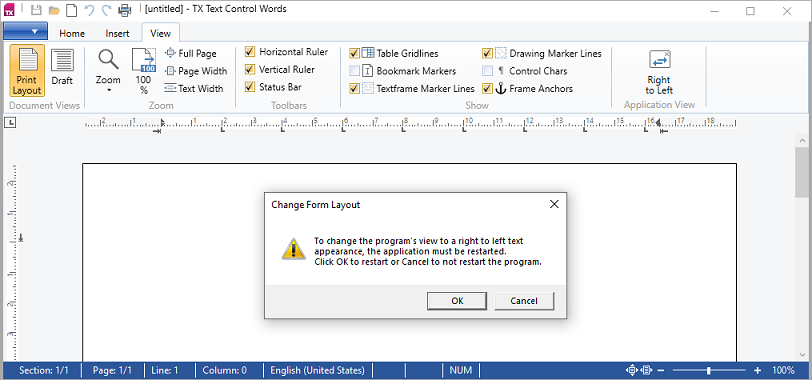
Its `Closed` handler starts the new instance with `Process.Start(Application.ResourceAssembly.Location)`, and the constructor of the new main window assigns the stored value to `FlowDirection` right after `InitializeComponent`.
#### Restart the Application on .NET 8 and Later
The restart line of the sample dates from .NET Framework, where the application assembly is the *.exe* file and `Process.Start` with a file name uses the shell by default. A WPF application on .NET 8 or later is built differently: its code is in a *.dll* file, which a separate executable, the *apphost*, named like *MyApp.exe*, loads. `Application.ResourceAssembly.Location` then returns the path of the *.dll*. `ProcessStartInfo.UseShellExecute` is `false` by default on .NET, and without the shell `Process.Start` starts executables only, so the *.dll* path does not bring the application back.
`Environment.ProcessPath`, available since .NET 6, returns the path of the executable that started the running process, which is the *.exe* again. Use it in the `Closed` handler instead:
```csharp
using System;
using System.Diagnostics;
private bool restartApplication = false;
private void MainWindow_Closed(object sender, EventArgs e)
{
// ProcessPath is the .exe that started this process, or null if unknown
if (restartApplication && Environment.ProcessPath is string exePath)
{
Process.Start(exePath);
}
}
```
The click handler of the button sets `restartApplication` to `true` and calls `Application.Current.Shutdown()`, as in the sample. On .NET Framework 4.8, where `Environment.ProcessPath` does not exist, the sample's `Application.ResourceAssembly.Location` works unchanged. Microsoft documents both members on [Environment.ProcessPath](https://learn.microsoft.com/en-us/dotnet/api/system.environment.processpath) and [ProcessStartInfo.UseShellExecute](https://learn.microsoft.com/en-us/dotnet/api/system.diagnostics.processstartinfo.useshellexecute).
### Next Steps
- [Localization and Resource Kit](https://docs.textcontrol.com/tx-text-control-dotnet-wpf/document-editor/ribbon-ui/localization/llms-full.txt): the language of the user interface.
- [Built-in Dialog Boxes](https://docs.textcontrol.com/tx-text-control-dotnet-wpf/document-editor/ribbon-ui/dialog-boxes/llms-full.txt): the dialog boxes in the mirrored layout.
- [Connecting Ribbon Tabs in XAML](https://docs.textcontrol.com/tx-text-control-dotnet-wpf/document-editor/ribbon-ui/ribbon-xaml/llms-full.txt): the ribbon of the window.
- [Rulers and Status Bar](https://docs.textcontrol.com/tx-text-control-dotnet-wpf/document-editor/ribbon-ui/rulers-status-bar/llms-full.txt): the bars that follow the direction.
---
## Nearby
- **Previous:** [Localization and Resource Kit](https://docs.textcontrol.com/tx-text-control-dotnet-wpf/document-editor/ribbon-ui/localization/llms-full.txt)
- **Next:** [Events](https://docs.textcontrol.com/tx-text-control-dotnet-wpf/document-editor/events/llms-full.txt)