# Sidebar and Panels
> Place WPF sidebars in XAML, connect them to ribbon buttons by name, show them as dialogs, hide panel elements with FindName and show custom content.
- **Product:** TX Text Control .NET for WPF
- **Section:** Documentation
- **Kind:** Topic
- **Path:** TX Text Control .NET for WPF > Document Editor > Ribbon and UI > Sidebar and Panels
- **3931 words**
- **Web URL:** https://docs.textcontrol.com/tx-text-control-dotnet-wpf/document-editor/ribbon-ui/sidebar/
- **LLMs URL:** https://docs.textcontrol.com/tx-text-control-dotnet-wpf/document-editor/ribbon-ui/sidebar/llms.txt
- **LLMs-Full URL:** https://docs.textcontrol.com/tx-text-control-dotnet-wpf/document-editor/ribbon-ui/sidebar/llms-full.txt
---
Panels beside the document keep search results, styles, comments, tracked changes and merge fields in view while users keep typing. In TX Text Control .NET for WPF, the `Sidebar` element hosts these panels, docked in the window or floating as a dialog, and opens them when a ribbon button is clicked. The sections below place sidebars in XAML, connect them to the ribbon, show them as dialogs, adjust the elements of a panel and show a panel of your own.
[Add a Sidebar](https://docs.textcontrol.com/tx-text-control-dotnet-wpf/getting-started/document-editor/sidebar/llms-full.txt) adds a first sidebar step by step, and [Sidebar](https://docs.textcontrol.com/tx-text-control-dotnet-wpf/overview/components/sidebar/llms-full.txt) introduces the control.
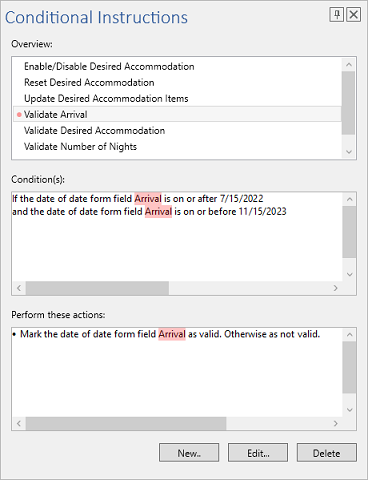
### The Panels
The [Sidebar](https://docs.textcontrol.com/tx-text-control-dotnet-wpf/reference/txtextcontrol-wpf/sidebar/llms-full.txt) derives from `System.Windows.Controls.Control`. Its [ContentLayout](https://docs.textcontrol.com/tx-text-control-dotnet-wpf/reference/txtextcontrol-wpf/sidebar/contentlayout-property/llms-full.txt) selects one of the values of [SidebarContentLayout](https://docs.textcontrol.com/tx-text-control-dotnet-wpf/reference/txtextcontrol-wpf/sidebar/sidebarcontentlayout-enumeration/llms-full.txt), and its [TextControl](https://docs.textcontrol.com/tx-text-control-dotnet-wpf/reference/txtextcontrol-wpf/sidebar/textcontrol-property/llms-full.txt) property holds the name of the editor the panel works with. In code, `TextControl` is a string with that name, like the properties that connect the bars to the editor; the reference documents it with the type `TextControl`, but the compiler expects a string. The panels:
| Value | Panel |
|---|---|
| `Find`, `Replace` | Search, and search and replace |
| `Goto` | A go to panel for moving through the document |
| `Styles` | The styles of the document |
| `TrackedChanges`, `Comments` | The tracked changes and the comments of the document |
| `FieldNavigator` | The merge fields of a template |
| `ConditionalInstructions` | The conditional instructions of the form fields |
| `DocumentSettings` | Title, author, subject, tags, user-defined properties and embedded files |
| `About` | A `TextControl` for information about your application |
| `Custom` | An element of your own in [Content](https://docs.textcontrol.com/tx-text-control-dotnet-wpf/reference/txtextcontrol-wpf/sidebar/content-property/llms-full.txt) |
| `None` | No content, the default |
The reference page of the enumeration does not list `About`, but the value exists in the assembly, and the TX Words sample uses it for its left sidebar.
### Place Sidebars in XAML
A sidebar is placed in the layout of the window like any element, usually in the `DockPanel` that holds the editor, before the `TextControl`. The following three sidebars are arranged as in the TX Words sample:
```xml
```
The alignment decides the layout of the panels **Find**, **Replace**, **Goto**, **ConditionalInstructions**, **DocumentSettings** and **FieldNavigator**:
| `HorizontalAlignment` | `VerticalAlignment` | Layout |
|---|---|---|
| `Left` or `Right` | `Stretch` or `Center` | Vertical, for a sidebar beside the document |
| `Stretch` or `Center` | `Top` or `Bottom` | Horizontal, for a strip above or below the document |
| Any other combination | | Dialog style |
[IsShown](https://docs.textcontrol.com/tx-text-control-dotnet-wpf/reference/txtextcontrol-wpf/sidebar/isshown-property/llms-full.txt) hides the bottom and the right sidebar until a ribbon button opens them. To show or hide a sidebar in code, set `IsShown`; the reference recommends it over the inherited `Visibility` property.
### Open Sidebars With Ribbon Buttons
Ribbon tabs connect their sidebar buttons by name. Each button has a property for a vertical and one for a horizontal sidebar, and the value is the `x:Name` of a sidebar, as in this Home tab of TX Words:
```xml
```
| Tab | Vertical | Horizontal |
|---|---|---|
| [RibbonFormattingTab](https://docs.textcontrol.com/tx-text-control-dotnet-wpf/reference/txtextcontrol-wpf/ribbonformattingtab/llms-full.txt) | [FindSidebar](https://docs.textcontrol.com/tx-text-control-dotnet-wpf/reference/txtextcontrol-wpf/ribbonformattingtab/findsidebar-property/llms-full.txt), [ReplaceSidebar](https://docs.textcontrol.com/tx-text-control-dotnet-wpf/reference/txtextcontrol-wpf/ribbonformattingtab/replacesidebar-property/llms-full.txt), [GotoSidebar](https://docs.textcontrol.com/tx-text-control-dotnet-wpf/reference/txtextcontrol-wpf/ribbonformattingtab/gotosidebar-property/llms-full.txt), [StylesSidebar](https://docs.textcontrol.com/tx-text-control-dotnet-wpf/reference/txtextcontrol-wpf/ribbonformattingtab/stylessidebar-property/llms-full.txt) | [FindHorizontalSidebar](https://docs.textcontrol.com/tx-text-control-dotnet-wpf/reference/txtextcontrol-wpf/ribbonformattingtab/findhorizontalsidebar-property/llms-full.txt), [ReplaceHorizontalSidebar](https://docs.textcontrol.com/tx-text-control-dotnet-wpf/reference/txtextcontrol-wpf/ribbonformattingtab/replacehorizontalsidebar-property/llms-full.txt), [GotoHorizontalSidebar](https://docs.textcontrol.com/tx-text-control-dotnet-wpf/reference/txtextcontrol-wpf/ribbonformattingtab/gotohorizontalsidebar-property/llms-full.txt) |
| [RibbonProofingTab](https://docs.textcontrol.com/tx-text-control-dotnet-wpf/reference/txtextcontrol-wpf/ribbonproofingtab/llms-full.txt) | [CommentsSidebar](https://docs.textcontrol.com/tx-text-control-dotnet-wpf/reference/txtextcontrol-wpf/ribbonproofingtab/commentssidebar-property/llms-full.txt), [TrackedChangesSidebar](https://docs.textcontrol.com/tx-text-control-dotnet-wpf/reference/txtextcontrol-wpf/ribbonproofingtab/trackedchangessidebar-property/llms-full.txt) | [CommentsHorizontalSidebar](https://docs.textcontrol.com/tx-text-control-dotnet-wpf/reference/txtextcontrol-wpf/ribbonproofingtab/commentshorizontalsidebar-property/llms-full.txt), [TrackedChangesHorizontalSidebar](https://docs.textcontrol.com/tx-text-control-dotnet-wpf/reference/txtextcontrol-wpf/ribbonproofingtab/trackedchangeshorizontalsidebar-property/llms-full.txt) |
| [RibbonFormFieldsTab](https://docs.textcontrol.com/tx-text-control-dotnet-wpf/reference/txtextcontrol-wpf/ribbonformfieldstab/llms-full.txt) | [ConditionalInstructionsSidebar](https://docs.textcontrol.com/tx-text-control-dotnet-wpf/reference/txtextcontrol-wpf/ribbonformfieldstab/conditionalinstructionssidebar-property/llms-full.txt) | [ConditionalInstructionsHorizontalSidebar](https://docs.textcontrol.com/tx-text-control-dotnet-wpf/reference/txtextcontrol-wpf/ribbonformfieldstab/conditionalinstructionshorizontalsidebar-property/llms-full.txt) |
| [RibbonReportingTab](https://docs.textcontrol.com/tx-text-control-dotnet-wpf/reference/txtextcontrol-wpf/ribbonreportingtab/llms-full.txt) | [FieldNavigatorSidebar](https://docs.textcontrol.com/tx-text-control-dotnet-wpf/reference/txtextcontrol-wpf/ribbonreportingtab/fieldnavigatorsidebar-property/llms-full.txt) | |
A button with a connected sidebar gets a drop-down to toggle the vertical or horizontal sidebar. When the user clicks the button:
- **With the toggle on**, the sidebar opens pinned into the window.
- **With the toggle off**, it opens as a dialog: one that cannot be resized for the Find, Replace and Go To buttons, a resizable one for the Comments, Tracked Changes and Conditional Instructions buttons.
- **In both cases**, the sidebar switches to the panel of the button, and the other sidebar connected to the same button is hidden.
One sidebar can serve several buttons, because each button sets the panel it needs.
### Show a Sidebar as a Dialog
With [IsPinned](https://docs.textcontrol.com/tx-text-control-dotnet-wpf/reference/txtextcontrol-wpf/sidebar/ispinned-property/llms-full.txt) set to `false`, the sidebar opens as a dialog. The following code, in the `Loaded` handler of the `TextControl`, shows the styles in a resizable dialog:
```csharp
using System.Windows;
using TXTextControl.WPF;
private void TextControl_Loaded(object sender, RoutedEventArgs e)
{
// Show the Styles panel in a sizable dialog
sidebarRight.ContentLayout = Sidebar.SidebarContentLayout.Styles;
sidebarRight.IsPinned = false;
sidebarRight.DialogStyle = Sidebar.SidebarDialogStyle.StandardSizable;
sidebarRight.DialogSize = new Size(320, 480);
sidebarRight.IsShown = true;
}
```
The code works as follows:
- [DialogStyle](https://docs.textcontrol.com/tx-text-control-dotnet-wpf/reference/txtextcontrol-wpf/sidebar/dialogstyle-property/llms-full.txt) takes a [SidebarDialogStyle](https://docs.textcontrol.com/tx-text-control-dotnet-wpf/reference/txtextcontrol-wpf/sidebar/sidebardialogstyle-enumeration/llms-full.txt): `Standard` is a window with a title bar that cannot be resized, `StandardSizable` one that can, and `Sidebar` and `SidebarSizable` show only the sidebar, without a window border or title bar.
- [DialogSize](https://docs.textcontrol.com/tx-text-control-dotnet-wpf/reference/txtextcontrol-wpf/sidebar/dialogsize-property/llms-full.txt) and [DialogLocation](https://docs.textcontrol.com/tx-text-control-dotnet-wpf/reference/txtextcontrol-wpf/sidebar/dialoglocation-property/llms-full.txt) are nullable. Left at `null`, their default, the dialog is sized to its content and centered on the topmost element.
- A pinned sidebar can be resized with the mouse while [IsSizable](https://docs.textcontrol.com/tx-text-control-dotnet-wpf/reference/txtextcontrol-wpf/sidebar/issizable-property/llms-full.txt) is `true`.
### Adjust the Title and the Elements of a Panel
The title bar shows the [Text](https://docs.textcontrol.com/tx-text-control-dotnet-wpf/reference/txtextcontrol-wpf/sidebar/text-property/llms-full.txt) of the sidebar in [TitleFontFamily](https://docs.textcontrol.com/tx-text-control-dotnet-wpf/reference/txtextcontrol-wpf/sidebar/titlefontfamily-property/llms-full.txt), [TitleFontSize](https://docs.textcontrol.com/tx-text-control-dotnet-wpf/reference/txtextcontrol-wpf/sidebar/titlefontsize-property/llms-full.txt) and [TitleForeground](https://docs.textcontrol.com/tx-text-control-dotnet-wpf/reference/txtextcontrol-wpf/sidebar/titleforeground-property/llms-full.txt). [ShowTitle](https://docs.textcontrol.com/tx-text-control-dotnet-wpf/reference/txtextcontrol-wpf/sidebar/showtitle-property/llms-full.txt), [ShowPinButton](https://docs.textcontrol.com/tx-text-control-dotnet-wpf/reference/txtextcontrol-wpf/sidebar/showpinbutton-property/llms-full.txt) and [ShowCloseButton](https://docs.textcontrol.com/tx-text-control-dotnet-wpf/reference/txtextcontrol-wpf/sidebar/showclosebutton-property/llms-full.txt) switch its parts off.
Every element of a predefined panel has a `Name`, which is a value of an enumeration nested in `Sidebar`, one per panel: [FindAndReplaceItem](https://docs.textcontrol.com/tx-text-control-dotnet-wpf/reference/txtextcontrol-wpf/sidebar/findandreplaceitem-enumeration/llms-full.txt), [GotoItem](https://docs.textcontrol.com/tx-text-control-dotnet-wpf/reference/txtextcontrol-wpf/sidebar/gotoitem-enumeration/llms-full.txt), [StylesItem](https://docs.textcontrol.com/tx-text-control-dotnet-wpf/reference/txtextcontrol-wpf/sidebar/stylesitem-enumeration/llms-full.txt), [TrackedChangesItem](https://docs.textcontrol.com/tx-text-control-dotnet-wpf/reference/txtextcontrol-wpf/sidebar/trackedchangesitem-enumeration/llms-full.txt), [CommentsItem](https://docs.textcontrol.com/tx-text-control-dotnet-wpf/reference/txtextcontrol-wpf/sidebar/commentsitem-enumeration/llms-full.txt), [FieldNavigatorItem](https://docs.textcontrol.com/tx-text-control-dotnet-wpf/reference/txtextcontrol-wpf/sidebar/fieldnavigatoritem-enumeration/llms-full.txt), [ConditionalInstructionsItem](https://docs.textcontrol.com/tx-text-control-dotnet-wpf/reference/txtextcontrol-wpf/sidebar/conditionalinstructionsitem-enumeration/llms-full.txt), [DocumentSettingsItem](https://docs.textcontrol.com/tx-text-control-dotnet-wpf/reference/txtextcontrol-wpf/sidebar/documentsettingsitem-enumeration/llms-full.txt) and [AboutItem](https://docs.textcontrol.com/tx-text-control-dotnet-wpf/reference/txtextcontrol-wpf/sidebar/aboutitem-enumeration/llms-full.txt). `FrameworkElement.FindName` on the sidebar returns the element, for example to hide the preview option of the Styles panel:
```csharp
// Hide the Show Preview check box of the Styles panel
if (sidebarRight.FindName(Sidebar.StylesItem.TXITEM_ShowPreview.ToString()) is FrameworkElement preview)
{
preview.Visibility = Visibility.Collapsed;
}
```
### React to Changes of the Panel
A ribbon button changes the `ContentLayout` of a sidebar, and your application may need to react, for example to allow the pin button only for some panels. TX Words does this with a `DependencyPropertyDescriptor`, which reports value changes of a dependency property:
```csharp
using System;
using System.ComponentModel;
// In the constructor, after InitializeComponent
DependencyPropertyDescriptor.FromProperty(Sidebar.ContentLayoutProperty, typeof(Sidebar))
.AddValueChanged(sidebarLeft, SidebarLeft_ContentLayoutChanged);
private void SidebarLeft_ContentLayoutChanged(object sender, EventArgs e)
{
// Allow a dialog only for the tracked changes panel
sidebarLeft.ShowPinButton =
sidebarLeft.ContentLayout == Sidebar.SidebarContentLayout.TrackedChanges;
}
```
`Sidebar.ContentLayoutProperty` is the dependency property behind `ContentLayout`. It is public in the assembly, although the reference does not list it.
### Show a Panel of Your Own
With `ContentLayout` set to `Custom`, the sidebar shows the `FrameworkElement` you assign to `Content`, with the same title bar, docking and dialog mode as a predefined panel. `Content` can be set only with this layout:
```csharp
// Show a user control of your own, here named CustomerPanel
sidebarLeft.ContentLayout = Sidebar.SidebarContentLayout.Custom;
sidebarLeft.Content = new CustomerPanel();
sidebarLeft.Text = "Customer";
```
### Next Steps
- [Track Changes](https://docs.textcontrol.com/tx-text-control-dotnet-wpf/document-editor/track-changes/llms-full.txt) and [Comments](https://docs.textcontrol.com/tx-text-control-dotnet-wpf/document-editor/comments/llms-full.txt): the features behind two of the panels.
- [Form Fields and Conditional Instructions](https://docs.textcontrol.com/tx-text-control-dotnet-wpf/document-editor/form-fields/llms-full.txt): the conditional instructions panel shown above.
- [Connecting Ribbon Tabs in XAML](https://docs.textcontrol.com/tx-text-control-dotnet-wpf/document-editor/ribbon-ui/ribbon-xaml/llms-full.txt): the naming scheme the sidebar connections use.
- [Ribbon and Sidebar Examples](https://docs.textcontrol.com/tx-text-control-dotnet-wpf/examples/ribbon-sidebar/llms-full.txt): samples with ribbons and sidebars.
---
## Nearby
- **Previous:** [Rulers and Status Bar](https://docs.textcontrol.com/tx-text-control-dotnet-wpf/document-editor/ribbon-ui/rulers-status-bar/llms-full.txt)
- **Next:** [Context Menus](https://docs.textcontrol.com/tx-text-control-dotnet-wpf/document-editor/ribbon-ui/context-menus/llms-full.txt)