# Toolbars and Mini Toolbars
> Change the items of the WPF ButtonBar with FindName, enable mini toolbars with ShowMiniToolbar and edit their groups when they are created or opened.
- **Product:** TX Text Control .NET for WPF
- **Section:** Documentation
- **Kind:** Topic
- **Path:** TX Text Control .NET for WPF > Document Editor > Ribbon and UI > Toolbars and Mini Toolbars
- **4101 words**
- **Web URL:** https://docs.textcontrol.com/tx-text-control-dotnet-wpf/document-editor/ribbon-ui/toolbars/
- **LLMs URL:** https://docs.textcontrol.com/tx-text-control-dotnet-wpf/document-editor/ribbon-ui/toolbars/llms.txt
- **LLMs-Full URL:** https://docs.textcontrol.com/tx-text-control-dotnet-wpf/document-editor/ribbon-ui/toolbars/llms-full.txt
---
A WPF editor without a ribbon uses the `ButtonBar`, a WPF `ToolBar` that TX Text Control fills with font and paragraph commands. With or without a ribbon, mini toolbars add a small formatting pop-up next to the text the user selects or right-clicks. Both are standard WPF elements underneath, so you remove, move and add their items with the WPF APIs you know.
[Connect Rulers, Toolbars, and a Status Bar](https://docs.textcontrol.com/tx-text-control-dotnet-wpf/getting-started/document-editor/rulers-toolbars/llms-full.txt) places the button bar in a window for the first time.
### The Button Bar
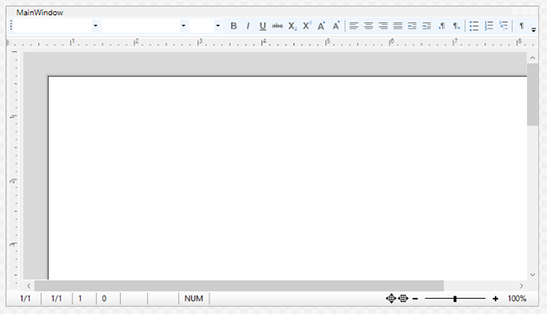
The [ButtonBar](https://docs.textcontrol.com/tx-text-control-dotnet-wpf/reference/txtextcontrol-wpf/buttonbar/llms-full.txt) shows and sets the font and paragraph attributes of the `TextControl` that names it in its [ButtonBar](https://docs.textcontrol.com/tx-text-control-dotnet-wpf/reference/txtextcontrol-wpf/textcontrol/buttonbar-property/llms-full.txt) property. In XAML, the button bar is docked at the top of a `DockPanel`, and the connection is the name of the element:
```xml
```
#### The Items of the Button Bar
`ButtonBar` derives from `System.Windows.Controls.ToolBar`, and its buttons and combo boxes are ordinary items of its `Items` collection. Each has a `Name` that is a value of [ButtonBar.ButtonBarItem](https://docs.textcontrol.com/tx-text-control-dotnet-wpf/reference/txtextcontrol-wpf/buttonbar/buttonbaritem-enumeration/llms-full.txt):
| Items | Values |
|---|---|
| Combo boxes | `TXITEM_StyleName`, `TXITEM_FontFamily`, `TXITEM_FontSize`, `TXITEM_ZoomFactor` |
| Character formatting | `TXITEM_Bold`, `TXITEM_Italic`, `TXITEM_Underline`, `TXITEM_Strikeout`, `TXITEM_Subscript`, `TXITEM_Superscript`, `TXITEM_IncreaseFont`, `TXITEM_DecreaseFont` |
| Paragraph formatting | `TXITEM_LeftAligned`, `TXITEM_Centered`, `TXITEM_RightAligned`, `TXITEM_Justified`, `TXITEM_DecreaseIndent`, `TXITEM_IncreaseIndent`, `TXITEM_LeftToRight`, `TXITEM_RightToLeft` |
| Lists and view | `TXITEM_BulletedList`, `TXITEM_NumberedList`, `TXITEM_StructuredList`, `TXITEM_ControlChars` |
`FrameworkElement.FindName` with the string of a value returns the item. You can sort, remove or move items in code, and add items of your own in code or in the collection editor of `Items` in the designer.
#### Change the Items in Code
[Remove Buttons From the Button Bar](https://docs.textcontrol.com/tx-text-control-dotnet-wpf/getting-started/document-editor/rulers-toolbars/#remove-buttons-from-the-button-bar) in the tutorial Connect Rulers, Toolbars, and a Status Bar removes items with `FindName` and `Items.Remove`. The following code, in the `Loaded` event handler of the `TextControl`, adds a separator and a button of your own at the end of the bar:
```csharp
using System.Windows;
using System.Windows.Controls;
private void TextControl_Loaded(object sender, RoutedEventArgs e)
{
// Add a separator and a Print button
System.Windows.Controls.Button printButton = new System.Windows.Controls.Button() { Content = "Print" };
printButton.Click += (s, args) => textControl.Print("My Document", false);
buttonBar.Items.Add(new Separator());
buttonBar.Items.Add(printButton);
}
```
Items of your own are any WPF controls. Their handlers call the `TextControl`, here [Print](https://docs.textcontrol.com/tx-text-control-dotnet-wpf/reference/txtextcontrol-wpf/textcontrol/print-method/llms-full.txt), which opens the print dialog.
### Mini Toolbars
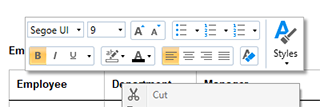
A [MiniToolbar](https://docs.textcontrol.com/tx-text-control-dotnet-wpf/reference/txtextcontrol/wpf-minitoolbar/llms-full.txt) is a contextual tool bar that opens next to the mouse position. It derives from `System.Windows.Controls.Primitives.Popup`. There are two:
- The [TextMiniToolbar](https://docs.textcontrol.com/tx-text-control-dotnet-wpf/reference/txtextcontrol-wpf/textminitoolbar/llms-full.txt) for selected text, the text at the input position and tables, with font, styles and table groups. Its items are named after [TextMiniToolbar.RibbonItem](https://docs.textcontrol.com/tx-text-control-dotnet-wpf/reference/txtextcontrol-wpf/textminitoolbar/ribbonitem-enumeration/llms-full.txt).
- The [ObjectMiniToolbar](https://docs.textcontrol.com/tx-text-control-dotnet-wpf/reference/txtextcontrol-wpf/objectminitoolbar/llms-full.txt) for a selected text frame, drawing frame or barcode frame. Its items are named after [ObjectMiniToolbar.RibbonItem](https://docs.textcontrol.com/tx-text-control-dotnet-wpf/reference/txtextcontrol-wpf/objectminitoolbar/ribbonitem-enumeration/llms-full.txt). It opens only with the right mouse button.
#### Turn Them On
By default, no mini toolbar opens. [ShowMiniToolbar](https://docs.textcontrol.com/tx-text-control-dotnet-wpf/reference/txtextcontrol-wpf/textcontrol/showminitoolbar-property/llms-full.txt) takes values of `TXTextControl.MiniToolbarButton`: `None`, the default, `LeftButton` for a mini toolbar when the left mouse button is released over selected text, and `RightButton` for one when the right mouse button is released. In XAML, combine both with a comma:
```xml
```
In code, write `textControl.ShowMiniToolbar = TXTextControl.MiniToolbarButton.LeftButton | TXTextControl.MiniToolbarButton.RightButton;`. The context menu that opens with the right mouse button is covered in [Context Menus](https://docs.textcontrol.com/tx-text-control-dotnet-wpf/document-editor/ribbon-ui/context-menus/llms-full.txt).
#### Change the Structure Once
Right after a mini toolbar has been created, the `TextControl` raises [TextMiniToolbarInitialized](https://docs.textcontrol.com/tx-text-control-dotnet-wpf/reference/txtextcontrol-wpf/textcontrol/textminitoolbarinitialized-event/llms-full.txt) or [ObjectMiniToolbarInitialized](https://docs.textcontrol.com/tx-text-control-dotnet-wpf/reference/txtextcontrol-wpf/textcontrol/objectminitoolbarinitialized-event/llms-full.txt). This is where groups are added or removed.
**The compiled event names differ from the reference.** In the assembly of version 34.0, the two events are named `TextMiniToolbarInitalized` and `ObjectMiniToolbarInitalized`, without the second "i" of "Initialized". Attach your handlers with these names, in XAML and in code; the names of the reference do not compile.
The groups of a WPF mini toolbar sit in a `Grid`, which its `Container` property returns: each group is a child of the grid in a column of its own. The following handler removes the table group of the text mini toolbar:
```csharp
private void TextControl_TextMiniToolbarInitialized(object sender,
MiniToolbarInitializedEventArgs e)
{
// Remove the table layout group from the text mini toolbar
UIElement tableGroup = e.MiniToolbar.Container.FindName(
TextMiniToolbar.RibbonItem.TXITEM_TableLayoutGroup.ToString()) as UIElement;
e.MiniToolbar.Container.Children.Remove(tableGroup);
}
```
Attach it on the `TextControl` element with `TextMiniToolbarInitalized="TextControl_TextMiniToolbarInitialized"`.
- [MiniToolbarInitializedEventArgs.MiniToolbar](https://docs.textcontrol.com/tx-text-control-dotnet-wpf/reference/txtextcontrol-wpf/minitoolbarinitializedeventargs/minitoolbar-property/llms-full.txt) is the new mini toolbar. You can change it or assign another `MiniToolbar` to replace it.
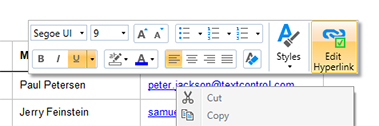
- To add a group, add a `ColumnDefinition` to the grid, create a `Grid` or panel with your controls, set its column with `Grid.SetColumn` and add it to `Container.Children`. The Howto sample *MiniToolbar*, installed in *%USERPROFILE%\\Documents\\TX Text Control 34.0.NET for WPF\\CSharp\\Howto\\MiniToolbar*, adds an **Edit Hyperlink** group this way, with a `RibbonButton` whose icon comes from the `ResourceProvider`:
#### Decide Each Time It Opens
[MiniToolbarOpening](https://docs.textcontrol.com/tx-text-control-dotnet-wpf/reference/txtextcontrol-wpf/textcontrol/minitoolbaropening-event/llms-full.txt) occurs each time a mini toolbar is about to open. Toggle the visibility of groups here instead of adding them:
- [MiniToolbarContext](https://docs.textcontrol.com/tx-text-control-dotnet-wpf/reference/txtextcontrol/wpf-minitoolbaropeningeventargs/minitoolbarcontext-property/llms-full.txt) says where the user clicked, as a combination of [ContextMenuLocation](https://docs.textcontrol.com/tx-text-control-dotnet-wpf/reference/txtextcontrol/contextmenulocation/enumeration/llms-full.txt) values such as `TextSelection`, `Table` or `SelectedFrame`.
- [MiniToolbar](https://docs.textcontrol.com/tx-text-control-dotnet-wpf/reference/txtextcontrol/wpf-minitoolbaropeningeventargs/minitoolbar-property/llms-full.txt) is the mini toolbar that opens; assign another to show it instead. [HorizontalOffset](https://docs.textcontrol.com/tx-text-control-dotnet-wpf/reference/txtextcontrol/wpf-minitoolbaropeningeventargs/horizontaloffset-property/llms-full.txt) and [VerticalOffset](https://docs.textcontrol.com/tx-text-control-dotnet-wpf/reference/txtextcontrol/wpf-minitoolbaropeningeventargs/verticaloffset-property/llms-full.txt) give its position relative to the top-left corner of the screen.
- The arguments derive from `CancelEventArgs`, so `e.Cancel = true` keeps the mini toolbar closed.
```csharp
private void TextControl_MiniToolbarOpening(object sender, MiniToolbarOpeningEventArgs e)
{
// No mini toolbar for selected frames
if ((e.MiniToolbarContext & TXTextControl.ContextMenuLocation.SelectedFrame) != 0)
{
e.Cancel = true;
}
}
```
Attach it with `MiniToolbarOpening="TextControl_MiniToolbarOpening"`; this event name is the same in the reference and the assembly.
#### Show a Group Only in Its Context
A group added in `TextMiniToolbarInitalized` is shown every time the mini toolbar opens. To show the **Edit Hyperlink** group of the *MiniToolbar* sample only when the user clicks a link, keep a reference to the group when you add it, and set its `Visibility` each time the mini toolbar opens:
```csharp
// The group added to the text mini toolbar, kept to show or hide it later
private Grid editHyperlinkGroup;
private void TextControl_TextMiniToolbarInitialized(object sender,
MiniToolbarInitializedEventArgs e)
{
Grid container = e.MiniToolbar.Container;
// A new column for the group
container.ColumnDefinitions.Add(new ColumnDefinition() { Width = GridLength.Auto });
System.Windows.Controls.Ribbon.RibbonButton editButton =
new System.Windows.Controls.Ribbon.RibbonButton() { Label = "Edit Hyperlink" };
// Open the built-in dialog box for the link at the input position
editButton.Click += (s, args) => new HyperlinkDialog(textControl) { Owner = this }.ShowDialog();
editHyperlinkGroup = new Grid();
editHyperlinkGroup.Children.Add(editButton);
Grid.SetColumn(editHyperlinkGroup, container.ColumnDefinitions.Count - 1);
Grid.SetRowSpan(editHyperlinkGroup, 3);
container.Children.Add(editHyperlinkGroup);
}
private void TextControl_MiniToolbarOpening(object sender, MiniToolbarOpeningEventArgs e)
{
if (e.MiniToolbar is TextMiniToolbar && editHyperlinkGroup != null)
{
// Show the group only for a click into a hypertext link
bool isLink = (e.MiniToolbarContext & TXTextControl.ContextMenuLocation.TextField) != 0
&& textControl.HypertextLinks.GetItem() != null;
editHyperlinkGroup.Visibility = isLink ? Visibility.Visible : Visibility.Collapsed;
}
}
```
The code works as follows:
- The initialization handler adds a column to the `Grid` of the mini toolbar and a group with one `RibbonButton` in it, as described under Change the Structure Once. [HyperlinkDialog](https://docs.textcontrol.com/tx-text-control-dotnet-wpf/reference/txtextcontrol-wpf/hyperlinkdialog/llms-full.txt) is the built-in dialog box that inserts and edits the hyperlink at the input position; it's a WPF `Window`, shown with `ShowDialog`. The *MiniToolbar* sample also gives the button the icon of the ribbon's **Hyperlink** button, from the `ResourceProvider`.
- `ContextMenuLocation.TextField` in [MiniToolbarContext](https://docs.textcontrol.com/tx-text-control-dotnet-wpf/reference/txtextcontrol/wpf-minitoolbaropeningeventargs/minitoolbarcontext-property/llms-full.txt) means that the user clicked into a field. [HypertextLinkCollection.GetItem](https://docs.textcontrol.com/tx-text-control-dotnet-wpf/reference/txtextcontrol/hypertextlinkcollection/getitem-method/llms-full.txt) returns the hypertext link at the input position, or `null` for other kinds of fields.
- `Visibility.Collapsed` hides the group and gives its space to the other groups. The mini toolbar itself still opens.
`RibbonButton` is in the assembly *System.Windows.Controls.Ribbon*, which is part of WPF in projects for .NET 8 or later; see [Connecting Ribbon Tabs in XAML](https://docs.textcontrol.com/tx-text-control-dotnet-wpf/document-editor/ribbon-ui/ribbon-xaml/llms-full.txt). Attach the handlers with `TextMiniToolbarInitalized="TextControl_TextMiniToolbarInitialized"` and `MiniToolbarOpening="TextControl_MiniToolbarOpening"`; a window uses one handler per event, so combine this code with the handlers above.
### Next Steps
- [Rulers and Status Bar](https://docs.textcontrol.com/tx-text-control-dotnet-wpf/document-editor/ribbon-ui/rulers-status-bar/llms-full.txt): the other bars around the editor.
- [Context Menus](https://docs.textcontrol.com/tx-text-control-dotnet-wpf/document-editor/ribbon-ui/context-menus/llms-full.txt): the menu that opens with the right mouse button.
- [Custom Tabs and Commands](https://docs.textcontrol.com/tx-text-control-dotnet-wpf/document-editor/ribbon-ui/custom-tabs/llms-full.txt): the `ResourceProvider` for icons of your own items.
- [Built-in Ribbon Tabs](https://docs.textcontrol.com/tx-text-control-dotnet-wpf/document-editor/ribbon-ui/ribbon/llms-full.txt): the full set of commands in a ribbon.
---
## Nearby
- **Previous:** [Custom Tabs and Commands](https://docs.textcontrol.com/tx-text-control-dotnet-wpf/document-editor/ribbon-ui/custom-tabs/llms-full.txt)
- **Next:** [Rulers and Status Bar](https://docs.textcontrol.com/tx-text-control-dotnet-wpf/document-editor/ribbon-ui/rulers-status-bar/llms-full.txt)