# Tables of Contents
> Build tables of contents in a WPF TextControl from structure levels and paragraph styles with the RibbonReferencesTab, TableOfContentsDialog or TableOfContents.
- **Product:** TX Text Control .NET for WPF
- **Section:** Documentation
- **Kind:** Topic
- **Path:** TX Text Control .NET for WPF > Document Editor > Tables of Contents
- **3740 words**
- **Web URL:** https://docs.textcontrol.com/tx-text-control-dotnet-wpf/document-editor/tables-of-contents/
- **LLMs URL:** https://docs.textcontrol.com/tx-text-control-dotnet-wpf/document-editor/tables-of-contents/llms.txt
- **LLMs-Full URL:** https://docs.textcontrol.com/tx-text-control-dotnet-wpf/document-editor/tables-of-contents/llms-full.txt
---
How does TX Text Control know what goes into a table of contents? Each heading carries a structure level, and the table of contents collects all paragraphs within a range of levels, with page numbers and links if you want them. In a WPF application, you assign the levels, insert and update tables of contents from code or let users do it with the **References** tab and a dialog box.
The examples use a window with a `TextControl` named `textControl1`, as in [Create Your First WPF Application](https://docs.textcontrol.com/tx-text-control-dotnet-wpf/getting-started/document-editor/first-application/llms-full.txt), and *MainWindow.xaml.cs* needs `using TXTextControl;`. Tables of contents were introduced in version 29.0 and are part of the Enterprise edition; see [Editions and Feature Availability](https://docs.textcontrol.com/tx-text-control-dotnet-wpf/overview/editions/llms-full.txt).
### Structure Levels and Entries
The *structure level* of a paragraph is a number from 0 to 10. The default, 0, stands for body text; the levels 1 to 10 mark headings, for example 1 for chapters and 2 for sections. A table of contents has a minimum and a maximum level. When it is inserted, TX Text Control creates one entry for each paragraph whose level is in this range, in the order of the text:
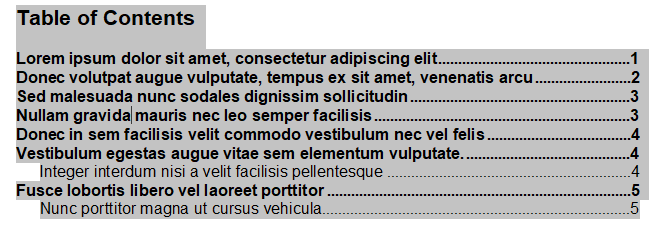
The entries keep the font and paragraph attributes of their headings. In addition, TX Text Control creates a formatting style for each level, named `TOC_Title`, `TOC_Level1`, `TOC_Level2` and so on, and changing these styles changes the look of the table of contents. A document can contain several tables of contents. None of them changes by itself when the document changes: after headings are added, removed or moved, the table of contents has to be updated.
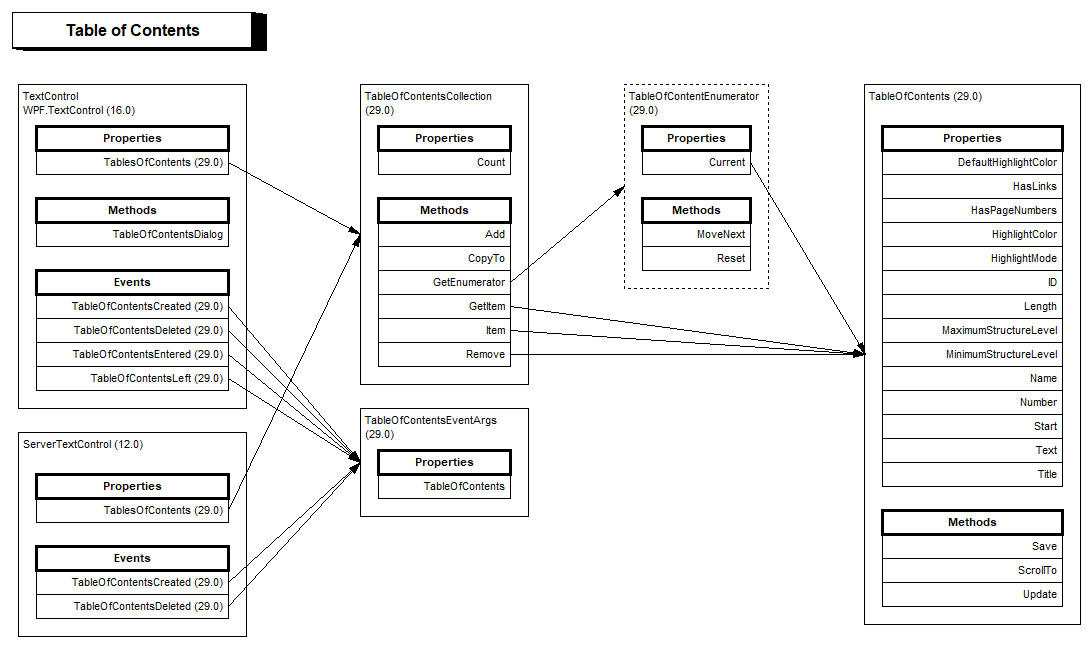
The API consists of [TableOfContents](https://docs.textcontrol.com/tx-text-control-dotnet-wpf/reference/txtextcontrol/tableofcontents/llms-full.txt), [TableOfContentsCollection](https://docs.textcontrol.com/tx-text-control-dotnet-wpf/reference/txtextcontrol/tableofcontentscollection/llms-full.txt), which [WPF.TextControl.TablesOfContents](https://docs.textcontrol.com/tx-text-control-dotnet-wpf/reference/txtextcontrol-wpf/textcontrol/tablesofcontents-property/llms-full.txt) returns, and four events:
### Let Users Insert Tables of Contents
[WPF.RibbonReferencesTab](https://docs.textcontrol.com/tx-text-control-dotnet-wpf/reference/txtextcontrol-wpf/ribbonreferencestab/llms-full.txt) is a ribbon tab with three groups for this feature: one inserts, deletes, updates and modifies a table of contents, one sets the properties of the current table of contents, such as its levels, title, links and page numbers, and one assigns structure levels to paragraph styles or adds a paragraph with a level. Put the tab into a `Ribbon` and connect it with its name:
```xml
```
`WPF` is the prefix of `xmlns:WPF="clr-namespace:TXTextControl.WPF;assembly=TXTextControl.WPF"` on the `Window` element. [Connecting Ribbon Tabs in XAML](https://docs.textcontrol.com/tx-text-control-dotnet-wpf/document-editor/ribbon-ui/ribbon-xaml/llms-full.txt) shows a complete window with a ribbon.
Without a ribbon, [WPF.TextControl.TableOfContentsDialog](https://docs.textcontrol.com/tx-text-control-dotnet-wpf/reference/txtextcontrol-wpf/textcontrol/tableofcontentsdialog-method/llms-full.txt) opens the built-in dialog box. If the input position is in a table of contents, the dialog box changes it; otherwise, it inserts a new one with the settings the user chooses. In WPF, it returns a [WPF.DialogResult](https://docs.textcontrol.com/tx-text-control-dotnet-wpf/reference/txtextcontrol-wpf/dialogresult/enumeration/llms-full.txt) value:
```csharp
private void TocDialog_Click(object sender, RoutedEventArgs e)
{
textControl1.TableOfContentsDialog();
}
```
### Assign Structure Levels
[ParagraphFormat.StructureLevel](https://docs.textcontrol.com/tx-text-control-dotnet-wpf/reference/txtextcontrol/paragraphformat/structurelevel-property/llms-full.txt) holds the level. The most practical place for it is a paragraph style, so that every paragraph with the style is an entry. The `Loaded` handler below creates a style for chapters and one for sections, and the two button handlers apply a style or a level to the selected paragraphs:
```csharp
private void textControl1_Loaded(object sender, RoutedEventArgs e)
{
// Paragraphs with these styles become entries of level 1 and 2
ParagraphStyle chapter = new ParagraphStyle("Chapter");
chapter.Bold = true;
chapter.ParagraphFormat.StructureLevel = 1;
textControl1.ParagraphStyles.Add(chapter);
ParagraphStyle section = new ParagraphStyle("Section");
section.Bold = true;
section.ParagraphFormat.StructureLevel = 2;
textControl1.ParagraphStyles.Add(section);
}
private void Chapter_Click(object sender, RoutedEventArgs e)
{
textControl1.Selection.FormattingStyle = "Chapter";
}
private void Level2_Click(object sender, RoutedEventArgs e)
{
// 0 is body text, 1 to 10 are heading levels
textControl1.Selection.ParagraphFormat.StructureLevel = 2;
}
```
- [ParagraphStyle](https://docs.textcontrol.com/tx-text-control-dotnet-wpf/reference/txtextcontrol/paragraphstyle/llms-full.txt) combines font attributes such as `Bold` with a `ParagraphFormat`. [ParagraphStyles.Add](https://docs.textcontrol.com/tx-text-control-dotnet-wpf/reference/txtextcontrol/paragraphstylecollection/add-method/llms-full.txt) adds the style to the document; [Stylesheets](https://docs.textcontrol.com/tx-text-control-dotnet-wpf/document-editor/stylesheets/llms-full.txt) covers styles in detail.
- [Selection.FormattingStyle](https://docs.textcontrol.com/tx-text-control-dotnet-wpf/reference/txtextcontrol/selection/formattingstyle-property/llms-full.txt) applies the style to the selected paragraphs, and [Selection.ParagraphFormat](https://docs.textcontrol.com/tx-text-control-dotnet-wpf/reference/txtextcontrol/selection/paragraphformat-property/llms-full.txt) sets their level directly.
Add buttons with `Click="Chapter_Click"` and `Click="Level2_Click"` to the window to try them.
### Insert a Table of Contents
```csharp
private void InsertToc_Click(object sender, RoutedEventArgs e)
{
// Entries for all paragraphs with the structure levels 1 to 2
TableOfContents tableOfContents = new TableOfContents(1, 2)
{
Title = "Contents",
HasPageNumbers = true,
HasRightAlignedPageNumbers = true,
HasLinks = true
};
// Insert the table of contents at the beginning of the document
textControl1.Select(0, 0);
TableOfContentsCollection.AddResult result = textControl1.TablesOfContents.Add(tableOfContents);
if (result == TableOfContentsCollection.AddResult.ContentNotFound)
{
MessageBox.Show(this, "The document has no paragraphs with the structure level 1 or 2.");
}
}
```
The code works as follows:
- The [TableOfContents constructor](https://docs.textcontrol.com/tx-text-control-dotnet-wpf/reference/txtextcontrol/tableofcontents/constructor/llms-full.txt) takes the minimum and maximum structure level, from 1 to 10.
- [Title](https://docs.textcontrol.com/tx-text-control-dotnet-wpf/reference/txtextcontrol/tableofcontents/title-property/llms-full.txt) is the title above the entries, [HasPageNumbers](https://docs.textcontrol.com/tx-text-control-dotnet-wpf/reference/txtextcontrol/tableofcontents/haspagenumbers-property/llms-full.txt) adds page numbers, [HasRightAlignedPageNumbers](https://docs.textcontrol.com/tx-text-control-dotnet-wpf/reference/txtextcontrol/tableofcontents/hasrightalignedpagenumbers-property/llms-full.txt) aligns them at the right border, and [HasLinks](https://docs.textcontrol.com/tx-text-control-dotnet-wpf/reference/txtextcontrol/tableofcontents/haslinks-property/llms-full.txt) turns every entry into a link to its heading.
- [WPF.TextControl.Select](https://docs.textcontrol.com/tx-text-control-dotnet-wpf/reference/txtextcontrol-wpf/textcontrol/select-method/llms-full.txt) sets the input position, here at the beginning of the text, where [TableOfContentsCollection.Add](https://docs.textcontrol.com/tx-text-control-dotnet-wpf/reference/txtextcontrol/tableofcontentscollection/add-method/llms-full.txt) inserts the table of contents.
- `Add` returns a [TableOfContentsCollection.AddResult](https://docs.textcontrol.com/tx-text-control-dotnet-wpf/reference/txtextcontrol/tableofcontentscollection/addresult-enumeration/llms-full.txt): `Successful`, `ContentNotFound` if no paragraph has a matching level, or `Error`, for example at a position inside a text field or another table of contents.
`TablesOfContents` belongs to the text part with the input focus. With the cursor in a header, a footer or a text frame, it returns the tables of contents of that part.
### Update and Remove Tables of Contents
```csharp
private void UpdateToc_Click(object sender, RoutedEventArgs e)
{
foreach (TableOfContents tableOfContents in textControl1.TablesOfContents)
{
tableOfContents.Update();
}
}
private void RemoveToc_Click(object sender, RoutedEventArgs e)
{
// The table of contents at the input position, or null
TableOfContents tableOfContents = textControl1.TablesOfContents.GetItem();
if (tableOfContents != null)
{
textControl1.TablesOfContents.Remove(tableOfContents);
}
}
```
- [Update](https://docs.textcontrol.com/tx-text-control-dotnet-wpf/reference/txtextcontrol/tableofcontents/update-method/llms-full.txt) regenerates the entries and page numbers. Call it after the document has changed and after you change the properties of an existing table of contents, such as [MinimumStructureLevel](https://docs.textcontrol.com/tx-text-control-dotnet-wpf/reference/txtextcontrol/tableofcontents/minimumstructurelevel-property/llms-full.txt).
- [GetItem](https://docs.textcontrol.com/tx-text-control-dotnet-wpf/reference/txtextcontrol/tableofcontentscollection/getitem-method/llms-full.txt) returns the table of contents at the input position, or the one with a [Name](https://docs.textcontrol.com/tx-text-control-dotnet-wpf/reference/txtextcontrol/tableofcontents/name-property/llms-full.txt) or ID you have assigned.
- [Remove](https://docs.textcontrol.com/tx-text-control-dotnet-wpf/reference/txtextcontrol/tableofcontentscollection/remove-method/llms-full.txt) deletes it together with its text and the document targets its links point to.
Documents created by `MailMerge` from a template with a table of contents need an update after the merge. The blog article [Combining MailMerge and Table of Contents](https://www.textcontrol.com/blog/2022/03/22/combining-mailmerge-and-table-of-contents/) shows the call, and [Mail Merge](https://docs.textcontrol.com/tx-text-control-dotnet-wpf/mail-merge/llms-full.txt) covers merging.
### Handle Clicks on the Entries
The entries of a table of contents with `HasLinks` are [DocumentLink](https://docs.textcontrol.com/tx-text-control-dotnet-wpf/reference/txtextcontrol/documentlink/llms-full.txt) objects that point to [DocumentTarget](https://docs.textcontrol.com/tx-text-control-dotnet-wpf/reference/txtextcontrol/documenttarget/llms-full.txt) objects at the headings. A CTRL+click on an entry scrolls to its heading without any code. The generated targets have names beginning with `TOC_` and an [AutoGenerationType](https://docs.textcontrol.com/tx-text-control-dotnet-wpf/reference/txtextcontrol/documenttarget/autogenerationtype-property/llms-full.txt) of `TableOfContents`.
A [DocumentLinkClicked](https://docs.textcontrol.com/tx-text-control-dotnet-wpf/reference/txtextcontrol-wpf/textcontrol/documentlinkclicked-event/llms-full.txt) handler for your own links, as on [Fields, Hyperlinks, and Bookmarks](https://docs.textcontrol.com/tx-text-control-dotnet-wpf/document-editor/fields/llms-full.txt), should leave these targets alone:
```csharp
private void textControl1_DocumentLinkClicked(object sender, DocumentLinkEventArgs e)
{
DocumentTarget target = e.DocumentLink.DocumentTarget;
// TextControl scrolls to table of contents targets itself on CTRL+click
if (target != null && target.AutoGenerationType != AutoGenerationType.TableOfContents)
{
target.ScrollTo();
}
}
```
### Table of Contents Events
The WPF `TextControl` raises [TableOfContentsCreated](https://docs.textcontrol.com/tx-text-control-dotnet-wpf/reference/txtextcontrol-wpf/textcontrol/tableofcontentscreated-event/llms-full.txt), [TableOfContentsDeleted](https://docs.textcontrol.com/tx-text-control-dotnet-wpf/reference/txtextcontrol-wpf/textcontrol/tableofcontentsdeleted-event/llms-full.txt), [TableOfContentsEntered](https://docs.textcontrol.com/tx-text-control-dotnet-wpf/reference/txtextcontrol-wpf/textcontrol/tableofcontentsentered-event/llms-full.txt) and [TableOfContentsLeft](https://docs.textcontrol.com/tx-text-control-dotnet-wpf/reference/txtextcontrol-wpf/textcontrol/tableofcontentsleft-event/llms-full.txt). Connect them as attributes of `WPF:TextControl` in XAML. Their handlers receive a [TableOfContentsEventArgs](https://docs.textcontrol.com/tx-text-control-dotnet-wpf/reference/txtextcontrol/tableofcontentseventargs/llms-full.txt) with the table of contents concerned, so that you can, for example, enable your own **Update** button only while the cursor is in a table of contents.
### Tables of Contents in Other Formats
Tables of contents are loaded from and saved to DOC, DOCX and RTF documents, compatible with MS Word. When the document is exported as PDF, linked entries remain clickable. [Loading and Saving Documents](https://docs.textcontrol.com/tx-text-control-dotnet-wpf/document-editor/load-save/llms-full.txt) covers the formats.
### Next Steps
- [Stylesheets](https://docs.textcontrol.com/tx-text-control-dotnet-wpf/document-editor/stylesheets/llms-full.txt): define heading styles and change the `TOC_` styles.
- [Fields, Hyperlinks, and Bookmarks](https://docs.textcontrol.com/tx-text-control-dotnet-wpf/document-editor/fields/llms-full.txt): links and targets in a document.
- [Footnotes](https://docs.textcontrol.com/tx-text-control-dotnet-wpf/document-editor/footnotes/llms-full.txt): comments and sources at the bottom of a page.
- The blog article [X19 Sneak Peek: Table of Contents](https://www.textcontrol.com/blog/2020/10/15/x19-sneak-peek-table-of-contents/): an overview of the feature.
---
## Nearby
- **Previous:** [Footnotes](https://docs.textcontrol.com/tx-text-control-dotnet-wpf/document-editor/footnotes/llms-full.txt)
- **Next:** [Fields, Hyperlinks, and Bookmarks](https://docs.textcontrol.com/tx-text-control-dotnet-wpf/document-editor/fields/llms-full.txt)