# Add a Sidebar
> Dock a Sidebar beside the WPF editor, open Styles, Find, Comments and Tracked Changes panels from ribbon buttons, pin it or show a custom control inside it.
- **Product:** TX Text Control .NET for WPF
- **Section:** Documentation
- **Kind:** Topic
- **Path:** TX Text Control .NET for WPF > Getting Started > Document Editor > Add a Sidebar
- **2508 words**
- **Web URL:** https://docs.textcontrol.com/tx-text-control-dotnet-wpf/getting-started/document-editor/sidebar/
- **LLMs URL:** https://docs.textcontrol.com/tx-text-control-dotnet-wpf/getting-started/document-editor/sidebar/llms.txt
- **LLMs-Full URL:** https://docs.textcontrol.com/tx-text-control-dotnet-wpf/getting-started/document-editor/sidebar/llms-full.txt
---
Styles, comments, tracked changes and search results are easier to work with in a panel beside the document than in a dialog box. The `Sidebar` of TX Text Control .NET for WPF is such a panel: a control you dock in the window, which shows one of several predefined panels or a control of your own. Starting from the ribbon window of the previous tutorial, you dock a sidebar at the right of the editor, let ribbon buttons open it with the matching panel, show the styles when the window opens and put a control of your own into it.
### Prerequisites
- The ribbon window from [Create a WPF Ribbon Application](https://docs.textcontrol.com/tx-text-control-dotnet-wpf/getting-started/document-editor/ribbon/llms-full.txt), with the tabs `ribbonFormattingTab1` and `ribbonProofingTab1` and the `TextControl` named `textControl1`.
### How a Sidebar Works
A [Sidebar](https://docs.textcontrol.com/tx-text-control-dotnet-wpf/reference/txtextcontrol-wpf/sidebar/llms-full.txt) is in the toolbox tab **TX Text Control 34.0** and is declared in XAML like the bars, as `WPF:Sidebar`. Three properties decide what it does:
- [TextControl](https://docs.textcontrol.com/tx-text-control-dotnet-wpf/reference/txtextcontrol-wpf/sidebar/textcontrol-property/llms-full.txt) names the editor that the predefined panels work with.
- [ContentLayout](https://docs.textcontrol.com/tx-text-control-dotnet-wpf/reference/txtextcontrol-wpf/sidebar/contentlayout-property/llms-full.txt) selects the panel, a value of [SidebarContentLayout](https://docs.textcontrol.com/tx-text-control-dotnet-wpf/reference/txtextcontrol-wpf/sidebar/sidebarcontentlayout-enumeration/llms-full.txt) such as `Styles`, `Comments` or `Custom`. [Sidebar and Panels](https://docs.textcontrol.com/tx-text-control-dotnet-wpf/document-editor/ribbon-ui/sidebar/#the-panels) lists all panels.
- [IsShown](https://docs.textcontrol.com/tx-text-control-dotnet-wpf/reference/txtextcontrol-wpf/sidebar/isshown-property/llms-full.txt) shows or hides the sidebar. Use it rather than the WPF property `Visibility`.
The alignment of the sidebar decides whether panels such as **Find** are laid out vertically, beside the document, or horizontally, above or below it; [Place Sidebars in XAML](https://docs.textcontrol.com/tx-text-control-dotnet-wpf/document-editor/ribbon-ui/sidebar/#place-sidebars-in-xaml) has the rules.
### Dock a Sidebar Beside the Editor
Add the sidebar to the `DockPanel` of *MainWindow.xaml*, after the status bar and before the rulers, so that it takes the full height at the right of the window:
```xml
```
- `DockPanel.Dock="Right"` and `HorizontalAlignment="Right"` place the sidebar at the right, with the vertical arrangement of its panels.
- `IsShown="False"` hides it when the window opens, until a ribbon button or your code shows it.
- `TextControl="textControl1"` connects it to the editor by name, in the same way as the bars.
### Open the Sidebar From Ribbon Buttons
Several ribbon tabs have properties that connect one of their buttons to a sidebar. When the user clicks the button, the sidebar opens with the panel of that button. Set the properties on the two tabs in the `Ribbon`:
```xml
```
Each property holds the name of the sidebar, and one sidebar serves all five buttons:
| Tab | Property | Opens |
|---|---|---|
| **Home** | [StylesSidebar](https://docs.textcontrol.com/tx-text-control-dotnet-wpf/reference/txtextcontrol-wpf/ribbonformattingtab/stylessidebar-property/llms-full.txt) | The styles of the document, from the **Change Styles** item of the style list |
| | [FindSidebar](https://docs.textcontrol.com/tx-text-control-dotnet-wpf/reference/txtextcontrol-wpf/ribbonformattingtab/findsidebar-property/llms-full.txt) | A search in the text, from the find button |
| | [ReplaceSidebar](https://docs.textcontrol.com/tx-text-control-dotnet-wpf/reference/txtextcontrol-wpf/ribbonformattingtab/replacesidebar-property/llms-full.txt) | A search that replaces the text found, from the replace button |
| **Proofing** | [CommentsSidebar](https://docs.textcontrol.com/tx-text-control-dotnet-wpf/reference/txtextcontrol-wpf/ribbonproofingtab/commentssidebar-property/llms-full.txt) | All comments of the document, from the comments button |
| | [TrackedChangesSidebar](https://docs.textcontrol.com/tx-text-control-dotnet-wpf/reference/txtextcontrol-wpf/ribbonproofingtab/trackedchangessidebar-property/llms-full.txt) | All tracked changes of the document, from the tracked changes button |
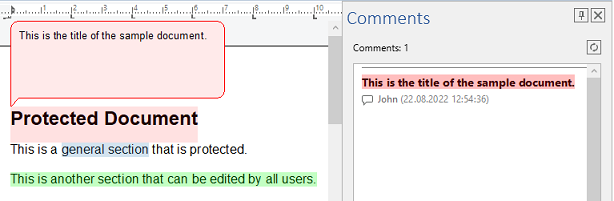
Press **F5**, type some text and click the comments button of the **Proofing** tab. The sidebar opens at the right with the comments of the document; the TX Words sample shows the same panel:
The tabs have more properties of this kind: [GotoSidebar](https://docs.textcontrol.com/tx-text-control-dotnet-wpf/reference/txtextcontrol-wpf/ribbonformattingtab/gotosidebar-property/llms-full.txt) of the **Home** tab, [ConditionalInstructionsSidebar](https://docs.textcontrol.com/tx-text-control-dotnet-wpf/reference/txtextcontrol-wpf/ribbonformfieldstab/conditionalinstructionssidebar-property/llms-full.txt) of the form fields tab and [FieldNavigatorSidebar](https://docs.textcontrol.com/tx-text-control-dotnet-wpf/reference/txtextcontrol-wpf/ribbonreportingtab/fieldnavigatorsidebar-property/llms-full.txt) of the reporting tab. Properties with `Horizontal` in their name, such as [FindHorizontalSidebar](https://docs.textcontrol.com/tx-text-control-dotnet-wpf/reference/txtextcontrol-wpf/ribbonformattingtab/findhorizontalsidebar-property/llms-full.txt), connect a sidebar docked at the top or bottom; the TX Words sample docks one below the editor for them.
### Show a Panel When the Window Opens
Code opens a panel by setting `ContentLayout` and `IsShown`. The following `Loaded` handler in *MainWindow.xaml.cs* shows the styles of the document as soon as the editor is ready. It needs `using TXTextControl.WPF;` at the top of the file:
```csharp
private void textControl1_Loaded(object sender, RoutedEventArgs e)
{
// Open the Styles panel in the right sidebar when the window opens
sidebarRight.ContentLayout = Sidebar.SidebarContentLayout.Styles;
sidebarRight.IsShown = true;
textControl1.Focus();
}
```
The enumeration `SidebarContentLayout` is nested in the `Sidebar` class, hence `Sidebar.SidebarContentLayout.Styles`. When the user clicks a connected ribbon button later, the same sidebar switches to the panel of that button.
### Pinned or as a Dialog
The pin button in the title bar of a sidebar lets users switch between a sidebar docked in the window, where [IsPinned](https://docs.textcontrol.com/tx-text-control-dotnet-wpf/reference/txtextcontrol-wpf/sidebar/ispinned-property/llms-full.txt) is `true`, the default, and a dialog. Set [ShowPinButton](https://docs.textcontrol.com/tx-text-control-dotnet-wpf/reference/txtextcontrol-wpf/sidebar/showpinbutton-property/llms-full.txt) to `False` to keep a sidebar pinned. [Show a Sidebar as a Dialog](https://docs.textcontrol.com/tx-text-control-dotnet-wpf/document-editor/ribbon-ui/sidebar/#show-a-sidebar-as-a-dialog) explains the dialog mode and its styles.
### Show a Control of Your Own
With `ContentLayout` set to `Custom`, a sidebar shows any WPF `FrameworkElement` that you assign to its [Content](https://docs.textcontrol.com/tx-text-control-dotnet-wpf/reference/txtextcontrol-wpf/sidebar/content-property/llms-full.txt) property. `Content` can be set only with this layout. The following method shows a text box for notes in the right sidebar; it needs `using System.Windows.Controls;`:
```csharp
private void ShowNotes()
{
// Show a control of your own in the right sidebar
sidebarRight.ContentLayout = Sidebar.SidebarContentLayout.Custom;
sidebarRight.Content = new TextBox { Text = "Notes", AcceptsReturn = true };
sidebarRight.Text = "Notes";
sidebarRight.ShowPinButton = false;
sidebarRight.IsShown = true;
}
```
[Text](https://docs.textcontrol.com/tx-text-control-dotnet-wpf/reference/txtextcontrol-wpf/sidebar/text-property/llms-full.txt) sets the title of the sidebar. Call the method from a button or a menu item of your own.
### Next Steps
- [Load and Save Documents](https://docs.textcontrol.com/tx-text-control-dotnet-wpf/getting-started/document-editor/load-save/llms-full.txt): New, Open and Save for the ribbon window.
- [Sidebar and Panels](https://docs.textcontrol.com/tx-text-control-dotnet-wpf/document-editor/ribbon-ui/sidebar/llms-full.txt): every panel, the title bar and the items inside the panels in detail.
- [Sidebar](https://docs.textcontrol.com/tx-text-control-dotnet-wpf/overview/components/sidebar/llms-full.txt): what the sidebar is and where it fits among the controls.
- [Ribbon and Sidebar Examples](https://docs.textcontrol.com/tx-text-control-dotnet-wpf/examples/ribbon-sidebar/llms-full.txt): the TX Words samples with three sidebars.
---
## Nearby
- **Previous:** [Create a WPF Ribbon Application](https://docs.textcontrol.com/tx-text-control-dotnet-wpf/getting-started/document-editor/ribbon/llms-full.txt)
- **Next:** [Load and Save Documents](https://docs.textcontrol.com/tx-text-control-dotnet-wpf/getting-started/document-editor/load-save/llms-full.txt)