# Merge Data Into Fields
> Merge JSON data into a DOCX template with MailMerge and ServerTextControl in a WPF window, show the result in the editor, save a PDF and list unmerged fields.
- **Product:** TX Text Control .NET for WPF
- **Section:** Documentation
- **Kind:** Topic
- **Path:** TX Text Control .NET for WPF > Getting Started > Mail Merge > Merge Data Into Fields
- **2441 words**
- **Web URL:** https://docs.textcontrol.com/tx-text-control-dotnet-wpf/getting-started/mail-merge/fields/
- **LLMs URL:** https://docs.textcontrol.com/tx-text-control-dotnet-wpf/getting-started/mail-merge/fields/llms.txt
- **LLMs-Full URL:** https://docs.textcontrol.com/tx-text-control-dotnet-wpf/getting-started/mail-merge/fields/llms-full.txt
---
Merging is the step that turns a template into a finished document: `MailMerge` looks up each merge field by its name in the data and writes the value in its place. The invoice template of [Create a Template](https://docs.textcontrol.com/tx-text-control-dotnet-wpf/getting-started/mail-merge/template/llms-full.txt) and *invoice.json* come together here in a button handler of your WPF window. It merges in the background, shows the invoice in the editor, saves a PDF and reports the fields that received no value.
### Prerequisites
- The ribbon window from [Create a Template](https://docs.textcontrol.com/tx-text-control-dotnet-wpf/getting-started/mail-merge/template/llms-full.txt), with *invoice.docx* and *invoice.json* in the output folder.
- A button for the merge in the `DockPanel` of *MainWindow.xaml*, before the `TextControl` element:
```xml
```
Add these `using` directives to *MainWindow.xaml.cs*, next to those of [Create a Template](https://docs.textcontrol.com/tx-text-control-dotnet-wpf/getting-started/mail-merge/template/llms-full.txt):
```csharp
using System.Collections.Generic;
using TXTextControl.DocumentServer;
```
### How a Merge Works
[MailMerge](https://docs.textcontrol.com/tx-text-control-dotnet-wpf/reference/txtextcontrol-documentserver/mailmerge/llms-full.txt) works on the document of another component. Its [TextComponent](https://docs.textcontrol.com/tx-text-control-dotnet-wpf/reference/txtextcontrol-documentserver/mailmerge/textcomponent-property/llms-full.txt) property takes a `ServerTextControl` or a WPF `TextControl` that holds the template. A merge method replaces the merge fields with values from the data, and the component then holds the merged document.
The handler below merges in a `ServerTextControl`. The template the user designs in the editor stays as it is, and only the result is loaded into the editor.
### Merge the Data
```csharp
private void mergeButton_Click(object sender, RoutedEventArgs e)
{
List fieldsWithoutData = new List();
byte[] result;
using (ServerTextControl tx = new ServerTextControl())
{
// Initialize the new instance before using it
tx.Create();
// Import the Word merge fields and merge blocks of the DOCX template
LoadSettings loadSettings = new LoadSettings
{
ApplicationFieldFormat = ApplicationFieldFormat.MSWord,
LoadSubTextParts = true
};
tx.Load("invoice.docx", StreamType.WordprocessingML, loadSettings);
using (MailMerge mailMerge = new MailMerge { TextComponent = tx })
{
// Collect the name of every merge field without a value
mailMerge.FieldMerged += (s, args) =>
{
if (!args.Merged && args.MailMergeFieldAdapter is MergeField mergeField)
{
fieldsWithoutData.Add(mergeField.Name);
}
};
// Replace the merge fields with the values of the JSON data
mailMerge.MergeJsonData(File.ReadAllText("invoice.json"));
}
// Save the invoice as PDF, and as a byte array for the editor
tx.Save("invoice.pdf", StreamType.AdobePDF);
tx.Save(out result, BinaryStreamType.InternalUnicodeFormat);
}
// Show the merged invoice in the editor
textControl1.Load(result, BinaryStreamType.InternalUnicodeFormat);
if (fieldsWithoutData.Count > 0)
{
MessageBox.Show(this, "No data for: " + string.Join(", ", fieldsWithoutData));
}
}
```
The code works as follows:
- **Loading the template.** In a DOCX file, merge fields are fields of Microsoft Word. With [ApplicationFieldFormat](https://docs.textcontrol.com/tx-text-control-dotnet-wpf/reference/txtextcontrol/loadsettings/applicationfieldformat-property/llms-full.txt) set to `MSWord`, `Load` imports them as fields that `MailMerge` recognizes, and [LoadSubTextParts](https://docs.textcontrol.com/tx-text-control-dotnet-wpf/reference/txtextcontrol/loadsettings/loadsubtextparts-property/llms-full.txt) imports the merge blocks of the next tutorial. Loaded without these settings, the template has no fields to merge.
- **Connecting.** `TextComponent = tx` makes the `ServerTextControl` with the template the document that `MailMerge` works on.
- **Merging.** [MergeJsonData](https://docs.textcontrol.com/tx-text-control-dotnet-wpf/reference/txtextcontrol-documentserver/mailmerge/mergejsondata-method/llms-full.txt) takes a JSON string with a single object or an array of objects of the same structure, and fills every field with the property of the same name. An array with several objects produces one invoice per object, appended to one document.
- **Fields without data.** [FieldMerged](https://docs.textcontrol.com/tx-text-control-dotnet-wpf/reference/txtextcontrol-documentserver/mailmerge/fieldmerged-event/llms-full.txt) occurs for each field. [Merged](https://docs.textcontrol.com/tx-text-control-dotnet-wpf/reference/txtextcontrol-documentserver/mailmerge-fieldmergedeventargs/merged-property/llms-full.txt) is `false` when the data had no value for it, and [MailMergeFieldAdapter](https://docs.textcontrol.com/tx-text-control-dotnet-wpf/reference/txtextcontrol-documentserver/mailmerge-fieldmergedeventargs/mailmergefieldadapter-property/llms-full.txt) is the field itself.
- **The result.** After the merge, the `ServerTextControl` holds the invoice. It is saved as *invoice.pdf* and passed to the editor as a byte array.
### Run the Merge
Press **F5** and click **Merge**. The editor shows the invoice with *Contoso Ltd.*, *Jane Miller* and *INV-1001* where the fields were, and *invoice.pdf* is in the output folder. If you add a field to the template for which *invoice.json* has no property, save the template and merge again, the message box names that field.
### Control Empty Fields and Lines
Two properties of `MailMerge` decide what remains of a field without a value. [RemoveEmptyFields](https://docs.textcontrol.com/tx-text-control-dotnet-wpf/reference/txtextcontrol-documentserver/mailmerge/removeemptyfields-property/llms-full.txt), `true` by default, removes the field. [RemoveEmptyLines](https://docs.textcontrol.com/tx-text-control-dotnet-wpf/reference/txtextcontrol-documentserver/mailmerge/removeemptylines-property/llms-full.txt), `false` by default, also removes the lines that are empty after the merge, such as a second address line. Set both before calling the merge method.
### Merge Directly in the Editor
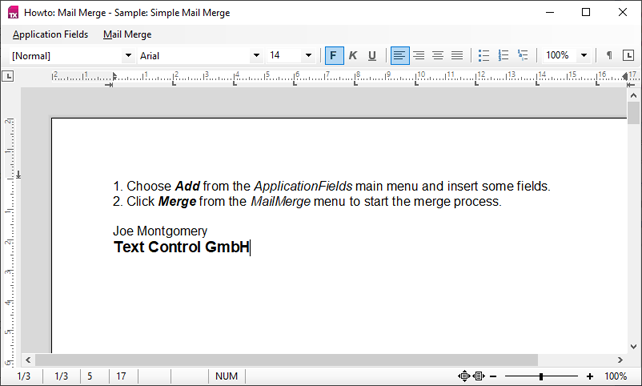
`MailMerge` can also work on the `TextControl` of the window. Then the document in the editor is the template, and after the merge the editor shows the result. The WPF mail merge sample of the installation works this way:
```csharp
private void mergeInEditorButton_Click(object sender, RoutedEventArgs e)
{
// The editor holds the template and afterward the merged invoice
using (MailMerge mailMerge = new MailMerge { TextComponent = textControl1 })
{
mailMerge.MergeJsonData(File.ReadAllText("invoice.json"));
}
}
```
Load the template into the editor with the same `LoadSettings` before merging. This way suits a window whose only job is to produce the document. When users design templates in the editor, merge in a `ServerTextControl` as above, so that the template survives the merge.
### Other Kinds of Data
`MailMerge` has one merge method for each kind of data: [Merge](https://docs.textcontrol.com/tx-text-control-dotnet-wpf/reference/txtextcontrol-documentserver/mailmerge/merge-method/llms-full.txt) for a `DataTable`, [MergeObject](https://docs.textcontrol.com/tx-text-control-dotnet-wpf/reference/txtextcontrol-documentserver/mailmerge/mergeobject-method/llms-full.txt) for a business object and [MergeObjects](https://docs.textcontrol.com/tx-text-control-dotnet-wpf/reference/txtextcontrol-documentserver/mailmerge/mergeobjects-method/llms-full.txt) for a collection of business objects. The field names are the column names or the names of the public properties. [MailMerge](https://docs.textcontrol.com/tx-text-control-dotnet-wpf/overview/components/mailmerge/llms-full.txt) in the Overview compares the data sources.
### Next Steps
- [Add Repeating Merge Blocks](https://docs.textcontrol.com/tx-text-control-dotnet-wpf/getting-started/mail-merge/blocks/llms-full.txt): add a table row for each invoice item.
- [Data Sources](https://docs.textcontrol.com/tx-text-control-dotnet-wpf/mail-merge/data-sources/llms-full.txt): JSON, business objects, DataSets and configuration files in detail.
- [Merge Events](https://docs.textcontrol.com/tx-text-control-dotnet-wpf/mail-merge/events/llms-full.txt): change fields and blocks while they are merged.
- [Mail Merge](https://docs.textcontrol.com/tx-text-control-dotnet-wpf/troubleshooting/mail-merge/llms-full.txt) in Troubleshooting: fields that stay empty, blocks that don't repeat and wrong formats.
---
## Nearby
- **Previous:** [Create a Template](https://docs.textcontrol.com/tx-text-control-dotnet-wpf/getting-started/mail-merge/template/llms-full.txt)
- **Next:** [Add Repeating Merge Blocks](https://docs.textcontrol.com/tx-text-control-dotnet-wpf/getting-started/mail-merge/blocks/llms-full.txt)