# Create a Template
> Add the RibbonReportingTab in XAML, load JSON sample data with DataSourceManager, insert merge fields with the ribbon or in code and show the field navigator.
- **Product:** TX Text Control .NET for WPF
- **Section:** Documentation
- **Kind:** Topic
- **Path:** TX Text Control .NET for WPF > Getting Started > Mail Merge > Create a Template
- **3211 words**
- **Web URL:** https://docs.textcontrol.com/tx-text-control-dotnet-wpf/getting-started/mail-merge/template/
- **LLMs URL:** https://docs.textcontrol.com/tx-text-control-dotnet-wpf/getting-started/mail-merge/template/llms.txt
- **LLMs-Full URL:** https://docs.textcontrol.com/tx-text-control-dotnet-wpf/getting-started/mail-merge/template/llms-full.txt
---
Every mail merge needs a template, a document whose placeholders, the merge fields, mark where data goes. The WPF ribbon of TX Text Control has a **Reporting** tab for designing templates, and it offers the field names of a data source in its drop-down menus. Starting from a ribbon window, you add the tab in XAML, give it sample data, insert merge fields with the ribbon and in code, and save the invoice template that [Merge Data into Fields](https://docs.textcontrol.com/tx-text-control-dotnet-wpf/getting-started/mail-merge/fields/llms-full.txt) and [Add Repeating Merge Blocks](https://docs.textcontrol.com/tx-text-control-dotnet-wpf/getting-started/mail-merge/blocks/llms-full.txt) fill with data.
### Prerequisites
- The ribbon window from [Create a WPF Ribbon Application](https://docs.textcontrol.com/tx-text-control-dotnet-wpf/getting-started/document-editor/ribbon/llms-full.txt), with a `Ribbon` element and a `TextControl` named `textControl1` in *MainWindow.xaml*.
- The Professional or Enterprise edition, which includes mail merge and the ribbon. See [Editions and Feature Availability](https://docs.textcontrol.com/tx-text-control-dotnet-wpf/overview/editions/llms-full.txt).
### The Sample Data
All three mail merge tutorials use one invoice as their data. Add a file named *invoice.json* to the project, with **Copy to Output Directory** set to **Copy if newer** in its properties:
```json
[
{
"Company": "Contoso Ltd.",
"Name": "Jane Miller",
"InvoiceNumber": "INV-1001",
"Items": [
{ "Description": "Consulting", "Quantity": 2, "Price": 150.00 },
{ "Description": "Training", "Quantity": 1, "Price": 480.00 }
]
}
]
```
The property names are the field names. `Company`, `Name` and `InvoiceNumber` become merge fields in this tutorial, and the `Items` array becomes a table that grows with the data in [Add Repeating Merge Blocks](https://docs.textcontrol.com/tx-text-control-dotnet-wpf/getting-started/mail-merge/blocks/llms-full.txt).
### Add the Reporting Tab
A ribbon tab of TX Text Control works with the `TextControl` whose property names the tab. In *MainWindow.xaml*:
1. Add a [RibbonReportingTab](https://docs.textcontrol.com/tx-text-control-dotnet-wpf/reference/txtextcontrol-wpf/ribbonreportingtab/llms-full.txt) inside the `Ribbon` element, after the tabs it already contains. You can drag it from the **TX Text Control 34.0** tab of the toolbox or type it:
```xml
```
2. Connect it by its name in the [RibbonReportingTab](https://docs.textcontrol.com/tx-text-control-dotnet-wpf/reference/txtextcontrol-wpf/textcontrol/ribbonreportingtab-property/llms-full.txt) attribute of the `TextControl` element, next to the attributes of the other tabs:
```xml
```
The `WPF` prefix is the XAML namespace of TX Text Control that Visual Studio declared when you added the first control from the toolbox. If your window declares it under another prefix, use that one.
When the application runs, the **Reporting** tab shows the groups **Data Source**, **Merge Fields**, **Merge Blocks** and **View**:

The **Field Navigation** button of the **View** group is hidden until a sidebar is connected to it, as described below.
### Load the Sample Data Into the Tab
The drop-down menus of the tab list the tables and fields of the data source in its [DataSourceManager](https://docs.textcontrol.com/tx-text-control-dotnet-wpf/reference/txtextcontrol-wpf/ribbonreportingtab/datasourcemanager-property/llms-full.txt). Load *invoice.json* in the `Loaded` handler of `textControl1`, after the editor has initialized its connection to the tab. The window's `Loaded` event can run before that initialization and leave `DataSourceManager` null.
The ribbon application already connects `Loaded="textControl1_Loaded"` on the `WPF:TextControl` element. Keep that attribute together with `RibbonReportingTab="ribbonReportingTab1"` and the existing tab connections. In *MainWindow.xaml.cs*, add the data-loading line to the existing handler as shown below; do not add a second handler with the same name or load the data from `Window_Loaded`:
```csharp
using System.IO;
using System.Windows;
using System.Windows.Controls.Ribbon;
using TXTextControl;
using TXTextControl.DocumentServer.Fields;
public partial class MainWindow : RibbonWindow
{
public MainWindow()
{
InitializeComponent();
}
private void textControl1_Loaded(object sender, RoutedEventArgs e)
{
// Fill the drop-downs of the Reporting tab with the names in the sample data
ribbonReportingTab1.DataSourceManager.LoadJson(File.ReadAllText("invoice.json"));
textControl1.Focus();
}
}
```
[LoadJson](https://docs.textcontrol.com/tx-text-control-dotnet-wpf/reference/txtextcontrol-documentserver-datasources/datasourcemanager/loadjson-method/llms-full.txt) accepts a single object or an array of objects and derives table names, column names and relations from the properties of the first object. The sample data only fills the drop-down menus. The merge later takes any data of the same structure.
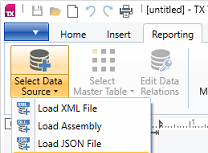
Users can load a data source themselves as well: the **Select Data Source** drop-down of the tab loads an XML file, a .NET assembly or a JSON file.
### Insert Merge Fields With the Ribbon
1. Press **F5** and type the text of the invoice, such as *Invoice* and *Dear*, into the editor.
2. Place the input position where the company name belongs.
3. Open the **Insert Merge Field** drop-down in the **Merge Fields** group and click **Company**.
4. Insert **Name** and **InvoiceNumber** the same way.
Each field appears in the text as a placeholder with its name. With the input position in a field, **Field Properties** in the same group opens the settings of that field.
### Show the Field Navigation Sidebar
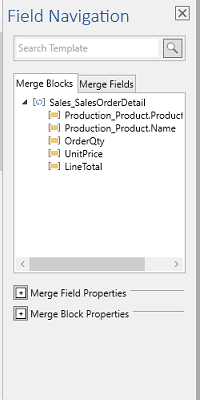
A template with many fields is easier to check in the field navigator, a panel that lists the merge fields and merge blocks of the document. It is shown by a [Sidebar](https://docs.textcontrol.com/tx-text-control-dotnet-wpf/reference/txtextcontrol-wpf/sidebar/llms-full.txt) that [FieldNavigatorSidebar](https://docs.textcontrol.com/tx-text-control-dotnet-wpf/reference/txtextcontrol-wpf/ribbonreportingtab/fieldnavigatorsidebar-property/llms-full.txt) connects to the tab. Add the sidebar to the `DockPanel`, before the `TextControl` element, and name it in the tab:
```xml
```
```xml
```
The **Field Navigation** button now appears in the **View** group and opens the sidebar:
[Add a Sidebar](https://docs.textcontrol.com/tx-text-control-dotnet-wpf/getting-started/document-editor/sidebar/llms-full.txt) explains sidebars in general.
### Insert Merge Fields in Code
Your code can insert merge fields too, for example from a menu or a list of field names of your own. Add the following method to `MainWindow` and call it with a field name:
```csharp
// Insert a merge field at the current input position
private void InsertMergeField(string name)
{
MergeField mergeField = new MergeField
{
Name = name, // matched with the data
Text = "«" + name + "»" // shown in the template until it is merged
};
mergeField.ApplicationField.HighlightMode = HighlightMode.Activated;
mergeField.ApplicationField.DoubledInputPosition = true;
textControl1.ApplicationFields.Add(mergeField.ApplicationField);
}
```
The code works as follows:
- A [MergeField](https://docs.textcontrol.com/tx-text-control-dotnet-wpf/reference/txtextcontrol-documentserver-fields/mergefield/llms-full.txt) represents a MERGEFIELD field of Microsoft Word. Its [Name](https://docs.textcontrol.com/tx-text-control-dotnet-wpf/reference/txtextcontrol-documentserver-fields/mergefield/name-property/llms-full.txt) is compared with the field names of the data, and its [Text](https://docs.textcontrol.com/tx-text-control-dotnet-wpf/reference/txtextcontrol-documentserver-fields/mergefield/text-property/llms-full.txt) is what the template shows before the merge.
- With [HighlightMode](https://docs.textcontrol.com/tx-text-control-dotnet-wpf/reference/txtextcontrol/textfield/highlightmode-property/llms-full.txt) set to `Activated`, the field is highlighted while the input position is in it. [DoubledInputPosition](https://docs.textcontrol.com/tx-text-control-dotnet-wpf/reference/txtextcontrol/textfield/doubledinputposition-property/llms-full.txt) gives the edges of the field two input positions, so that users can type inside or outside the field there.
- [ApplicationFields.Add](https://docs.textcontrol.com/tx-text-control-dotnet-wpf/reference/txtextcontrol/applicationfieldcollection/add-method/llms-full.txt) inserts the field at the input position of `textControl1`.
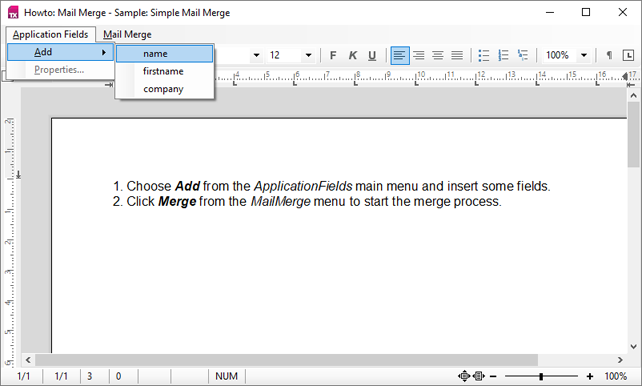
The mail merge sample that the installation copies to *Documents\\TX Text Control 34.0.NET for WPF\\CSharp\\Howto\\MailMerge* uses the same method for its **Application Fields** menu:
### Save the Template
Save the template as DOCX, for example from a **Save Template** button in the `DockPanel`:
```xml
```
```csharp
private void saveTemplateButton_Click(object sender, RoutedEventArgs e)
{
// Merge fields are saved as MERGEFIELD fields of Microsoft Word
textControl1.Save("invoice.docx", StreamType.WordprocessingML);
}
```
*invoice.docx* is written to the output folder, next to *invoice.json*. Microsoft Word shows the merge fields as its own MERGEFIELD fields. When TX Text Control loads the template again, [LoadSettings](https://docs.textcontrol.com/tx-text-control-dotnet-wpf/reference/txtextcontrol/loadsettings/llms-full.txt) has to import them as fields, which [Merge Data into Fields](https://docs.textcontrol.com/tx-text-control-dotnet-wpf/getting-started/mail-merge/fields/llms-full.txt) shows.
### Next Steps
- [Merge Data into Fields](https://docs.textcontrol.com/tx-text-control-dotnet-wpf/getting-started/mail-merge/fields/llms-full.txt): merge the invoice data into the template.
- [Merge Fields](https://docs.textcontrol.com/tx-text-control-dotnet-wpf/mail-merge/fields/llms-full.txt): field options, formats and special fields in detail.
- [Reporting Ribbon and Dialog Boxes](https://docs.textcontrol.com/tx-text-control-dotnet-wpf/mail-merge/ribbon-dialogs/llms-full.txt): every button and dialog box of the Reporting tab.
- [Mail Merge Examples](https://docs.textcontrol.com/tx-text-control-dotnet-wpf/examples/mail-merge/llms-full.txt): the TX Words Reporting sample and other complete applications.
---
## Nearby
- **Previous:** [Mail Merge](https://docs.textcontrol.com/tx-text-control-dotnet-wpf/getting-started/mail-merge/llms-full.txt)
- **Next:** [Merge Data Into Fields](https://docs.textcontrol.com/tx-text-control-dotnet-wpf/getting-started/mail-merge/fields/llms-full.txt)