# Template Preview
> Add a merge preview to a WPF template designer: a ToggleButton, DataSourceManager.Merge, MergeSettings, read-only EditMode and paging through records.
- **Product:** TX Text Control .NET for WPF
- **Section:** Documentation
- **Kind:** Topic
- **Path:** TX Text Control .NET for WPF > Mail Merge and Reporting > Template Preview
- **3205 words**
- **Web URL:** https://docs.textcontrol.com/tx-text-control-dotnet-wpf/mail-merge/template-preview/
- **LLMs URL:** https://docs.textcontrol.com/tx-text-control-dotnet-wpf/mail-merge/template-preview/llms.txt
- **LLMs-Full URL:** https://docs.textcontrol.com/tx-text-control-dotnet-wpf/mail-merge/template-preview/llms-full.txt
---
Designers of a template want to know what it produces before anyone merges real data: does the table grow, do empty lines disappear, are the prices formatted? A preview answers this in the editor itself. It merges the template in the WPF `TextControl` with the sample data of the **Reporting** tab, shows a few merged records one after the other and returns to the template when the designer is done. A toggle button and two buttons in XAML, plus some code behind, are all it takes.
The preview uses the data loaded into the tab, as in [Create a Template](https://docs.textcontrol.com/tx-text-control-dotnet-wpf/getting-started/mail-merge/template/#load-the-sample-data-into-the-tab). Merging the real data is a separate step with `MailMerge`, shown in [Merge Data into Fields](https://docs.textcontrol.com/tx-text-control-dotnet-wpf/getting-started/mail-merge/fields/llms-full.txt).
### How a Preview Works
The WPF **Reporting** tab has no preview button, but its [DataSourceManager](https://docs.textcontrol.com/tx-text-control-dotnet-wpf/reference/txtextcontrol-wpf/ribbonreportingtab/datasourcemanager-property/llms-full.txt) merges a template with the data it holds. [Merge](https://docs.textcontrol.com/tx-text-control-dotnet-wpf/reference/txtextcontrol-documentserver-datasources/datasourcemanager/merge-method/llms-full.txt) takes the template as a byte array in the internal TX Text Control format and returns a list with one merged document per record, limited to a number of records you choose. A preview therefore:
1. saves the template from the editor into a byte array and keeps it,
2. merges the byte array and loads a merged record into the editor,
3. loads the kept template again when the designer returns to it.
The TX Words *Reporting* sample for WPF works this way. Its **Merge and Export** button asks for the number of records and the empty elements to remove in a **Merge Settings** dialog box of the sample:
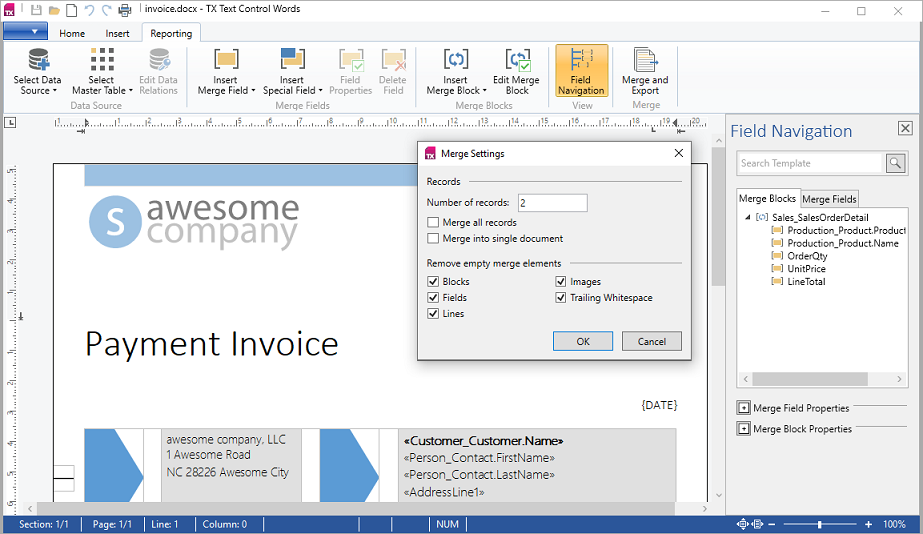
A **Results** tab then pages through the merged records, and its **Export Merge Result** dialog box saves them as files:
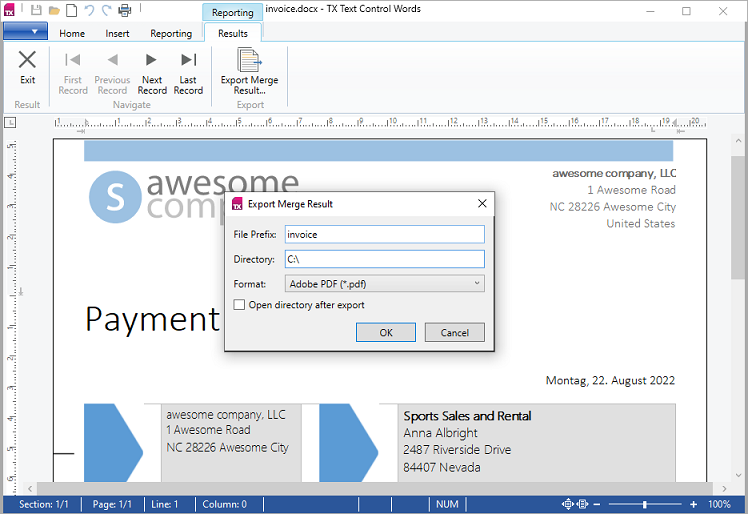
The source code of the sample is in *%USERPROFILE%\\Documents\\TX Text Control 34.0.NET for WPF\\CSharp\\TX Words\\Reporting*.
### Add a Preview
The following code extends the window of [Create a Template](https://docs.textcontrol.com/tx-text-control-dotnet-wpf/getting-started/mail-merge/template/llms-full.txt), which has a `RibbonReportingTab` named `ribbonReportingTab1` and a `TextControl` named `textControl1`. Add a toggle button and two buttons to the `DockPanel` of *MainWindow.xaml*, before the `TextControl` element:
```xml
```
The handlers go into *MainWindow.xaml.cs*:
```csharp
using System.Collections.Generic;
using System.Windows;
using TXTextControl;
using TXTextControl.DocumentServer.DataSources;
```
```csharp
private byte[] template;
private IList previews;
private int previewIndex;
private void previewToggle_Checked(object sender, RoutedEventArgs e)
{
DataSourceManager dataSourceManager = ribbonReportingTab1.DataSourceManager;
if (!dataSourceManager.IsMergingPossible)
{
MessageBox.Show(this, "Load a data source into the Reporting tab first.");
previewToggle.IsChecked = false;
return;
}
// Keep the template to restore it later
textControl1.Save(out template, BinaryStreamType.InternalUnicodeFormat);
MergeSettings mergeSettings = new MergeSettings
{
RemoveEmptyFields = true,
RemoveEmptyLines = false,
RemoveEmptyImages = false
};
// Merge the first five records, one document each
previews = dataSourceManager.Merge(template, 5, textControl1, mergeSettings);
previewIndex = 0;
ShowRecord();
textControl1.EditMode = EditMode.ReadAndSelect;
}
private void previewToggle_Unchecked(object sender, RoutedEventArgs e)
{
if (template == null)
{
return;
}
// Bring back the template and make it editable again
textControl1.Load(template, BinaryStreamType.InternalUnicodeFormat);
textControl1.EditMode = EditMode.Edit;
template = null;
previews = null;
Title = "Template";
}
private void ShowRecord()
{
textControl1.Load(previews[previewIndex], BinaryStreamType.InternalUnicodeFormat);
Title = $"Preview: record {previewIndex + 1} of {previews.Count}";
}
private void nextRecordButton_Click(object sender, RoutedEventArgs e)
{
if (previews != null && previewIndex < previews.Count - 1)
{
previewIndex++;
ShowRecord();
}
}
private void previousRecordButton_Click(object sender, RoutedEventArgs e)
{
if (previews != null && previewIndex > 0)
{
previewIndex--;
ShowRecord();
}
}
```
The code works as follows:
- The `Checked` and `Unchecked` events of the `ToggleButton` switch between the preview and the template.
- [IsMergingPossible](https://docs.textcontrol.com/tx-text-control-dotnet-wpf/reference/txtextcontrol-documentserver-datasources/datasourcemanager/ismergingpossible-property/llms-full.txt) is `false` while the requirements of `Merge` aren't met, for example before data is loaded. The toggle button is then reset.
- `textControl1.Save` writes the template with its fields and blocks into `template`, in `BinaryStreamType.InternalUnicodeFormat`.
- `Merge` merges at most five records into five documents. The `WPF.TextControl` is passed for licensing.
- [MergeSettings](https://docs.textcontrol.com/tx-text-control-dotnet-wpf/reference/txtextcontrol-documentserver-datasources/mergesettings/llms-full.txt) control what the merge removes. [RemoveEmptyLines](https://docs.textcontrol.com/tx-text-control-dotnet-wpf/reference/txtextcontrol-documentserver-datasources/mergesettings/removeemptylines-property/llms-full.txt) and [RemoveEmptyImages](https://docs.textcontrol.com/tx-text-control-dotnet-wpf/reference/txtextcontrol-documentserver-datasources/mergesettings/removeemptyimages-property/llms-full.txt) are `true` by default here and `false` by default in `MailMerge`; the code sets both to `false`, so the preview looks like a merge with the default settings of `MailMerge`.
- [EditMode](https://docs.textcontrol.com/tx-text-control-dotnet-wpf/reference/txtextcontrol-wpf/textcontrol/editmode-property/llms-full.txt) set to `ReadAndSelect` keeps users from editing the preview, whose changes would be lost.
- `ShowRecord` loads one merged document and shows its number in the title of the window.
Press **F5**, load data into the Reporting tab and click **Preview**. The first record appears; **Next** and **Previous** page through the others, and a second click on **Preview** restores the template.
### Merge Settings
`MergeSettings` has these properties:
| Property | Default | What it does |
|---|---|---|
| [AsSingleDocument](https://docs.textcontrol.com/tx-text-control-dotnet-wpf/reference/txtextcontrol-documentserver-datasources/mergesettings/assingledocument-property/llms-full.txt) | `false` | Combines the records into one document; each record starts on a new page after a section break |
| [RemoveEmptyBlocks](https://docs.textcontrol.com/tx-text-control-dotnet-wpf/reference/txtextcontrol-documentserver-datasources/mergesettings/removeemptyblocks-property/llms-full.txt) | `true` | Removes the content of merge blocks without data |
| [RemoveEmptyFields](https://docs.textcontrol.com/tx-text-control-dotnet-wpf/reference/txtextcontrol-documentserver-datasources/mergesettings/removeemptyfields-property/llms-full.txt) | `true` | Removes fields without data |
| [RemoveEmptyImages](https://docs.textcontrol.com/tx-text-control-dotnet-wpf/reference/txtextcontrol-documentserver-datasources/mergesettings/removeemptyimages-property/llms-full.txt) | `true` | Removes images without merge data |
| [RemoveEmptyLines](https://docs.textcontrol.com/tx-text-control-dotnet-wpf/reference/txtextcontrol-documentserver-datasources/mergesettings/removeemptylines-property/llms-full.txt) | `true` | Removes lines that are empty after the merge |
| [RemoveTrailingWhitespace](https://docs.textcontrol.com/tx-text-control-dotnet-wpf/reference/txtextcontrol-documentserver-datasources/mergesettings/removetrailingwhitespace-property/llms-full.txt) | `true` | Removes trailing whitespace |
With `AsSingleDocument`, the returned list holds a single document with all records, which designers scroll through instead of paging. [MergeCulture](https://docs.textcontrol.com/tx-text-control-dotnet-wpf/reference/txtextcontrol-documentserver-datasources/datasourcemanager/mergeculture-property/llms-full.txt) of the `DataSourceManager` sets the culture that formats numbers and dates; by default, it is the culture of the current thread.
### Find Fields Without Data in the Preview
During `Merge`, the `DataSourceManager` raises [FieldMerged](https://docs.textcontrol.com/tx-text-control-dotnet-wpf/reference/txtextcontrol-documentserver-datasources/datasourcemanager/fieldmerged-event/llms-full.txt) and [DataRowMerged](https://docs.textcontrol.com/tx-text-control-dotnet-wpf/reference/txtextcontrol-documentserver-datasources/datasourcemanager/datarowmerged-event/llms-full.txt) with the same arguments as the events of `MailMerge`. A `FieldMerged` handler can collect the fields whose `Merged` property is `false` and show them beside the preview; [Template Design](https://docs.textcontrol.com/tx-text-control-dotnet-wpf/mail-merge/template-design/#test-a-template) does the same with `MailMerge`.
### Preview With MailMerge
`DataSourceManager.Merge` uses the data the designer loaded into the tab. When the preview must use the data and settings of your real merge, merge with `MailMerge` in a `ServerTextControl` and load the result into the editor, as [Merge Data into Fields](https://docs.textcontrol.com/tx-text-control-dotnet-wpf/getting-started/mail-merge/fields/llms-full.txt) does. The description of the TX Words sample also recommends `MailMerge` for merging real documents, and uses the `DataSourceManager` for its preview only.
### Next Steps
- [Reporting Ribbon and WPF Dialog Boxes](https://docs.textcontrol.com/tx-text-control-dotnet-wpf/mail-merge/ribbon-dialogs/llms-full.txt): the tab whose data the preview merges.
- [Template Design](https://docs.textcontrol.com/tx-text-control-dotnet-wpf/mail-merge/template-design/llms-full.txt): test templates before they are used.
- [Merge Events](https://docs.textcontrol.com/tx-text-control-dotnet-wpf/mail-merge/events/llms-full.txt): follow a merge with events.
---
## Nearby
- **Previous:** [Reporting Ribbon and WPF Dialog Boxes](https://docs.textcontrol.com/tx-text-control-dotnet-wpf/mail-merge/ribbon-dialogs/llms-full.txt)
- **Next:** [Merge Events](https://docs.textcontrol.com/tx-text-control-dotnet-wpf/mail-merge/events/llms-full.txt)