# PDF Creation and Conversion
> Create PDF documents from a WPF TextControl: SaveSettings, document-level JavaScript, PDF/UA descriptions and validation, SVG watermarks and letter pages.
- **Product:** TX Text Control .NET for WPF
- **Section:** Documentation
- **Kind:** Topic
- **Path:** TX Text Control .NET for WPF > PDF Processing > PDF Creation and Conversion
- **5586 words**
- **Web URL:** https://docs.textcontrol.com/tx-text-control-dotnet-wpf/pdf/creation-conversion/
- **LLMs URL:** https://docs.textcontrol.com/tx-text-control-dotnet-wpf/pdf/creation-conversion/llms.txt
- **LLMs-Full URL:** https://docs.textcontrol.com/tx-text-control-dotnet-wpf/pdf/creation-conversion/llms-full.txt
---
In a WPF application, the document in the `TextControl` of a window becomes a PDF with one call of `Save` and the value `StreamType.AdobePDF`, and a `ServerTextControl` does the same for documents the user never sees. TX Text Control writes the PDF with its own filter, so Adobe Acrobat isn't needed on the user's machine. What follows covers what a PDF takes over from the document, the options of the save, accessible PDF documents and conversions into another page format.
Step by step, [Create a PDF](https://docs.textcontrol.com/tx-text-control-dotnet-wpf/getting-started/pdf/create/llms-full.txt) in Getting Started saves a first PDF with document properties, opens the **Save As** dialog box and creates PDF/A and password-protected files. PDF is part of the Professional and Enterprise editions, and PDF/A and PDF/UA of the Enterprise edition; see [Editions and Feature Availability](https://docs.textcontrol.com/tx-text-control-dotnet-wpf/overview/editions/llms-full.txt).
### What a PDF Keeps From the Document
Before the PDF is written, TX Text Control lays out the pages, so page breaks, headers, footers and repeated table header rows are the same as in the editor. These elements become interactive parts of the PDF:
| In the document | In the PDF |
|---|---|
| Hypertext links and document links | Links to websites and to targets within the document, as [Insert Hyperlinks and Bookmarks in Code](https://docs.textcontrol.com/tx-text-control-dotnet-wpf/document-editor/fields/#insert-hyperlinks-and-bookmarks-in-code) describes |
| Form fields | Fillable PDF form fields with their names and values, as [PDF Forms](https://docs.textcontrol.com/tx-text-control-dotnet-wpf/pdf/forms/llms-full.txt) describes |
| Signature fields | Signature fields that can be signed with a certificate when the document is saved, as [Signature Fields and Signature Appearance](https://docs.textcontrol.com/tx-text-control-dotnet-wpf/digital-signatures/signature-fields/llms-full.txt) describes |
| SVG images | Vector graphics |
| Headings, tables, text frames, tables of contents and footnotes | The tagged structure of an accessible PDF, since version 34.0 |
Only complete documents can be saved as PDF, not a selection.
### Choose What the PDF Contains
[SaveSettings](https://docs.textcontrol.com/tx-text-control-dotnet-wpf/reference/txtextcontrol/savesettings/llms-full.txt) holds the options you pass to [Save](https://docs.textcontrol.com/tx-text-control-dotnet-wpf/reference/txtextcontrol-wpf/textcontrol/save-method/llms-full.txt). For PDF, these properties matter:
| Property | What it does | Described in |
|---|---|---|
| `DocumentTitle`, `Author`, `DocumentSubject`, `DocumentKeywords` and more | Document properties of the PDF | [Document Metadata](https://docs.textcontrol.com/tx-text-control-dotnet-wpf/pdf/metadata/llms-full.txt) |
| `UserPassword`, `MasterPassword`, `DocumentAccessPermissions` | Encryption and what readers may do | [Passwords and Access Permissions](https://docs.textcontrol.com/tx-text-control-dotnet-wpf/pdf/passwords/llms-full.txt) |
| `ImageCompressionQuality`, `ImageMaxResolution` | Smaller files through compressed images | [Reduce the Size of PDF Files](https://docs.textcontrol.com/tx-text-control-dotnet-wpf/document-processing/saving-converting/#reduce-the-size-of-pdf-files) |
| [DocumentLevelJavaScriptActions](https://docs.textcontrol.com/tx-text-control-dotnet-wpf/reference/txtextcontrol/savesettings/documentleveljavascriptactions-property/llms-full.txt) | Scripts that run when the PDF is opened | [Run JavaScript When the PDF Opens](#run-javascript-when-the-pdf-opens) |
| `EmbeddedFiles` | Files attached to the PDF, such as invoice XML | [Attachments](https://docs.textcontrol.com/tx-text-control-dotnet-wpf/pdf/attachments/llms-full.txt) |
| `DigitalSignature`, `SignatureFields` | A digital signature applied while saving | [Digital Signatures](https://docs.textcontrol.com/tx-text-control-dotnet-wpf/digital-signatures/llms-full.txt) |
`OmittedContent` can't be used with PDF and PDF/A.
### Run JavaScript When the PDF Opens
The scripts in `DocumentLevelJavaScriptActions` are embedded at document level, and the PDF reader runs them when it opens the document. Add a button to the `DockPanel` of *MainWindow.xaml*, as in Getting Started:
```xml
```
The handler in *MainWindow.xaml.cs* saves the document of `textControl1` with a script that shows a notice:
```csharp
private void PdfWithScriptButton_Click(object sender, RoutedEventArgs e)
{
SaveSettings saveSettings = new SaveSettings()
{
DocumentTitle = "Quarterly Report",
// Runs in the PDF reader when the document is opened
DocumentLevelJavaScriptActions = new string[]
{
"app.alert('This report is confidential. Do not forward it.');"
}
};
textControl1.Save("report-with-script.pdf", StreamType.AdobePDF, saveSettings);
}
```
`app.alert` is part of the JavaScript API of PDF readers such as Adobe Acrobat Reader, which Adobe documents. The property takes an array, so a document can contain several scripts. PDF/A doesn't allow scripts, so they aren't embedded when the document is saved as PDF/A. The blog article [Add JavaScript to PDFs with TX Text Control in C# .NET: Time-Based Alerts Made Easy](https://www.textcontrol.com/blog/2025/06/13/add-javascript-to-pdfs-with-tx-text-control-in-c-dot-net-time-based-alerts-made-easy/) shows expiration notices built this way.
### Create an Accessible PDF (PDF/UA)
Screen readers and other assistive technologies need to know which text is a heading, what an image shows and which cells head a table. PDF/UA (ISO 14289) is the standard that puts this information into the file. Since version 34.0, every PDF of TX Text Control contains a logical structure beside its visible content, with chapters, headings, paragraphs and sections, text frames, tables, tables of contents and footnotes. Your document supplies the rest:
| Element | What you set |
|---|---|
| Document | A title in [DocumentSettings.DocumentTitle](https://docs.textcontrol.com/tx-text-control-dotnet-wpf/reference/txtextcontrol/documentsettings/documenttitle-property/llms-full.txt) |
| Headings | A structure level in [ParagraphFormat.StructureLevel](https://docs.textcontrol.com/tx-text-control-dotnet-wpf/reference/txtextcontrol/paragraphformat/structurelevel-property/llms-full.txt), usually through a paragraph style |
| Images, text frames and other frames | [FrameBase.DescriptiveText](https://docs.textcontrol.com/tx-text-control-dotnet-wpf/reference/txtextcontrol/framebase/descriptivetext-property/llms-full.txt) |
| Tables | Header rows with [TableRow.IsHeader](https://docs.textcontrol.com/tx-text-control-dotnet-wpf/reference/txtextcontrol/tablerow/isheader-property/llms-full.txt) and a summary in [Table.DescriptiveText](https://docs.textcontrol.com/tx-text-control-dotnet-wpf/reference/txtextcontrol/table/descriptivetext-property/llms-full.txt) |
| Links | [HypertextLink.DescriptiveText](https://docs.textcontrol.com/tx-text-control-dotnet-wpf/reference/txtextcontrol/hypertextlink/descriptivetext-property/llms-full.txt) and [DocumentLink.DescriptiveText](https://docs.textcontrol.com/tx-text-control-dotnet-wpf/reference/txtextcontrol/documentlink/descriptivetext-property/llms-full.txt) |
| Form fields | [FormField.DescriptiveText](https://docs.textcontrol.com/tx-text-control-dotnet-wpf/reference/txtextcontrol/formfield/descriptivetext-property/llms-full.txt) |
The following handler sets the title, turns the first paragraph into a heading and refuses to save while an image, table or form field has no description:
```csharp
private void AccessiblePdfButton_Click(object sender, RoutedEventArgs e)
{
// The title that screen readers announce
textControl1.DocumentSettings.DocumentTitle = "Quarterly Report";
// The first paragraph becomes a level 1 heading
textControl1.Select(0, 0);
textControl1.Selection.ParagraphFormat.StructureLevel = 1;
// Collect the elements that have no description yet
List missing = new List();
foreach (TXTextControl.Image image in textControl1.Images)
{
if (string.IsNullOrEmpty(image.DescriptiveText))
{
missing.Add("Image " + image.ID);
}
}
foreach (TXTextControl.Table table in textControl1.Tables)
{
if (string.IsNullOrEmpty(table.DescriptiveText))
{
missing.Add("Table " + table.ID);
}
}
foreach (FormField formField in textControl1.FormFields)
{
if (string.IsNullOrEmpty(formField.DescriptiveText))
{
missing.Add("Form field " + formField.Name);
}
}
if (missing.Count > 0)
{
MessageBox.Show(this, "Add a description to:\n" + string.Join("\n", missing), "Accessible PDF");
return;
}
textControl1.Save("report-accessible.pdf", StreamType.AdobePDF);
}
```
The code works as follows:
- `TXTextControl.Image` is written in full, because the code-behind of a window usually imports `System.Windows.Controls`, which has an `Image` class, too.
- `StructureLevel` 1 is a first-level heading and 0 body text. In real documents, the paragraph styles of the headings carry it.
- `Images` and `Tables` contain the images and tables of the text part with the input focus, here the main text, while `FormFields` contains the form fields of the whole document. Headers, footers and text frames are text parts of their own, as [Find the Fields of All Text Parts](https://docs.textcontrol.com/tx-text-control-dotnet-wpf/document-processing/fields/#find-the-fields-of-all-text-parts) explains.
With `StreamType.AdobePDFA`, the same document becomes a PDF/A-3a document that can conform to PDF/UA as well, as [PDF/A](https://docs.textcontrol.com/tx-text-control-dotnet-wpf/pdf/pdf-a/llms-full.txt) describes.
### Validate the Accessible PDF
The handler above checks the document before it's saved. To check the saved PDF itself against PDF/UA, Text Control offers `TXTextControl.PDF.Validation`, a .NET library that reads a PDF file or its bytes and reports its findings. It comes from [nuget.org](https://www.nuget.org/packages/TXTextControl.PDF.Validation) rather than the Text Control Private NuGet Feed and works without a `TextControl` or `ServerTextControl`:
- **.NET 10.** Version 34.1.0 targets .NET 10, so the WPF project must target .NET 10 (`net10.0-windows`). It can't be used in .NET Framework projects.
- **License.** It's free of charge for individuals and organizations that own a valid TX Text Control license, and its license is accepted when the package is installed.
Add it with **Project** > **Manage NuGet Packages...** and the source nuget.org, or in the folder of the project:
```bash
dotnet add package TXTextControl.PDF.Validation --version 34.1.0
```
The following handler saves the document of `textControl1` as PDF into memory, validates the bytes and writes the file only when the report has no blocking error. *MainWindow.xaml.cs* needs `using System.IO;`, `using TXTextControl.PDF.Validation;` and `using TXTextControl.PDF.Validation.Model;`, and `using System.Collections.Generic;` and `using System.Linq;` if implicit usings are off:
```csharp
private void ValidatePdfButton_Click(object sender, RoutedEventArgs e)
{
// Save the PDF into memory, so it can be checked before it's written
textControl1.Save(out byte[] pdf, BinaryStreamType.AdobePDF);
Report report = PdfUaValidator.Validate(pdf);
if (report.Status == ValidationStatus.Failed || report.Status == ValidationStatus.Blocked)
{
// The findings that didn't pass, with their rule and message
IEnumerable problems = report.Findings
.Where(finding => !finding.Passed)
.Select(finding => $"{finding.Severity} {finding.RuleId}: {finding.Message}");
MessageBox.Show(this, "The PDF isn't accessible yet:\n" + string.Join("\n", problems), "PDF/UA");
return;
}
File.WriteAllBytes("report-accessible.pdf", pdf);
MessageBox.Show(this, "Saved with the result " + report.Status + ".", "PDF/UA");
}
```
The code works as follows:
- `PdfUaValidator.Validate` accepts the path of a PDF file or the PDF as a byte array and returns a `Report` of the `TXTextControl.PDF.Validation.Model` namespace.
- `Status` is `Passed`, `CompletedWithWarnings`, `Failed` or `Blocked`. A report is `Failed` only when a finding of the severity `Error` failed. `Blocked` means the validation stopped early, for example at an encrypted PDF, so validate a document before you give it a password.
- A `Finding` carries a `RuleId` such as `UA-TITLE` for the document title or `UA-FIG-ALT` for image descriptions, a `Severity` of `Info`, `Warning` or `Error`, `Passed` and a `Message`.
`PdfUaValidator.ToJson(report, true)` writes the report as indented JSON, for example to keep it with the document or to compare two versions of a template. A validator can tell that an image has a description, not whether the description fits, so people still review the result. PDF/A conformance isn't validated: the `PDFA-CONFORMANCE` finding only says whether the file declares it. The blog article [Validating PDF/UA Documents in .NET C#: A Practical Guide](https://www.textcontrol.com/blog/2026/07/06/validating-pdf-ua-documents-in-dotnet-csharp/) builds on this, and [Verify the Signatures in Code](https://docs.textcontrol.com/tx-text-control-dotnet-wpf/digital-signatures/signing/#verify-the-signatures-in-code) uses the same package for digital signatures.
### Convert a Document to Another Page Format
A document keeps its page format in the PDF. For a PDF with other pages, leave the editor alone and change a copy in a `ServerTextControl`:
```csharp
private void LetterPdfButton_Click(object sender, RoutedEventArgs e)
{
// A copy of the document in the editor
byte[] document;
textControl1.Save(out document, BinaryStreamType.InternalUnicodeFormat);
using (ServerTextControl tx = new ServerTextControl())
{
// Initialize the new instance before using it
tx.Create();
tx.Load(document, BinaryStreamType.InternalUnicodeFormat);
// Page sizes and margins in 1/100 inch
tx.PageUnit = MeasuringUnit.CentiInch;
// US letter pages with margins of 0.75 inch in every section
foreach (TXTextControl.Section section in tx.Sections)
{
section.Format.PageSize = new PageSize();
section.Format.PageMargins = new PageMargins(75, 75, 75, 75);
}
tx.Save("report-letter.pdf", StreamType.AdobePDF);
}
}
```
The code works as follows:
- The copy in `BinaryStreamType.InternalUnicodeFormat`, the format of TX Text Control, keeps everything the document contains, and the user's document stays as it is.
- [ServerTextControl](https://docs.textcontrol.com/tx-text-control-dotnet-wpf/reference/txtextcontrol/servertextcontrol/llms-full.txt) is the document engine without a user interface. [Create](https://docs.textcontrol.com/tx-text-control-dotnet-wpf/reference/txtextcontrol/servertextcontrol/create-method/llms-full.txt) must be called before any other member.
- [PageUnit](https://docs.textcontrol.com/tx-text-control-dotnet-wpf/reference/txtextcontrol/servertextcontrol/pageunit-property/llms-full.txt) sets the unit of page sizes and margins. The reference names its type `PageUnit`; the enumeration in code is `MeasuringUnit`.
- Each [Section](https://docs.textcontrol.com/tx-text-control-dotnet-wpf/reference/txtextcontrol/section/llms-full.txt) has its own format. The [PageSize](https://docs.textcontrol.com/tx-text-control-dotnet-wpf/reference/txtextcontrol/pagesize/llms-full.txt) constructor without parameters creates a US letter page, 8.5 x 11 inches, and [SectionFormat.PageMargins](https://docs.textcontrol.com/tx-text-control-dotnet-wpf/reference/txtextcontrol/sectionformat/pagemargins-property/llms-full.txt) takes the margins.
The number of pages can change, because text and images flow onto the new pages. Files that aren't open in the window are converted the same way, as [Convert a Folder of Documents](https://docs.textcontrol.com/tx-text-control-dotnet-wpf/document-processing/saving-converting/#convert-a-folder-of-documents) shows. The opposite direction, from PDF to an editable document, is the subject of [PDF Import and Its Limitations](https://docs.textcontrol.com/tx-text-control-dotnet-wpf/pdf/import/llms-full.txt).
### Add a Watermark to Every Page
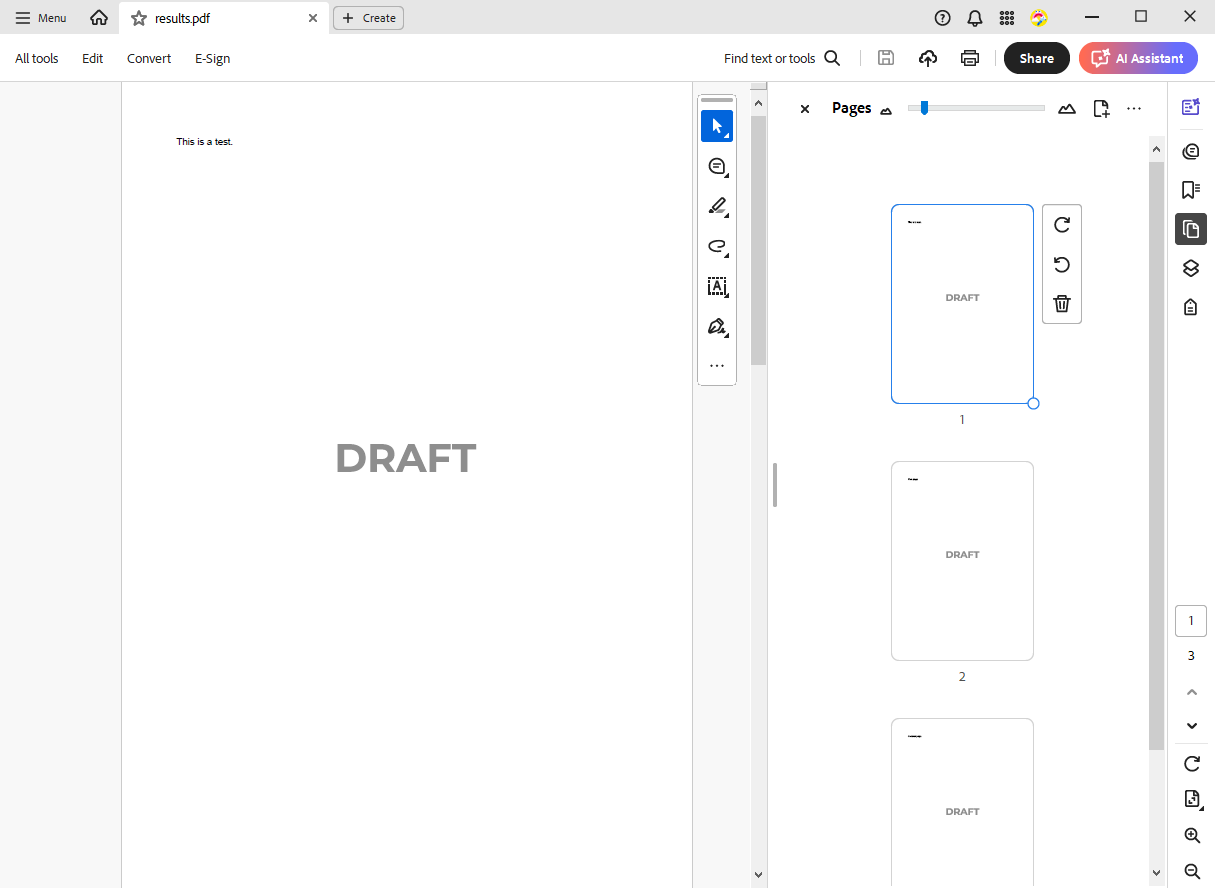
A watermark such as "DRAFT" or "CONFIDENTIAL" shows the status of a PDF on every page. It is an image in the header of each section, fixed on the page and placed below the text; [Add a Watermark to Every Page](https://docs.textcontrol.com/tx-text-control-dotnet-wpf/document-processing/images-shapes/#add-a-watermark-to-every-page) in Images, Text Frames, and Shapes explains the method `AddWatermark` and how it centers the image. So that the document in the window stays without a watermark, call the method for a copy:
```csharp
private void DraftPdfButton_Click(object sender, RoutedEventArgs e)
{
// A copy of the document in the editor
byte[] document;
textControl1.Save(out document, BinaryStreamType.InternalUnicodeFormat);
using (ServerTextControl tx = new ServerTextControl())
{
// Initialize the new instance before using it
tx.Create();
tx.Load(document, BinaryStreamType.InternalUnicodeFormat);
// Page sizes, margins and image locations in twips
tx.PageUnit = MeasuringUnit.Twips;
AddWatermark(tx.Sections, "draft.svg");
tx.Save("report-draft.pdf", StreamType.AdobePDF);
}
}
```
The copy lives in a `ServerTextControl`, as in [Convert a Document to Another Page Format](#convert-a-document-to-another-page-format), and [PageUnit](https://docs.textcontrol.com/tx-text-control-dotnet-wpf/reference/txtextcontrol/servertextcontrol/pageunit-property/llms-full.txt) gives its page sizes and margins the unit of the image. [ServerTextControl.Sections](https://docs.textcontrol.com/tx-text-control-dotnet-wpf/reference/txtextcontrol/servertextcontrol/sections-property/llms-full.txt) is the same kind of collection as the sections of the WPF `TextControl`, so `AddWatermark` takes it unchanged. Adobe Acrobat shows the watermark in the middle of every page:
The blog article [Adding Watermarks to PDF Documents in .NET C#](https://www.textcontrol.com/blog/2025/02/06/adding-watermarks-to-pdf-documents-in-net-c-sharp/) adds the watermark the same way before it saves the PDF.
### Next Steps
- [PDF/A](https://docs.textcontrol.com/tx-text-control-dotnet-wpf/pdf/pdf-a/llms-full.txt): save documents for long-term archiving.
- [Font Embedding and Substitution](https://docs.textcontrol.com/tx-text-control-dotnet-wpf/pdf/fonts/llms-full.txt): control which fonts end up in the PDF.
- [PDF Forms](https://docs.textcontrol.com/tx-text-control-dotnet-wpf/pdf/forms/llms-full.txt): create PDF documents that users fill in.
- [Passwords and Access Permissions](https://docs.textcontrol.com/tx-text-control-dotnet-wpf/pdf/passwords/llms-full.txt): protect the PDF.
---
## Nearby
- **Previous:** [PDF Processing](https://docs.textcontrol.com/tx-text-control-dotnet-wpf/pdf/llms-full.txt)
- **Next:** [PDF Import and Its Limitations](https://docs.textcontrol.com/tx-text-control-dotnet-wpf/pdf/import/llms-full.txt)