# Handling Untrusted Documents
> Load received files in the WPF TextControl safely: restrict file filters, skip images and links, handle FilterException, check link targets and redact text.
- **Product:** TX Text Control .NET for WPF
- **Section:** Documentation
- **Kind:** Topic
- **Path:** TX Text Control .NET for WPF > Security > Handling Untrusted Documents
- **4868 words**
- **Web URL:** https://docs.textcontrol.com/tx-text-control-dotnet-wpf/security/untrusted-documents/
- **LLMs URL:** https://docs.textcontrol.com/tx-text-control-dotnet-wpf/security/untrusted-documents/llms.txt
- **LLMs-Full URL:** https://docs.textcontrol.com/tx-text-control-dotnet-wpf/security/untrusted-documents/llms-full.txt
---
A WPF application that lets users open any file they receive will sooner or later meet a document that is damaged, mislabeled, encrypted or full of links to places nobody checked. None of this has to reach your users unfiltered. TX Text Control lets your code limit the formats of the **Open** dialog box, leave out images and links, report files that don't load, decide what a clicked link opens and keep file references in a folder of your choice.
The samples go into *MainWindow.xaml.cs* of a window with a `TextControl` named `textControl1`, as in [Create Your First WPF Application](https://docs.textcontrol.com/tx-text-control-dotnet-wpf/getting-started/document-editor/first-application/llms-full.txt). Add `using System.Diagnostics;`, `using System.IO;` and `using TXTextControl;` to the top of the file.
### Limit What the Open Dialog Box Offers
[WPF.TextControl.Load](https://docs.textcontrol.com/tx-text-control-dotnet-wpf/reference/txtextcontrol-wpf/textcontrol/load-method/llms-full.txt), called with a [StreamType](https://docs.textcontrol.com/tx-text-control-dotnet-wpf/reference/txtextcontrol/streamtype/enumeration/llms-full.txt) and [LoadSettings](https://docs.textcontrol.com/tx-text-control-dotnet-wpf/reference/txtextcontrol/loadsettings/llms-full.txt), shows the **Open** dialog box with the formats you combine with `|` as its file filters. This handler of an **Open** button accepts DOCX, RTF and PDF, loads neither images nor hypertext links and catches files that can't be loaded:
```csharp
private void OpenButton_Click(object sender, RoutedEventArgs e)
{
LoadSettings loadSettings = new LoadSettings()
{
// Don't load images and links of the document
LoadImages = false,
LoadHypertextLinks = false
};
try
{
// The Open dialog box offers only these formats
if (textControl1.Load(StreamType.WordprocessingML | StreamType.RichTextFormat | StreamType.AdobePDF,
loadSettings) == TXTextControl.WPF.DialogResult.OK)
{
Title = System.IO.Path.GetFileName(loadSettings.LoadedFile);
}
}
catch (FilterException exception)
{
// For example WrongFileType, NotWellFormed or InvalidPassword
MessageBox.Show(this, "The document can't be opened: " + exception.Reason);
}
}
```
The code works as follows:
- Only the combined `StreamType` values appear as file filters. Leave out formats your application has no use for.
- [LoadImages](https://docs.textcontrol.com/tx-text-control-dotnet-wpf/reference/txtextcontrol/loadsettings/loadimages-property/llms-full.txt) and [LoadHypertextLinks](https://docs.textcontrol.com/tx-text-control-dotnet-wpf/reference/txtextcontrol/loadsettings/loadhypertextlinks-property/llms-full.txt) set to `false` leave out images and links where only the text counts, such as in a preview; [Control the Import With LoadSettings](https://docs.textcontrol.com/tx-text-control-dotnet-wpf/document-processing/loading/#control-the-import-with-loadsettings) lists these and the other load settings.
- In WPF, `Load` returns a [TXTextControl.WPF.DialogResult](https://docs.textcontrol.com/tx-text-control-dotnet-wpf/reference/txtextcontrol-wpf/dialogresult/enumeration/llms-full.txt), not the `DialogResult` of Windows Forms. After `OK`, [LoadedFile](https://docs.textcontrol.com/tx-text-control-dotnet-wpf/reference/txtextcontrol/loadsettings/loadedfile-property/llms-full.txt) holds the path of the file.
- A file that can't be loaded throws a [FilterException](https://docs.textcontrol.com/tx-text-control-dotnet-wpf/reference/txtextcontrol/filterexception/llms-full.txt); the next section covers its reasons.
### React to Files That Fail to Load
[Reason](https://docs.textcontrol.com/tx-text-control-dotnet-wpf/reference/txtextcontrol/filterexception/reason-property/llms-full.txt) tells why a file failed. With documents from outside, expect reasons such as `WrongFileType` for a file that isn't what its extension says, `NotWellFormed` or `BadToken` for a damaged file, `FileTooBig`, `Encrypted` for an encryption scheme TX Text Control doesn't support and `InvalidPassword` for a PDF that needs a user password; [Read the Reason of a FilterException](https://docs.textcontrol.com/tx-text-control-dotnet-wpf/troubleshooting/conversion/#read-the-reason-of-a-filterexception) lists them all.
Put every `Load` of a document from outside into a `try` block, and tell the user what went wrong instead of letting the exception end the application. A PDF with a user password is loaded again with the password, as [Load Password-Protected PDF Documents](https://docs.textcontrol.com/tx-text-control-dotnet-wpf/document-processing/loading/#load-password-protected-pdf-documents) shows; the encryption TX Text Control can import is listed in [Encrypted PDF Documents](https://docs.textcontrol.com/tx-text-control-dotnet-wpf/pdf/import/#encrypted-pdf-documents). [Document Conversion](https://docs.textcontrol.com/tx-text-control-dotnet-wpf/troubleshooting/conversion/llms-full.txt) helps with files that should load and don't.
### Decide What a Link Opens
Hypertext links in a document can lead to websites, local files or other programs. A click on a link in the `TextControl` has no effect until your application handles [HypertextLinkClicked](https://docs.textcontrol.com/tx-text-control-dotnet-wpf/reference/txtextcontrol-wpf/textcontrol/hypertextlinkclicked-event/llms-full.txt). Attach the handler in *MainWindow.xaml*:
```xml
```
The handler opens web addresses only, after asking the user:
```csharp
private void textControl1_HypertextLinkClicked(object sender, HypertextLinkEventArgs e)
{
// Open web addresses only, and only when the user agrees
if (Uri.TryCreate(e.HypertextLink.Target, UriKind.Absolute, out Uri uri)
&& (uri.Scheme == Uri.UriSchemeHttps || uri.Scheme == Uri.UriSchemeHttp))
{
if (MessageBox.Show(this, "Open " + uri.AbsoluteUri + "?", "Open Link",
MessageBoxButton.YesNo) == MessageBoxResult.Yes)
{
Process.Start(new ProcessStartInfo(uri.AbsoluteUri) { UseShellExecute = true });
}
}
}
```
The code works as follows:
- [HypertextLinkEventArgs.HypertextLink](https://docs.textcontrol.com/tx-text-control-dotnet-wpf/reference/txtextcontrol/hypertextlinkeventargs/hypertextlink-property/llms-full.txt) is the link that was clicked, and [Target](https://docs.textcontrol.com/tx-text-control-dotnet-wpf/reference/txtextcontrol/hypertextlink/target-property/llms-full.txt) is where it points, exactly as the document says.
- The message box shows the real target, which can differ from the text of the link.
- Any other target, such as a path to a file or a program, is ignored. The TX Words sample *Open Hyperlink* opens linked files with a new instance of the application; if you do the same, decide first which files your application may open.
Links to bookmarks in the same document raise [DocumentLinkClicked](https://docs.textcontrol.com/tx-text-control-dotnet-wpf/reference/txtextcontrol-wpf/textcontrol/documentlinkclicked-event/llms-full.txt) instead and stay inside the document; [Fields, Hyperlinks, and Bookmarks](https://docs.textcontrol.com/tx-text-control-dotnet-wpf/document-editor/fields/llms-full.txt) covers both kinds of links.
### Keep File References in One Folder
Images and link targets can be stored in a document as absolute file paths of the computer it was created on. [ImageSearchPath](https://docs.textcontrol.com/tx-text-control-dotnet-wpf/reference/txtextcontrol/loadsettings/imagesearchpath-property/llms-full.txt) sets a folder that replaces all absolute file paths used in the document, so that these resources are looked for in that folder only:
```csharp
LoadSettings loadSettings = new LoadSettings()
{
// Resolve the file paths of the document in this folder only
ImageSearchPath = System.IO.Path.Combine(AppContext.BaseDirectory, "Resources")
};
textControl1.Load("received.rtf", StreamType.RichTextFormat, loadSettings);
```
### Remove Hidden Content Before a Document Moves On
Beyond its visible text, a document can hold comments, tracked changes that still contain deleted text, properties such as the author and, in a PDF, attached files. Before your application forwards a received document or saves a copy for someone else, remove what isn't meant for the recipient. The blog article [Sanitizing Data in Document Pipelines: A Practical Approach with TX Text Control in C# .NET](https://www.textcontrol.com/blog/2026/04/20/sanitizing-data-in-document-pipelines-a-practical-approach-with-tx-text-control-in-csharp-dotnet/) first reports what a document contains, then clears metadata, form field values, comments and tracked changes, and reports again for an audit. The collections it works with are described in [Comments and Tracked Changes](https://docs.textcontrol.com/tx-text-control-dotnet-wpf/document-processing/comments-changes/llms-full.txt).
### Redact Text
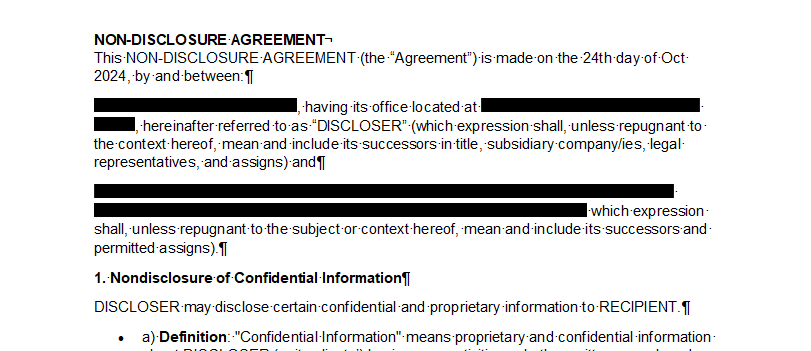
Covering a name with a black rectangle hides it only on screen: the name stays in the document, where a search finds it and a copy brings it back. Real redaction deletes the text and puts a black box of the same size where it was. The following handler redacts the text the user has selected, one line at a time. Add `using System.Collections.Generic;` and `using System.Text;` to the file as well:
```csharp
private void RedactButton_Click(object sender, RoutedEventArgs e)
{
int start = textControl1.Selection.Start;
int end = start + textControl1.Selection.Length;
// One black box for each line of the selection
List<(int Start, int Length, System.Drawing.Rectangle Bounds)> boxes =
new List<(int, int, System.Drawing.Rectangle)>();
int boxStart = -1, boxEnd = -1, boxLine = -1;
System.Drawing.Rectangle boxBounds = System.Drawing.Rectangle.Empty;
for (int position = start; position <= end; position++)
{
// TextChars counts from 1, text positions from 0
TextChar textChar = position < end ? textControl1.TextChars[position + 1] : null;
TXTextControl.Line line = position < end ? textControl1.Lines.GetItem(position) : null;
// Close the box at the end of the selection, at a break and at a new line
if (boxStart >= 0 && (textChar == null || char.IsControl(textChar.Char) || line.Number != boxLine))
{
boxes.Add((boxStart, boxEnd - boxStart + 1, boxBounds));
boxStart = -1;
}
// Spaces and breaks don't start a box
if (textChar == null || char.IsWhiteSpace(textChar.Char) || char.IsControl(textChar.Char))
{
continue;
}
// From the top of the character to the baseline of its line, in twips
System.Drawing.Rectangle bounds = textChar.Bounds;
bounds.Height = line.Baseline - bounds.Top;
if (boxStart < 0)
{
boxStart = position;
boxLine = line.Number;
boxBounds = bounds;
}
else
{
boxBounds = System.Drawing.Rectangle.Union(boxBounds, bounds);
}
boxEnd = position;
}
// Replace the text from the last box to the first, so that the positions stay valid
for (int i = boxes.Count - 1; i >= 0; i--)
{
textControl1.Select(boxes[i].Start, boxes[i].Length);
textControl1.Selection.Text = "";
byte[] svg = CreateBlackBox(boxes[i].Bounds.Size);
using (MemoryStream stream = new MemoryStream(svg, 0, svg.Length, false, true))
{
// -1 inserts the image at the input position, where the text was
textControl1.Images.Add(new TXTextControl.Image(stream: stream), -1);
}
}
}
private static byte[] CreateBlackBox(System.Drawing.Size size)
{
// 20 twips are one point
string svg = "";
return Encoding.UTF8.GetBytes(svg);
}
```
The code works as follows:
- [Selection.Start](https://docs.textcontrol.com/tx-text-control-dotnet-wpf/reference/txtextcontrol/selection/start-property/llms-full.txt) and [Selection.Length](https://docs.textcontrol.com/tx-text-control-dotnet-wpf/reference/txtextcontrol/selection/length-property/llms-full.txt) give the selected range. [TextChars](https://docs.textcontrol.com/tx-text-control-dotnet-wpf/reference/txtextcontrol-wpf/textcontrol/textchars-property/llms-full.txt) holds the characters of the main text, counted from 1: text position 0 is `TextChars[1]`.
- [TextChar.Bounds](https://docs.textcontrol.com/tx-text-control-dotnet-wpf/reference/txtextcontrol/textchar/bounds-property/llms-full.txt) is a `System.Drawing.Rectangle` in twips, measured from the upper left corner of the document; the full type names `System.Drawing.Rectangle` and `TXTextControl.Line` avoid a clash with the `Rectangle` and `Line` shapes of `System.Windows.Shapes`, which the Visual Studio template imports. [LineCollection.GetItem](https://docs.textcontrol.com/tx-text-control-dotnet-wpf/reference/txtextcontrol/linecollection/getitem-method/llms-full.txt) returns the [Line](https://docs.textcontrol.com/tx-text-control-dotnet-wpf/reference/txtextcontrol/line/llms-full.txt) of a position: a new [Number](https://docs.textcontrol.com/tx-text-control-dotnet-wpf/reference/txtextcontrol/line/number-property/llms-full.txt) starts a new box, and the [Baseline](https://docs.textcontrol.com/tx-text-control-dotnet-wpf/reference/txtextcontrol/line/baseline-property/llms-full.txt) is the bottom of the box.
- [Selection.Text](https://docs.textcontrol.com/tx-text-control-dotnet-wpf/reference/txtextcontrol/selection/text-property/llms-full.txt) set to an empty string deletes the text of a box, and [ImageCollection.Add](https://docs.textcontrol.com/tx-text-control-dotnet-wpf/reference/txtextcontrol/imagecollection/add-method/llms-full.txt) with `-1` inserts the SVG image inline at that position.
- `CreateBlackBox` gives the SVG its size in points, a twentieth of the twips. The [Image](https://docs.textcontrol.com/tx-text-control-dotnet-wpf/reference/txtextcontrol/image/constructor/llms-full.txt) constructor gets the stream as the named argument `stream:`, because its overload for a `System.Drawing.Image` would otherwise need the *System.Drawing.Common* library, as [Images, Text Frames, and Shapes](https://docs.textcontrol.com/tx-text-control-dotnet-wpf/document-processing/images-shapes/#insert-an-image) explains.
In the editor, black boxes take the place of the selected names and addresses:
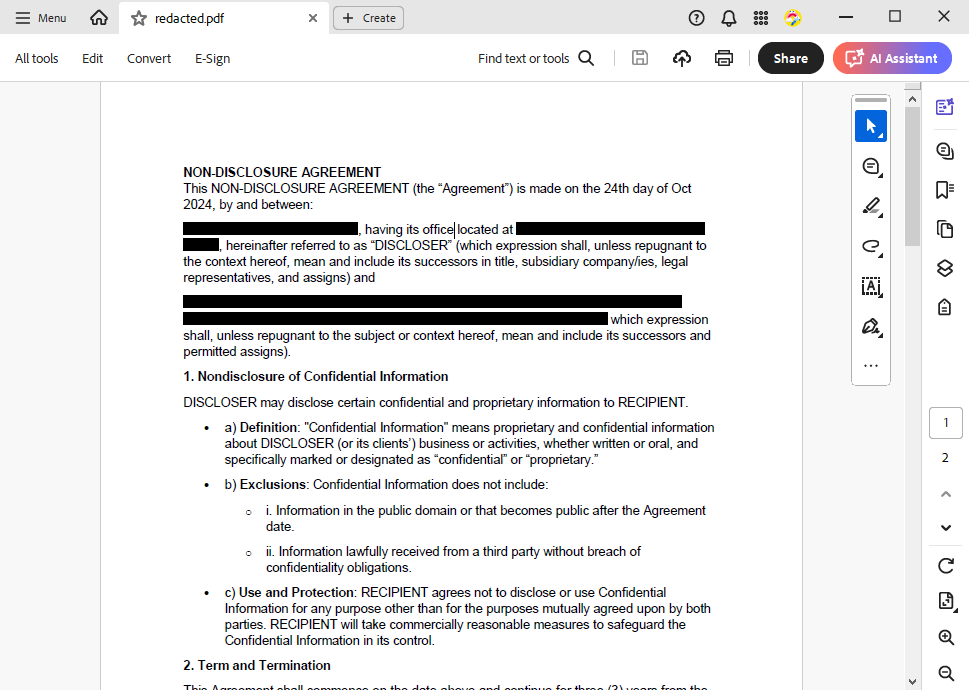
Save the result as PDF, for example with `textControl1.Save("contract-redacted.pdf", StreamType.AdobePDF)`, before it leaves your application. The text behind the boxes isn't in the PDF, so nobody can select, copy or find it:
The handler follows the technique of the blog article [True Document and PDF Text Redaction in .NET C#](https://www.textcontrol.com/blog/2024/11/05/true-document-and-pdf-text-redaction-in-net-c-sharp/). In its sample, the user marks several passages as [SubTextPart](https://docs.textcontrol.com/tx-text-control-dotnet-wpf/reference/txtextcontrol/subtextpart/llms-full.txt) objects named *tx\_redact* first, and all of them are redacted together; the repository [TextControl/Redaction](https://github.com/TextControl/Redaction) holds its `Redaction` class, written for `ServerTextControl`. [A Rule-Based PHI and PII Risk Scanner for Documents Using C# .NET](https://www.textcontrol.com/blog/2026/02/03/a-rule-based-phi-and-pii-risk-scanner-for-documents-using-csharp-dotnet/) helps to find what to redact: it checks the text of a document against regular expressions defined in JSON rules and reports each match with its location.
### Next Steps
- [PDF Passwords and Permissions](https://docs.textcontrol.com/tx-text-control-dotnet-wpf/security/pdf-passwords/llms-full.txt): encrypted PDF documents and their permissions.
- [Loading and Saving Documents](https://docs.textcontrol.com/tx-text-control-dotnet-wpf/document-editor/load-save/llms-full.txt): all load and save options of the WPF `TextControl`.
- [Document Protection and User Permissions](https://docs.textcontrol.com/tx-text-control-dotnet-wpf/security/document-protection/llms-full.txt): control what users change in the documents you hand out.
- [Security Overview](https://docs.textcontrol.com/tx-text-control-dotnet-wpf/security/overview/llms-full.txt): the security model of a WPF application with TX Text Control.
---
## Nearby
- **Previous:** [Document Protection and User Permissions](https://docs.textcontrol.com/tx-text-control-dotnet-wpf/security/document-protection/llms-full.txt)
- **Next:** [PDF Passwords and Permissions](https://docs.textcontrol.com/tx-text-control-dotnet-wpf/security/pdf-passwords/llms-full.txt)