
.NET Framework
Applications that still run on the .NET Framework use the same NuGet package as those on .NET 10: TXTextControl.ReportingCloud contains a build for the .NET Framework 4.5 and later. The ASP.NET MVC 5 application below, built in Visual Studio 2022 with the .NET Framework 4.8, reads the templates of your template storage and lists them on its home page. A second action then merges the demo template sample_invoice.tx into a PDF.
For a new application, prefer ASP.NET Core on .NET 10, as in the ASP.NET Core tutorial. ASP.NET MVC 5 and the .NET Framework run on Windows only.
Prerequisites
- A ReportingCloud account and an API key. A trial account is enough, and it has
sample_invoice.txin its template storage. Creating an Account shows how to sign up, and API Keys how to create a key in the ReportingCloud portal. - Visual Studio 2022 and the .NET Framework 4.8 on Windows.
Set the API Key
The application reads the API key from the environment variable REPORTINGCLOUD_API_KEY, which keeps it out of your source code. Set the variable for your Windows user in a command prompt or in PowerShell:
setx REPORTINGCLOUD_API_KEY "<API key>"
Replace <API key> with a key from the Manage Account page of the portal. A program reads the environment variables when it starts, so set the variable before you start Visual Studio. If Visual Studio is already open, close it and start it again.
Create the Project
In Visual Studio 2022, choose Create a new project.
Select ASP.NET Web Application (.NET Framework) as the project template and confirm with Next.
Enter
MyTemplateListas the project name, select .NET Framework 4.8 as the Framework and confirm with Create.In the next dialog, choose Empty as the project template, check MVC under Add folders & core references and confirm with Create.
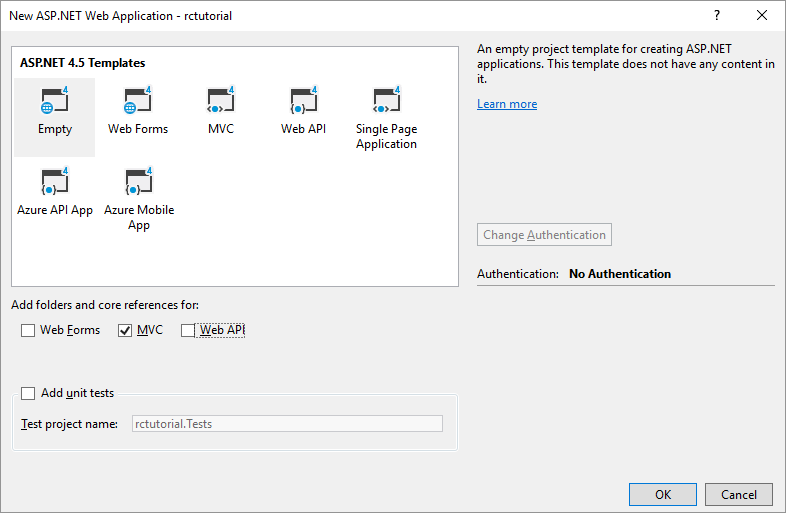
The picture shows the dialog of an older Visual Studio version. Visual Studio 2022 arranges it differently but offers the same two choices.
The MVC option adds the folders and core references of an MVC application, such as the Controllers folder. The project has no controller yet.
Install the NuGet Package
- In Solution Explorer, select your project and choose Manage NuGet Packages... from the Project main menu.
- Select nuget.org as the Package source.
- Browse for
TXTextControl.ReportingCloudand install it.
Instead, you can open the Package Manager Console from Tools > NuGet Package Manager and type:
Install-Package TXTextControl.ReportingCloud
In a .NET Framework project, NuGet uses the .NET Framework 4.5 build of the package, version 1.205.500, and installs its dependencies with it: Microsoft.AspNet.WebApi 5.2.6, whose client library the SDK uses to send and read JSON, and Newtonsoft.Json 10.0.3.
Write the Controller
In Solution Explorer, right-click the Controllers folder and choose Add > Controller....
Choose MVC 5 Controller - Empty and confirm with Add.
Name the controller
HomeControllerand confirm with Add.Replace the content of HomeController.cs with the following code:
using System;
using System.Collections.Generic;
using System.Web.Mvc;
using TXTextControl.ReportingCloud;

namespace MyTemplateList.Controllers
{
    public class HomeController : Controller
    {
        // GET: Home
        public ActionResult Index()
        {
            ReportingCloud reportingCloud = CreateReportingCloud();

            // Request the list of templates in the template storage
            List<Template> templates = reportingCloud.ListTemplates();

            return View(templates);
        }

        private static ReportingCloud CreateReportingCloud()
        {
            // Read the API key from the environment, never from source code
            string apiKey = Environment.GetEnvironmentVariable("REPORTINGCLOUD_API_KEY");

            if (string.IsNullOrEmpty(apiKey))
            {
                throw new InvalidOperationException("Set the environment variable REPORTINGCLOUD_API_KEY.");
            }

            return new ReportingCloud(apiKey);
        }
    }
}
Adding the controller also creates the folder Views/Home for its views.
Write the View
In Solution Explorer, right-click the folder Views/Home and choose Add > View.
Name the view
Indexand confirm with Add.Replace the content of Index.cshtml with the following code:
@model List<TXTextControl.ReportingCloud.Template>

@{
    ViewBag.Title = "Index";
}

<h2>All Templates</h2>

<table>
    <tr>
        <th>Filename</th>
        <th>Modified</th>
    </tr>

    @foreach (TXTextControl.ReportingCloud.Template template in Model)
    {
        <tr>
            <td>@template.TemplateName</td>
            <td>@template.Modified</td>
        </tr>
    }
</table>
What the Code Does
ReportingCloud, in the namespaceTXTextControl.ReportingCloud, is the class of the SDK with a method for each endpoint of the Web API; those of the two tracked-changes endpoints are in its propertyProcessing.Review. The constructor with one string takes an API key, which the SDK sends with every request in the headerAuthorization: ReportingCloud-APIKey <key>. The helper methodCreateReportingCloudreads the key fromREPORTINGCLOUD_API_KEY, throws anInvalidOperationExceptionwhen the variable is empty and creates the instance, so that each action of the controller can call it.ListTemplatessends the request GET /v1/templates/list and returns aList<Template>, one element per template in your storage.Templatedescribes one template:TemplateNameis its file name in the storage,Modifiedthe date and time of its last change as aDateTimeandSizeits size in bytes.ActionResultis the return type of an MVC 5 action.View(templates)passes the list to the view as its model, and the view writes a table row for each template.
Run the Application
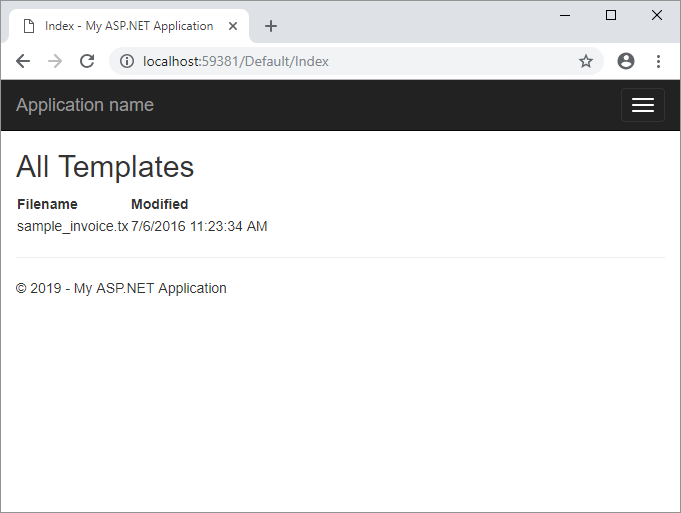
Press F5 to build and start the application. The browser opens the home page, which lists the templates of your storage with their names and the dates of their last changes. A new trial account has one template, sample_invoice.tx; templates that you added from the gallery or uploaded appear as well.
Merge a Template
The same class merges templates. Add the following action to HomeController, below Index:
// GET: Home/Invoice
public ActionResult Invoice()
{
    ReportingCloud reportingCloud = CreateReportingCloud();

    // The property names match the merge fields and the merge block item
    var invoice = new
    {
        invoice_no = "778723",
        billto_name = "Joey Montana",
        billto_companyname = "Montana, LLC",
        item = new[]
        {
            new { qty = "1", item_no = "1", item_description = "Item description 1", item_total = "2130.40" },
            new { qty = "1", item_no = "2", item_description = "Item description 2", item_total = "5543" }
        },
        total = "8210.538"
    };

    MergeBody mergeBody = new MergeBody { MergeData = new[] { invoice } };

    List<byte[]> documents = reportingCloud.MergeDocument(
        mergeBody, "sample_invoice.tx", ReturnFormat.PDF);

    return File(documents[0], "application/pdf", "invoice.pdf");
}
The code works as follows:
- The anonymous object is one record, the data of one document. Its properties fill the merge fields of the same name in
sample_invoice.tx, placeholders such asinvoice_no, and the arrayitemfills the merge blockitem, which repeats a table row for each line item. Merge fields without data are removed from the document, the default of the merge settingremoveEmptyFields. MergeBodycarries the data inMergeData. The SDK sends it as JSON; the array with one record becomes themergeDataarray of the request.MergeDocumentsendsPOST /v1/document/mergewith the template name andReturnFormat.PDFand returns one byte array per created document. Each successful call counts 1 against the monthly document quota of your plan.Filesends the PDF to the browser as a download named invoice.pdf.
Start the application and open /Home/Invoice below its address. The browser downloads invoice.pdf, the demo invoice filled with the data; a trial account adds the ReportingCloud logo to it.
The Web API tutorial merges the same template with the complete invoice data, and ASP.NET Core builds the data from classes instead of an anonymous object.
Troubleshooting
The methods of the SDK throw an ArgumentException when the Web API answers with an error. Its message is the response body of the Web API, without the status code.
- The API key is not set. The action throws
InvalidOperationExceptionwith the message "Set the environment variable REPORTINGCLOUD_API_KEY." Visual Studio was started before the variable was set: close it, open the project again and press F5. - The request is forbidden. The Web API answers with status code 403 when the API key is wrong or deleted. For
MergeDocument, it also does so when the document quota of the month is used up or when more than two requests of your account arrive at the same time. Compare the key with the list on Manage Account in the portal. - The template is not found.
MergeDocumentfails with status code 400 when the template is not in your storage. The list on the home page shows the names that are.
Next Steps
- ASP.NET Core: the SDK in an ASP.NET Core application on .NET 10.
- Managing Templates: upload, list, download and delete the templates of your storage.
- Merge Data: how objects and arrays map to merge fields and merge blocks.
- .NET: every method of the .NET SDK.