
Manage Account
Your subscription, your quotas, your password and your API keys share one page of the ReportingCloud portal: Manage Account. There you see which plan the account runs on and until when, add a subscription or convert a trial into a Free account, change the password and create the API keys your applications authenticate with. Applications read the same settings with the account endpoints of the Web API.
Open Manage Account
Click Manage Account in the Account section of the side menu. The page Change your account settings opens:
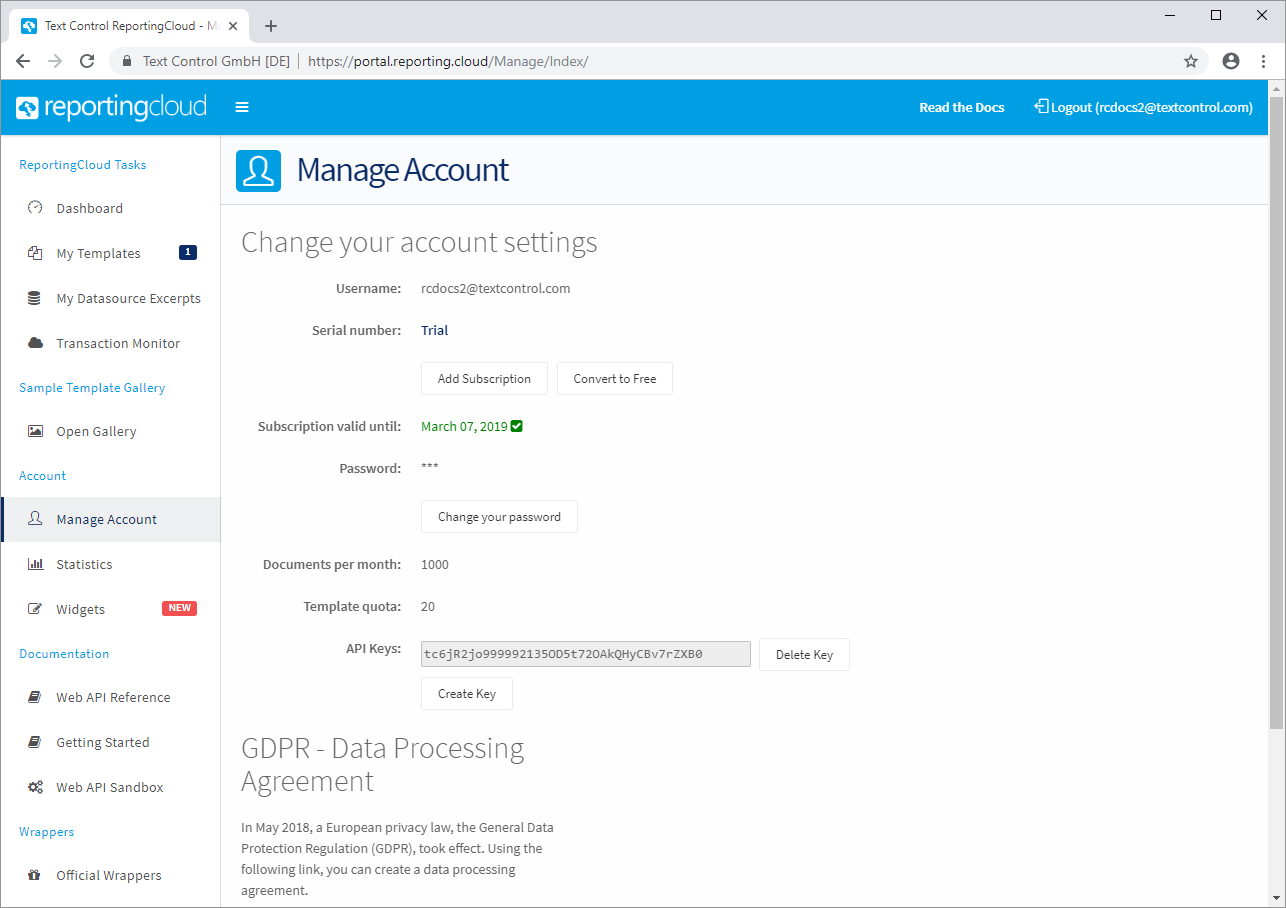
| Setting | What it shows |
|---|---|
| Username | The email address you log in with |
| Serial number | Trial for a trial account, otherwise the serial number of your subscription. On a trial account, the buttons Add Subscription and Convert to Free follow. |
| Subscription valid until | The date the trial or the subscription ends, with a green check mark |
| Password | Hidden, with the button Change your password |
| Documents per month | The document quota of your plan, such as 1000 on a trial account |
| Template quota | The number of templates the template storage holds, such as 20 on a trial account |
| API Keys | Your API keys, each with Delete Key, and the button Create Key |
How much of the quotas you have used this month is on the dashboard and on the Statistics page, as Transactions and Statistics describes. Plans and Licensing lists the quotas of every plan.
Add a Subscription
Add Subscription turns the account into a paid account: you enter the serial number of a subscription from the Text Control online store and confirm with Add Serial Number, and Serial number, Subscription valid until and the quotas then show the values of your subscription. Upgrading to a Subscription walks through buying the subscription, finding its serial number and adding it.
Convert a Trial to a Free Account
A trial account runs for 30 days, with the quotas Plans and Licensing lists for the Trial plan, and is then downgraded to a Free account automatically. Convert to Free makes the change at once.
A Free account creates up to 100 documents per month and, like a trial account, may not be used in business or commercial applications; Trial and Free Account lists its limits and the rules of the services agreement. For an application in production, add a subscription instead.
Change Your Password
Click Change your password to set a new password for logging in to the portal. If you forget it, Forgot your password? on the login page starts a reset.
The password also works as the Basic credentials of the Web API, so applications that authenticate with user name and password need the new one. API keys stay valid when the password changes, which is one reason to use them in applications: Authentication compares the two methods.
Create and Delete API Keys
An API key authenticates Web API requests without your password. Create Key adds a key to the list, up to 10 per account, and Delete Key beside a key deletes it; requests with a deleted key are refused. The page shows the keys in full, and anyone who knows a key can create documents with your quota.
API Keys covers the keys in detail: why each application should get a key of its own, which the Transaction Monitor then tells apart, how a request sends a key and the endpoints that create, list and delete keys.
Data Processing Agreement
Below the settings, the section GDPR - Data Processing Agreement has a link for creating a data processing agreement under the General Data Protection Regulation (GDPR) of the European Union. Text Control introduced the link in 2018 for accounts on any paid plan; the portal creates the agreement ready for signing. The services agreement names sales.department@textcontrol.com as the contact for signing it. Data Security and Privacy describes the agreement, which data ReportingCloud stores and where it is processed.
Read the Settings With the Web API
GET /v1/account/settings returns the quotas and their usage, for example for a monitoring script:
curl "Authorization: ReportingCloud-APIKey $REPORTINGCLOUD_API_KEY" \
https://api.reporting.cloud/v1/account/settings
The answer is a JSON object whose properties match the settings of the page and the counters of the dashboard:
| Property | Content | On the page |
|---|---|---|
serialNumber | Trial on a trial account, or the 13-character serial number of the subscription | Serial number |
validUntil | The date the subscription is valid until, in UTC, or null on a trial account, for which the page shows the end of the trial | Subscription valid until |
maxDocuments | The documents that can be created per month | Documents per month |
maxTemplates | The templates the storage can hold | Template quota |
maxProofingTransactions | The spell checking transactions per month | Not shown |
createdDocuments | The documents created in the current month | Dashboard |
uploadedTemplates | The templates in the storage | Dashboard |
proofingTransactions | The spell checking transactions in the current month | Not shown |
There are no endpoints to add a subscription, convert an account or change the password; these tasks are done on Manage Account.
Next Steps
- Upgrading to a Subscription: buy a subscription and add its serial number.
- API Keys: use the keys in your requests and manage them with the Web API.
- Transactions and Statistics: see how much of your quotas your applications use.