
Template Editor
You don't need MS Word to design a ReportingCloud template. The ReportingCloud portal has an online, MS Word compatible editor with a ribbon, in which you write and format the document and insert merge fields, merge blocks and image placeholders from lists filled with sample data. A preview shows the merged result before your application sends real data. The editor is the Document Editor of TX Text Control .NET Server, and the templates it saves are ordinary files in your template storage.
What a Template Is
A template is a document with placeholders that ReportingCloud fills with your JSON data:
- A merge field is replaced by one value, such as a name or an invoice number. Merge Fields explains how a field finds its value.
- A merge block is a part of the template, typically a table row, that is repeated for each item of an array, such as the lines of an order. Merge Blocks explains how blocks work.
- An image placeholder is replaced by an image from the data. Images describes the image data.
The animation shows a letter that receives the merge fields FIRSTNAME and NAME, a merge block with ARTICLE_NAME and PRICE for the ordered articles and a TOTAL field below it.

The editor takes the names of fields and blocks from a datasource excerpt, sample JSON data in the same structure as the data you merge. Create one before you design a template for your own data, as Datasource Excerpts describes.
Open a Template in the Editor
Click My Templates in the side menu.
Click Edit beside an existing template, or create a template with New Template..., as Template Storage describes.
The Select Datasource Excerpt page opens. It shows the name of the template and a preview of its pages.
Choose the excerpt that matches the template under Select datasource excerpt file:. The default is No datasource. On the Extreme plan, the page also has Select Group (optional): for the groups of template designers.
Click Edit Template.
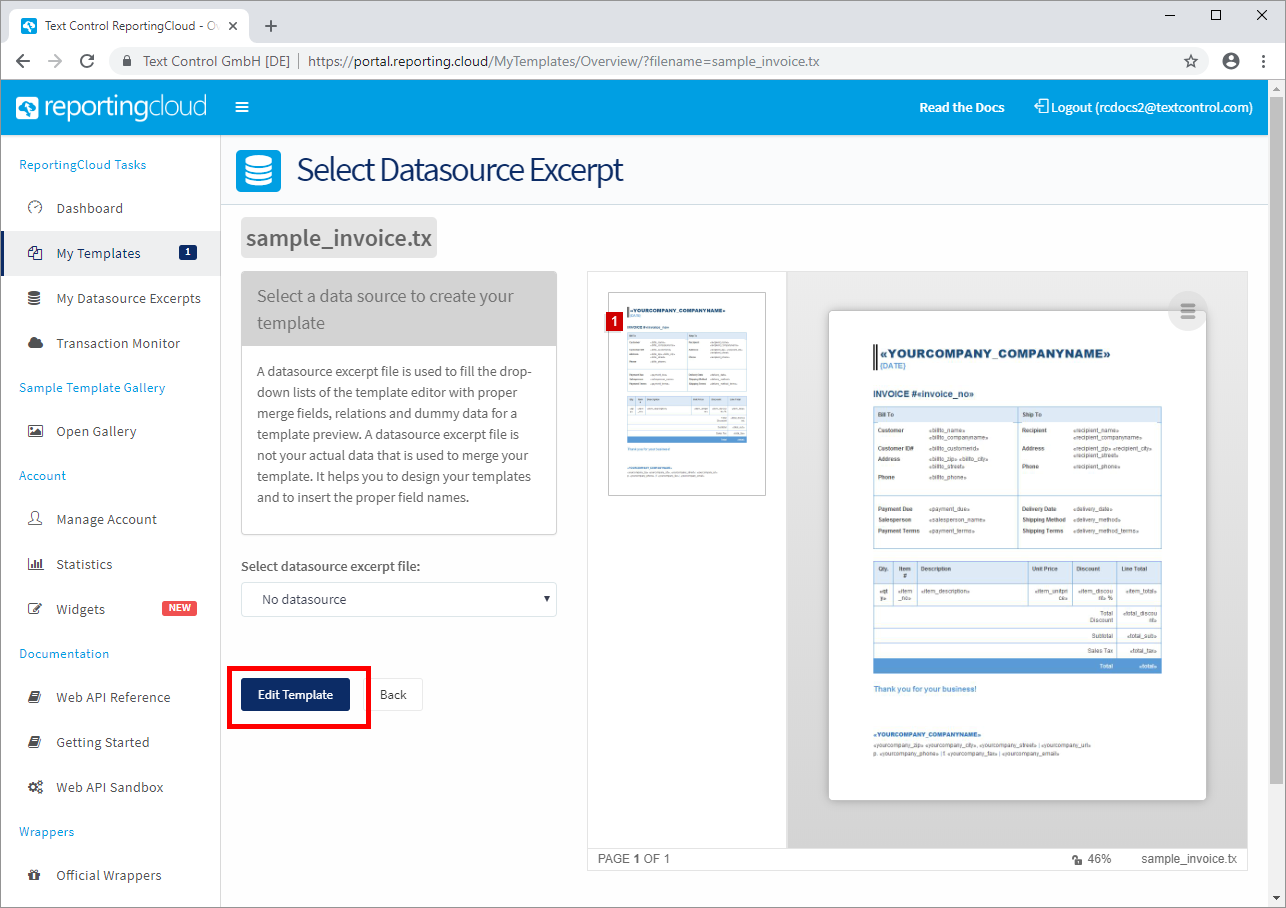
The editor loads the excerpt together with the template and fills its lists with the excerpt's tables and fields.
The Editor Window
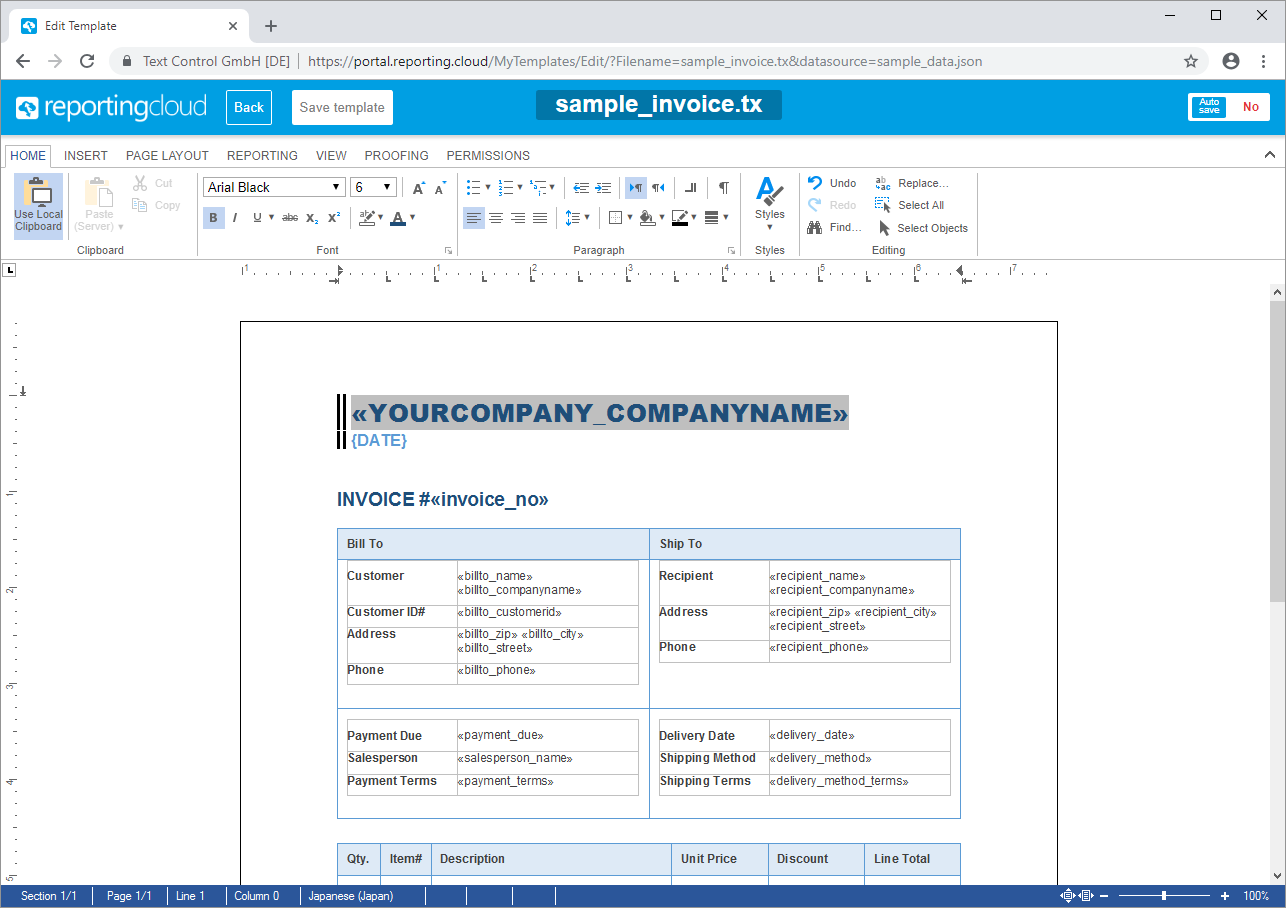
The bar at the top holds Back, which leaves the editor, Save template, the name of the template and the Auto save switch. Below it, the ribbon has the tabs Home, Insert, Page Layout, Reporting, View, Proofing and Permissions:
- Home formats text and paragraphs and applies styles. Its font list offers the fonts that are installed on the ReportingCloud servers, which include Windows fonts and many, but not all, Google Fonts, so a document looks the same in the editor and after the merge. Supported File Formats describes the fonts. While Use Local Clipboard is switched on, you paste content from the clipboard of your computer with the keyboard shortcuts.
- Insert adds pages and page breaks, tables, images, shapes, charts, barcodes, hyperlinks, bookmarks, headers, footers, page numbers, text frames and symbols.
- Reporting holds everything for merge fields and merge blocks and the preview. Older versions of the editor label this tab Reports, as some screenshots in this documentation show.
The screenshots of the older Reports tab show these groups:
| Group | Buttons |
|---|---|
| Data Source | Select Master Table, Edit Data Relations |
| Merge Fields | Merge Field, Insert Special Field, Field Properties, Delete Field |
| Merge Blocks | Merge Block, Edit Merge Blocks |
| View | Show Field Codes, Show Field Text |
| Preview | Preview Merge Results |
Insert Merge Fields
- Set the input position where the value should appear.
- On the Reporting tab, open the Merge Field drop-down. It lists the tables of the excerpt: master holds the fields at the top level of the JSON records, and every nested object or array has a table of its own, named like its property. The lists show every name in lowercase: an excerpt key
InvoiceNumberappears as invoicenumber. - Point to a table and click a field, such as invoicenumber in the master table. The field appears in the document with its name between « and ».
The same drop-down has Insert Custom Merge Field..., which inserts a custom merge field at the input position, and Highlight Merge Fields, which gives a merge field a gray background while the input position is inside it. Template Design designs a complete invoice this way.
Insert Merge Blocks
- Set the input position on an empty line.
- On the Reporting tab, open the Merge Block drop-down and click a table that comes from an array of the excerpt, such as items.
- In the Insert Merge Block dialog, check the columns under Select Table Columns that the block should contain, such as description and name.
- Choose Table Row to insert the block as a table row; Add table header row adds a row with the column names above it. The other option is Plain Paragraph.
- Click OK. The block is inserted and marked in red.
To nest a block, insert a table row inside the outer block with the context menu and insert the inner block there; Nested Blocks walks through it.
Insert Image Placeholders
- On the Insert tab, open the Image drop-down and choose Image Placeholder.
- Right-click the placeholder, point to Select Object Data Source and choose the table and the field that holds the image data, such as master and image.
The image data is a Base64 string in the JSON data; Images shows an excerpt with an image and the merge result.
Preview the Merge Results
- On the Reporting tab, click Preview Merge Results.
- Confirm the dialog that opens with OK.
The editor shows the template merged with the data of the excerpt: the fields hold their values, and each merge block is repeated for the items of its array. In the preview, the Navigation group has First Record, Previous Record, Next Record and Last Record, which move between the records of an excerpt with more than one record.
Save the Template
Click Save template to store the template under its name in the template storage. From then on, the Web API merges the new version.
When Auto save is switched on, the editor saves the template at intervals while you change it. Switch it off when you want to try out changes without storing them. If you click Back with unsaved changes, the editor asks whether to save them.
Next Steps
- Datasource Excerpts: create the sample data that fills the editor's lists.
- Template Design: design an invoice template for your own data from start to end.
- Merge Fields: field names, formats and how the merge fills them.
- Merge Blocks: repeat table rows for the items of an array.