
Datasource Excerpts
Which merge fields can a template use, and what will the merged document look like? The template editor answers both questions from a datasource excerpt: a small sample of your JSON data that you keep in the ReportingCloud portal. The excerpt fills the editor's lists of fields and blocks with the names your data uses, and it provides the values for the preview. Read on to understand what an excerpt is and to create, edit and structure one on the My Datasource Excerpts page.
What a Datasource Excerpt Is
An excerpt is a JSON file in the portal that describes your data to the template editor:
- It names the fields and blocks. The editor reads the excerpt and lists its tables and fields in the Merge Field and Merge Block drop-downs, so the names in the template match the names in your data.
- It provides the preview data. Preview Merge Results merges the template with the values of the excerpt.
- It is not your merge data. The Web API never reads an excerpt: your application sends the real data with each merge request, as Merge Data describes. There are no endpoints for excerpts; they exist only in the portal.
Because the editor only needs the structure, an excerpt holds a record or two with made-up values and a few items in each array, not your production data.
The Format
An excerpt has the format of the merge data that POST /v1/document/merge accepts: a JSON array of objects, one object per record. The editor turns the structure into tables:
| In the JSON | In the editor |
|---|---|
| A property with a value at the top level of a record | A field of the table master |
| An array of objects | A table named like the property, which you insert as a merge block |
| A nested object | A table named like the property, with the object's properties as fields |
| A Base64 string | Image data that an image placeholder can be bound to |
This excerpt is a shortened version of the data for the demo template sample_invoice.tx:
[
    {
        "yourcompany_companyname": "Text Control, LLC",
        "invoice_no": "778723",
        "billto_name": "Joey Montana",
        "item": [
            {
                "qty": "1",
                "item_description": "Item description 1",
                "item_total": "2130.40"
            },
            {
                "qty": "1",
                "item_description": "Item description 2",
                "item_total": "5543"
            }
        ],
        "total": "8210.538"
    }
]
In the editor, master has the fields yourcompany_companyname, invoice_no, billto_name and total, and the table item has qty, item_description and item_total, which you insert as a merge block for the invoice lines. The preview repeats the block twice.
The array around the records is required, even for one record. When you copy a single serialized object, enclose it in square brackets. Merge Data describes the format in detail, and Images shows an excerpt with image data.
Create an Excerpt
- Click My Datasource Excerpts in the side menu.
- In the New Datasource Excerpt File box, enter a Name, such as invoice_data.
- Paste the JSON into Datasource Excerpt. Below the box, the portal checks the JSON and shows "JSON object is valid" when it can be parsed.
- Click Create Excerpt.
The portal stores the excerpt as a file with the extension .json, invoice_data.json in this example. Under this name, it appears in the Select datasource excerpt file: list when you open a template in the editor.
Edit an Excerpt
When your data gets new fields, change the excerpt, so that the editor offers them. My Datasource Excerpts lists your excerpts under All Datasource Excerpt Files, each with Edit and Delete. Edit opens the Edit Datasource Excerpt page:
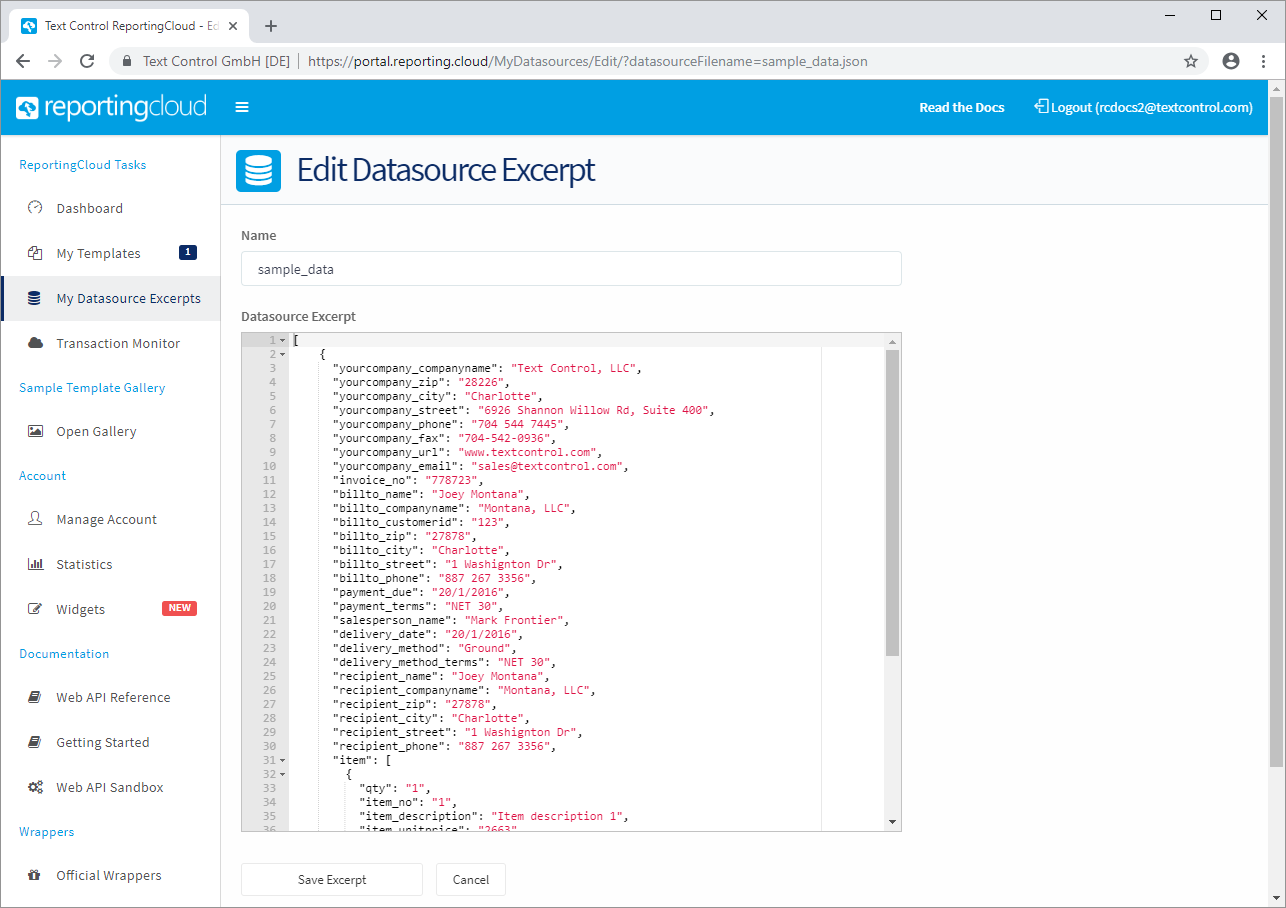
- Name is the name of the excerpt, sample_data in the screenshot, whose data belongs to the demo template
sample_invoice.tx. - Datasource Excerpt is a code editor with line numbers, syntax highlighting and error checking. The arrows beside the line numbers fold and unfold objects and arrays, which helps with long excerpts.
- Save Excerpt stores the changes, and Cancel discards them.
The editor loads an excerpt when you click Edit Template. A template that is open in the editor gets the new fields when you open it again with the changed excerpt.
Make an Excerpt From Your Own Data
The most reliable excerpt is the JSON your application will send, cut down to a sample:
- Serialize the objects that your application merges, the same way it will serialize them for the Web API, for example with a JSON serializer in .NET.
- Keep one or two records and two or three items in each array. Replace confidential values with sample values.
- Make sure that the result is an array, and create the excerpt from it.
Template Design walks through this with .NET classes for an invoice, and Nested Blocks does it for a sales report with blocks inside blocks. Templates that you add from the Sample Template Gallery bring an excerpt of their own, linked to the template.
Next Steps
- Template Editor: open a template with an excerpt and insert fields and blocks.
- Merge Data: the JSON format of the data your application merges.
- Template Design: from .NET classes to an excerpt and an invoice template.