
HTML Content
A comment that a user typed into a rich text box of your application can be partly bold or italic, while a merge field normally receives plain text. With the merge setting mergeHtml, the value of a field can be formatted HTML instead, and ReportingCloud applies its formatting to the merged text. Formatted comments are the typical case, and the sample below merges one.
The field that receives the HTML is an ordinary merge field, as Merge Fields describes, and the request is a POST /v1/document/merge request like those of the Overview, with one setting added.
How HTML Content Is Merged
HTML in field data is a setting of the merge, not of the field or the template:
- The setting.
mergeHtmlin themergeSettingsobject of the request specifies whether field data can contain formatted HTML. It isfalseby default. - The format of a value. A value that contains HTML is enclosed in an
<html>element as a whole, from the first to the last character. Within it, simple formatting such as<strong>,<em>and<u>applies bold, italic and underlined text. - What the field keeps. The font name, the font size, the text color and the background color of the field in the template are kept when the HTML is merged, so HTML can't change them; set them on the field in the template.
- Where it works.
mergeHtmlis only active inPOST /v1/document/merge. The POST /v1/document/findandreplace endpoint accepts the same settings object but doesn't merge HTML.
A value in the merge data looks like this:
<html><strong>Strong text</strong> and <em>emphasized text</em></html>
Prepare the Template
The sample template, comments.tx, has a table with a merge field named comments. The field is formatted in the template with a larger orange font:
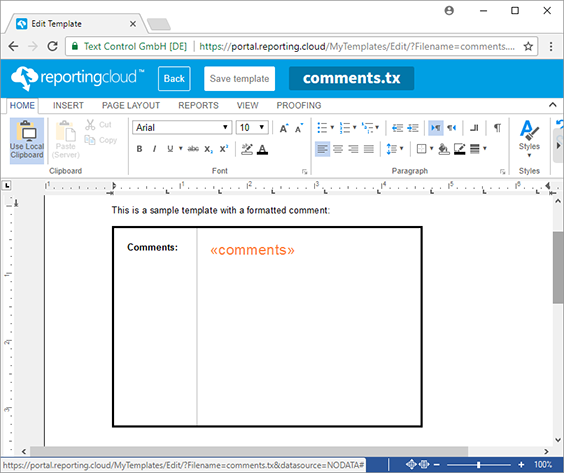
Any template with a merge field works the same way. Template Editor describes how to insert and format a merge field.
Merge HTML With the Web API
Save the following body as merge.json. Its single record holds the HTML comment, and mergeSettings turns on mergeHtml:
{
  "mergeData": [
    {
      "comments": "<html><strong>Longer strong text</strong> with normal text and <em>emphasized text</em></html>"
    }
  ],
  "mergeSettings": { "mergeHtml": true }
}
Then merge it into comments.tx from the template storage and decode the result:
curl POST "https://api.reporting.cloud/v1/document/merge?templateName=comments.tx&returnFormat=PDF" \
"Authorization: ReportingCloud-APIKey $REPORTINGCLOUD_API_KEY" \
"Content-Type: application/json" \
@merge.json \
result.json
jq '.[0]' result.json | base64 > comments.pdf
The merged field shows "Longer strong text" in bold, then normal text and "emphasized text" in italics. The font, its size and its orange color come from the field in the template:
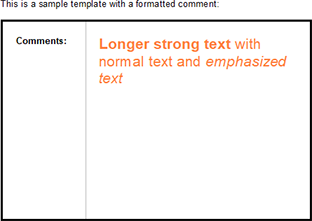
The value is a JSON string, so quotation marks and backslashes in the HTML must be escaped. When your application builds the body with a JSON serializer or with jq, the escaping is done for you.
Merge HTML With .NET
With the .NET SDK, the package TXTextControl.ReportingCloud described in .NET, the comment is a string property of the merge data, and MergeHtml is a property of MergeSettings:
using TXTextControl.ReportingCloud;

ReportingCloud rc = new ReportingCloud(Environment.GetEnvironmentVariable("REPORTINGCLOUD_API_KEY"));

var mergeData = new[]
{
    new
    {
        // The whole value is enclosed in an html element
        comments = "<html><strong>Longer strong text</strong> with normal text and <em>emphasized text</em></html>"
    }
};

MergeBody mergeBody = new MergeBody
{
    MergeData = mergeData,
    MergeSettings = new MergeSettings { MergeHtml = true }
};

List<byte[]> documents = rc.MergeDocument(mergeBody, "comments.tx", ReturnFormat.PDF);
File.WriteAllBytes("comments.pdf", documents[0]);
The code works as follows:
commentshas the name of the merge field, and its value is the HTML enclosed in<html>.MergeHtml = trueinMergeSettingsmakes the merge apply the HTML formatting.MergeDocumentreturns one byte array per created document. With one record, the list holds one document.
The PHP, Java and Ruby SDKs have the setting as well, under the names that Merge Settings lists.
Next Steps
- Merge Settings:
mergeHtmland the other options of the merge. - Merge Fields: name and format the fields that receive the HTML.
- Templates and Merging: what to check when the HTML formatting isn't applied.