
Template Storage
Every template that the Web API merges by name is kept in the template storage of your ReportingCloud account. On the My Templates page of the ReportingCloud portal, you upload templates from your computer and create new ones in the template editor; you also rename, copy, download and delete them there. The Sample Template Gallery adds ready-made templates, and on the Extreme plan, groups let external template designers work on selected templates.
What the Template Storage Holds
A template is an MS Word compatible document with merge fields and merge blocks, the placeholders that ReportingCloud fills with your JSON data. The storage accepts four formats:
| Format | Extension |
|---|---|
| Microsoft Word | .doc |
| Office Open XML (WordprocessingML) | .docx |
| Rich Text Format | .rtf |
| TX Text Control Format | .tx |
A new trial account starts with one template, the demo template sample_invoice.tx, which the Web API tutorial merges.
Your plan sets how many templates the storage holds: 20 on a trial account, and from 10 on Basic to 500 on Extreme on the paid plans. The number counts the templates and the documents you share, as the pricing page explains. Deleting a template frees its place. The dashboard shows how many templates you have stored and how many your plan allows, and Plans and Licensing lists the quota of every plan.
A stored template is merged by its name, so your application doesn't send the template with every request. This makes the merge faster for templates that you use many times. A template can also travel inside the merge request instead, without being stored, as the mail merge overview describes. Text Control backs up its servers daily; the services agreement still advises you to keep a copy of everything you upload in another location.
The My Templates Page
Click My Templates in the side menu. The number beside the menu item is the number of templates in your storage.
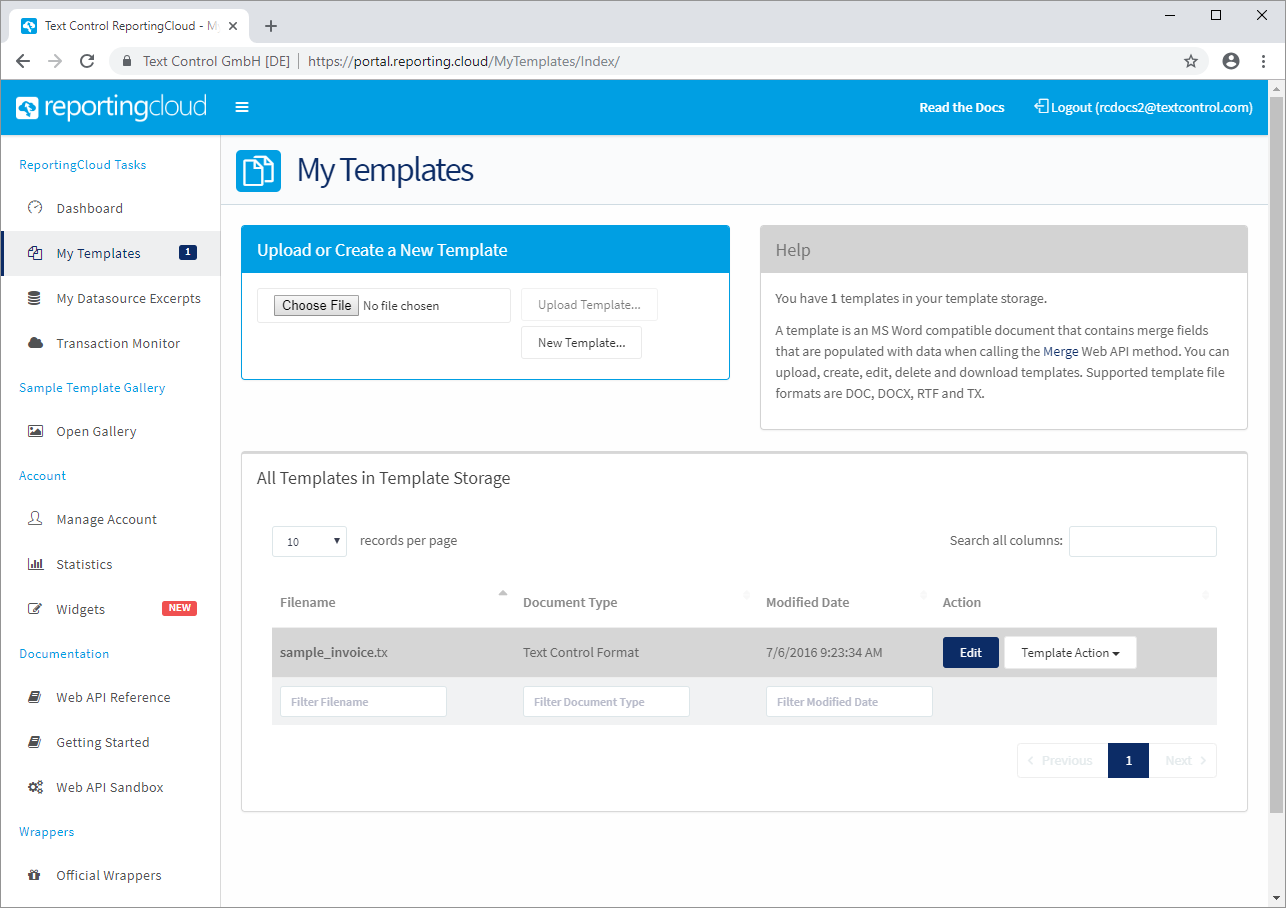
The page has three parts:
- Upload or Create a New Template has the buttons for adding templates: Choose File and Upload Template... for a file from your computer, New Template... for an empty template.
- Help shows how many templates your storage holds and lists the supported formats.
- All Templates in Template Storage lists your templates with their Filename, Document Type (such as Text Control Format) and Modified Date. Search all columns and the filter boxes below the columns narrow the list, a click on a column heading sorts it and records per page sets the length of a page.
The Action column holds the Edit button, which opens the Select Datasource Excerpt page and from there the template editor, and the Template Action drop-down with the other tasks.
Upload a Template
- Click Choose File and select a DOC, DOCX, RTF or TX file on your computer.
- Click Upload Template.... The template appears in All Templates in Template Storage under its file name.
The file name is the template name that your application passes to the Web API, such as templateName=sample_invoice.tx in a merge request. Design the template in MS Word or in the template editor first; Template Design shows how to match its merge fields to your data.
Create a New Template
- Click New Template....
- In the Create a new template dialog, enter a Filename and choose a format from the list, such as Office Open XML | *.DOCX.
- Click OK, and confirm the dialog that follows with Edit Template. The Select Datasource Excerpt page opens, where you choose the sample data for the editor and click Edit Template again, as Template Editor describes.
Rename, Copy, Download or Delete a Template
Open the Template Action drop-down in the row of a template and choose:
- Edit to open the template in the template editor, like the Edit button.
- Rename to give the template a new name. Change the name in your application as well, because the Web API finds templates by name.
- Create Copy to store a copy with the suffix
_copyadded to the name, for example as the starting point of a new design. - Download to save the template file on your computer.
- Delete to remove the template from the storage, which frees its place in the template storage quota.
Add Templates From the Sample Template Gallery
The Sample Template Gallery holds templates that show the reporting features of ReportingCloud, such as merge blocks, conditional sections, barcodes and images. Each template comes with sample data for the editor.
Click Open Gallery in the side menu.
Click one or more tags at the top, such as merge fields, merge blocks, next fields, conditional, barcodes, images or string formatter, to show only the templates that use these features. The selected tags appear in the box below; the x of a tag removes it.
Move the mouse pointer over the preview of a template. More Details... shows a description of the template and an animated preview of its merge.
Click Add to My Templates.
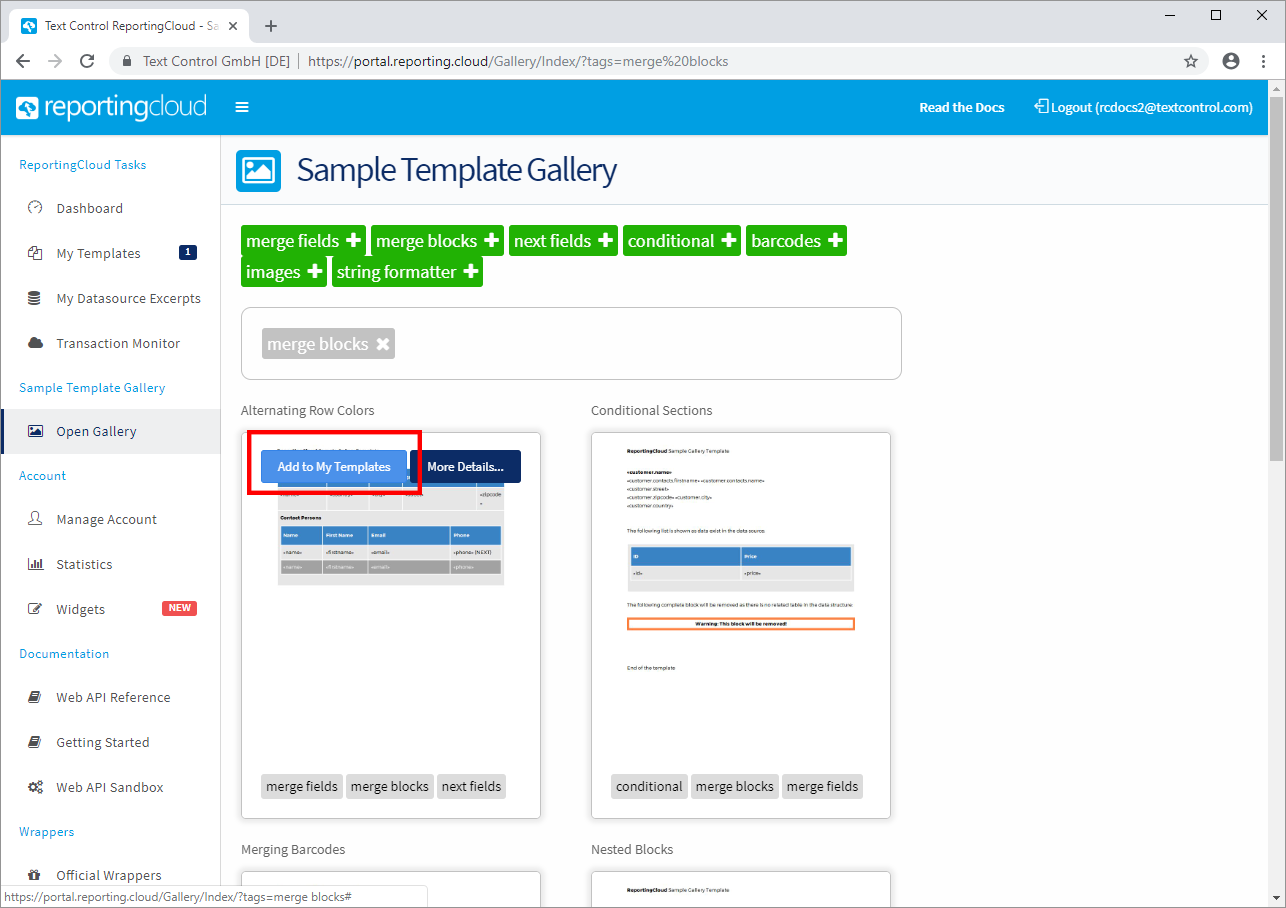
The gallery copies the template into your template storage and its sample data into your datasource excerpts, linked to the template. Gallery templates keep a name that starts with gallery_, such as gallery_using-prefixes.tx, which the ASP.NET Core tutorial merges.
Manage Templates With the Web API
Applications manage the storage with the templates endpoints of the Web API, so a deployment script can upload the templates that you designed in the portal:
| Portal | Web API |
|---|---|
| Upload Template... | POST /v1/templates/upload |
| All Templates in Template Storage | GET /v1/templates/list, GET /v1/templates/count |
| Download | GET /v1/templates/download |
| Delete | DELETE /v1/templates/delete |
| Rename, Create Copy, New Template..., groups | No endpoint |
An upload with the Web API overwrites a template of the same name, in any letter case. Managing Templates shows each endpoint with examples, including those that the portal has no button for: whether a template exists, its page count and the merge fields and blocks it contains.
Next Steps
- Template Editor: open a template and insert merge fields, merge blocks and image placeholders.
- Datasource Excerpts: create the sample data that the editor uses.
- Managing Templates: upload, list and delete templates from your application.