
Portal
The ReportingCloud portal at https://portal.reporting.cloud/ is the web interface of your account. You design and store templates there, keep the sample data the template editor works with, create API keys, add subscriptions and watch how much of your quotas your applications use. Your applications can upload, list and delete templates and manage API keys with the Web API as well; the template editor, the datasource excerpts and the subscription exist only in the portal.
Log In and Read the Dashboard
Open https://portal.reporting.cloud/ and log in with the Email and Password of your ReportingCloud account. The login page also links to Forgot your password? and to Register as a new user, which starts the 30-day trial described in Creating an Account.
After you log in, the Dashboard opens:
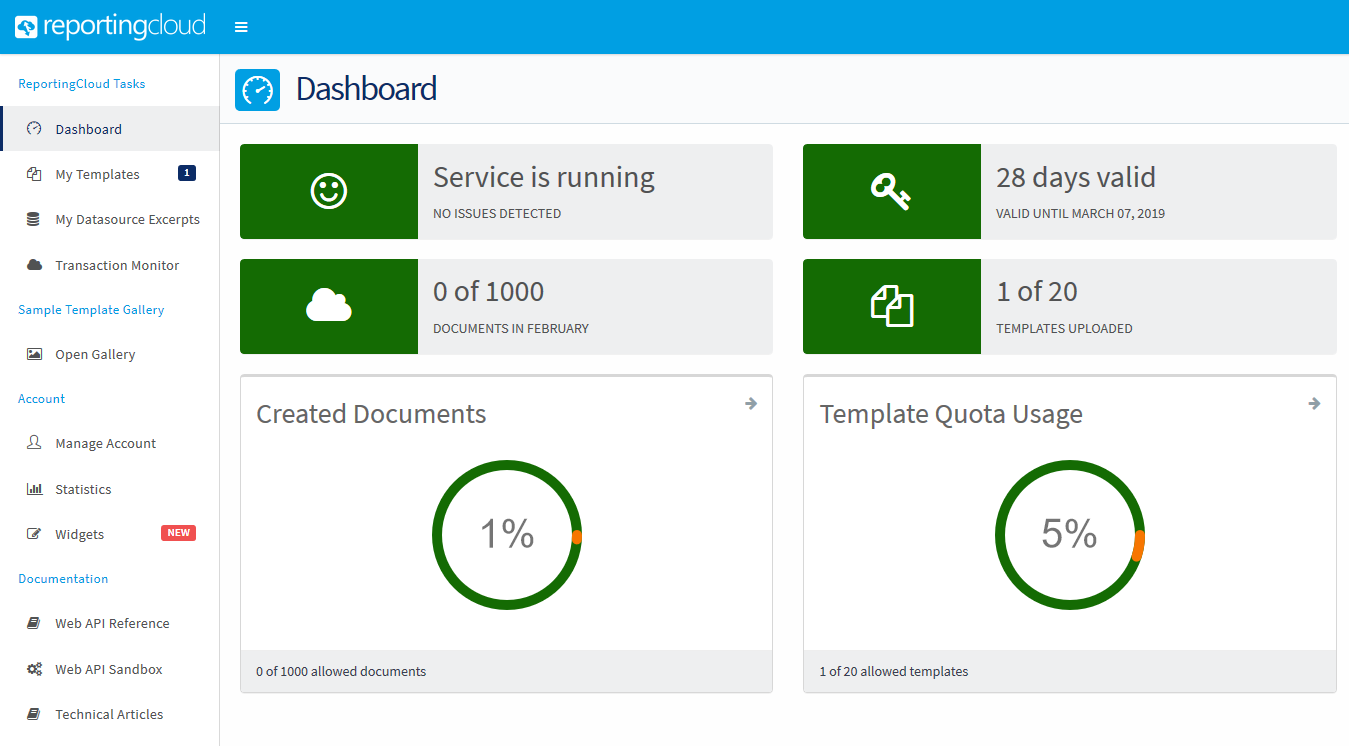
- The first tile shows whether the service is running, such as "Service is running" with "No issues detected". The public status page status.reporting.cloud shows the state of the Web API, the portal and the backend, with reported incidents.
- The second tile shows how many days your trial or subscription remains valid and its end date.
- The other two tiles and the charts Created Documents and Template Quota Usage show the documents created this month and the templates in your storage, each against the quota of your plan.
Find the Right Page
| If you want to | Read |
|---|---|
| Upload a template, add one from the gallery or give designers access | Template Storage |
| Insert merge fields, merge blocks and image placeholders and preview the result | Template Editor |
| Make the field names of your data available in the editor | Datasource Excerpts |
| Create an API key, add a subscription or change the password | Manage Account |
| Find out how many documents your applications create, and with which key | Transactions and Statistics |
Where to Start
- Create an API key on Manage Account, so that your applications can call the Web API: Manage Account.
- Create a datasource excerpt from a sample of the JSON your application will send: Datasource Excerpts.
- Create a template and design it with the excerpt in the editor: Template Editor.
- Merge it from your application, starting with the Getting Started tutorials.
Pages in This Section
- Template Storage: upload and manage the templates of your account, add samples from the gallery and share templates with groups.
- Template Editor: design templates online with merge fields, merge blocks and image placeholders.
- Datasource Excerpts: create the sample JSON data that fills the editor's lists and preview.
- Manage Account: check your subscription and quotas, change the password and create API keys.
- Transactions and Statistics: find the Web API requests of the month and the quota usage per month.