
Conditional Blocks
Some parts of a document apply only to some records: a payment reminder only to overdue invoices, a clause only to some contracts. In ReportingCloud, such a part is a merge block that the merge keeps when the data contains values for it and removes when it doesn't. The decision lies in the data your application sends, not in the template, so the same template serves every case.
Merge blocks themselves are introduced in Merge Blocks, and the data format in Merge Data. The samples merge a template from the template storage with the POST /v1/document/merge endpoint, as the Overview describes.
How Conditional Blocks Work
A merge block is a section of the template, often a table row, that is repeated for each element of the data with the block's name. The same mechanism makes a section optional:
- The block has data. When the record contains an object with values under the name of the block, the block is merged with these values and stays in the document.
- The block is empty. When the object under the name of the block holds no values, the block is empty. With the merge setting
removeEmptyBlocks, the merge removes the block with all its content. - The default removes.
removeEmptyBlocksistrueby default, so a request without merge settings removes empty blocks as well. Set it tofalseto keep their content.
Which records get the section is decided by your application when it creates the merge data. The template needs no rules or special fields.
Create the Template
The sample template, conditional_template.tx, has a merge block named conditional, highlighted in red in the template editor. It contains formatted text and the merge field test. After the block, the template continues with other text and the merge field name:
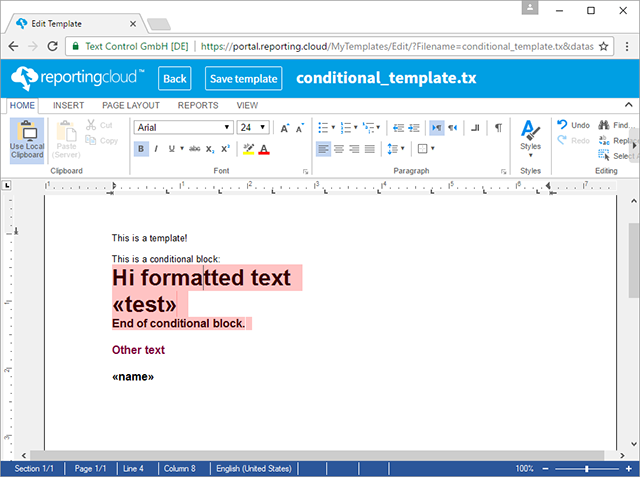
To create such a block in the ReportingCloud portal, open the template with a datasource excerpt whose records contain the object and insert a merge block for it with Merge Block on the Reporting tab, as Template Editor describes. A datasource excerpt for this template looks like the merge data below.
Show or Remove the Block With the Web API
The following request merges the template with a record whose conditional object has a value. Save the body as merge.json:
{
  "mergeData": [
    {
      "name": "Name",
      "conditional": { "test": "Test" }
    }
  ],
  "mergeSettings": { "removeEmptyBlocks": true }
}
Then send it and decode the document of the response:
curl POST "https://api.reporting.cloud/v1/document/merge?templateName=conditional_template.tx&returnFormat=PDF" \
"Authorization: ReportingCloud-APIKey $REPORTINGCLOUD_API_KEY" \
"Content-Type: application/json" \
@merge.json \
result.json
jq '.[0]' result.json | base64 > conditional.pdf
To remove the block, send the object without a value. Change the record in merge.json and send the request again:
{
  "mergeData": [
    {
      "name": "Name",
      "conditional": { "test": null }
    }
  ],
  "mergeSettings": { "removeEmptyBlocks": true }
}
The two results differ only by the block. The first shows the two sentences before the block, then the content of the block with "Test" in place of the field, then "Other text" and "Name". The second shows the same document without the content of the block:
Show or Remove the Block With .NET
With the .NET SDK, the package TXTextControl.ReportingCloud described in .NET, the data is a class with a property for the block. An empty instance of the property's class removes the block:
using TXTextControl.ReportingCloud;

ReportingCloud rc = new ReportingCloud(Environment.GetEnvironmentVariable("REPORTINGCLOUD_API_KEY"));

bool showBlock = false; // decided by your application

Report report = new Report
{
    name = "Name",
    // An empty object removes the block, an object with values shows it
    conditional = showBlock ? new Conditional { test = "Test" } : new Conditional()
};

MergeBody mergeBody = new MergeBody
{
    MergeData = new List<Report> { report },
    MergeSettings = new MergeSettings { RemoveEmptyBlocks = true }
};

List<byte[]> documents = rc.MergeDocument(mergeBody, "conditional_template.tx", ReturnFormat.PDF);
File.WriteAllBytes("conditional.pdf", documents[0]);

public class Report
{
    public string? name { get; set; }
    public Conditional? conditional { get; set; }
}

public class Conditional
{
    public string? test { get; set; }
}
The code works as follows:
Reportis one record of the merge data. Its propertyconditionalhas the name of the merge block, and the properties ofConditionalhave the names of the fields in the block.new Conditional()has no values, so the SDK sends the block's object withtestset tonull, and the block is removed. WithshowBlockset totrue, the object carries a value, and the block is merged.RemoveEmptyBlocksis a property ofMergeSettings. Setting it totruerepeats the default and makes the intent of the code visible.
Combine Several Optional Sections
A template can contain several such blocks, each with its own name, and your application fills the objects of the sections a record needs. What happens to merge fields and lines that stay empty outside such blocks is decided by further settings, which Merge Settings lists.
Next Steps
- Merge Blocks: repeat a block for each element of an array.
- Nested Blocks: put blocks inside blocks.
- Merge Settings:
removeEmptyBlocksand the other options of the merge. - Templates and Merging: fix blocks that disappear when they should stay.