
Images
A company logo, a signature or a product photo can come from the merge data instead of being part of the template. The template holds an image placeholder that is bound to a field of the data, and ReportingCloud replaces the placeholder with the image that each record carries. You create such a placeholder in the template editor, send the image with the merge data and decide what happens to placeholders that receive no image.
The template is merged with the POST /v1/document/merge endpoint, as Overview describes. Every request authenticates with an API key; the samples read it from the environment variable REPORTINGCLOUD_API_KEY, as API Keys explains.
How Image Placeholders Work
An image placeholder is an image in the template that is bound to a field of the data, its object data source. During the merge, ReportingCloud fills the placeholder with the image of that field:
- Data. The value of the field is the binary data of the image, encoded as a Base64 string. The image can be a JPG, PNG, BMP or GIF file.
- Same format everywhere. The datasource excerpt you design the template with and the merge data you send to
POST /v1/document/mergecarry the image the same way: the field that holds the Base64 string in the excerpt holds it in the merge data. - Missing data. By default, a placeholder whose field has no data stays in the document. The merge setting
removeEmptyImagesremoves it, as Remove Placeholders Without Data shows.
The examples use invoice data with an invoice number and an image. Save it as image_data.json:
[
  {
    "InvoiceNumber": "I778977622",
    "Image": "iVBORw0KGgoAAAANSUhEUgAAAS0AAABHCAIAAADdmYYx..."
  }
]
The value of Image is shortened here. To get the Base64 string of an image file on Linux, run base64 -w 0 logo.png.
Create a Template With an Image Placeholder
The template editor of the ReportingCloud portal offers the fields of the datasource excerpt that is opened with the template, so you create the excerpt first. Datasource Excerpts and Template Editor describe both in detail.
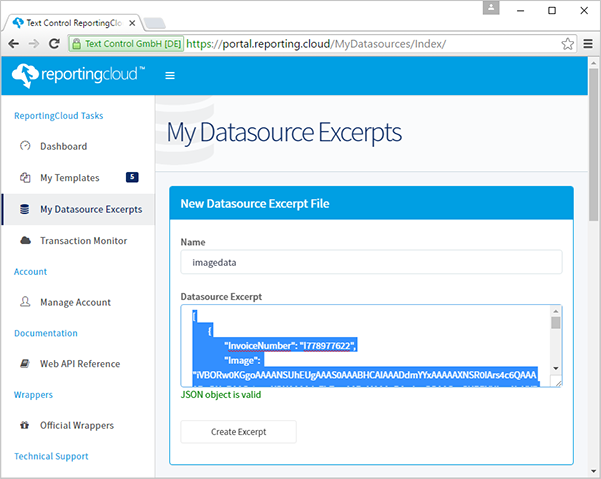
In the portal, open My Datasource Excerpts. Enter a name and paste the JSON of image_data.json, with the complete Base64 string, into Datasource Excerpt. Save it with Create Excerpt.
Open My Templates and click New Template.... Type a name such as demo_image_placeholder, choose a format such as DOCX and confirm with OK.
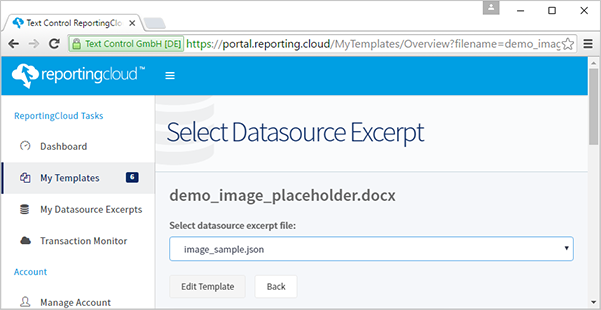
Confirm the next dialog with Edit Template. On the Select Datasource Excerpt page, choose the excerpt in Select datasource excerpt file and click Edit Template to open the editor.
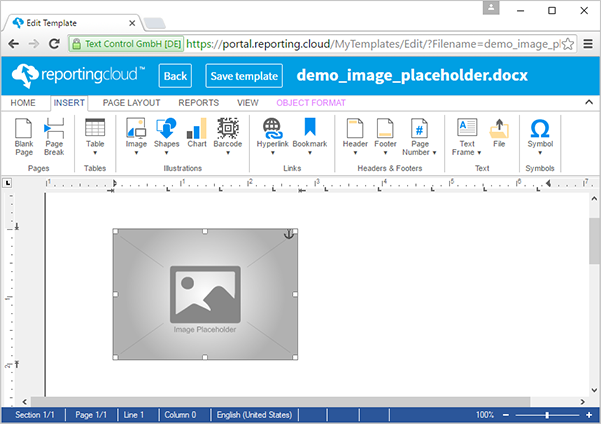
On the Insert tab, open the Image drop-down and choose Image Placeholder. A placeholder image is inserted at the input position:
Right-click the placeholder, point to Select Object Data Source, then to master and choose image. The placeholder is now bound to the
Imagefield of the top-level records. The editor lists the names of the excerpt in lowercase, and the merge matches names without regard to letter case.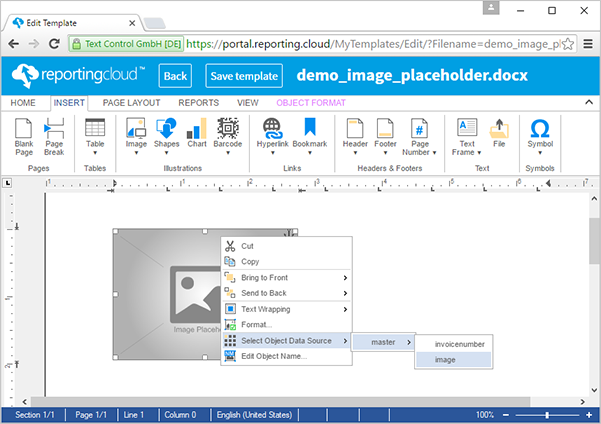
On the Reporting tab, click Preview Merge Results and confirm the dialog box with OK. The preview merges the excerpt into the template and shows the image in place of the placeholder:
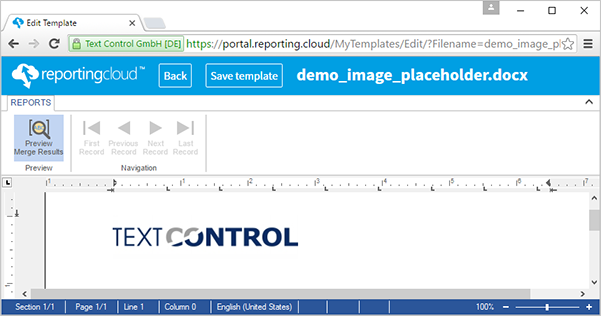
Save the template with Save template.
Merge Images With the Web API
The merge request carries the image in the same field as the excerpt. The following commands build the MergeBody from logo.png, merge it into demo_image_placeholder.docx from the template storage and save the result:
# Build the MergeBody with the Base64 string of logo.png
jq \
image <(base64 0 logo.png) \
'{
mergeData: [{ InvoiceNumber: "I778977622", Image: $image }],
mergeSettings: { removeEmptyImages: true }
}' > merge.json
curl POST "https://api.reporting.cloud/v1/document/merge?templateName=demo_image_placeholder.docx&returnFormat=PDF" \
"Authorization: ReportingCloud-APIKey $REPORTINGCLOUD_API_KEY" \
"Content-Type: application/json" \
@merge.json \
result.json
# The response is an array of Base64 strings; decode the first document
jq '.[0]' result.json | base64 > invoice.pdf
The commands work as follows:
--rawfile imagereads the Base64 string of the image into the variable$image, and the filter writes it into theImagefield of the only record.mergeSettingssetsremoveEmptyImages, which removes placeholders that receive no image.- The response holds one Base64 string per created document.
jq -r '.[0]'takes the first, andbase64 -ddecodes it into invoice.pdf.
Merge Images With .NET
With the .NET SDK, the package TXTextControl.ReportingCloud described in .NET, the image is a string property of the merge data, filled with Convert.ToBase64String:
using TXTextControl.ReportingCloud;

ReportingCloud rc = new ReportingCloud(Environment.GetEnvironmentVariable("REPORTINGCLOUD_API_KEY"));

// The image data travels as a Base64 string
var mergeData = new[]
{
    new
    {
        InvoiceNumber = "I778977622",
        Image = Convert.ToBase64String(File.ReadAllBytes("logo.png"))
    }
};

MergeBody mergeBody = new MergeBody
{
    MergeData = mergeData,
    MergeSettings = new MergeSettings { RemoveEmptyImages = true }
};

List<byte[]> documents = rc.MergeDocument(mergeBody, "demo_image_placeholder.docx", ReturnFormat.PDF);
File.WriteAllBytes("invoice.pdf", documents[0]);
The code works as follows:
- The constructor of
ReportingCloudwith one string takes an API key. MergeDatatakes the records; the SDK serializes them to the JSON array of the request, with the property names in camel case:invoiceNumberandimage.MergeDocumentsends theMergeBodytoPOST /v1/document/mergewith the template name and the return format, and returns the created documents as byte arrays.
Remove Placeholders Without Data
When a record has no image for a placeholder, the placeholder image stays in the merged document, because removeEmptyImages is false by default. Set it to true to remove such placeholders, as both samples do:
{
  "mergeSettings": {
    "removeEmptyImages": true
  }
}
In the Java and Ruby SDKs, a MergeSettings object sends removeEmptyImages as true unless you change it, as Merge Settings lists.
Next Steps
- Merge Settings: every option of the merge,
removeEmptyImagesincluded. - Template Editor: the other elements you insert from the ribbon.
- Merge Data: the JSON format that carries the images.
- Template Design: design a template for the structure of your data.