
Nested Blocks
A sales report that lists every sale with the items sold in it has data on two levels, and its template needs a merge block inside a merge block. Building one takes three parts: JSON data with an array inside an array, a datasource excerpt that shows its structure to the template editor and a template with nested blocks. Afterward, you merge the report with curl or with the .NET SDK.
Blocks at one level, their names and their data are explained in Merge Blocks. The template is designed with two tools of the ReportingCloud portal, which Datasource Excerpts and Template Editor describe in full.
How Nested Blocks Work
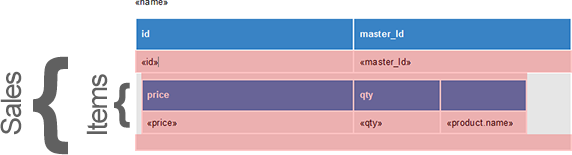
A master-detail relationship is a one-to-many relationship: one sale has many items. In the template, the outer block, sales, is repeated for each sale, and the inner block, items, lies inside it and is repeated for each item of the current sale:
- Block names match the arrays. The outer block is named like the array of sales, and the inner block like the array of items inside each sale.
- Fields take the values of their own level. In the
itemsblock,qtyandpriceare the values of the current item. The fieldidin thesalesblock is the number of the current sale, andname, outside both blocks, belongs to the report. - Nested objects use dot notation. The field
product.namein theitemsblock takesnamefrom theproductobject of the current item. - Levels have no limit. Blocks can be nested in any number of levels, each inside the block of its parent array.
The following template has the outer block sales, with the field id and a field master_Id that the sample data below doesn't fill, and the inner block items in a table of its own, with the fields price, qty and product.name. The report's name is above both blocks:
Shape the Data
The data has a level for each block. Save the following as sales.json:
[
  {
    "name": "Monthly Sales Report",
    "sales": [
      {
        "id": 1,
        "items": [
          { "qty": 5, "price": 256.2, "product": { "name": "ReportingCloud" } },
          { "qty": 3, "price": 424.2, "product": { "name": "TX Text Control" } }
        ]
      },
      {
        "id": 2,
        "items": [
          { "qty": 5, "price": 256.2, "product": { "name": "ReportingCloud" } },
          { "qty": 3, "price": 424.2, "product": { "name": "TX Text Control" } }
        ]
      }
    ]
  }
]
The levels of the data and of the template:
| Level | In the data | In the template |
|---|---|---|
| Record | The object in the outer array, with name | Top-level fields: name |
| 1 | The array sales | Merge block sales with the field id |
| 2 | The array items in each sale, with an object product | Merge block items inside sales, with the fields price, qty and product.name |
The array around the whole object is required: mergeData is an array of records, and the report is its only record, so the template is merged once.
Create the Datasource Excerpt
The template editor learns the names of the blocks and fields from a datasource excerpt. It uses the excerpt to fill its lists and to preview the template; it isn't the data you merge.
- In the portal, open My Datasource Excerpts.
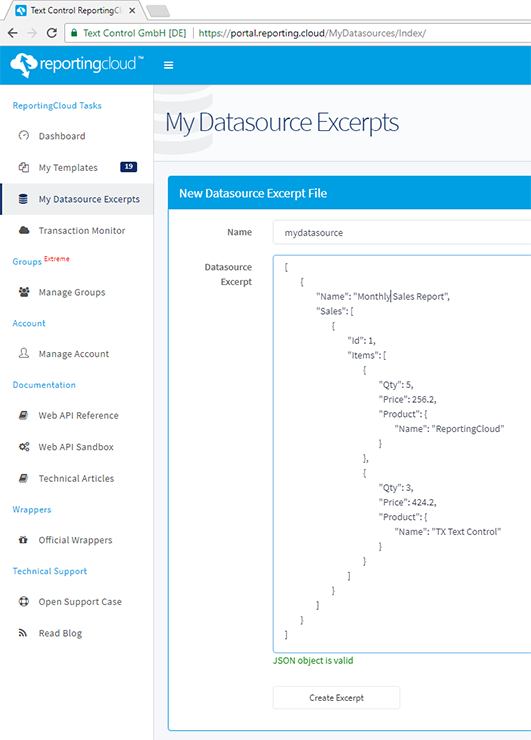
- Enter a name for the excerpt and paste the content of sales.json into the Datasource Excerpt box. The data must be an array of objects, so keep the square brackets around the report.
- Save the excerpt with Create Excerpt.
The screenshot shows an excerpt of the same structure with capitalized names and one sale. The editor lists the names in lowercase either way:
Design the Template
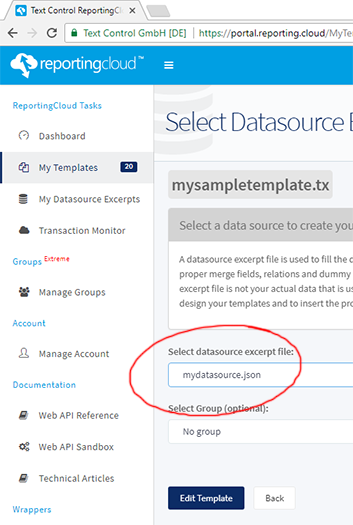
In My Templates, create a new template with New Template..., enter a name, such as sales_report, choose a format and confirm with OK. Before the editor opens, select the excerpt in Select datasource excerpt file and confirm with Edit Template:
In the editor, choose
salesfrom the Merge Block drop-down on the Reporting tab, checkidin the dialog that opens and confirm with OK. The outer block is inserted as a table row.Place the input position in the row of the
salesblock, right-click and choose Insert and Table Row Below: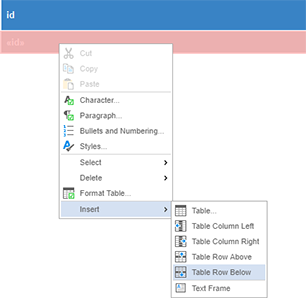
Place the input position in the new row and choose
itemsfrom the Merge Block drop-down.In the Insert Merge Block dialog, check
priceandqty, leave the other columns unchecked and confirm with OK: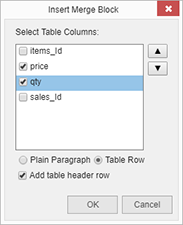
A second block, with a header row of its own, is now inside the outer block:
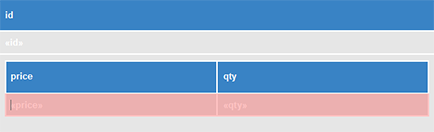
Click Preview Merge Results on the Reporting tab and confirm the dialog. Each sale is followed by its items:
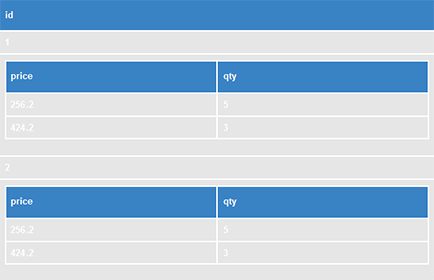
From the Merge Field drop-down, add the other fields of the first screenshot:
nameabove the table andproduct.namein a third column of theitemsrow. Save the template.
The requests below use the name sales_report.tx. With a format other than TX, use the extension of that format.
Merge the Report
The following commands merge sales.json into the template and save the report:
jq '{mergeData: .}' sales.json > merge.json
curl POST "https://api.reporting.cloud/v1/document/merge?templateName=sales_report.tx&returnFormat=PDF&append=true" \
"Authorization: ReportingCloud-APIKey $REPORTINGCLOUD_API_KEY" \
"Content-Type: application/json" \
@merge.json \
result.json
jq '.[0]' result.json | base64 > report.pdf
With the .NET SDK, the same data comes from classes. The SDK writes their property names in camel case, so Sales, Items and Qty are sent as sales, items and qty, the names of the template:
using TXTextControl.ReportingCloud;

Report report = new Report
{
    Name = "Monthly Sales Report",
    Sales = new List<Sale>
    {
        new Sale
        {
            Id = 1,
            Items = new List<Item>
            {
                new Item { Qty = 5, Price = 256.2m, Product = new Product { Name = "ReportingCloud" } },
                new Item { Qty = 3, Price = 424.2m, Product = new Product { Name = "TX Text Control" } }
            }
        },
        new Sale
        {
            Id = 2,
            Items = new List<Item>
            {
                new Item { Qty = 5, Price = 256.2m, Product = new Product { Name = "ReportingCloud" } },
                new Item { Qty = 3, Price = 424.2m, Product = new Product { Name = "TX Text Control" } }
            }
        }
    }
};

ReportingCloud rc = new ReportingCloud(Environment.GetEnvironmentVariable("REPORTINGCLOUD_API_KEY"));

// A list with one report: the template is merged once
MergeBody mergeBody = new MergeBody { MergeData = new List<Report> { report } };

List<byte[]> documents = rc.MergeDocument(mergeBody, "sales_report.tx", ReturnFormat.PDF, true);
File.WriteAllBytes("report.pdf", documents[0]);

public class Report
{
    public string Name { get; set; } = "";
    public List<Sale> Sales { get; set; } = new List<Sale>();
}

public class Sale
{
    public int Id { get; set; }
    public List<Item> Items { get; set; } = new List<Item>();
}

public class Item
{
    public int Qty { get; set; }
    public decimal Price { get; set; }
    public Product Product { get; set; } = new Product();
}

public class Product
{
    public string Name { get; set; } = "";
}
The code works as follows:
- Each class is one level of the report:
Reportholds the list ofSaleobjects for thesalesblock, and eachSalethe list ofItemobjects for theitemsblock.Productis the nested object ofproduct.name. - The SDK sends exactly the content of sales.json as
mergeData, because the report is wrapped in a list. MergeDocumentmerges the stored template sales_report.tx and returns a list of byte arrays, here with the PDF as its only element.
The NuGet package TXTextControl.ReportingCloud is set up in Installing an SDK, and Merge Data explains how the SDK serializes objects.
Handle Levels Without Data
An empty array is an empty block at its level. With the default removeEmptyBlocks setting, true, a sale whose items array is empty keeps its own row, and the content of its items block is removed. A report whose sales array is empty loses the content of the sales block, including the items block inside it. To keep empty blocks, set removeEmptyBlocks to false, as Merge Blocks shows.
Next Steps
- Merge Data: the rules for the JSON array at every level.
- Conditional Blocks: show a section only when its data exists.
- Template Design: design an invoice with the template editor.
- Images: merge images from the data into image placeholders.