
User Dictionaries
Brand names, product names, abbreviations and the vocabulary of a trade are correct, but no dictionary knows them. A user dictionary is the place for such words: a plain word list that sits beside the language dictionaries, that users fill with Add To Dictionary, and that your code can create, fill and save. Once saved, the words are accepted in the next session as well.
What a User Dictionary Is
A user dictionary is a text file with the extension .txd: usually a line that names the encoding, then one word per line. TX Spell .NET loads it as a UserDictionary, and checks every text against it together with the other dictionaries in Dictionaries. Any number of user dictionaries can be loaded at the same time.
A user dictionary does two jobs:
- It accepts words. A word in a user dictionary is never reported as misspelled, whether the user types it or
Checkfinds it. - It receives words. Add To Dictionary in the context menu and in the spell check dialog adds the current word to every user dictionary whose IsEditable property is
trueand whose language matches the word. Without such a dictionary, the command is disabled. HasEditableUserDictionaries of theDictionariescollection tells your code whether the collection holds an editable user dictionary at all, for example to enable an Add To Dictionary command of your own.
The UserDictionary sample of the setup edits a user dictionary with a text box and a list: every word added there is accepted in the RichTextBox on the left.
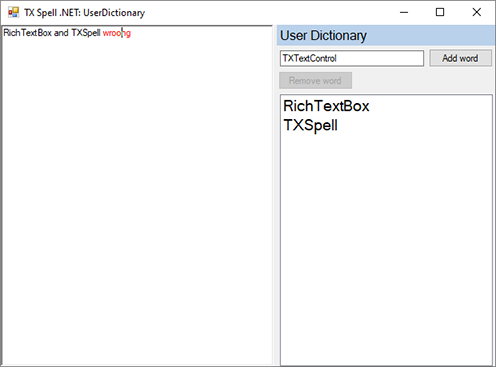
Add a User Dictionary That Keeps Its Words
Warning
Unsaved Words. A user dictionary exists only in memory until you save it.
The following form loads the user dictionary of the last session when it opens, and saves it every time a word is added or removed. The form has a TextControl connected to a TXSpellChecker called txSpellChecker1, as in Create Your First Windows Forms Application:
using System;
using System.Globalization;
using System.IO;
using System.Windows.Forms;
using TXTextControl.Proofing;

public partial class Form1 : Form
{
    private readonly UserDictionary userDictionary;

    // A folder the user can write to
    private readonly string userDictionaryPath = Path.Combine(
        Environment.GetFolderPath(Environment.SpecialFolder.ApplicationData),
        "MyCompany", "MyApp", "en_custom.txd");

    public Form1()
    {
        InitializeComponent();

        // Load the words of the last session, or start with an empty user dictionary
        userDictionary = File.Exists(userDictionaryPath)
            ? new UserDictionary(userDictionaryPath)
            : new UserDictionary();

        txSpellChecker1.Dictionaries.Add(userDictionary);
        userDictionary.Language = new CultureInfo("en-US");
        userDictionary.Name = "User Dictionary";

        // Words every user needs
        userDictionary.AddWord("TXTextControl");

        // Save whenever a word is added or removed, for example with Add To Dictionary
        txSpellChecker1.UserDictionaryWordAdded += (sender, e) => SaveUserDictionary();
        txSpellChecker1.UserDictionaryWordRemoved += (sender, e) => SaveUserDictionary();
        FormClosing += (sender, e) => SaveUserDictionary();
    }

    private void SaveUserDictionary()
    {
        Directory.CreateDirectory(Path.GetDirectoryName(userDictionaryPath));

        if (!userDictionary.Save(userDictionaryPath))
        {
            MessageBox.Show("The user dictionary could not be saved.");
        }
    }
}
What the Code Does
- The constructor with a path loads an existing .txd file. The constructor without arguments creates an empty user dictionary. The code checks first whether the file exists, because in the first session there is none.
- Add puts the user dictionary into the collection. Only then does it take part in checking, and only then do its methods have an effect.
- Language ties the dictionary to US English, so that Add To Dictionary adds English words to it. A file name that starts with a locale, such as en_custom.txd, sets the language as well when the dictionary is loaded from the default folder.
- Name names the user dictionary. The options dialog and the dictionary list of the spell check dialog show it, because DisplayName defaults to the name.
- AddWord adds a word in code. A word that is already there is not added twice.
- UserDictionaryWordAdded and UserDictionaryWordRemoved fire when a word is added to or removed from a user dictionary, including through Add To Dictionary.
- Save writes the words to the file and returns
falsewhen nothing was written, for example because the name doesn't end with .txd. An existing file is overwritten. Afterward, FilePath holds the path.
The folder below AppData is one the user can always write to; the installation folder of an application usually isn't. A name without a path, such as Save("en_custom.txd"), saves into the default dictionary folder.
Add and Remove Words in Code
Besides AddWord, a UserDictionary has these methods to change and read its words:
| Member | Does |
|---|---|
| RemoveWord | Removes one word; returns false if the word wasn't there |
| RemoveAllWords | Removes all words |
| ToArray | Returns the entries as a string array, for example to show them in a list |
AddWord, RemoveWord and RemoveAllWords have no effect, and return false, while the dictionary is not in Dictionaries or while IsEditable is false. Save has a second overload, Save(out string[]), which returns the file's lines as an array instead of writing a file, to store them in a database; the constructor that takes a string array and a language loads them again.
The File Format
The file that Save writes for the form above, after the user has added TXSpell with Add To Dictionary, looks like this:
SET utf-8
WORDCHARS @
TXSpell
TXTextControl
The first line, SET, names the encoding of the file. When a file has no SET line and the DictionaryEncoding property doesn't name one either, TX Spell .NET reads it with the current ANSI code page of the operating system, so write the line to keep words with accents and umlauts intact. The words follow, one per line, in alphabetical order.
At the top of the file, before the words, a user dictionary can define how text is split into words. These flags are the same ones Hunspell dictionaries use:
| Flag | Defines |
|---|---|
SET | The encoding of the file |
WORDCHARS | Characters that count as part of a word, beyond letters and digits |
BREAK | Characters that are both part of a word and a delimiter |
ICONV | A character that is replaced by another before a word is checked |
This user dictionary makes hyphens, apostrophes and dashes part of words, and reads the typographic apostrophe as a straight one and the em dash as a hyphen:
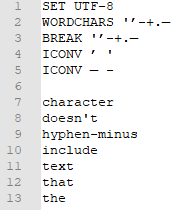
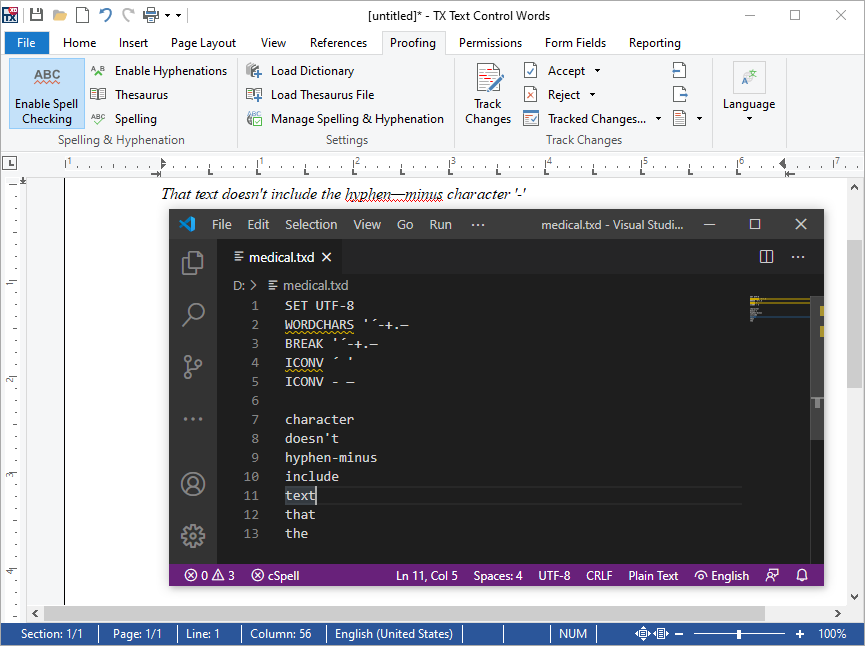
With it, the sentence That text doesn’t include the hyphen—minus character '-'., written with a typographic apostrophe, has no misspelled words. Without the flags, doesn, hyphen and minus are reported. The same file edited next to TX Text Control Words:
Let Users Manage Their User Dictionaries
The options dialog of TX Spell .NET has a User Dictionaries... button on its Spell Checking Dictionaries tab, which opens a dialog in which users edit, create, add and remove user dictionaries. The Spell Checking Dictionaries Tab describes it.
Keep Words the User Can't Change
A user dictionary with IsEditable set to false still accepts its words, but Add To Dictionary doesn't write to it and users can't change it. That makes it an ignore list for names and terms your application brings along. Ignore Settings shows the code; fill the list before you set IsEditable to false.
Words From Other Spell Checkers
Most other spell checkers can export their user dictionaries as text word lists. Add a SET line with their encoding at the top, for example SET iso-8859-1, save the file with the extension .txd, and TX Spell .NET loads it. The blog article Converting 3rd-party User Dictionaries to TX Spell .NET describes this for RapidSpell and offers a converter for ComponentOne SpellChecker dictionaries.
Next Steps
- Loading and Managing Dictionaries: the collection the user dictionaries belong to.
- Options Dialog: the dialogs in which users manage dictionaries.
- Events: the other events of the spell checker.