
Options Dialog
Which words should the spell checker skip, which dictionaries should it use, and how should words be hyphenated? The Options dialog of TX Spell .NET lets the user of your application answer these questions without any code of yours. Read on for the tabs of the dialog and the properties behind each setting, how to open the dialog with some tabs only, and how to hide dictionaries from it or replace it with a dialog of your own.
Open the Dialog
The user reaches the dialog in two ways, and your code in a third:
Options... in the spell check dialog of TX Spell .NET.
Options... in the context menu of a misspelled word, when the spell checker is connected to a
TextControl. Context Menus shows the menu.The OptionsDialog method of the TXSpellChecker, called from a menu item or a button of your application:
private void menuItemSpellingOptions_Click(object sender, EventArgs e)
{
    txSpellChecker1.OptionsDialog();
}
The dialog has the title Options and up to four tabs: Spell Checking Options, Spell Checking Dictionaries, Hyphenation and Thesaurus. It closes with OK.
The Spell Checking Options Tab
The first tab decides which words the spell checker leaves alone:
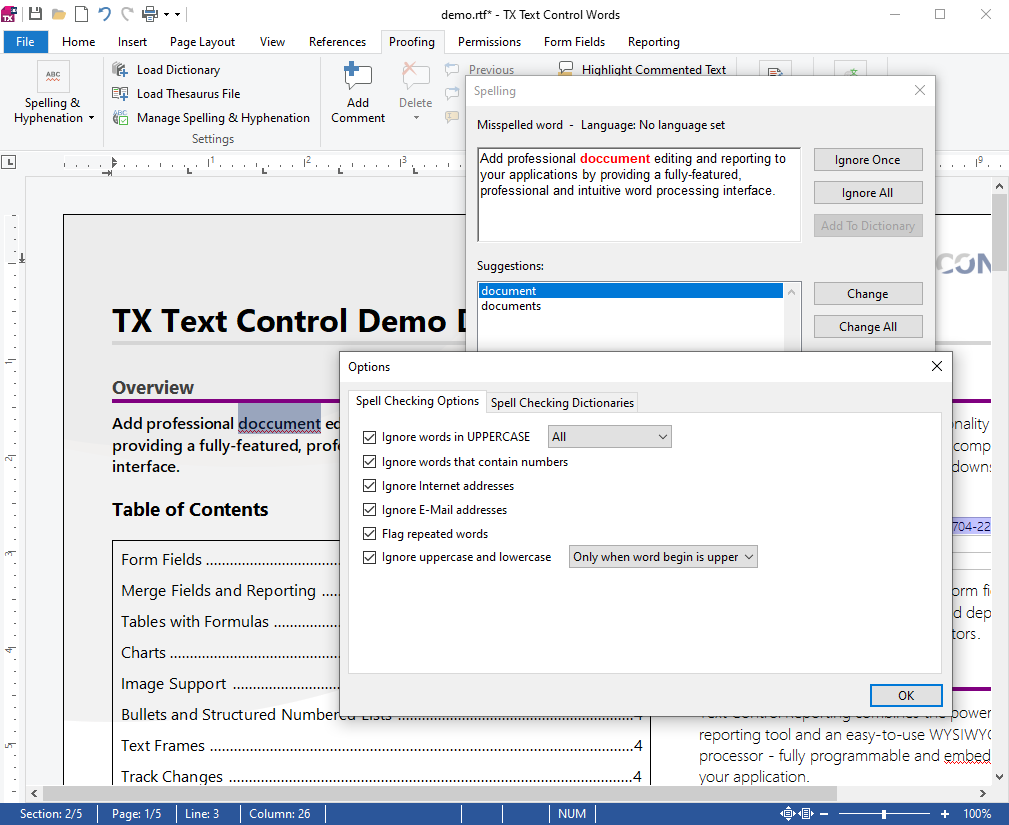
Its settings are those of two properties of the TXSpellChecker, IgnoreWord and IgnoreCase. Each setting has a related value in TXSpell.IgnoreWordSettings or TXSpell.IgnoreCaseSettings:
| Setting | Related value |
|---|---|
| Ignore words in UPPERCASE, with All or Only correct words | IgnoreWordSettings.InUpperCase |
| Ignore words that contain numbers | IgnoreWordSettings.WithNumbers |
| Ignore Internet addresses | IgnoreWordSettings.IsURL |
| Ignore E-Mail addresses | IgnoreWordSettings.IsEmail |
| Flag repeated words | IgnoreWordSettings.Duplicated |
| Ignore uppercase and lowercase, with All, Only at word begin or Only when word begin is upper | IgnoreCaseSettings |
By default, words in uppercase, words with numbers, Internet addresses and e-mail addresses are ignored. Ignore Settings explains each value and how to set it in code.
The Spell Checking Dictionaries Tab
The second tab lists the dictionaries of the spell checker, one row each:
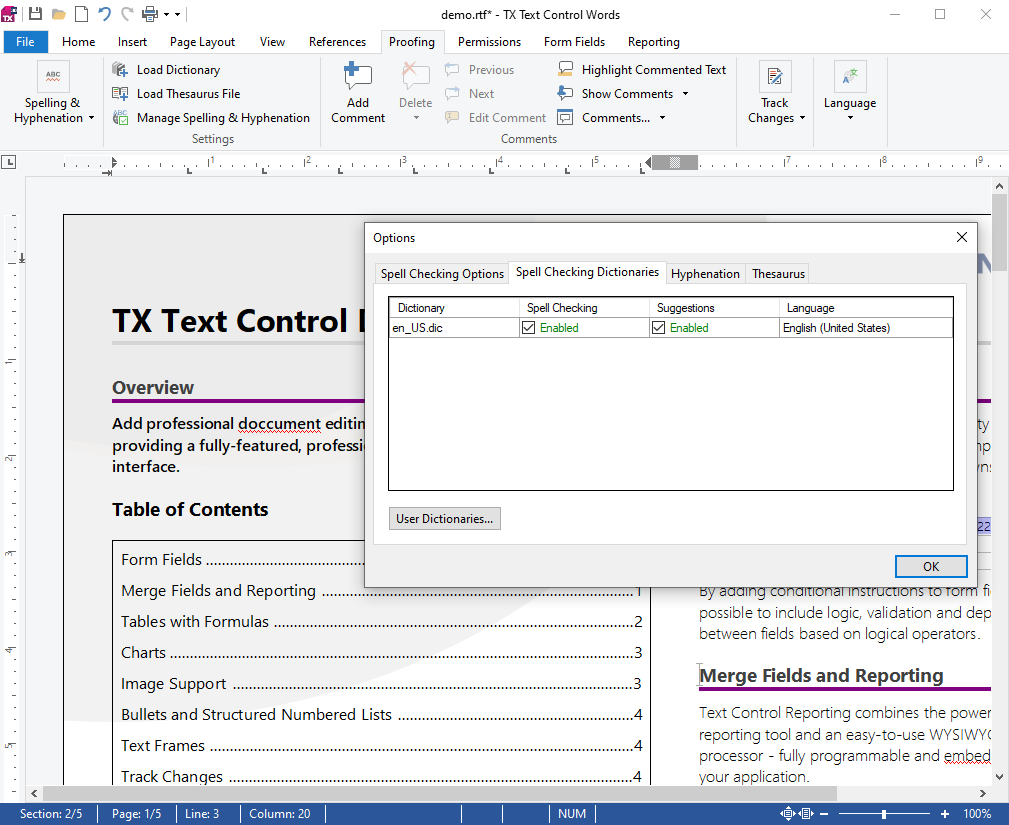
| Column | Property of the Dictionary |
|---|---|
| Dictionary | Its name, or its DisplayName when you set one |
| Spell Checking | IsSpellCheckingEnabled: the dictionary is used to check words |
| Suggestions | IsGetSuggestionsEnabled: the dictionary is used to create suggestions |
| Language | The language of the dictionary |
A new dictionary is enabled for both. The user switches a dictionary off for checking or for suggestions with the check box in its cell. The list shows the dictionaries of the Dictionaries property; Loading and Managing Dictionaries shows how to add them.
User Dictionaries... opens a second dialog with the user dictionaries, the word lists the user adds words to:
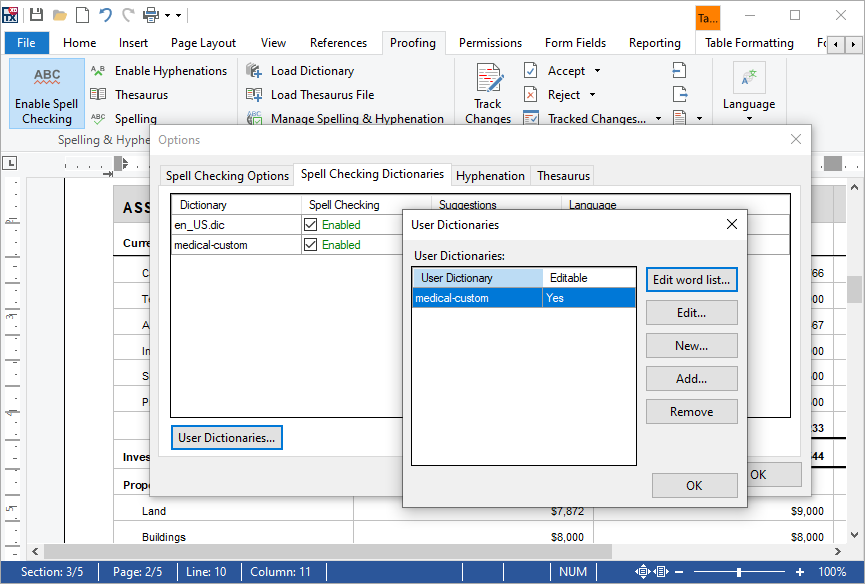
The user edits the words of a user dictionary, creates a new one, adds an existing file or removes one. The Editable column shows the IsEditable property of each UserDictionary: only an editable user dictionary takes the words of Add To Dictionary. User Dictionaries describes them.
The Hyphenation and Thesaurus Tabs
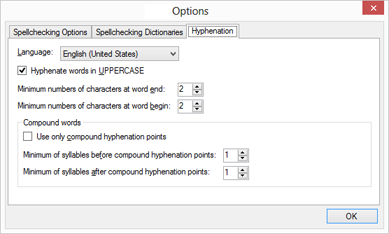
The Hyphenation tab sets how words are hyphenated in the language chosen in its Language list. Each setting is a property of the HyphenationList of that language:
| Setting | Property |
|---|---|
| Hyphenate words in UPPERCASE | HyphenateCapitalizedWords |
| Minimum number of characters at word begin | MinCharsAtWordBegin |
| Minimum number of characters at word end | MinCharsAtWordEnd |
| Use only compound hyphenation points | UseOnlyCompoundHyphenationPoints |
| Minimum of syllables before compound hyphenation points | MinSyllablesBeforeCompoundHyphenationPoint |
| Minimum of syllables after compound hyphenation points | MinSyllablesAfterCompoundHyphenationPoint |
Change How Words Are Divided gives the default and the effect of each property.
The picture shows the tab of version 4.0, the version that introduced hyphenation. Its labels differ slightly from the current ones, but the settings are the same:
The Thesaurus tab lists the synonym lists of the SynonymLists property, with the columns Thesaurus File, Create Synonyms and Language. Create Synonyms is the IsCreateSynonymsEnabled property of each SynonymList. Hyphenation Lists and Synonym Lists describe both kinds of lists.
Show Only Some Tabs
An overload of OptionsDialog takes the tabs to show, as an array of their indices: 0 for Spell Checking Options, 1 for Spell Checking Dictionaries, 2 for Hyphenation and 3 for Thesaurus. An application without hyphenation and synonyms shows the first two:
txSpellChecker1.OptionsDialog(new int[] { 0, 1 });
The array must contain at least one index; an empty array throws an ArgumentException. The first picture on this page shows the dialog with these two tabs, as it opens from the spell check dialog.
Choose Where the Dialog Opens
The dialog opens in the center of the screen unless you pass a ShowDialogSettings object. This code centers it on the form that calls it:
using TXTextControl.Proofing;

ShowDialogSettings settings = new ShowDialogSettings();
settings.Owner = this;
settings.StartPosition = TXSpell.DialogStartPosition.CenterOwner;

txSpellChecker1.OptionsDialog(settings, new int[] { 0, 1 });
The code works as follows:
- Owner is the window that owns the dialog, here the form.
- StartPosition is a value of TXSpell.DialogStartPosition.
Manualopens the dialog at the screen coordinates in Location. - Two more overloads take the settings alone, for all tabs, or the tabs alone, as above.
Hide or Rename a Dictionary
Some dictionaries are part of your application and not the user's to switch off, such as a list of product names. Set ShowInOptionsDialog to false before you add such a dictionary, and it is not listed in the dialog. A dictionary with a technical file name gets a readable name with DisplayName:
// A dictionary the user doesn't see in the Options dialog
OpenOfficeDictionary products = new OpenOfficeDictionary("Dictionaries\\products.dic");
products.ShowInOptionsDialog = false;
txSpellChecker1.Dictionaries.Add(products);

// A readable name for the English dictionary
txSpellChecker1.Dictionaries.GetItem("en_US.dic").DisplayName = "English (US)";
The display name is used in the options dialog and in the Suggestions Dictionary list of the spell check dialog. products.dic stands for a dictionary file of your own in the Dictionaries folder of the application.
Replace the Dialog With Your Own
The OptionsDialogOpening event fires before the dialog opens from OptionsDialog or from Options... in the spell check dialog. Set Cancel of its OptionsDialogOpeningEventArgs to true, and show a form of your own instead:
txSpellChecker1.OptionsDialogOpening += (sender, e) =>
{
    // Don't show the built-in dialog
    e.Cancel = true;

    using (SpellingSettingsForm settingsForm = new SpellingSettingsForm(txSpellChecker1))
    {
        settingsForm.ShowDialog(this);
    }
};
SpellingSettingsForm stands for a form of your application. It sets the properties that the tabs above set, such as IgnoreWord, IgnoreCase and the properties of the dictionaries. To take the options away from the user entirely, remove the Options... button from the spell check dialog, as Customizing the Spell Check Dialog shows.
Next Steps
- Ignore Settings: the settings of the first tab, in code.
- Loading and Managing Dictionaries: the dictionaries the second tab lists.
- Spell Check Dialog: the dialog with the Options... button.
- Context Menus: the menu with the Options... item.
- Localization and Resource Kit: the dialog in the language of the user.