
Spell Check Dialog and Options Dialog
TX Spell .NET for Windows Forms has two dialogs built in, so that an application gets a complete spelling user interface without designing one. The spell check dialog corrects the misspelled words of a text one by one; the options dialog lets the user decide what is checked and with which dictionaries. Both belong to the TXSpellChecker component, and both can be adapted to your application.
The Spell Check Dialog
The spell check dialog, titled Spelling, shows each misspelled word in its sentence, with suggestions, the dictionary they come from, and the commands to ignore the word, add it to a user dictionary or change it:
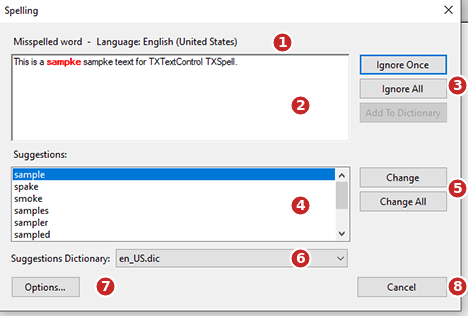
You don't create the dialog: the SpellCheckDialog property of the spell checker returns it, and Show opens it. For a TextControl, the dialog applies the corrections itself; for another control, your code applies them in an event. Its buttons, font, preview and behavior can be changed in code before it opens. Spell Check Dialog describes each part and button, and Customizing the Spell Check Dialog the changes.
TX Text Control has a spelling dialog of its own, which its context menu opens. It looks the same, but it can't be changed. Checking on Demand compares the two.
The Options Dialog
The options dialog, titled Options, has up to four tabs: Spell Checking Options, Spell Checking Dictionaries, Hyphenation and Thesaurus. The user chooses the words to ignore, switches dictionaries on and off, and edits user dictionaries:
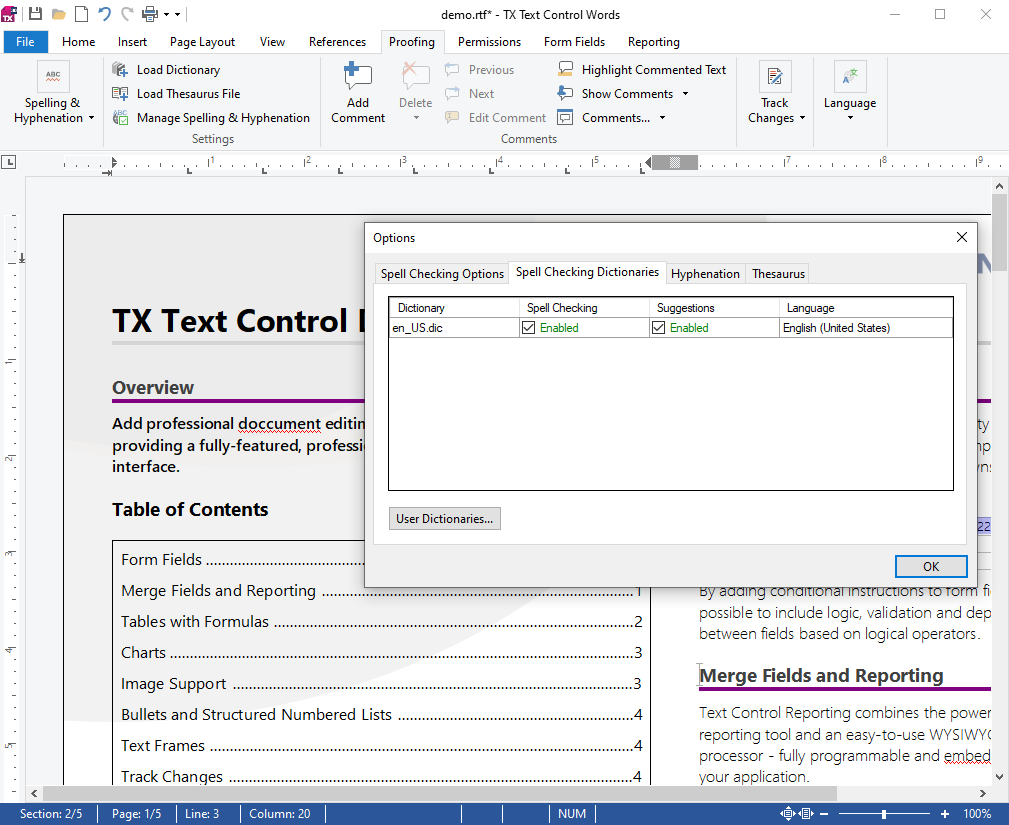
The user opens it with Options... in the spell check dialog or in the context menu, and your code with OptionsDialog, with all tabs or only some. Each setting is a property of the spell checker, its dictionaries or its lists, and a dialog of your own can replace it; Options Dialog describes the tabs and both.
Languages and Screens
Both dialogs show their texts in English, and in German when the German satellite assembly of the package is deployed with the application; other languages need the Resource Kit. Since version 8.0, both dialogs also scale with the display in Windows Forms, on monitors with different scale factors, too.
Where to Read More
| Topic | Page |
|---|---|
| Every part and button of the spell check dialog, where it opens, how a check ends | Spell Check Dialog |
| Rename, remove and add buttons, font, preview | Customizing the Spell Check Dialog |
| The tabs of the options dialog and the properties behind them | Options Dialog |
| The dialogs in other languages | Localization and Resource Kit |
| A first application with the dialog | Open the Spell Check Dialog |
Next Steps
- Context Menu and Suggestion Controls: corrections without a dialog.
- TXSpellChecker: the component the dialogs belong to.
- Spell Check Dialog: the dialog in detail.