
Suggestion Controls
Suggestions are the words TX Spell .NET offers in place of a misspelled one. The user sees them in the list of the spell check dialog, at the top of the context menu, or in a control of your own that you fill. TX Spell .NET has no separate suggestion control to drop on a form: you set up the lists of its dialog and menu, or you show suggestions in a standard ListBox. Each of these places is covered below, with what it shows and the properties that change it.
Where Suggestions Appear
| Place | What you set | Covered in |
|---|---|---|
| Suggestions list of the spell check dialog | SuggestionList | The Suggestion List of the Dialog |
| Suggestions Dictionary list of the dialog | SuggestionDictionaryComboBox | The Suggestions Dictionary List |
| Top of the context menu | The maxSuggestions parameter of GetMenuItems | Suggestions in the Context Menu |
| A control of your own | CreateSuggestions or the SpellingCorrectionUIProvider | Show Suggestions Next to the Word |
Which suggestions are found at all depends on the dictionaries: only a dictionary whose IsGetSuggestionsEnabled property is true provides suggestions. It is true by default, and the user changes it in the Suggestions column of the Options Dialog.
The Suggestion List of the Dialog
The spell check dialog lists the suggestions for the current word below the sentence. The SuggestionList property of the SpellCheckDialog describes this list:
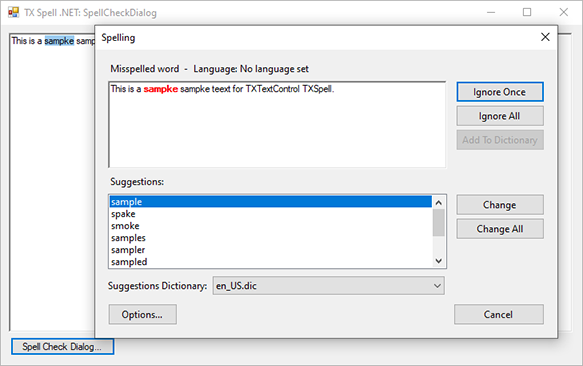
| Property | Default | Effect |
|---|---|---|
| MaxSuggestions | 10 | The largest number of suggestions in the list |
| IsNoSuggestionsItemEnabled | true | When no suggestion is found, the list shows an item that says so |
Set them before the dialog opens, for example in the constructor of the form:
using TXTextControl.Proofing;

SpellCheckDialog dialog = txSpellChecker1.SpellCheckDialog;

// Show the five best suggestions only
dialog.SuggestionList.MaxSuggestions = 5;

// Offer "All" in the Suggestions Dictionary list
dialog.SuggestionDictionaryComboBox.IsAllItemEnabled = true;
The second setting belongs to the list below the suggestions, described next.
The Suggestions Dictionary List
Suggestions Dictionary chooses the dictionary the suggestions come from. With one dictionary, it shows that dictionary. With several, for example English and a dictionary of medical terms, the user switches between them, and the list of suggestions changes with the choice:
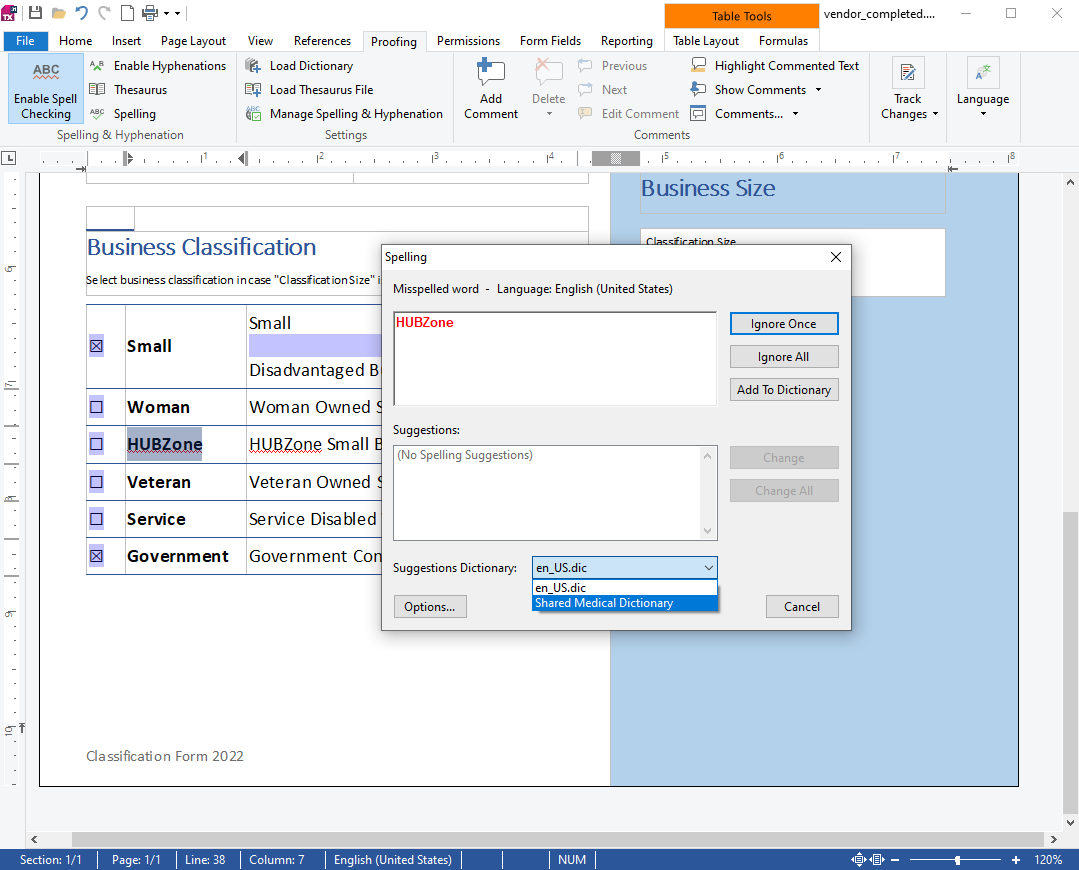
The SuggestionDictionaryComboBox property of the SpellCheckDialog describes this list:
| Property | Default | Effect |
|---|---|---|
| IsAllItemEnabled | false | Adds an All item that takes suggestions from all dictionaries at once. It appears only when more than one dictionary provides suggestions |
| IsAllItemSelected | false | Whether All is selected |
| SuggestionDictionary | The selected Dictionary, or null when All is selected |
The list shows a dictionary by its file name, such as en_US.dic, unless you give it a DisplayName. The picture shows "Shared Medical Dictionary" as the display name of a second dictionary. Options Dialog sets one in code.
To open the dialog with suggestions from one dictionary, pass it to Show, as in Show(textControl1, dictionary).
Suggestions in the Context Menu
The context menu of a misspelled word starts with its suggestions. When you build the menu yourself with GetMenuItems, its last parameter is the largest number of suggestions:
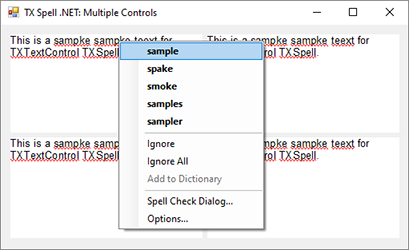
The Context menu strip samples of the setup pass 5. When no suggestion is found, the menu shows an item of the type NoSuggestions in their place. Context Menus builds the whole menu.
Show Suggestions Next to the Word
Suggestions can also appear while the user types, right below the misspelled word, without a right-click. The blog article Interactive Spelling Suggestions Using TX Spell .NET shows a sample that does this with a panel of tiles:
This form does the same with a ListBox. It creates its controls in code, so it runs in a new Windows Forms project with the TX Text Control and TX Spell .NET packages; add a Main method or create the form from Program.cs:
using System.Drawing;
using System.Windows.Forms;
using TXTextControl;
using TXTextControl.Proofing;

public class SuggestForm : Form
{
    private readonly TextControl textControl1 = new TextControl();
    private readonly TXSpellChecker txSpellChecker1 = new TXSpellChecker();
    private readonly ListBox suggestionList = new ListBox();

    public SuggestForm()
    {
        textControl1.Dock = DockStyle.Fill;
        textControl1.SpellChecker = txSpellChecker1;
        textControl1.IsSpellCheckingEnabled = true;
        Controls.Add(textControl1);

        // The list floats over the text, hidden until there are suggestions
        suggestionList.Visible = false;
        suggestionList.Width = 150;
        suggestionList.Height = 100;
        textControl1.Controls.Add(suggestionList);
        suggestionList.MouseClick += suggestionList_MouseClick;

        textControl1.Changed += (sender, e) => ShowSuggestions();
        textControl1.InputPositionChanged += (sender, e) => ShowSuggestions();
        textControl1.Zoomed += (sender, e) => ShowSuggestions();
    }

    private void ShowSuggestions()
    {
        // The misspelled word at the input position
        MisspelledWord word = textControl1.MisspelledWords.GetItem();
        if (word == null || textControl1.Selection.Start < word.Start - 1
            || textControl1.Selection.Start > word.Start + word.Length - 1)
        {
            suggestionList.Visible = false;
            return;
        }

        txSpellChecker1.CreateSuggestions(word.Text, 6);
        if (txSpellChecker1.Suggestions.Count == 0)
        {
            suggestionList.Visible = false;
            return;
        }

        suggestionList.Items.Clear();
        foreach (Suggestion suggestion in txSpellChecker1.Suggestions)
        {
            suggestionList.Items.Add(suggestion.Text);
        }

        // Place the list below the word; the text positions are in twips
        int twipsPerPixel = (int)(1440 / textControl1.CreateGraphics().DpiX);
        Rectangle bounds = textControl1.TextChars[word.Start].Bounds;
        suggestionList.Location = new Point(
            (bounds.Left - textControl1.ScrollLocation.X) / twipsPerPixel * textControl1.ZoomFactor / 100,
            (bounds.Bottom - textControl1.ScrollLocation.Y) / twipsPerPixel * textControl1.ZoomFactor / 100);
        suggestionList.Visible = true;
    }

    private void suggestionList_MouseClick(object sender, MouseEventArgs e)
    {
        if (suggestionList.SelectedItem == null) return;

        // Replace the misspelled word with the clicked suggestion
        textControl1.MisspelledWords.Remove(textControl1.MisspelledWords.GetItem(), suggestionList.SelectedItem.ToString());
        suggestionList.Visible = false;
        textControl1.Focus();
    }
}
The code works as follows:
- The
Changed,InputPositionChangedandZoomedevents of theTextControlupdate the list whenever the text, the input position or the zoom changes. - GetItem without a parameter returns the misspelled word at the input position, or the next one when there is none. The comparison with Selection.Start hides the list when the input position is not in the word or directly in front of or behind it.
Selection.Startcounts from 0 andStartof the word from 1. - CreateSuggestions creates at most six suggestions for the word and stores them in Suggestions, a collection of Suggestion objects with a Text.
- Bounds of the first character of the word, in twips, gives the position below the word. ScrollLocation and ZoomFactor turn it into a position on the screen.
- Remove of the
MisspelledWordscollection replaces the word with the clicked suggestion.
Incorrect Words and Suggestions explains CreateSuggestions and its overloads in detail.
Bind a List to the Correction Provider
For a correction panel that works through the misspelled words one by one, like the dialog, bind a ListBox to the SpellingCorrectionUIProvider. Its Suggestions always hold the suggestions for the current word, and its SuggestionDictionaries fill a list of dictionaries like the one of the dialog. The list updates through data binding, without event handlers of yours. Spelling Correction Modes and UI Provider builds such a panel.
Next Steps
- Incorrect Words and Suggestions: create suggestions in code.
- Context Menus: the menu with the suggestions at the top.
- Customizing the Spell Check Dialog: change the buttons, the font and the preview of the dialog.
- Loading and Managing Dictionaries: add the dictionaries that suggestions come from.