
Checking Text Parts
A document in TX Text Control is more than its main text. Headers, footers and text frames hold text of their own, and each of them is a separate text part with its own misspelled words. By default, spell checking covers all of them. When a letterhead in the header or a form in text frames should be left alone, or only the footers should be checked, the spell check dialog of TX Spell .NET can be steered from one text part to another.
What Text Parts Are
The TextParts property of a TextControl returns a TextPartCollection with every text part of the document. The first entry is the main text, a MainText object. Text frames (TextFrame) follow, and headers and footers (HeaderFooter) come last. Footnote sections are text parts, too.
All text parts implement IFormattedText, and each has its own list of misspelled words in IFormattedText.MisspelledWords. The MisspelledWords property of the TextControl itself holds only the words of the text part that has the input focus.
How the Dialogs Walk Through the Text Parts
Both spelling dialogs check every text part:
- The dialog of TX Text Control, opened with TextControl.SpellCheckDialog, starts with the main text and continues with the headers, footers and text frames.
- The SpellCheckDialog of TX Spell .NET, opened with
Show(textControl1), also covers all text parts, and can be told which one to check next.
A choice in the dialog of TX Spell .NET can reach beyond the current text part. When the user clicks Ignore All or Change All, the word is ignored or changed in all text parts, because two properties are true by default:
| Property | Default | When true |
|---|---|---|
| IgnoreInAllTextParts | true | An ignore operation applies in all text parts |
| ChangeInAllTextParts | true | A change operation applies in all text parts |
Set them to false to keep each choice inside the text part where the user made it. Both work only when the dialog checks a TextControl.
Count the Misspelled Words of Each Text Part
Before deciding what to check, you can find out where the mistakes are. This handler goes through the text parts and lists how many misspelled words each holds:
private void buttonReport_Click(object sender, EventArgs e)
{
    listBoxReport.Items.Clear();

    foreach (TXTextControl.IFormattedText textPart in textControl1.TextParts)
    {
        string kind =
            textPart is TXTextControl.MainText ? "Main text" :
            textPart is TXTextControl.TextFrame ? "Text frame" :
            textPart is TXTextControl.HeaderFooter ? "Header or footer" :
            "Other";

        listBoxReport.Items.Add($"{kind}: {textPart.MisspelledWords.Count} misspelled word(s)");
    }
}
The code works as follows:
TextPartsenumerates the text parts asIFormattedTextobjects, main text first.- The
istests tell the kinds apart; a footnote section counts as "Other" here. MisspelledWords.Countis the number of misspelled words the connected spell checker found in that part.
Start the Dialog in a Chosen Text Part
The dialog of TX Spell .NET raises SpellCheckDialogOpening when Show opens it. Its argument has a StateManager, a SpellCheckDialogStateManager, which gets and sets the word the dialog handles next. One overload of its SetNext method takes a misspelled word and the text part that contains it.
This handler makes the dialog begin with the first misspelled word of the first header or footer, rather than with the main text:
private void txSpellChecker1_SpellCheckDialogOpening(object sender, TXTextControl.Proofing.SpellCheckDialogOpeningEventArgs e)
{
    foreach (TXTextControl.IFormattedText textPart in textControl1.TextParts)
    {
        if (!(textPart is TXTextControl.HeaderFooter)) continue;

        foreach (TXTextControl.MisspelledWord misspelledWord in textPart.MisspelledWords)
        {
            // Continue the check with this word of this header or footer
            e.StateManager.SetNext(misspelledWord, textPart);
            return;
        }
    }
}
The code works as follows:
SetNext(misspelledWord, iFormattedText)sets the MisspelledWord the dialog shows next. The text part must belong to theTextControlthe dialog checks; otherwise the method throws an exception.- NextMisspelledWord and NextIFormattedText read what the dialog will show next, and in which text part.
- The event fires for the dialog of TX Spell .NET only, so open it with
txSpellChecker1.SpellCheckDialog.Show(textControl1).
The same state manager is passed to the DialogButtonClicked and SpellCheckDialogClosing events, so the dialog can be steered on while the user works through it. Checking Multiple Controls uses the closing event to move on to the next editor.
Check Only the Text Parts the User Chooses
The TextControl\SpellCheckDialog on specific text parts sample of the setup combines these members. Its document has main text, a header, a footer and several text frames. Check boxes below the editor choose which kinds of text parts are checked, and Spell Check Dialog opens a dialog that shows only the misspelled words of the chosen parts:
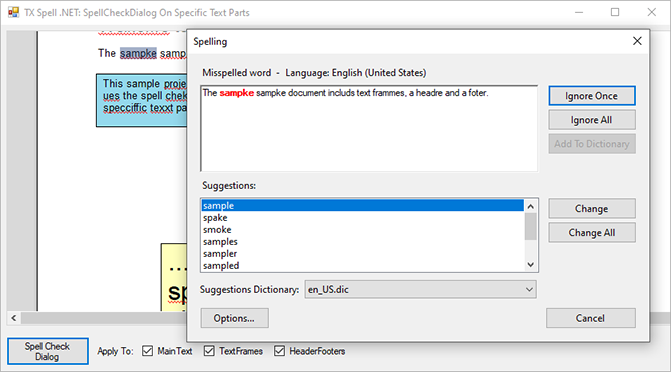
The sample steers the dialog with the SetNext overload that names a text part. Spell Checking Examples lists where the setup installs it, in C# and Visual Basic.
Next Steps
- Checking Multiple Controls: continue the dialog with the next editor.
- Checking on Demand: open the two dialogs and choose between them.
- Events: every event of the dialog, with its arguments.
- Spell Check Dialog: the parts of the dialog the user works with.